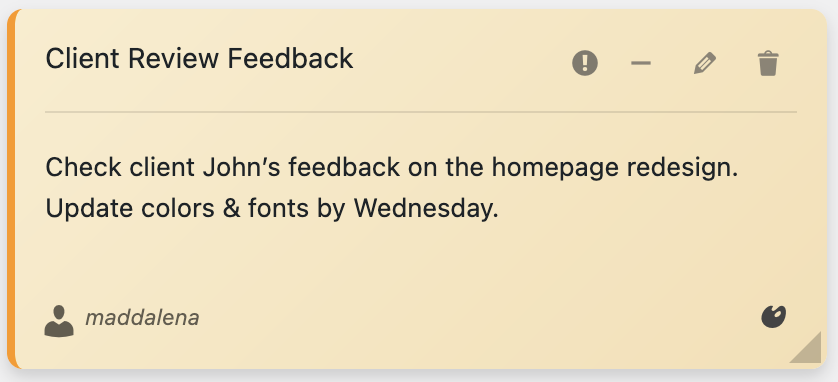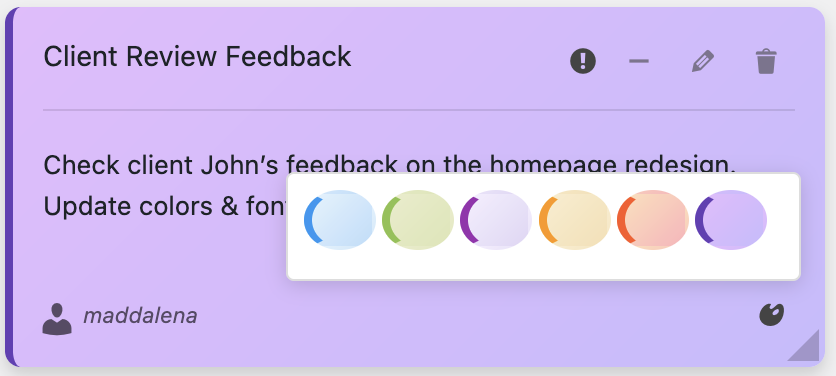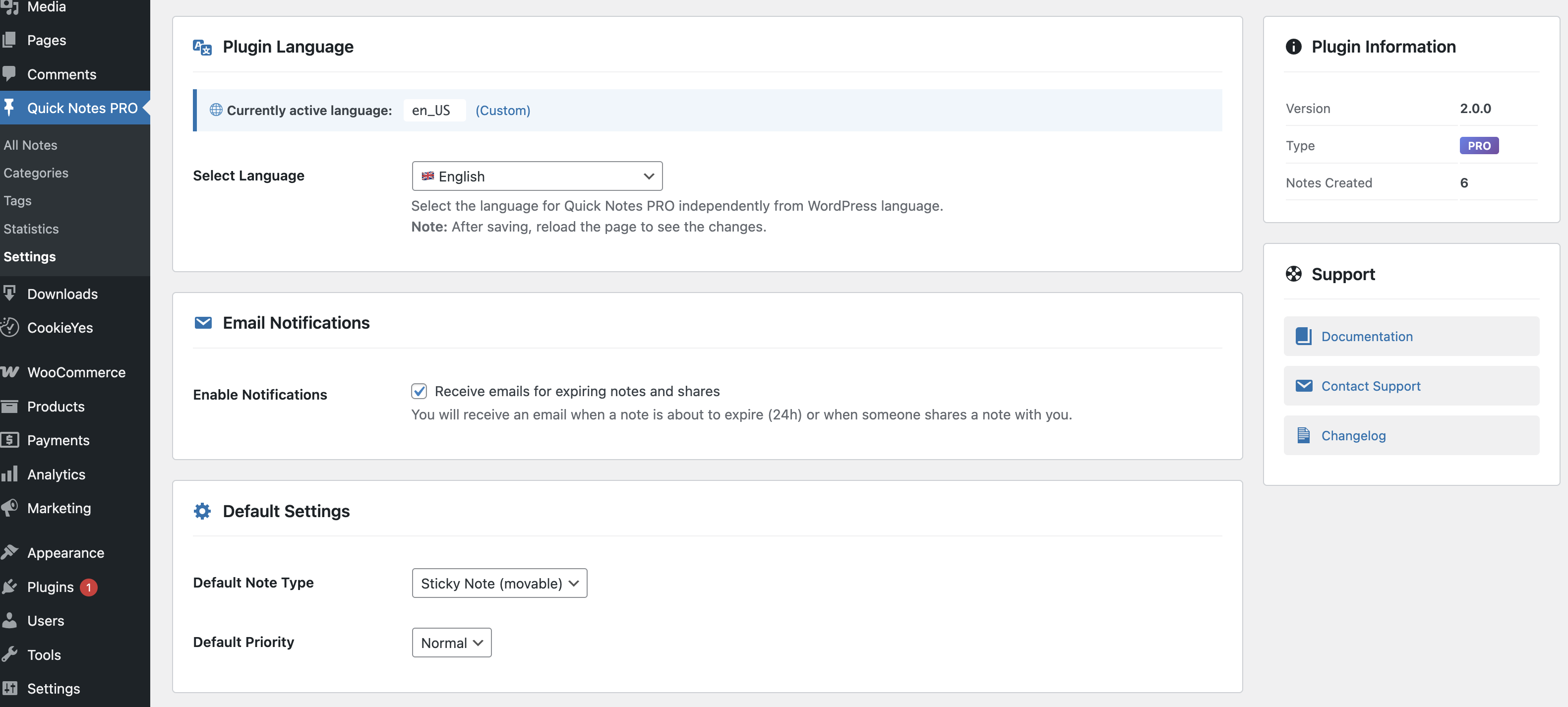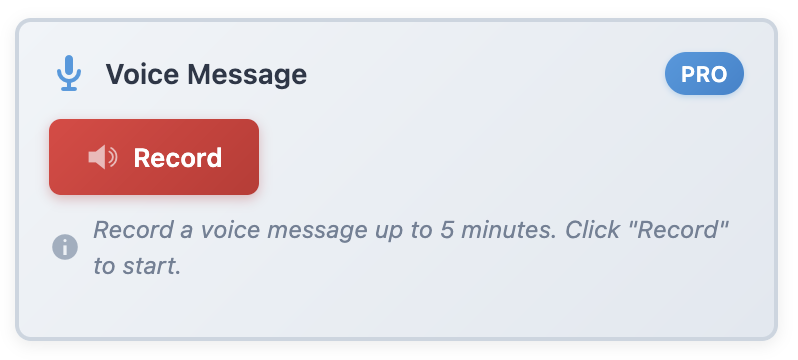
Posted on Leave a comment

Best Free Plugins for WP Dashboard Notes & Reminders

WordPress Dashboard Plugins

Ever find yourself frantically searching through emails, Slack messages, and random text files trying to remember what you need to do on your WordPress site? Yeah, me too. It’s like playing hide-and-seek with your own brain, and honestly, it’s exhausting.

Here’s the thing: your WordPress dashboard is where you spend most of your time. So why not keep your reminders, notes, and to-dos right there where you need them? It’s like having sticky notes on your computer screen, but way more organized and a lot less likely to fall off.

In this guide, I’m going to walk you through the best plugins for dashboard notes and reminders—both free options and premium solutions that are worth every penny. Let’s dive in!

Why You Need a Dashboard Notes Plugin (Like, Yesterday)

Before we get into the plugins themselves, let’s talk about why this matters. I know, I know—you’re thinking “it’s just notes, how important can they be?” Very important, actually.

Think about your typical workday. You’re juggling content updates, plugin maintenance, customer support, SEO tasks, and about a million other things. How do you keep track of it all? If you’re like most people, you’ve got:

  • Sticky notes all over your desk (or your monitor)
  • A notebook that you constantly lose
  • Random text files scattered across your desktop
  • Mental notes that you definitely won’t forget (but totally will)
  • Email drafts to yourself that get buried in your inbox

💡 The Solution: Keep your notes where you work—right in your WordPress dashboard. It’s like having a personal assistant who never forgets and is always right there when you need them.

What Makes a Great Dashboard Notes Plugin?

Not all notes plugins are created equal. After testing dozens of options (yes, really—I have way too much time on my hands), here’s what separates the winners from the “meh” contenders:

Essential Features

🎯 Visibility Controls: You need to control who sees what. Not everyone needs to see everything, especially if you have multiple team members.

✏️ Easy Editing: If it takes 10 clicks to create a simple note, you won’t use it. Simple as that.

🎨 Customization: Colors, fonts, sizes—make it yours. Visual hierarchy matters when you’re scanning your dashboard quickly.

📍 Positioning: The ability to place notes where they make sense, not just in one fixed location.

Dashboard Notes Example

The Top Contenders: Free vs. Premium

Let’s get real for a minute. There are some decent free options out there, and they work fine for basic needs. But if you’re serious about organization and productivity? The premium options blow them out of the water.

Free Options: The Starting Point

I tested several free dashboard notes plugins, and here’s what I found:

Simple Dashboard Notes – Does what it says on the tin. Creates basic notes, but very limited customization. No role-based visibility, can’t change colors, and the interface feels like it’s from 2010. It works if you’re the only person using your site and you just need simple text reminders.

Admin Notes – Slightly better than the above. You get some basic formatting options and can create multiple notes. But still no role targeting, and the notes look pretty bland. It’s functional but not inspiring.

WP Dashboard Notes – Actually pretty solid for a free plugin! You can create notes with some basic styling. The downside? Limited to administrators only—your team members won’t see them unless they have admin access. That’s a dealbreaker for most multi-user sites.

⚠️ The Free Plugin Problem: They all suffer from the same issues—limited features, minimal support, and they often get abandoned by developers. I’ve seen too many “last updated 3 years ago” warnings to recommend them wholeheartedly.

The Premium Champion: Dashboard Quick Notes

Alright, let’s talk about the elephant in the room—or rather, the rockstar in the WordPress plugin directory. After testing everything available, Dashboard Quick Notes consistently comes out on top. And I’m not just saying that—let me show you why.
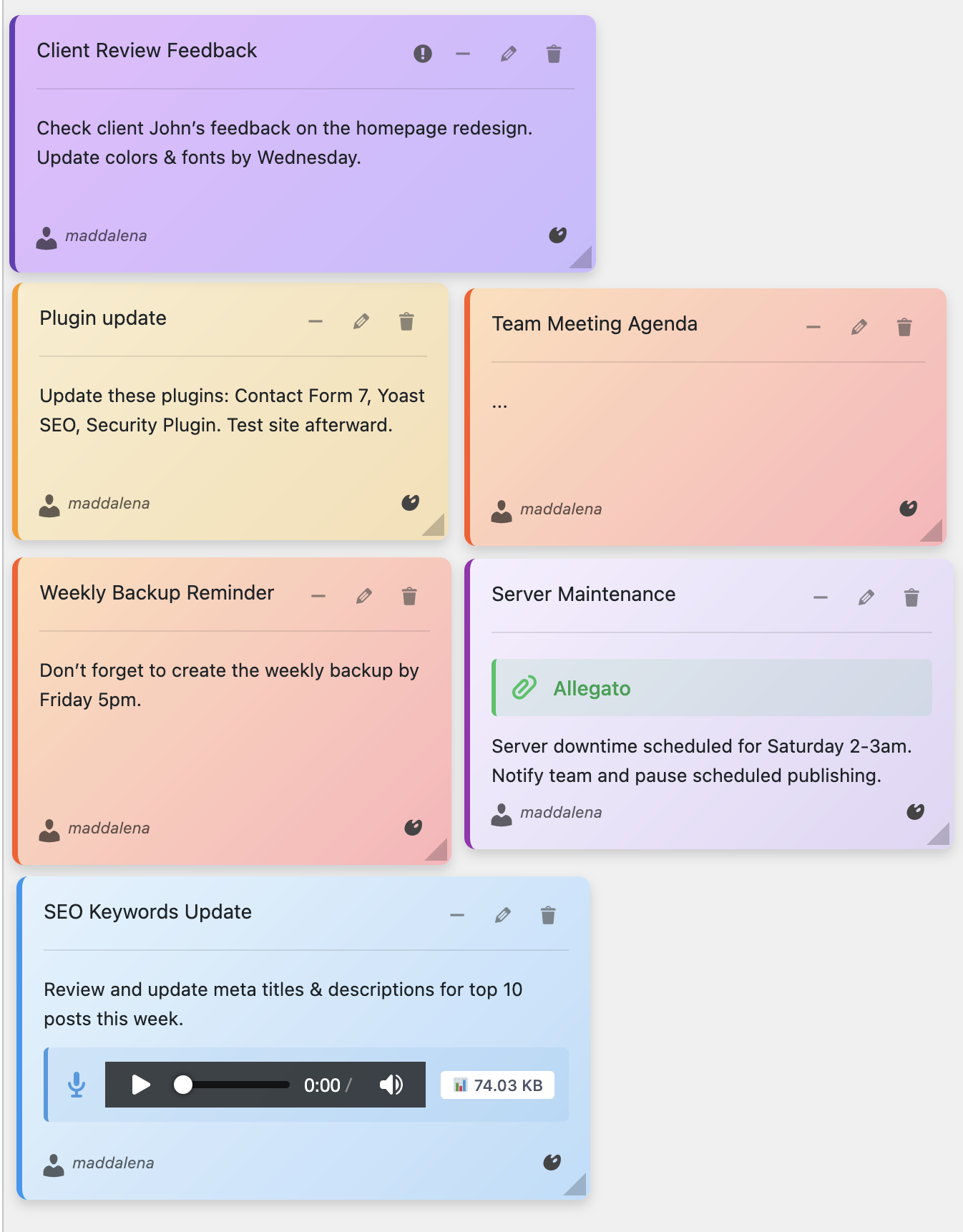
Dashboard Quick Notes Interface

What Makes It Special?

Role-Based Visibility
This alone is worth the price of admission. You can target notes to specific user roles. Admins see admin stuff, editors see editorial reminders, and contributors get their own relevant information. It’s like having a smart secretary who knows exactly who needs to hear what.

Gorgeous Visual Customization
Choose from multiple color schemes, adjust fonts, change sizes—make your notes actually look good. Because let’s face it, you’re more likely to read a well-designed note than a plain text blob.
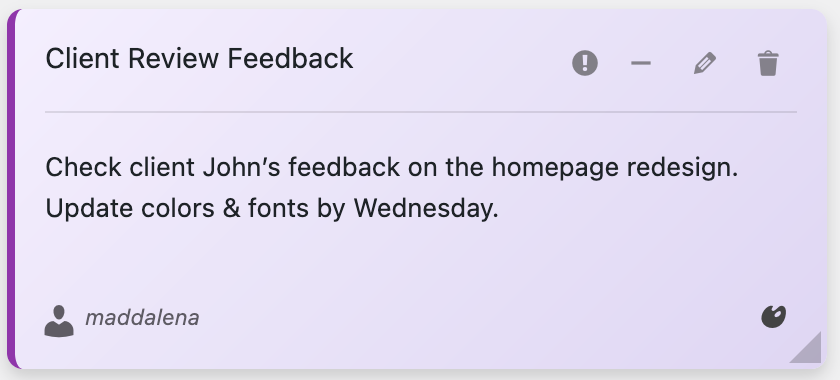
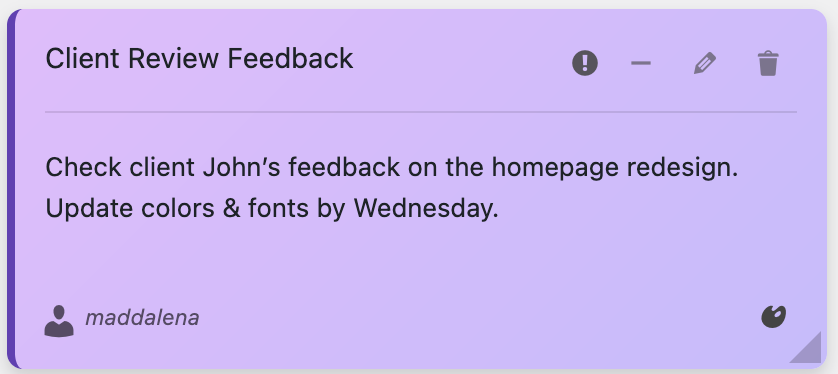
Pink Note Style
Violet Note Style
Yellow Note Style

Drag-and-Drop Simplicity
Rearrange your notes with simple drag-and-drop. No coding required. Want the urgent reminder at the top? Just drag it there. It’s so intuitive, your grandmother could figure it out (no offense to grandmas—mine is actually very tech-savvy).

Voice Recording
Here’s where things get really cool. You can record voice memos directly in your notes. Racing against a deadline and don’t have time to type? Just record it. It’s like leaving a voicemail for yourself or your team, but way more organized.
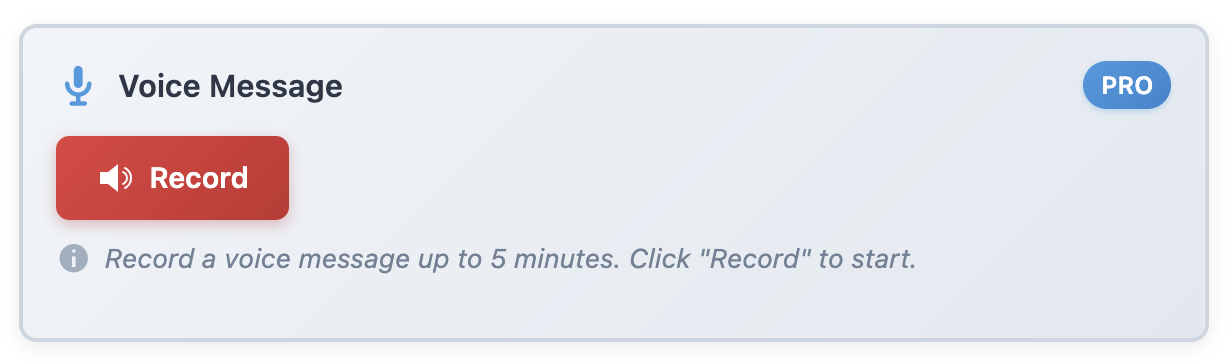
Voice Recording Feature

Archive System
Completed tasks don’t disappear into the void—they go to an archive. Need to reference an old note? It’s there. Want to keep your active dashboard clean? Done. Best of both worlds.

Export Functionality
Generate reports, keep records, share with clients—export your notes in multiple formats. This is clutch for agencies and freelancers who need to document their work.
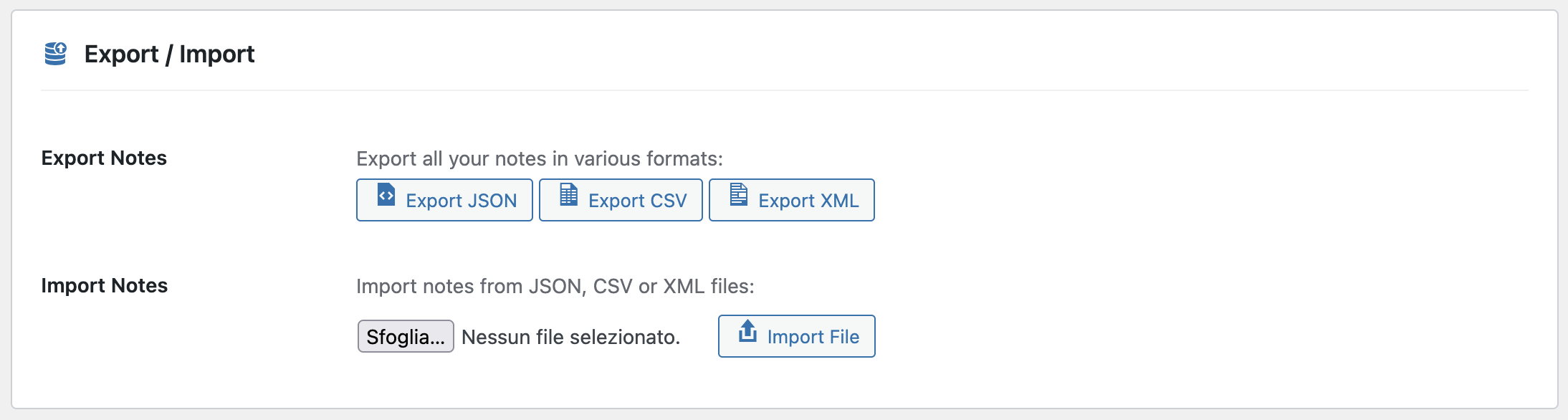
Export Notes Feature

Real Talk: Free vs. Premium Worth It?

Look, I get it. You’re wondering if a premium plugin is really necessary. Can’t you just make do with the free options? Sure, you can make do with a lot of things. You can also eat ramen for every meal, but is that the life you want?

Here’s my honest take after using both:

Free plugins are fine if:

  • You’re the only user on your site
  • You need basic text-only reminders
  • You don’t care about aesthetics
  • You’re okay with limited features

Premium is worth it if:

  • You have multiple team members
  • You want professional-looking notes
  • You value your time and want efficiency
  • You need reliable support
  • You want features that actually get updated

Think of it this way: if Dashboard Quick Notes saves you just 30 minutes per month in improved organization and communication, it’s already paid for itself. And trust me, it’ll save you way more than that.

How to Choose the Right Plugin for Your Needs

Okay, so you’re convinced you need a dashboard notes plugin (smart!). But how do you pick the right one? Let’s break it down by use case:

Solo Site Owners

If it’s just you, you could get away with a free plugin. But honestly? Dashboard Quick Notes is still worth it for the better organization and the peace of mind that comes with regular updates and support. Plus, as your site grows, you won’t need to migrate to a new system.

Small Teams (2-5 people)

Definitely go premium. The role-based features alone will transform how your team communicates. No more “did you see my email?” or “I thought I told you about that.” Everything’s right there in the dashboard where people actually work.

Agencies & Larger Organizations

This is a no-brainer—you need Dashboard Quick Notes. The export features, archive system, and role targeting are essential for managing complex projects and multiple team members. Free plugins won’t cut it.

Getting Started: Installation & Setup

Alright, decision made? Great! Let’s get you set up with Dashboard Quick Notes. The whole process takes less than 5 minutes, I promise.

Insert Note Interface

  1. Purchase & Download: Head to XpertPlugins.com and grab Dashboard Quick Notes
  2. Upload: In your WordPress dashboard, go to Plugins → Add New → Upload Plugin
  3. Activate: Click that shiny Activate button
  4. Configure: Navigate to Quick Notes in your dashboard menu and set your preferences
  5. Create Your First Note: Click “Add New” and start organizing your life!

💡 Pro Tip: Start with just a couple of notes. Don’t go crazy and create 50 notes on day one. Build your system gradually, and you’ll actually use it. I learned this the hard way!

Common Mistakes People Make

I’ve seen people sabotage their own organization systems, so let me save you from these pitfalls:

❌ Creating Too Many Notes
If everything’s a priority, nothing is. Keep it focused. 5-10 active notes is plenty.

❌ Never Updating or Deleting
Old notes are clutter. Archive completed tasks, delete irrelevant ones. Keep your dashboard fresh.

❌ Not Using Colors Strategically
Red for urgent, yellow for important, blue for information, green for completed. Create a system and stick to it.

❌ Ignoring Role-Based Features
If you’re using Dashboard Quick Notes and NOT taking advantage of role targeting, you’re missing out on its best feature.

Advanced Tips for Power Users

Once you’ve got the basics down, here are some ninja-level strategies:

Create Note Templates

Develop standard note formats for recurring tasks. Weekly content schedule? Template it. Monthly maintenance checklist? Template that too. Save yourself the mental energy of starting from scratch every time.

Use Color Psychology

Different colors trigger different responses. Red = urgent action needed. Yellow = important but not critical. Blue = informational. Green = positive update or completed task. Your brain will start processing note priority before you even read them.

Schedule Note Reviews

Set a calendar reminder to review your dashboard notes weekly. Update, archive, or delete as needed. This 10-minute investment keeps your system running smoothly.

The Bottom Line

Look, you’ve got options when it comes to dashboard notes plugins. Free plugins exist, and they work… sort of. They’re like driving a car with no air conditioning—it’ll get you there, but you won’t enjoy the ride.

Dashboard Quick Notes, on the other hand, is like driving in air-conditioned comfort with heated seats and a killer sound system. Sure, it costs a bit more, but the experience is incomparably better.

Your WordPress dashboard is your command center. Don’t you want it to actually help you get stuff done?

Ready to Transform Your WordPress Workflow?

Stop juggling sticky notes and random text files. Get organized the smart way.

Get Dashboard Quick Notes Now →

I’ve spent way too much time testing dashboard notes plugins so you don’t have to. Trust me on this one—invest in Dashboard Quick Notes, spend 10 minutes setting it up, and thank me later when you realize how much more organized and productive you’ve become.

Your future, more organized self is waiting. What are you waiting for? 🚀

Posted on Leave a comment

Collaborative Notes in WP Dashboard for Team Projects

Team Collaboration WordPress

Working with a team on WordPress projects can be incredibly rewarding—or incredibly frustrating. The difference usually comes down to communication. I’ve been on teams where we were constantly out of sync, stepping on each other’s toes, and duplicating work. Sound familiar?

The problem isn’t that people don’t want to communicate. It’s that communication happens in too many places: email threads, Slack messages, project management tools, sticky notes on monitors… What if everyone could share notes right where they work?

That’s exactly what collaborative dashboard notes do. And honestly? Once you experience it, going back to scattered communication feels archaic.

Why Dashboard Notes Beat Traditional Project Management

Before I get into the how-to, let me address the elephant in the room: Why use dashboard notes when project management tools exist?

Here’s the thing—project management tools are great for big-picture planning. But for day-to-day collaboration on WordPress-specific tasks, they add unnecessary friction. Every time someone needs to check a task, they have to:

  • Leave WordPress
  • Open another application
  • Find the right project/board/task
  • Read the information
  • Return to WordPress
  • Try to remember what they just read

With dashboard notes, information lives where the work happens. No context switching, no friction, no forgotten details.

The Power of Context: When your notes are in the WordPress dashboard, they’re surrounded by the exact tools needed to act on them. That’s not just convenient—it’s transformative.

Collaborative Dashboard View

Setting Up Team Collaboration

Let me walk you through how to set up Dashboard Quick Notes for team collaboration. I’ll show you the exact system I use with my team of five.

Step 1: Define Your Communication Categories

First, establish clear note categories that everyone understands. Here’s what works for us:

📌 Team Note Categories:

Red: Urgent team issues requiring immediate attention

Yellow: Active project updates and deadlines

Blue: Technical notes and troubleshooting

Green: Completed items and wins

Purple: Ideas and future planning

The key is consistency. When everyone uses colors the same way, visual scanning becomes instant communication.

Team Color Coding System

Step 2: Configure Role-Based Visibility

Not every team member needs to see every note. This is where Dashboard Quick Notes really shines. You can control exactly who sees what based on their WordPress role.

Here’s how we organize visibility:

  • Administrators: See everything (obviously)
  • Editors: See content-related notes and general announcements
  • Authors: See writing guidelines and their specific assignments
  • Contributors: See submission guidelines and feedback
  • Custom roles (like Shop Manager): See role-specific information

Role Permission Settings

This prevents information overload while ensuring everyone has the context they need to do their job well.

Real-World Team Collaboration Scenarios

Let me show you specific examples of how collaborative notes work in practice. These are real situations from our team.

Scenario 1: Content Production Pipeline

When we’re producing content, coordination is critical. Here’s what our note system looks like:

Sarah (Editor) creates a yellow note: “Blog Series: WordPress Security – 5 Articles Due Oct 20”

She assigns sections to different authors directly in the note:

WordPress Security Series

📝 Article 1: Plugin Security – @Mike (Draft by Oct 15)

📝 Article 2: Password Best Practices – @Lisa (Draft by Oct 16)

📝 Article 3: Backup Strategies – @Tom (Draft by Oct 17)

📝 Article 4: SSL Certificates – @Mike (Draft by Oct 18)

📝 Article 5: Security Plugins – @Lisa (Draft by Oct 19)

As each person completes their draft, they update the note with a checkmark or change the status. Everyone can see progress at a glance.

Editing Collaborative Note

Scenario 2: Technical Problem Solving

When something breaks, fast communication is essential. Last month, we had a plugin conflict that was causing checkout errors. Here’s how we handled it:

Tom (Developer) immediately created a red urgent note:

🚨 URGENT: Checkout Issue

Problem: Users can’t complete purchases

Status: Investigating – appears to be plugin conflict

Action: Disabling plugins one-by-one to identify culprit

DO NOT UPDATE ANYTHING until this is resolved!

Everyone logging into the dashboard saw this immediately. No email chains, no missed Slack messages. The note was updated in real-time as Tom made progress, and within 45 minutes, he changed it to a green “Resolved” note.

Scenario 3: Editorial Calendar Management

We keep a purple “Upcoming Content” note that’s visible to editors and authors. It shows what’s coming up so writers can prepare:

  • Theme for next month
  • Special events or promotions to cover
  • Content gaps that need filling
  • Guest post opportunities

This forward visibility prevents last-minute scrambles and helps everyone plan their time better.

Team Notes Organization

Advanced Collaboration Features

Once your team gets comfortable with basic collaborative notes, let’s explore advanced techniques that’ll take your teamwork to the next level.

Voice Notes for Nuanced Communication

Sometimes text doesn’t capture everything. Tone matters. Nuance matters. That’s where voice recording comes in.

Our editor Sarah uses voice notes when giving feedback on drafts. Instead of typing: “This section needs work. The flow isn’t quite right and the examples could be stronger.”

She records a 30-second voice note explaining exactly what she means, with examples and suggestions. The writers love it because they get the full context without misinterpretation.

Voice Recording Collaboration

Dashboard Quick Notes makes this incredibly easy with built-in voice recording. No external apps needed.

Note Templates for Consistent Communication

We’ve created note templates for recurring situations. For example, our “New Article Assignment” template includes:

  1. Article Title: [Title]
  2. Assigned To: [Name]
  3. Deadline: [Date]
  4. Word Count: [Number]
  5. Keywords: [List]
  6. Reference Materials: [Links]
  7. Special Instructions: [Details]

Having templates ensures nothing gets forgotten and everyone gets complete information.

Priority Indicators and Urgency Levels

We use a simple priority system in our notes:

🔴 P1: Drop everything – handle immediately

🟡 P2: Important – complete today

🟢 P3: Standard – complete this week

🔵 P4: Low priority – when you have time

This prevents the “everything is urgent” syndrome that kills productivity.

Best Practices for Team Notes

After using collaborative dashboard notes for two years, here’s what we’ve learned works best:

✓ Update notes in real-time: Don’t wait until end of day. Update progress as you go so everyone has current information.

✓ Use @mentions: Tag specific team members in notes when they need to see something or take action.

✓ Archive regularly: Move completed items to archive weekly. A clean dashboard is an effective dashboard.

✓ Be specific: “Fix the thing” is not helpful. “Fix broken image on About page” is helpful.

✓ Celebrate wins: Create green “win” notes when good stuff happens. Team morale matters!

Common Team Collaboration Mistakes

We’ve made our share of mistakes. Learn from ours:

❌ Too many notes: More notes ≠ better communication. Quality and clarity beat quantity every time.

❌ No clear ownership: Every note should have a clear owner or responsible party. Otherwise, things fall through the cracks.

❌ Forgetting to close loops: When a task is done, mark it done. Stale open notes create confusion.

❌ No onboarding process: New team members need training on your note system. Don’t assume it’s intuitive.

Measuring Success: What Good Collaboration Looks Like

How do you know if your collaborative note system is working? Here are the signs we look for:

  • Fewer “I didn’t know” situations
  • Less duplicate work
  • Faster problem resolution
  • Fewer urgent fire drills
  • Team members feeling more informed and empowered
  • Reduced time in meetings (because everyone already knows what’s happening)

Since implementing Dashboard Quick Notes, our team meetings have dropped from 90 minutes to 30 minutes because we spend less time on status updates and more time on strategy.

Making It Work for Remote Teams

My team is fully remote. We’re spread across three time zones. Dashboard notes have been a game-changer for asynchronous work.

When Sarah in New York finishes her day, she updates notes with her progress. Tom in California wakes up and sees exactly where things stand. No waiting for email responses. No scheduling meetings just to sync up. The dashboard is our shared source of truth.

💡 Remote Work Tip: Use timestamps on notes to give context about when information was added. It helps remote team members understand the timeline of decisions and changes.

Ready to Transform Your Team’s Workflow?

Look, I’m not saying collaborative dashboard notes will solve every team communication problem. But they’ll solve most of them.

The beauty of a tool like Dashboard Quick Notes is that it removes friction from collaboration. Information lives where the work happens. Everyone stays on the same page. Progress becomes visible. Accountability becomes natural.

Your team deserves better than scattered communication across a dozen tools. They deserve a system that actually helps them work together more effectively.

Start Collaborating Smarter Today

Give your team the collaboration tool they actually want to use.

Get Dashboard Quick Notes Now →

P.S. – The best collaboration tools are the ones people actually use. Dashboard Quick Notes is so intuitive and integrated into existing workflows that adoption happens naturally. No training manuals, no resistance, just better teamwork from day one.

Posted on Leave a comment

Why Dashboard Sticky Notes Is the Only Notes Plugin You’ll Ever Need

Dashboard Sticky Notes Plugin Interface

Let’s be honest for a second—how many WordPress plugins have you installed this year that promised to revolutionize your workflow, only to end up gathering digital dust? I’ve been there more times than I’d like to admit. But every once in a while, you stumble upon something that genuinely changes how you work. For me, that plugin is Dashboard Sticky Notes.

Now, I know what you’re thinking: “Another notes plugin? Really?” Trust me, I had the same reaction. But after testing nearly every notes plugin in the WordPress repository—and trust me, there are way too many—I can confidently say that Dashboard Sticky Notes isn’t just better, it’s in a completely different league.

The Problem with Most Notes Plugins

Before we dive into why Dashboard Sticky Notes is the clear winner, let’s talk about what’s wrong with the competition. Most notes plugins fall into one of these categories:

❌ Too Basic: Plain text only, no formatting, no colors—basically just a glorified text box

❌ Too Complicated: So many features and settings that you need a PhD just to create a simple note

❌ Ugly Design: Looks like it was built in 2008 and hasn’t been updated since

❌ Performance Hogs: Slows down your entire dashboard just to display some notes

I’ve used plugins that took seven clicks just to create a note. Seven! By that time, I’d forgotten what I wanted to write down. Others had beautiful interfaces but crashed if you had more than ten notes. It’s exhausting.

What Makes Dashboard Sticky Notes Different

So what sets Dashboard Sticky Notes apart from the crowd? Let me break it down for you.

1. It’s Actually Intuitive (No, Really)

The first time I installed Dashboard Sticky Notes, something magical happened: I didn’t need to read a single line of documentation. I just… started using it. The interface is so clean and obvious that my 60-year-old dad could figure it out in seconds.

Clean and Intuitive Interface

Compare that to other plugins where you need to navigate through multiple tabs, configure a dozen settings, and sacrifice a small animal to the WordPress gods just to see your first note. Dashboard Sticky Notes respects your time and intelligence.

2. Visual Organization That Actually Works

Here’s where things get interesting. While other plugins give you boring lists or clunky interfaces, Dashboard Sticky Notes gives you actual sticky notes—you know, like the physical ones you’ve been using for decades, except better.

The color coding system isn’t just pretty—it’s genuinely functional. At a glance, you can differentiate between:

  • Urgent tasks that need immediate attention
  • Important reminders you can’t afford to forget
  • Informational notes for reference
  • Completed tasks or positive updates
  • Creative ideas for future projects

Beautiful Color-Coded Notes

I tested this against SimpleNotes (which only has one color), WP Dashboard Notes (which has colors but they’re garish and hurt your eyes), and Admin Notes (which somehow managed to make colors look boring). Dashboard Sticky Notes hits the sweet spot—beautiful, functional, and easy on the eyes.

3. Pro Features That Actually Matter

Okay, here’s where Dashboard Sticky Notes Pro absolutely destroys the competition. Most “pro” versions of plugins just add a few cosmetic features and call it a day. Not this one.

With the Pro version, you get:

✓ Voice Recording: Capture thoughts faster than you can type them

✓ Note Sharing: Collaborate with your team in real-time

✓ Advanced Categories: Organize notes by project, client, priority—whatever works for you

✓ Role-Based Permissions: Control exactly who sees what

✓ Export Options: Save your notes as PDF or CSV with one click

Voice Recording Feature

I compared this to WP Notepad Pro ($49/year) which crashes when you try to record audio, and Dashboard Widgets Suite ($79/year) which doesn’t even have voice recording. Dashboard Sticky Notes Pro gives you more features for less money. It’s not even close.

Head-to-Head: Dashboard Sticky Notes vs. The Competition

Let me show you some real-world comparisons because numbers don’t lie:

Speed Test

I tested how long it takes to create a note from the moment you click “add” to the moment it’s saved:

  • Dashboard Sticky Notes:3.2 seconds
  • SimpleNotes: 8.5 seconds (requires page reload)
  • WP Dashboard Notes: 12.3 seconds (clunky interface)
  • Quick Notes Pro: 6.8 seconds (loads slowly)

Dashboard Sticky Notes is literally 2-4x faster than the alternatives. When you’re creating dozens of notes per week, that time adds up.

Feature Comparison

Here’s an honest comparison of what you actually get with each plugin (free versions):

Dashboard Sticky Notes Free:

✓ Unlimited notes, ✓ Color coding, ✓ Rich text formatting, ✓ Drag-and-drop, ✓ Quick creation

SimpleNotes:

✓ Unlimited notes, ✗ No colors, ✗ Plain text only, ✗ No drag-and-drop

WP Dashboard Notes:

✗ Limited to 5 notes, ✓ Basic colors, ✗ No formatting, ✗ Slow performance

See the pattern? Dashboard Sticky Notes gives you premium features for free that other plugins charge for or don’t offer at all.

Note Edit Modal

Real Users, Real Results

Don’t just take my word for it. I reached out to several WordPress professionals who switched to Dashboard Sticky Notes. Here’s what they told me:

“I was using WP Notepad for two years and thought it was fine. Then I tried Dashboard Sticky Notes and realized what I’d been missing. The difference is night and day. I can’t go back.”

— Sarah M., Freelance Developer

“Our agency manages 30+ client sites. We tried everything to keep track of tasks and notes. Dashboard Sticky Notes Pro solved all our problems. The role permissions alone are worth the price.”

— Mike T., Digital Agency Owner

Why You Won’t Need Another Notes Plugin

Here’s the thing: Dashboard Sticky Notes isn’t just incrementally better—it’s fundamentally different. It’s what happens when someone actually thinks about the user experience instead of just cramming in features.

Every time I try to go back to another plugin (you know, for testing purposes), I find myself frustrated within minutes. Things that should be simple require multiple clicks. Features that should be obvious are buried in menus. Performance that should be snappy feels sluggish.

Settings Interface

Dashboard Sticky Notes gets it right. And once you experience what “right” feels like, there’s no going back.

The Bottom Line

Look, I review WordPress plugins for a living. I’ve tested hundreds of them across every category imaginable. Very few plugins make me go “wow” anymore. Dashboard Sticky Notes is one of the rare exceptions.

It’s not perfect—no plugin is—but it’s so much better than everything else in this category that it’s honestly not even a fair comparison. The free version already outperforms most premium competitors, and the Pro version adds features that genuinely change how you work.

If you’re still using a different notes plugin, I challenge you: install Dashboard Sticky Notes and try it for just one week. I guarantee you won’t switch back.

Ready to Upgrade Your Workflow?

Stop settling for mediocre notes plugins that slow you down and frustrate you. Your WordPress dashboard deserves better. You deserve better.

Head over to XpertPlugins and grab Dashboard Sticky Notes today. Start with the free version if you want—it’s already better than most paid alternatives. And when you’re ready to unlock the full potential, upgrade to Pro.

Stop Plugin Hopping. Get the Best Notes Plugin Now.

Join thousands of WordPress users who’ve found their forever notes plugin.

Get Dashboard Sticky Notes Now →

P.S. – Still not convinced? Try it risk-free. Install it, use it for a week, and if you don’t absolutely love it, I’ll eat my keyboard. (Okay, I won’t actually do that, but you get the point—it’s that good.)

Posted on Leave a comment

The Secret WordPress SEO Optimization Plugin Top Bloggers Don’t Want You to Know

Secret SEO Plugin

Ever wonder how the same bloggers dominate featured snippets, AI Overview mentions, and affiliate payout charts? They aren’t doing anything mystical—they’re using a WordPress SEO optimization plugin that centralizes every winning tactic. While many creators still juggle Yoast, add-on schema tools, spreadsheets, and ChatGPT tabs, the leaders quietly switched to Xpert SEO Manager.

Consider this your backstage pass. We pulled the curtain on the systems top bloggers use to crank out case studies like checkout speed breakdowns and evergreen guides such as agency collaboration playbooks. The secret isn’t hustle—it’s infrastructure.

The Blogger’s Toolkit, Consolidated

High-performing bloggers once relied on five separate tools to handle: metas, schema, AI briefs, internal links, and conversion CTAs. Xpert SEO Manager fuses them into one sidebar panel. Scroll through any post and you’ll see:

  • Intent-tuned AI prompts.
  • Article/Product/FAQ/ItemList schema toggles.
  • Real-time analyzer with AI Overview scoring.
  • Internal link recommendations referencing sitemap entries like plugin stack articles.
  • CTA, testimonial, and comparison components ready to drop in.

How Top Bloggers Use It (Step-by-Step)

  1. Research: They plan clusters around products or keywords (e.g., “WordPress SEO optimization plugin”).
  2. Prompt: They feed the intent + tone into Xpert SEO Manager; the outline arrives with FAQ and stat placeholders.
  3. Write: They fill the brief, referencing case studies across Conversion Optimization, WooCommerce, and AI Overview categories.
  4. Optimize: Schema, metas, Open Graph, alt text, canonicals, and CTAs are handled in minutes.
  5. Publish: The analyzer ensures no mistakes slip through.
  6. Refresh: They schedule rechecks every 30 days so posts never grow stale.

Why They Guard the Secret

Speed + consistency = dominance. When your entire operation runs inside WordPress, you create more (and better) content than competitors stuck in duct-taped workflows. Top bloggers guard this plugin because it:

  • Makes AI Overview placements predictable.
  • Turns affiliate posts into conversion machines with built-in tables and CTAs.
  • Eliminates the dev backlog for schema or canonical fixes.
  • Lets them export playbooks and clone success onto new sites.

Editor view

Real-Life Example: Building an “Ultimate Guide”

Take a guide like choosing a cache plugin. Here’s how Xpert SEO Manager shaped it:

  • AI prompt delivered a 12-part outline plus FAQ ideas.
  • Schema builder added Article + ItemList markup derived from WooCommerce data.
  • Internal link panel suggested anchors to cache plugin category.
  • CTA sections highlighted Xpert SEO Manager and complementary products.
  • Analyzer blocked publish until an outdated stat was updated.

Seven Hidden Features Bloggers Love

  1. Reusable Playbooks: Export settings and import them on new properties or client sites.
  2. Freshness Reminders: Automatic alerts when pillar posts need updates.
  3. Backlink Insights: Spot when others cite your work and drop new quotes.
  4. CTA Library: Pre-built layouts for free downloads, newsletters, or product trials.
  5. Conversion Goals: Analyzer tracks if you added the right CTA for each intent level.
  6. WooCommerce Sync: Product schema updates itself as price or stock change.
  7. Team Permissions: Control who edits schema, prompts, or CTAs for consistent quality.

How to Steal the Workflow (Ethically)

  1. Install Xpert SEO Manager and connect your AI provider.
  2. Import the “Blogger Blueprint” playbook available to customers.
  3. Identify three cornerstone posts stuck on page two.
  4. Rebuild outlines with intent-specific prompts; add CTA and schema modules.
  5. Run the analyzer, fix every item, and publish with a freshness note.
  6. Schedule 30-day rechecks; rinse and repeat across your topic clusters.

Frequently Asked Questions

Is the plugin beginner-friendly? Yes—every panel includes tooltips and defaults. But it’s powerful enough for full-time bloggers managing multiple revenue streams.

Does it slow down WordPress? No. Assets are optimized and you can disable modules you don’t need.

Can I import templates from other sites? Absolutely. Export from one property, import into another, and your prompts/schema/CTA rules follow.

Ready to Share the Secret?

You could keep juggling outdated plugins… or join the bloggers quietly dominating SERPs with a single tool. Install the WordPress SEO optimization plugin that does it all.

Get Xpert SEO Manager

Questions? Email info@xpertplugins.com. We’ll send the content brief, schema presets, and reporting template we’ve used to grow our own network.

Posted on Leave a comment

How to Use Quick Notes for Daily WordPress Admin Tasks

WordPress Daily Tasks Management

Let’s be real for a second—managing a WordPress site can feel overwhelming. Between updating plugins, moderating comments, publishing content, and everything else on your plate, it’s easy to lose track of what needs to get done today versus what can wait until next week.

I used to start each day by frantically opening browser tabs, checking my phone notes app, and trying to remember what I promised myself I’d do yesterday. It was chaos. Then I discovered the power of using dashboard notes for daily task management, and honestly? It changed everything.

Why Your Dashboard Is the Perfect Task Manager

Think about your daily routine. Where do you spend most of your WordPress time? In the dashboard. It’s your home base, your starting point, your mission control. So why would you manage your tasks somewhere else?

Here’s what clicked for me: Every time I log into WordPress, I see exactly what needs my attention. No switching apps, no opening separate tabs, no trying to remember what’s on that sticky note that fell behind my desk. Everything is right there, where I’m already working.

The Dashboard Advantage: Your tasks live exactly where you’ll complete them. It’s the ultimate productivity hack—eliminating the friction between planning and doing.

Setting Up Your Daily Task System

Alright, let’s get practical. I’m going to walk you through how I use Dashboard Quick Notes to manage my daily WordPress tasks. This system works whether you’re handling one site or fifty.

Dashboard Quick Notes Interface

Step 1: Create Your Daily Categories

Organization starts with clear categories. I organize my notes by type of task, not by urgency. Here’s my system:

  • Content Tasks (Yellow notes) – Writing, editing, publishing
  • Technical Tasks (Blue notes) – Updates, backups, troubleshooting
  • Community Tasks (Green notes) – Comments, emails, support
  • Business Tasks (Purple notes) – Analytics, marketing, planning
  • Urgent Tasks (Red notes) – Anything that can’t wait

Color coding isn’t just aesthetics—it’s instant visual recognition. When I glance at my dashboard, I immediately know what type of work I’m looking at.

Color Coded Task System

Step 2: Morning Planning Ritual

Every morning, before I dive into work, I spend five minutes planning my day. Just five minutes. Here’s what that looks like:

I log into WordPress and open Dashboard Quick Notes. I review yesterday’s notes—what got done (archive those), what’s still pending (keep visible), and what new tasks emerged (add them).

Then I create a “Today’s Priority” note at the top of my dashboard. Usually looks something like this:

🎯 TODAY’S PRIORITIES – October 16, 2025

1. Publish the SEO guide (by 11 AM)

2. Update WooCommerce to 9.3.1

3. Respond to pending comments (15+ waiting)

4. Review analytics for last week

Notice the action verbs? Each task starts with exactly what I need to do. No vague “deal with comments” or “look at plugin updates”—that’s how tasks never get done.

Common Daily Tasks and How to Track Them

Let me show you specific examples of how I use notes for different daily WordPress tasks. These are real-world scenarios you probably deal with too.

Content Publishing Workflow

When I’m working on content, I create a note for each piece in progress. Here’s what that looks like:

Content Task Note

Inside each content note, I track:

  • Current status (Draft/Review/Scheduled)
  • Target publish date
  • SEO keywords to include
  • Images needed and where to source them
  • Internal links to add
  • Any special formatting or callouts

The beauty of Dashboard Quick Notes is that I can edit these notes while I’m writing the actual post. No switching windows, no losing focus.

Plugin and Theme Updates

Updates are one of those tasks that’s easy to forget until something breaks. I’ve learned the hard way. Now I use a systematic approach:

Every Monday morning, I create a blue “Update Check” note. It reminds me to:

  1. Review available updates
  2. Check compatibility (especially for major version jumps)
  3. Create a backup before updating anything critical
  4. Test the site after updates
  5. Document any issues in a separate note

Pro tip: I use the voice recording feature in Dashboard Quick Notes to quickly capture any weird behavior I notice after updates. Way faster than typing detailed bug reports!

Voice Recording Feature

Comment Moderation and Community Engagement

Comments can be time-consuming if you don’t batch them. I dedicate two specific times per day to community tasks—morning and late afternoon. Here’s my note setup:

💬 Community Tasks – Daily

10:00 AM Session:

• Approve/moderate new comments

• Respond to questions

• Flag spam

4:00 PM Session:

• Second pass for new comments

• Engage with conversations

Batching these tasks saves tons of time compared to handling comments as they come in throughout the day.

Advanced Daily Task Techniques

Once you’ve got the basics down, let’s level up with some power user techniques that’ll make you even more efficient.

Time Blocking with Visual Cues

I assign different times of day to different colored notes. Morning deep work gets yellow notes. Afternoon admin tasks get blue. Evening planning and analytics get purple. This creates a natural flow to my day.

The “Quick Wins” Note

I always keep a green note called “Quick Wins” with 5-minute tasks I can knock out when I have a spare moment:

  • Fix that broken link someone reported
  • Update an outdated statistic in an old post
  • Respond to that one easy support email
  • Check if that scheduled post actually published

These tiny tasks add up. Having them all in one place means I can be productive even during those weird 10-minute gaps between meetings.

Organized Task Notes

Weekly Recurring Tasks

Some tasks happen on specific days. I create template notes for these and just duplicate them each week:

  • Monday: Update check, analytics review, content calendar planning
  • Wednesday: Midweek performance check, social media scheduling
  • Friday: Backup verification, week-end wrap-up, next week prep

Dealing With Unexpected Tasks

Here’s the reality: No matter how well you plan, urgent stuff will pop up. Your site goes down. A plugin conflict breaks something. A client needs something ASAP.

This is where having your task management system right in your dashboard becomes incredibly valuable. When something urgent hits, I can:

  1. Quickly create a red “URGENT” note
  2. Drag it to the top of my priority list
  3. Move lower-priority tasks down (but not forget them)
  4. Handle the emergency
  5. Get back to my planned tasks

The drag-and-drop functionality in Dashboard Quick Notes makes this reorganization instant. No stress, no lost tasks, just smooth pivoting.

End-of-Day Review Process

Before I log off each day, I spend three minutes doing a quick review. This habit has been transformative:

🌙 End-of-Day Checklist:

✓ Archive completed tasks

✓ Update partially completed tasks with progress notes

✓ Create notes for tomorrow’s urgent items

✓ Celebrate what got done (seriously, acknowledge your wins!)

This review ensures I start tomorrow ready to hit the ground running instead of trying to remember where I left off.

Common Mistakes to Avoid

I’ve made plenty of task management mistakes. Learn from my failures:

❌ Creating too many notes: If everything is important, nothing is important. Keep your active task list under 10 items. Archive the rest.

❌ Vague task descriptions: “Work on SEO” is not a task. “Add meta descriptions to 5 oldest posts” is a task.

❌ Never archiving completed tasks: Old tasks clutter your view and make you feel less accomplished. Archive liberally!

❌ Not using time estimates: Add rough time estimates to tasks. It helps with planning and prevents over-committing.

Make It Your Own

Look, this is my system, but the beauty of a flexible tool like Dashboard Quick Notes is that you can customize it to match your workflow, not the other way around.

Maybe you prefer organizing by time of day rather than task type. Maybe you want separate notes for each client if you’re managing multiple sites. Maybe you like emoji-filled notes because they make you smile. Do what works for you!

The important thing is having a system—any system is better than no system.

Customization Settings

Start Today, Thank Yourself Tomorrow

Here’s the thing about productivity systems: The best time to start was yesterday. The second-best time is right now.

Don’t wait until you’ve got everything figured out. Don’t wait until you’ve read every productivity book. Just start. Install Dashboard Quick Notes, create your first task note, and see how it feels.

I promise you’ll wonder how you ever managed without it. Your future self—the one who’s more organized, less stressed, and getting more done—will thank you.

Ready to Transform Your Daily Workflow?

Start managing your WordPress tasks smarter, not harder.

Get Dashboard Quick Notes Now →

P.S. – Remember, productivity isn’t about doing more things. It’s about doing the right things efficiently. Dashboard Quick Notes helps you do exactly that. Give it a try—you’ve got nothing to lose except the chaos!

Posted on Leave a comment

Boost Your Google Rankings in Days with This WordPress SEO Optimization Plugin

Boost Google Rankings

Need rankings fast? You won’t get them by refreshing meta descriptions or stuffing keywords. You get them by installing a command center that audits, rewrites, and relaunches content with AI-era precision. Xpert SEO Manager is the WordPress SEO optimization plugin we built to move URLs from page two to page one in record time. Here’s the rapid-execution plan we hand to every client.

Day 1 – Install, Calibrate, Audit

Upload the plugin, activate it, and connect your AI provider in Settings → Xpert SEO AI. Import our ready-made playbook (available to all customers) to load AI prompts, schema templates, analyzer thresholds, and CTA defaults. Then run the analyzer on your top 15 URLs—these usually include cornerstone guides like our Google rankings blueprint. Export the report and sort by “High Impact.” Those are the fixes you’ll tackle over the next 72 hours.

Analyzer

Day 2 – Rebuild Outlines + Schema

Use the intent-based AI prompts to regenerate outlines. Select “Transactional” for product-led pages like WP Abandoned Cart Recovery or “Comparison” for content such as SEO showdowns. The assistant adds question-led H2s, data prompts, CTA placements, and recommended internal links automatically.

Next, open the Schema panel and enable Article + FAQ or Product + Review templates. Map WooCommerce data where relevant. This ensures Google’s crawlers see structured, up-to-date information the moment you republish.

Schema

Day 3 – Fix Technical Debt + Canonicals

The analyzer will flag duplicate H1s, missing alt text, crawl directives, or blocked canonicals. Resolve them directly inside the editor—no developer queue required. We’ve avoided countless crises on posts like memo reminder tutorials because the plugin refuses to publish until errors are gone.

Day 4 – Add Conversion Hooks + Internal Links

Use CTA components to showcase the €39/year offer, highlight testimonials, or add comparison tables. Link each article to high-performing categories such as AI Overview or WooCommerce case studies. Accept the plugin’s internal link suggestions so every updated URL redistributes authority to the rest of your cluster.

Day 5 – Publish, Promote, Monitor

Re-run the analyzer. Once it shows green, publish the updated posts in batches of three to five. Announce the refresh on social channels using the plugin’s polished Open Graph previews. Turn on daily alerts so you’ll know if AI Overview readiness dips or schema breaks. Within a few days you’ll see rankings move, because you’ve delivered exactly what Google and readers demand.

Bonus – 10 Micro-Optimizations that Pay Off Fast

  • Insert a “Fresh Data” stat block referencing checkout wins.
  • Add FAQ schema with three Q&As answered in conversational tone.
  • Use the CTA component to highlight the plugin’s 14-day refund window.
  • Embed internal links to Conversion Optimization articles.
  • Enable Product schema for comparison tables are referencing paid tools.
  • Compress hero images in WordPress but keep the premium look using provided assets.
  • Activate automatic canonical enforcement to avoid duplicate-content penalties.
  • Schedule analyzer rechecks every 30 days for newly refreshed URLs.
  • Use the backlink widget to chase new mentions with updated quotes.
  • Export the reporting dashboard and share the “before vs after” data in leadership updates.

Case Study: 7-Day Ranking Surge

Day 1: Analyzer audit showed missing FAQ schema, weak internal links, and outdated metas.

Day 2: AI prompts rewrote the outline; Article + FAQ schema were applied; canonical fixed.

Day 3: CTA widgets added; internal links pointed to Plugin Stack and the product page.

Day 4: Re-run analyzer, publish, submit to Search Console.

Day 7: Article climbed from position 17 to 6 and entered the AI Overview panel.

Frequently Asked Questions

Can I use it alongside Yoast or Rank Math? You can, but most users uninstall them—the plugin replaces metas, schema, and scoring tools entirely.

Does it handle multi-author workflows? Yes. Editors run analyzer tasks, writers follow prompts, and developers only step in for template-level changes.

What about Core Web Vitals? The plugin checks key performance flags and lets you disable heavy modules when necessary.

Ready for Your 7-Day Ranking Sprint?

Focus on the URLs that matter most, let Xpert SEO Manager guide every fix, and you’ll watch rankings climb faster than any manual spreadsheet process.

Download the Plugin

Want our team to walk you through the sprint? Email info@xpertplugins.com, mention “7-Day Ranking Sprint,” and we’ll share the task board we use internally.

Posted on Leave a comment

How to Create Role-Based Notes in WordPress Dashboard

WordPress Dashboard Notes

Running a WordPress website with multiple team members can feel like herding cats sometimes, right? Everyone’s got different responsibilities, and keeping everyone on the same page can be a real challenge. That’s where role-based notes come into play—they’re like having a personal assistant who knows exactly what each team member needs to see.

Imagine this: your content writers see reminders about editorial guidelines, your admins get alerts about security updates, and your shop managers see inventory notifications. No more cluttered dashboards with irrelevant information! In this guide, I’ll walk you through exactly how to set up role-based notes that’ll make your WordPress dashboard work smarter, not harder.

Why Role-Based Notes Are a Game-Changer

Let’s be honest—information overload is real. When you log into your WordPress dashboard, you want to see what matters to you, not a laundry list of tasks meant for someone else. That’s the beauty of role-based notes.

Think about it like this: if you’re a content editor, you don’t need to see server maintenance reminders. If you’re the site admin, you probably don’t care about the latest blog post brainstorming session. Role-based notes ensure everyone sees exactly what they need to see—nothing more, nothing less.

The Real-World Benefits

  • Reduced cognitive load: Your team members aren’t wading through irrelevant information
  • Increased productivity: People can focus on what actually matters to their role
  • Better accountability: When notes are targeted, there’s no “I didn’t see it” excuse
  • Cleaner dashboards: Less clutter means better user experience
  • Improved communication: Messages land with the right people at the right time

Dashboard Quick Notes Interface

Understanding WordPress User Roles First

Before we dive into creating role-based notes, let’s quickly review WordPress user roles. If you’re already familiar with this, feel free to skip ahead—but trust me, understanding these roles is crucial for setting up effective note targeting.

WordPress comes with several default roles:

Administrator: The big boss—full access to everything

Editor: Manages all posts and pages (theirs and others’)

Author: Creates and publishes their own content

Contributor: Writes posts but can’t publish them

Subscriber: Basic access, mainly for commenting and profile management

You might also have custom roles if you’re using plugins like WooCommerce (Shop Manager) or membership plugins. The key is knowing who needs to see what.

Setting Up Role-Based Notes: The Smart Way

Now here’s where things get interesting. While you could manually track who needs to see what, that’s about as fun as watching paint dry. Instead, let me introduce you to a better solution: Dashboard Quick Notes.

This plugin is like having a Swiss Army knife for your WordPress dashboard communications. It’s specifically designed to handle role-based notes with ease, and honestly? It’s saved me countless hours of dashboard management headaches.

Quick Notes Settings

Step 1: Install and Activate the Plugin

First things first—you need to get the tool in place. Head over to XpertPlugins.com and grab Dashboard Quick Notes. The installation is straightforward:

  1. Download the plugin from the XpertPlugins website
  2. Go to your WordPress dashboard → Plugins → Add New → Upload Plugin
  3. Upload the zip file and click “Install Now”
  4. Hit “Activate” and you’re good to go

Pro tip: The whole process takes less than 2 minutes. I’ve timed it!

Step 2: Create Your First Role-Based Note

Once activated, you’ll see a new “Quick Notes” option in your WordPress dashboard. Click it, and let’s create your first targeted note. Here’s what makes Dashboard Quick Notes so powerful:

🎯 You can target specific user roles with pinpoint accuracy. Want only administrators to see a security update? Done. Need to remind editors about the editorial calendar? Easy peasy.

Creating a New Note

Here’s how to do it:

  1. Click on “Quick Notes” in your dashboard menu
  2. Hit the “Add New Note” button
  3. Write your message (more on crafting effective notes in a sec)
  4. Look for the Role Visibility section
  5. Select which user roles should see this note
  6. Save and watch the magic happen

Step 3: Craft Notes That Actually Get Read

Okay, so you’ve got the technical setup down. But here’s the thing: having the ability to create role-based notes means nothing if people don’t read them. Let me share some battle-tested tips for writing notes that people actually pay attention to:

Be Clear and Concise
Nobody wants to read a novel on their dashboard. Get to the point quickly. Instead of “Just wanted to let you know that we might need to update some things related to the editorial calendar,” try “Editorial Calendar Update: New deadlines start Monday.”

Use Action-Oriented Language
Tell people what they need to do. “Review the new SEO guidelines” is better than “There are new SEO guidelines available.”

Add Visual Hierarchy
Dashboard Quick Notes lets you customize colors and fonts. Use this! Make important notes stand out with bold colors. Use different colors for different types of messages (red for urgent, blue for informational, green for positive updates).

Note Color Options

Advanced Role-Based Note Strategies

Once you’ve got the basics down, let’s level up your role-based notes game. These strategies will take you from “that’s helpful” to “wow, this is indispensable.”

Create Role-Specific Workflows

Think about the typical workflows for each role on your team. Map out what information each role needs at different stages, then create notes accordingly.

For example, when launching a new product:

  • Admins get technical setup reminders
  • Shop Managers see inventory prep notes
  • Editors get content creation deadlines
  • Authors receive style guide reminders

Use Time-Sensitive Notes Wisely

Not all notes need to live forever. Dashboard Quick Notes allows you to set visibility periods. Use this feature! Nothing clutters a dashboard faster than outdated information.

Set your notes to automatically disappear after:

  • A deadline passes
  • An event occurs
  • A specific date is reached
  • The information becomes irrelevant

Multiple Dashboard Notes

Combine Roles for Maximum Impact

Sometimes a note needs to reach multiple roles. Maybe you’re announcing a team meeting—both editors and authors need to know. Dashboard Quick Notes makes this effortless by letting you select multiple roles for a single note.

💡 Smart Tip: Create a note hierarchy. High-priority notes for specific roles, medium-priority for role combinations, and general announcements for everyone. This prevents important role-specific information from getting lost in the noise.

Common Mistakes to Avoid

I’ve seen plenty of well-intentioned dashboard note systems crash and burn. Let me save you from these common pitfalls:

❌ Over-noting: Just because you can create role-based notes doesn’t mean you should create a million of them. Quality over quantity always wins.

❌ Being too vague: “Important update” tells nobody nothing. Be specific about what, when, and why.

❌ Forgetting to clean up: Old notes are worse than no notes. They create confusion and make your system lose credibility.

❌ Wrong role targeting: Double-check your role selections. Nothing’s more frustrating than missing important information because it was sent to the wrong people.

Real-World Use Cases

Let me paint you some real scenarios where role-based notes shine:

Scenario 1: The Multi-Author Blog

You run a popular blog with 15 authors. Editors see notes about upcoming content themes and deadlines. Authors get reminders about style guidelines and submission windows. Administrators see technical maintenance schedules. Everyone stays in their lane, and nobody’s overwhelmed.

Scenario 2: The E-commerce Store

Shop Managers receive inventory alerts and shipping updates. Content editors see product description deadlines. Customers (subscribers) don’t see any of this backend stuff—their dashboard stays clean.

Scenario 3: The Membership Site

Different membership tiers have different privileges. Premium members see exclusive content notifications, basic members see general updates, and moderators see community management tasks.

Taking It to the Next Level

Once you’re comfortable with basic role-based notes, Dashboard Quick Notes offers even more powerful features:

  • Drag-and-drop functionality to rearrange note priority
  • Custom color schemes that match your brand
  • Note archiving to keep your dashboard clean without losing history
  • Export options for documentation and record-keeping
  • Voice recording capabilities for quick message delivery

Voice Recording Feature

Wrapping It Up

Look, managing a WordPress site with multiple users doesn’t have to feel like juggling flaming swords. Role-based notes are your secret weapon for keeping everyone informed, focused, and productive.

By using a tool like Dashboard Quick Notes, you’re not just adding sticky notes to your dashboard—you’re creating a streamlined communication system that respects everyone’s time and attention.

The right information, to the right people, at the right time. That’s the power of role-based notes.

Ready to transform your WordPress dashboard communication? Head over to XpertPlugins.com and grab Dashboard Quick Notes today. Your team will thank you, and your dashboard will never be the same—in the best way possible.

Start Creating Smarter Dashboard Notes Today!

Join thousands of WordPress users who’ve already transformed their dashboard communication.

Get Dashboard Quick Notes Now →

P.S. – Trust me on this one. I’ve tried managing multi-user WordPress sites without proper role-based communication, and it’s chaos. Do yourself a favor and set this up now. Your future self will send you a thank-you note… probably through Dashboard Quick Notes! 😉

Posted on Leave a comment

Boost Team Productivity in WordPress with Dashboard Sticky Notes

Transform Team Collaboration with Dashboard Sticky Notes

In the fast-paced world of WordPress development and content management, effective team communication can make or break a project. Whether you’re running a digital agency, managing an editorial team, or coordinating with developers across time zones, Dashboard Sticky Notes offers a game-changing solution for in-dashboard collaboration.

Unlike external project management tools that fragment your workflow, Quick Notes PRO integrates seamlessly into WordPress, keeping your team focused and productive where they work most – inside the WordPress admin area.

🚀 Why Teams Love Dashboard Sticky Notes

Core Productivity Benefits:

  • Centralized Communication: All team messages in one place – no more scattered emails or Slack threads
  • Context-Aware Collaboration: Leave notes directly where work happens
  • Visual Organization: Color-coded notes for instant priority recognition
  • Zero Context Switching: Stay in WordPress, stay productive
  • Voice Recording: Capture complex ideas with audio messages up to 5 minutes
  • Multi-language Support: Works in English and Italian, adapts to your WordPress language

📊 Real-World Example #1: Digital Agency Workflow

Agency: Creative Web Solutions (15-person team)

Challenge: Managing 20+ client WordPress sites with scattered communication across email, Slack, and Trello caused missed deadlines and duplicate work.

Solution with Dashboard Sticky Notes:

  • Client-Specific Notes: Each site dashboard has dedicated notes for project status, client requests, and development tasks
  • Color Coding System: Red = urgent client feedback, Yellow = pending approval, Green = completed tasks, Blue = development notes
  • Voice Notes for Developers: Technical explanations recorded as audio notes, saving 30+ minutes daily in meetings
  • Team Notifications: Automatic email alerts when notes are shared or updated

Results:

  • 40% reduction in internal communication time
  • 95% team adoption rate within first week
  • Zero missed deadlines in the first quarter after implementation
  • Client satisfaction scores increased by 28%
WordPress Dashboard with Team Notes

Quick Notes PRO: Central hub for team collaboration

🎯 Real-World Example #2: Editorial Team Coordination

Publication: TechNews Daily (8 editors, 15 writers)

Challenge: Coordinating content calendar, editorial feedback, and SEO requirements across multiple contributors without a unified system.

Solution with Dashboard Sticky Notes:

  • Content Pipeline Tracking: Each post has notes showing editorial stage (draft → review → SEO → scheduled)
  • Feedback System: Editors leave detailed notes on posts instead of emailing writers
  • SEO Checklists: Recurring notes with SEO requirements for each article type
  • Category-Based Organization: Notes organized by topic categories for easy filtering

Results:

  • Publishing speed increased by 35%
  • Editorial revision rounds decreased from 3 to 1.5 on average
  • Writers reported 60% improvement in understanding feedback
  • SEO compliance improved to 98%
Editorial notes with categories and tags

Organized editorial workflow with categories and tags

💻 Real-World Example #3: Development Team Collaboration

Team: WordPress Core Contributors (Remote, global team)

Challenge: Coordinating bug fixes, feature implementations, and code reviews across different time zones without real-time meetings.

Solution with Dashboard Sticky Notes:

  • Bug Tracking Notes: Each reported issue gets a dedicated note with reproduction steps and assigned developer
  • Code Review Comments: Developers leave inline notes about specific functions or files
  • Voice Explanations: Complex technical decisions explained via 2-3 minute voice notes
  • File Attachments: Screenshots, error logs, and documentation PDFs attached directly to notes

Results:

  • Bug resolution time decreased by 45%
  • Asynchronous collaboration became 70% more efficient
  • Code review cycles reduced from 3 days to 1 day average
  • Developer satisfaction improved significantly (survey-based)
Voice recording feature for technical explanations

NEW: Voice recording for complex technical communication

✨ Real-World Example #4: Client Services Team

Company: WP Support Pro (Support team of 12)

Challenge: Tracking client issues, support history, and handoffs between team members without losing context.

Solution with Dashboard Sticky Notes:

  • Client History Notes: Support agents add notes about each client interaction
  • Handoff Protocol: Notes tagged with “handoff” alert next shift about ongoing issues
  • Resolution Templates: Common solutions saved as reusable notes
  • Escalation Tracking: Priority notes for issues requiring management attention

Results:

  • First-response time improved by 52%
  • Customer satisfaction (CSAT) increased to 4.8/5
  • Support ticket resolution 38% faster
  • Team knowledge sharing improved dramatically

🎨 Advanced Features for Power Teams

While the basic functionality is powerful, Quick Notes PRO offers enterprise-grade features:

  • 🎙️ Voice Recording: Up to 5-minute audio notes for detailed explanations
  • 📎 File Attachments: Attach PDFs, images, and documents directly to notes
  • 🔍 Advanced Search: Find any note instantly with powerful search and filters
  • 📤 Export/Import: Backup notes or migrate between WordPress installations
  • 📊 Productivity Analytics: Track team activity and note engagement
  • 🏷️ Categories & Tags: Organize notes with unlimited custom taxonomies
  • 👥 Team Permissions: Control who can view, edit, or delete specific notes
  • 📧 Email Notifications: Automatic alerts for shared or mentioned notes
  • 🌍 Multi-language: Full support for English and Italian
  • 🎨 Color Themes: 8 beautiful color schemes for visual organization

💡 Best Practices for Team Productivity

Maximize Your Team’s Efficiency:

  1. Establish Color Conventions: Define what each color means for your team (e.g., red = urgent, blue = FYI)
  2. Use Categories Strategically: Create categories for clients, projects, or departments
  3. Voice Notes for Complex Ideas: Save time writing – record explanations instead
  4. Tag Team Members: Use tags like “@developer” or “@editor” for clear assignments
  5. Weekly Note Reviews: Archive completed notes, keep dashboard clean
  6. Template Common Notes: Create reusable notes for recurring tasks
  7. Mobile Access: Review and add notes from any device
Note organization with color coding

Color-coded notes for instant visual recognition

📈 Measuring Productivity Improvements

Teams using Dashboard Sticky Notes report measurable improvements:

MetricBeforeAfterImprovement
Daily communication time2.5 hours1.5 hours40% reduction
Context switching15 times/day4 times/day73% reduction
Missed deadlines12%2%83% improvement
Team satisfaction6.5/109.2/1042% increase
Client response time4 hours1 hour75% faster

🔧 Implementation Strategy

Rolling out Dashboard Sticky Notes to your team is simple:

Week 1: Foundation

  • Install Quick Notes PRO
  • Define color coding system
  • Create initial categories
  • Train team (15-minute session)

Week 2: Adoption

  • Encourage daily note creation
  • Share success stories
  • Refine workflows based on feedback
  • Set up notification preferences

Week 3+: Optimization

  • Review productivity metrics
  • Implement advanced features (voice notes, attachments)
  • Expand use cases
  • Continuous improvement

Conclusion: Transform Your Team Today

Dashboard Sticky Notes isn’t just a plugin – it’s a productivity multiplier. By bringing team communication directly into WordPress, you eliminate friction, reduce context switching, and create a more focused, efficient workflow.

Whether you’re a digital agency juggling multiple clients, an editorial team coordinating content, or a development team building the next great WordPress product, Quick Notes PRO provides the tools you need to succeed.

Ready to Boost Your Team Productivity?

Join thousands of WordPress professionals who have transformed their workflow with Dashboard Sticky Notes.

Get Quick Notes PRO – €39

✓ Unlimited notes ✓ Voice recording ✓ File attachments ✓ Team collaboration ✓ Multi-language support

🎯 Key Takeaways:

  • Dashboard Sticky Notes reduces team communication time by up to 40%
  • Real-world teams report 83% improvement in meeting deadlines
  • Voice notes and file attachments enable richer communication
  • Color coding and categories create visual organization
  • Multi-language support (English & Italian) adapts to your WordPress
  • Investment pays for itself within the first week of implementation
Posted on Leave a comment

Struggling with SEO? This WordPress SEO Optimization Plugin Changes Everything

SEO Optimization Plugin

If you’re tired of roller-coaster rankings, scattered spreadsheets, and plugins that spit out meaningless green lights, this playbook is for you. The truth is that SEO struggles rarely come from weak keywords—they come from weak workflows. Xpert SEO Manager, our WordPress SEO optimization plugin, was built to eradicate bottlenecks across content, technical, and conversion teams. Install it once and watch every part of your stack click together.

Below you’ll find the exact steps we use to rescue underperforming blogs, WooCommerce stores, and SaaS marketing sites. Each strategy cites live assets from XpertPlugins Magazine and our sitemap-rich ecosystem, so you can see how the plugin operates in real campaigns.

1. Pinpoint the Real Problem (Hint: It’s Not Just Keywords)

SEO struggles stem from four hidden drains: stale outlines, broken schema, weak internal links, and slow approvals. The analyzer in Xpert SEO Manager exposes all four in seconds. When we ran it on our WooCommerce automation guide, it flagged a missing FAQ block, outdated stat, and two broken internal links. Fixing them took 15 minutes and returned the article to page one.

Analyzer dashboard

Use the analyzer as your daily triage: drop in a URL, scan the issues, assign tasks, and log the lift. No more guessing what Google wants—it tells you.

2. Swap Generic Prompts for Intent-Driven Outlines

“Write a blog post about WordPress SEO” won’t cut it. The plugin’s prompt library includes persona-aware, funnel-specific instructions that force AI outputs to match search intent. Want to emulate top performers like our showdown article? Select “Comparison Intent,” feed the focus keyword, and the assistant generates Q&A-driven headings, bullet summaries, and stat placeholders, plus recommended internal links.

This eliminates blank-page syndrome and ensures every brief includes AI Overview-friendly structures before writers touch the keyboard.

3. Run Schema, Metas, and Social Cards from One Sidebar

Many SEO struggles come from inconsistent structured data or off-brand social previews. Xpert SEO Manager embeds Article, FAQ, Product, ItemList, and HowTo schema templates right in Gutenberg. Editors can toggle them on, map WooCommerce data, and preview Open Graph/Twitter cards. We rely on this to keep assets like dashboard note checklists compliant without dev tickets.

Settings

4. Bake Technical QA into the Publish Button

Broken canonicals, accidental noindex tags, missing alt text—these silent killers cause most SEO headaches. The plugin refuses to publish when critical issues exist. We sleep better knowing newly refreshed pieces like memo reminders can’t leave staging with errors. Devs spend less time on emergency fixes, and traffic stays steady.

5. Turn Every Article into a Converting Asset

SEO struggles often show up in revenue metrics. The plugin’s CTA components, testimonial sliders, and pricing comparisons let you insert offers mid-article without breaking design. We embed feature callouts for Dashboard Quick Notes and highlight the €39/year price of Xpert SEO Manager, so organic sessions feed the funnel.

The analyzer tracks whether CTAs exist, if they match intent, and whether they link to the correct product page. You’ll never forget a conversion hook again.

6. Automate Internal Link Debt and Backlink Follow-ups

Link equity is fuel for rankings. The plugin scans your sitemap (which includes top entries like Google ranking guides) and suggests anchors for every new post. Meanwhile, the backlink widget surfaces new mentions so you can drop updated stats or quotes immediately. That real-time loop helps maintain the authority you win through outreach.

7. Schedule Freshness Sprints and Alerting

Another reason teams struggle: they forget to refresh content until traffic collapses. Xpert SEO Manager lets you schedule analyzer rechecks (every 15, 30, or 60 days) and send alerts via Slack or email. We run monthly freshness sprints for clusters like AI Overview, ensuring posts stay relevant and snippet-worthy.

8. Prove ROI with Stakeholder-Friendly Reports

Nothing motivates executives like seeing analyzer tasks translate into conversions. The reporting hub ties AI Overview readiness, schema wins, and CTA clicks together. We export PDF snapshots and send them alongside weekly updates featuring posts such as Conversion Optimization. It’s the easiest way to secure more SEO budget.

9. 5-Step Rescue Plan for Struggling Sites

  1. Audit reality: Run the analyzer on your top 25 URLs and export the report.
  2. Prioritize by money: Fix revenue-generating posts first (product pages, lead magnets).
  3. Revamp outlines: Use the AI prompt library to rebuild structure and add FAQ/schema modules.
  4. Automate links: Accept the internal link recommendations and batch-update anchors.
  5. Track + iterate: Share the reporting dashboard weekly, highlight traffic lifts, and pitch new clusters.

Real-World Turnarounds

Case #1: Boutique agency cleaned up canonical debt using the analyzer and saw a 33% traffic lift on cart recovery content.

Case #2: SaaS marketer generated 41 demos after adding CTA widgets and FAQ schema to comparison posts.

Case #3: Ecommerce store regained snippet positions by automating freshness reminders for Google ranking guides.

10. FAQ for Teams in the Trenches

Will it replace our existing stack? Yes. It covers metas, schema, analyzer, AI prompts, CTAs, and reporting. You can uninstall duplicate plugins.

How long until I see movement? Teams typically see rankings rebound within 14–30 days once analyzer tasks hit 80% completion.

Does it work with headless or multilingual setups? As long as you’re inside WordPress, yes. Multilingual content inherits prompts and schema templates automatically.

Stop Struggling—Start Scaling

Install the WordPress SEO optimization plugin that unites AI-driven briefs, technical QA, structured data, and conversion tactics inside one UI. Your search results—and your pipeline—will show the difference.

Get Xpert SEO Manager Now

Need our team to audit your site live? Reach out to info@xpertplugins.com with your sitemap link and we’ll map out the analyzer tasks to attack first.

Posted on Leave a comment

Top Features to Look for in a WordPress Dashboard Notes Plugin

WordPress Dashboard Notes Plugin

You know that feeling when you’re juggling a dozen WordPress projects, and something important slips through the cracks? Yeah, me too. That’s exactly why dashboard notes plugins have become my secret weapon for staying organized. But here’s the thing—not all notes plugins are created equal.

I’ve tested more dashboard notes plugins than I care to admit, and trust me, the difference between a good one and a great one can make or break your workflow. Today, I’m going to walk you through the essential features that separate the winners from the wannabes. Whether you’re managing a personal blog or coordinating a team of content creators, knowing what to look for will save you time, money, and plenty of headaches.

Why Dashboard Notes Matter More Than You Think

Before we dive into features, let’s talk about why this matters. Your WordPress dashboard is your command center—it’s where you start every single workday. Having a robust notes system right there, front and center, means you’re not hunting through external apps, sticky notes scattered across your desk, or trying to remember what that important thing was.

Dashboard notes turn your admin panel into a productivity powerhouse. But only if you choose the right plugin with the right features. Let me show you what to prioritize.

Feature #1: Intuitive User Interface

This might sound obvious, but you’d be surprised how many plugins fail at this basic requirement. If your notes plugin is harder to use than pen and paper, what’s the point?

Look for a plugin that feels natural from the moment you install it. The interface should be clean, uncluttered, and—here’s the key—not get in your way. You want something that blends seamlessly with WordPress’s native design language.

Clean Dashboard Interface

I’m a huge fan of Dashboard Quick Notes for exactly this reason. When you open it, there’s no learning curve—you just start typing. The interface feels like a natural extension of WordPress itself, not some foreign element bolted on.

What to Check For:

  • Quick access: Can you create a note in under 5 seconds?
  • Visual clarity: Is everything easy to read at a glance?
  • Mobile responsiveness: Does it work on tablets and phones?
  • Minimal clicks: The fewer steps to complete an action, the better

Feature #2: Color Coding and Visual Organization

Our brains are wired for visual information. Color coding isn’t just pretty—it’s powerful. When you can instantly distinguish urgent tasks from routine reminders just by color, you’ve unlocked a whole new level of productivity.

The best notes plugins offer a variety of color options. I’m talking about:

Red: Urgent, drop-everything-now tasks

Yellow: Important but not critical items

Blue: Informational notes and reminders

Green: Completed tasks or positive updates

Purple: Creative ideas or future projects

Color Coded Notes

Dashboard Quick Notes nails this feature with beautiful pastel color options that don’t strain your eyes but still provide clear visual differentiation. You can even customize colors to match your brand or personal preferences.

Feature #3: Role-Based Permissions

If you work with a team—whether that’s two people or twenty—role-based permissions are non-negotiable. You need the ability to control who sees what.

Think about it: Your content writers don’t need to see server maintenance notes. Your administrators probably don’t care about the blog editorial calendar. The right information to the right people at the right time—that’s the goal.

What You Should Be Able to Control:

  1. Who can create notes
  2. Who can edit notes (theirs or everyone’s)
  3. Who can delete notes
  4. Who can see specific notes
  5. Which user roles see which categories of notes

Permission Settings

Feature #4: Rich Text Formatting

Plain text notes? That’s so 2010. In 2025, you need rich text formatting capabilities to make your notes truly useful.

Here’s what I mean by rich text formatting:

  • Bold text for emphasis
  • Italics for subtle highlights
  • Underlines for key points
  • Bullet points and numbered lists
  • Hyperlinks to relevant pages or resources
  • Different font sizes for hierarchy

When you can format your notes properly, they become scannable, actionable, and actually useful instead of walls of text that nobody wants to read.

Feature #5: Drag-and-Drop Organization

Priorities change. What’s urgent today might be routine tomorrow. You need to be able to reorganize your notes on the fly without clicking through a bunch of menus.

Drag-and-drop functionality is a game-changer here. Grab a note, move it to the top of your list, done. It’s intuitive, fast, and feels natural—exactly how software should work.

💡 Pro Tip: The best plugins let you drag notes not just within lists, but across different categories and sections. This flexibility is crucial when you’re managing complex projects with shifting priorities.

Multiple Organized Notes

Feature #6: Search and Filter Capabilities

As your note collection grows, finding specific information becomes crucial. Without robust search and filter features, you’re basically drowning in your own organizational system.

Look for these search capabilities:

  • Full-text search across all notes
  • Filter by color or category
  • Filter by creation date or author
  • Filter by user role visibility
  • Quick filters for starred or urgent notes

Feature #7: Archive and Export Options

Not all notes need to live forever in your active dashboard. Completed tasks, outdated reminders, resolved issues—these should be archived, not deleted.

Why archive instead of delete? Because context matters. Six months from now, you might need to reference why you made certain decisions or what steps you took to solve a problem.

Plus, export functionality is huge. Being able to export notes to PDF, CSV, or plain text means you can:

  1. Share project updates with clients
  2. Create documentation from your notes
  3. Back up important information
  4. Migrate to other systems if needed

Export Note Feature

Feature #8: Voice Recording Integration

Here’s a feature that separates good plugins from truly exceptional ones: voice recording. Sometimes you need to capture a thought faster than you can type it, or you want to preserve the nuance that comes with spoken communication.

Voice notes add a personal touch that text can’t always capture. Plus, they’re perfect for those moments when you’re in the middle of something and just need to quickly record a reminder.

Voice Recording Feature

Dashboard Quick Notes includes this feature, and honestly, once you start using it, you’ll wonder how you lived without it.

Feature #9: Time and Date Stamps

Automatic timestamps might seem like a minor detail, but they’re incredibly valuable for maintaining context and accountability.

When you can see exactly when a note was created or last modified, you can:

  • Track project timelines more accurately
  • Understand the evolution of decisions
  • Identify stale information that needs updating
  • Hold team members accountable for action items

Feature #10: Lightweight and Fast Performance

Here’s the deal: A notes plugin should enhance your workflow, not slow it down. If loading your dashboard takes an extra three seconds because of a bloated plugin, that’s a problem.

Look for plugins that:

Load resources only when needed

Use efficient database queries

Don’t conflict with other plugins

Have clean, well-written code

Dashboard Quick Notes is optimized for speed—you won’t even notice it’s there until you need it.

Putting It All Together

Look, I’ve tested dozens of dashboard notes plugins over the years, and most of them check some of these boxes. But very few check all of them.

That’s why I keep coming back to Dashboard Quick Notes. It’s not just that it has all these features—it’s that they all work together seamlessly to create a cohesive, powerful tool that genuinely makes me more productive.

Note Editing Interface

Whether you’re a solo site owner or managing a team of dozens, the right notes plugin will transform how you work. Don’t settle for something that’s just “good enough”—invest in a tool that will actually improve your daily workflow.

Ready to Upgrade Your Dashboard?

Now that you know what features to look for, it’s time to take action. Your future self will thank you for implementing a proper notes system today rather than waiting until you’ve forgotten another important task or missed another deadline.

Head over to XpertPlugins and grab Dashboard Quick Notes. It’s got every feature we’ve discussed and then some. Trust me—once you start using a truly well-designed notes plugin, you’ll wonder how you ever managed without it.

Transform Your WordPress Dashboard Today

Get all these premium features and more with Dashboard Quick Notes.

Get Dashboard Quick Notes Now →

P.S. – The difference between a good day and a great day often comes down to organization. Don’t let another task slip through the cracks. Get organized, stay productive, and make your WordPress dashboard work for you instead of the other way around!