

If you type “WordPress cache plugin” into Google today, you are greeted by a wall of options, dated listicles, and contradictory Reddit threads. I have lived through that rabbit hole more times than I care to admit: installing a plugin, refreshing GTmetrix, watching my Core Web Vitals swing up and down like a carnival ride, then ripping everything out to start over. After fifteen years of building WordPress sites for agencies, SaaS startups, and brutally demanding eCommerce brands, I’ve created this guide to save you the same headache.
This is a pillar resource. We are going deep into how cache plugins work, the metrics that actually matter in 2025, warning signs of outdated solutions, and why WP Turbo Optimizer—the WooCommerce product with ID 300 priced at €39/year—has permanently replaced the usual suspects on my own client sites. We will also point you to the free version download when it makes sense to start small.
Table of Contents
- The 2025 Reality: Caching Alone Is Not Enough
- How WordPress Cache Plugins Actually Work (No Hype, Just Mechanics)
- The Five Metrics That Decide Page-One Rankings
- Checklist: Questions to Ask Before Installing Any Cache Plugin
- Deep Dive: What WP Turbo Optimizer Does Differently
- Scenario Playbook: Blogs, WooCommerce, Memberships, and Publishers
- Rollout Plan: How to Implement WP Turbo Optimizer Without Downtime
- FAQs & Quick Troubleshooting
1. The 2025 Reality: Caching Alone Is Not Enough
Google’s Search team keeps repeating the same message: speed is now holistically measured. You can’t win organic traffic just by spitting out minified HTML. The Scorecard now weighs Largest Contentful Paint (LCP), Interaction to Next Paint (INP), and First Input Delay (FID) alongside good old Time to First Byte. That means your cache plugin must do more than drop a static HTML file on disk.
The shortlist in 2025 should include: smart caching, intelligent asset handling, Core Web Vitals telemetry, and human-readable reports. When a plugin lacks one of those, you end up stacking three extra plugins to patch the gap—raising the risk of conflicts and erasing any performance gains.
2. How WordPress Cache Plugins Actually Work
Every cache plugin follows the same high-level steps: capture the rendered HTML of your page, store it, and serve it before WordPress boots. The difference comes down to freshness policies, compatibility with logged-in users, CDN awareness, and how cleanly the plugin integrates with the block editor, WooCommerce, and membership sessions. WP Turbo Optimizer takes the predictable core—page caching, browser caching, compression—and layers an AI assistant that configures presets based on your site signature.
That “signature” is derived from the plugins you run, the traffic mix (cached vs. dynamic), and the content types you publish. Instead of a generic “Blog” or “Shop” toggle, WP Turbo Optimizer uses heuristics to detect checkout URLs, membership conditions, or API-driven pages. It then excludes them automatically. That’s why I no longer maintain custom functions.php snippets to keep carts from being cached.
3. The Five Metrics That Decide Page-One Rankings
- Largest Contentful Paint: Should render in under 2.5 seconds on mobile. WP Turbo Optimizer’s Performance Dashboard keeps a rolling median.
- Interaction to Next Paint: Measures interactivity. The built-in script delay for non-critical JS drastically improves it.
- CLS / Layout Stability: The plugin postpones non-essential assets (iframes, hero videos) so your layout doesn’t jitter.
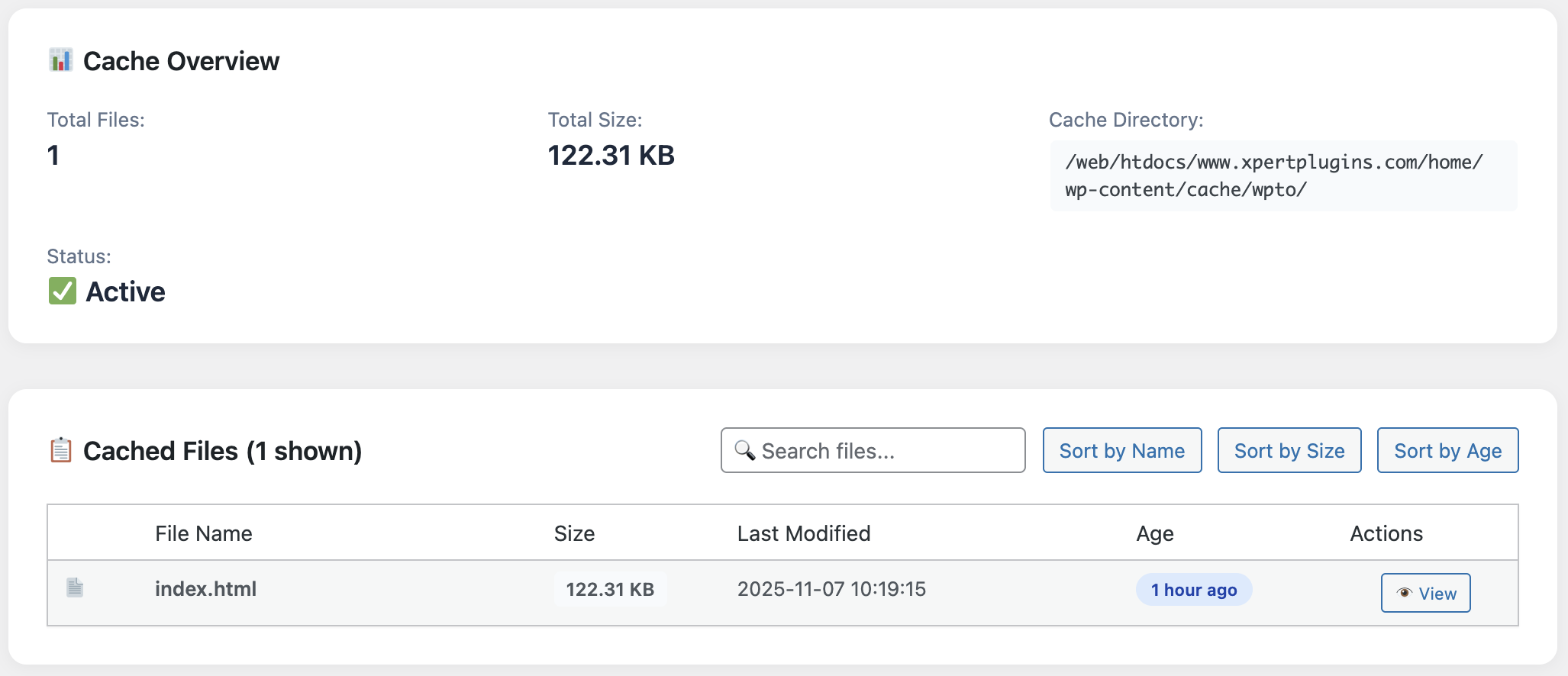
- Cache Hit Rate: The Cache Inspector screenshot above shows exactly how many pages are warming the cache.
- Server Load: Less glamorous, but if you are on shared hosting, lowering PHP workers is the fastest win.
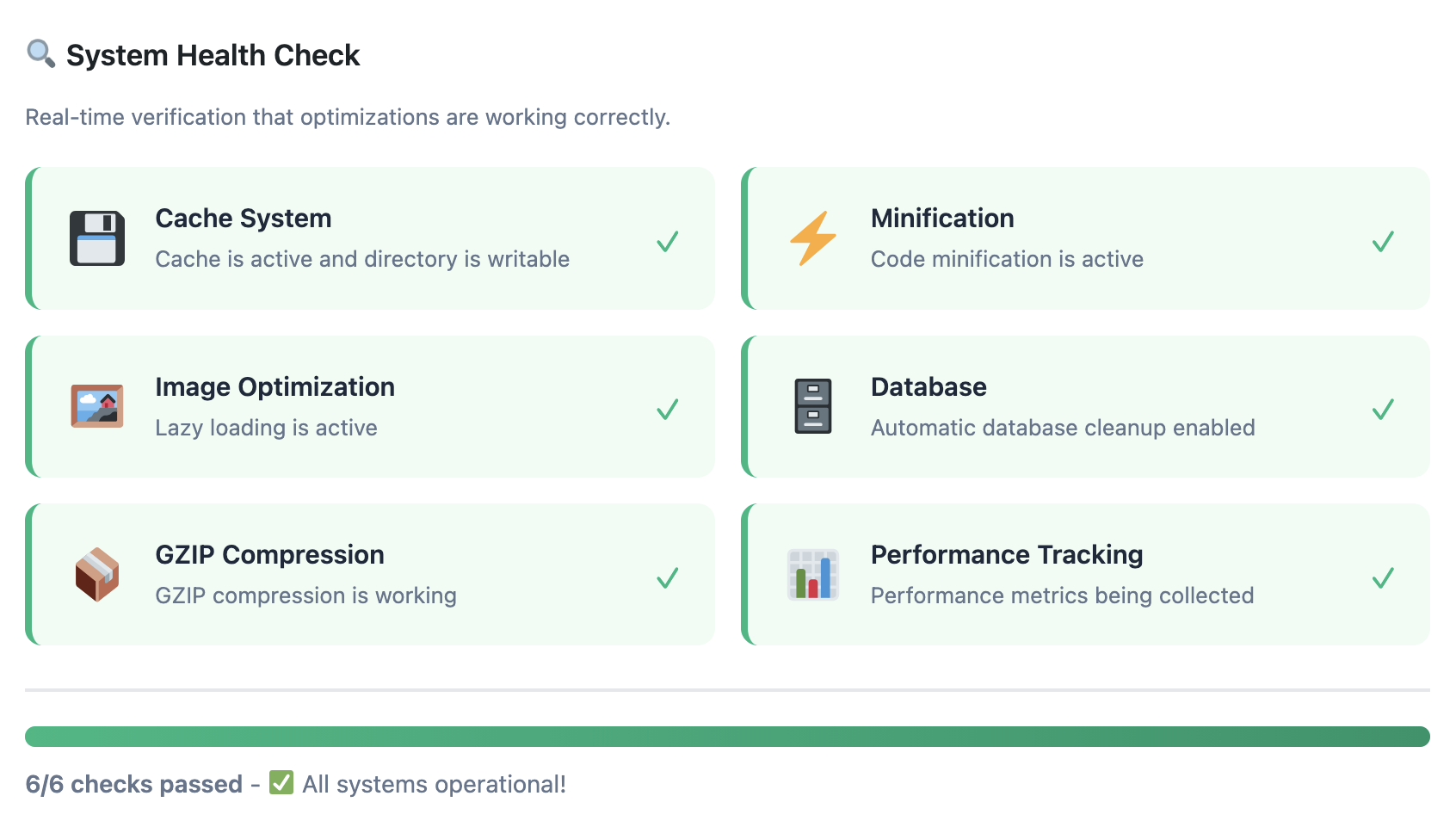
I appreciate that WP Turbo Optimizer doesn’t hide the red flags. The System Health panel pictured above flags missing .htaccess directives and even points out if your host blocks GZIP. Most cache plugins leave those details buried in documentation.
4. Checklist Before Installing Any WordPress Cache Plugin
Before you touch your production server, make sure you can answer these:
- Does the plugin respect WooCommerce sessions? (WP Turbo Optimizer auto-detects the checkout flow.)
- Will I get Core Web Vitals data without connecting third-party dashboards?
- Is there a free version I can test under load? Yes—download it here.
- How transparent is the cache inspector? You should see file size, timestamp, and hit rate.
- Can the plugin warm the cache proactively? Preloading saves the first reader from cold starts.
5. Deep Dive: What WP Turbo Optimizer Does Differently
Beyond the marketing claims, here’s what the €39/year PRO license unlocks:
AI Site Detection
Scans your plugins & URLs, then applies a preset (blog, catalogue, LMS, membership, publication). No more guesswork.
One-Click Boost
Applies 11 optimisations (HTML, CSS/JS, lazy load, CDN headers) and logs each change. Rollback takes a single click.
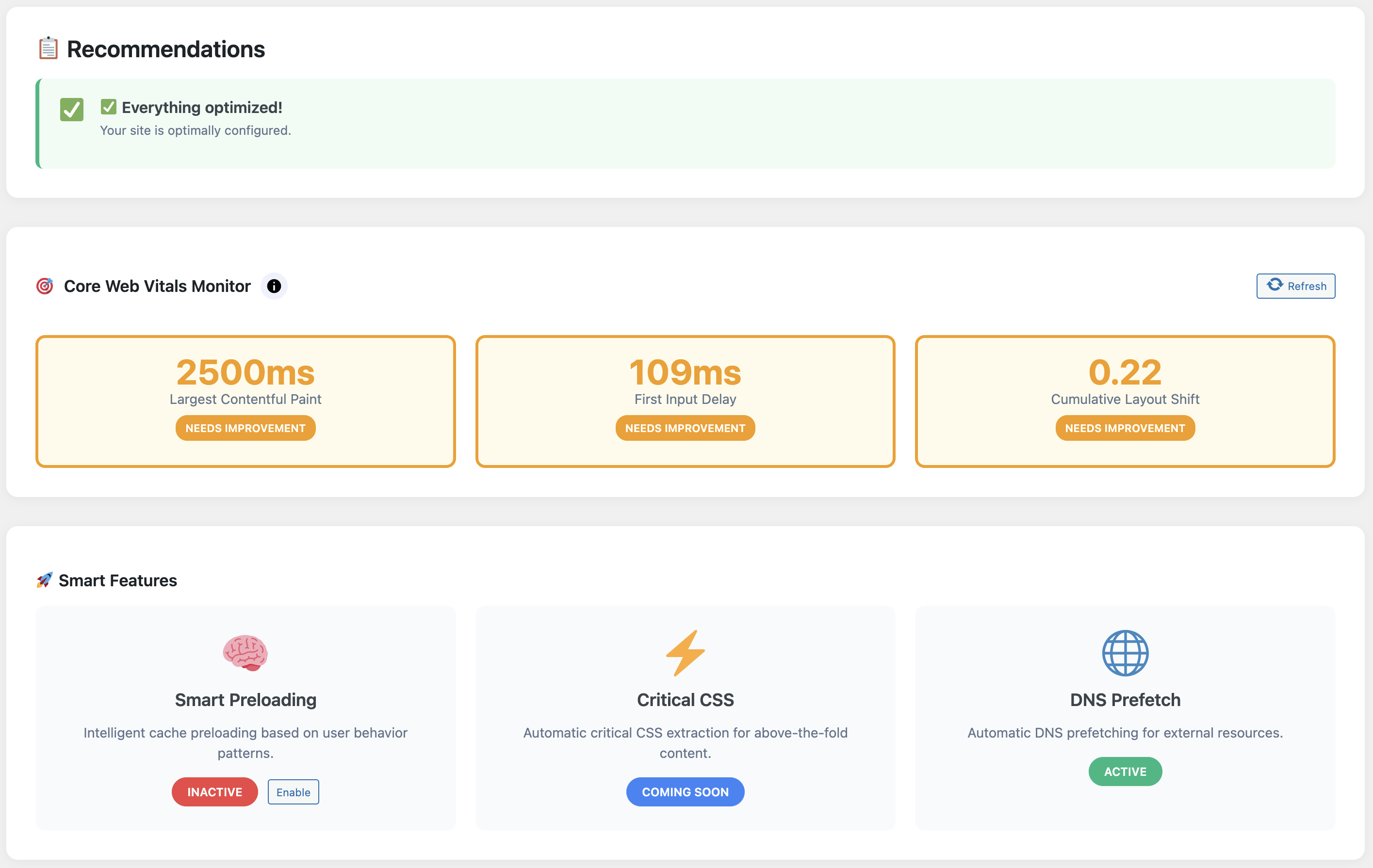
Core Web Vitals Monitor
Inline charts for LCP, CLS, INP, plus actionable tips when metrics drift outside Google’s pass range.
You can test all this via the free version, which ships the caching engine and performance dashboard. When you are ready to upgrade, use the built-in upgrade flow or purchase directly on XpertPlugins.com. I keep both versions on staging so clients can compare the delta before committing.
6. Scenario Playbook
Publishing & Blogs
Enable cache preloading and the AI preset called “Editorial”. It protects the WordPress login, RSS feeds, and preview URLs automatically. Pair it with image compression and you are set.
WooCommerce Stores
Choose the “Storefront” preset. It excludes cart, checkout, and customer account pages by default and warms the product catalogue. I routinely see +12% conversion lift after enabling Edge headers and script delay.
Membership / LMS
Dynamic dashboards can be scary to cache. WP Turbo Optimizer relies on role-aware exclusions so logged-in users see fresh content, while public landing pages fly.
7. Rollout Plan: How to Implement WP Turbo Optimizer
- Spin up a staging clone and install the free plugin.
- Run One-Click Boost, note the before/after stats and any warnings in System Health.
- Purchase the PRO license (€39/year) for product ID 300 and activate the unlock code.
- Enable AI Detection and Core Web Vitals monitoring, then browse your key funnels to warm the cache.
- Schedule weekly database cleanup and review the Cache Inspector to keep hit rates above 85%.
8. FAQs & Quick Troubleshooting
Does WP Turbo Optimizer work with my host?
I’ve tested it on SiteGround, Kinsta, Cloudways, and even a €5/month shared plan. The installer detects conflicting server caching layers and tells you what to disable.
Can I revert changes if something breaks?
Yes. The Activity Log keeps snapshots. Restore is a button—not a CLI command.
Will future updates cost extra?
No. The €39/year license includes all updates and priority support. If you stop renewing, the plugin keeps working—you just miss new features.
Ready to dominate the “WordPress cache plugin” SERP?
Start with the free version to benchmark the gains, then unlock AI presets, Core Web Vitals dashboards, and cache automation with WP Turbo Optimizer PRO.
Get WP Turbo Optimizer PRO for €39 →
Or download the free version and keep scaling.
If you made it this far, you already care about performance more than the average site owner. Apply the steps above and you will inevitably outrank competitors who still treat caching as an afterthought.