

Working with a team on WordPress projects can be incredibly rewarding—or incredibly frustrating. The difference usually comes down to communication. I’ve been on teams where we were constantly out of sync, stepping on each other’s toes, and duplicating work. Sound familiar?
The problem isn’t that people don’t want to communicate. It’s that communication happens in too many places: email threads, Slack messages, project management tools, sticky notes on monitors… What if everyone could share notes right where they work?
That’s exactly what collaborative dashboard notes do. And honestly? Once you experience it, going back to scattered communication feels archaic.
Why Dashboard Notes Beat Traditional Project Management
Before I get into the how-to, let me address the elephant in the room: Why use dashboard notes when project management tools exist?
Here’s the thing—project management tools are great for big-picture planning. But for day-to-day collaboration on WordPress-specific tasks, they add unnecessary friction. Every time someone needs to check a task, they have to:
- Leave WordPress
- Open another application
- Find the right project/board/task
- Read the information
- Return to WordPress
- Try to remember what they just read
With dashboard notes, information lives where the work happens. No context switching, no friction, no forgotten details.
The Power of Context: When your notes are in the WordPress dashboard, they’re surrounded by the exact tools needed to act on them. That’s not just convenient—it’s transformative.

Setting Up Team Collaboration
Let me walk you through how to set up Dashboard Quick Notes for team collaboration. I’ll show you the exact system I use with my team of five.
Step 1: Define Your Communication Categories
First, establish clear note categories that everyone understands. Here’s what works for us:
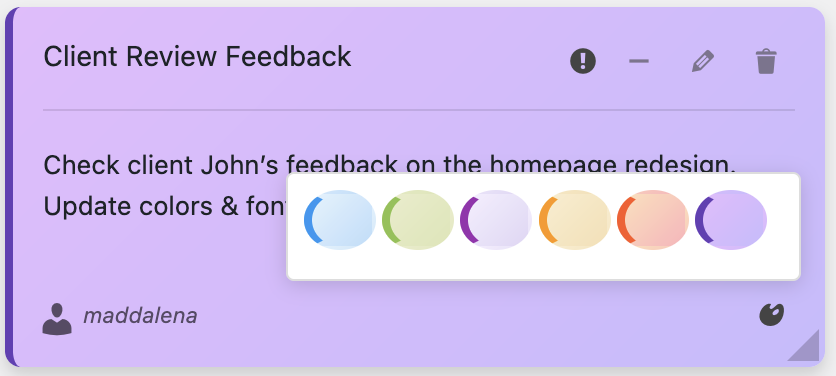
📌 Team Note Categories:
Red: Urgent team issues requiring immediate attention
Yellow: Active project updates and deadlines
Blue: Technical notes and troubleshooting
Green: Completed items and wins
Purple: Ideas and future planning
The key is consistency. When everyone uses colors the same way, visual scanning becomes instant communication.
Step 2: Configure Role-Based Visibility
Not every team member needs to see every note. This is where Dashboard Quick Notes really shines. You can control exactly who sees what based on their WordPress role.
Here’s how we organize visibility:
- Administrators: See everything (obviously)
- Editors: See content-related notes and general announcements
- Authors: See writing guidelines and their specific assignments
- Contributors: See submission guidelines and feedback
- Custom roles (like Shop Manager): See role-specific information
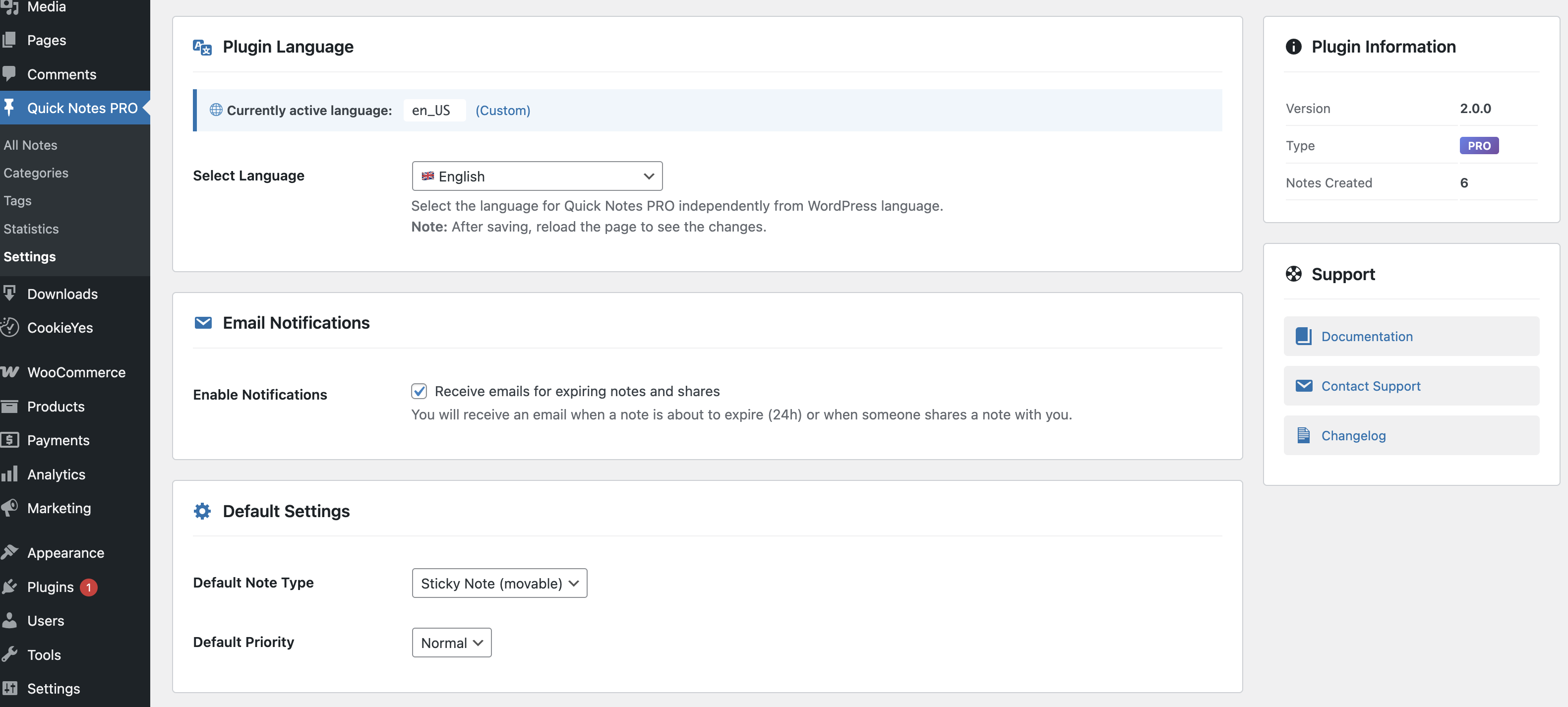
This prevents information overload while ensuring everyone has the context they need to do their job well.
Real-World Team Collaboration Scenarios
Let me show you specific examples of how collaborative notes work in practice. These are real situations from our team.
Scenario 1: Content Production Pipeline
When we’re producing content, coordination is critical. Here’s what our note system looks like:
Sarah (Editor) creates a yellow note: “Blog Series: WordPress Security – 5 Articles Due Oct 20”
She assigns sections to different authors directly in the note:
WordPress Security Series
📝 Article 1: Plugin Security – @Mike (Draft by Oct 15)
📝 Article 2: Password Best Practices – @Lisa (Draft by Oct 16)
📝 Article 3: Backup Strategies – @Tom (Draft by Oct 17)
📝 Article 4: SSL Certificates – @Mike (Draft by Oct 18)
📝 Article 5: Security Plugins – @Lisa (Draft by Oct 19)
As each person completes their draft, they update the note with a checkmark or change the status. Everyone can see progress at a glance.

Scenario 2: Technical Problem Solving
When something breaks, fast communication is essential. Last month, we had a plugin conflict that was causing checkout errors. Here’s how we handled it:
Tom (Developer) immediately created a red urgent note:
🚨 URGENT: Checkout Issue
Problem: Users can’t complete purchases
Status: Investigating – appears to be plugin conflict
Action: Disabling plugins one-by-one to identify culprit
DO NOT UPDATE ANYTHING until this is resolved!
Everyone logging into the dashboard saw this immediately. No email chains, no missed Slack messages. The note was updated in real-time as Tom made progress, and within 45 minutes, he changed it to a green “Resolved” note.
Scenario 3: Editorial Calendar Management
We keep a purple “Upcoming Content” note that’s visible to editors and authors. It shows what’s coming up so writers can prepare:
- Theme for next month
- Special events or promotions to cover
- Content gaps that need filling
- Guest post opportunities
This forward visibility prevents last-minute scrambles and helps everyone plan their time better.

Advanced Collaboration Features
Once your team gets comfortable with basic collaborative notes, let’s explore advanced techniques that’ll take your teamwork to the next level.
Voice Notes for Nuanced Communication
Sometimes text doesn’t capture everything. Tone matters. Nuance matters. That’s where voice recording comes in.
Our editor Sarah uses voice notes when giving feedback on drafts. Instead of typing: “This section needs work. The flow isn’t quite right and the examples could be stronger.”
She records a 30-second voice note explaining exactly what she means, with examples and suggestions. The writers love it because they get the full context without misinterpretation.
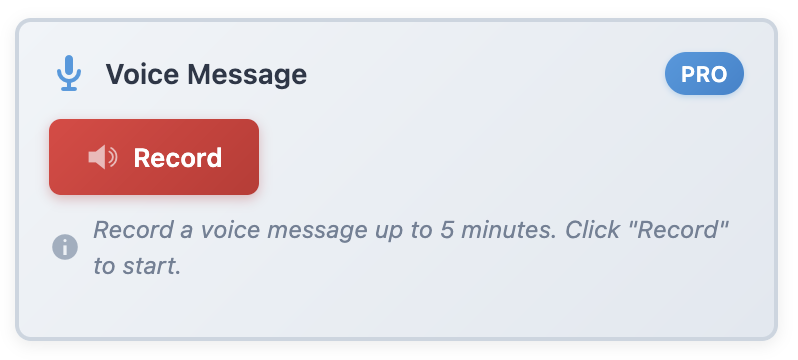
Dashboard Quick Notes makes this incredibly easy with built-in voice recording. No external apps needed.
Note Templates for Consistent Communication
We’ve created note templates for recurring situations. For example, our “New Article Assignment” template includes:
- Article Title: [Title]
- Assigned To: [Name]
- Deadline: [Date]
- Word Count: [Number]
- Keywords: [List]
- Reference Materials: [Links]
- Special Instructions: [Details]
Having templates ensures nothing gets forgotten and everyone gets complete information.
Priority Indicators and Urgency Levels
We use a simple priority system in our notes:
🔴 P1: Drop everything – handle immediately
🟡 P2: Important – complete today
🟢 P3: Standard – complete this week
🔵 P4: Low priority – when you have time
This prevents the “everything is urgent” syndrome that kills productivity.
Best Practices for Team Notes
After using collaborative dashboard notes for two years, here’s what we’ve learned works best:
✓ Update notes in real-time: Don’t wait until end of day. Update progress as you go so everyone has current information.
✓ Use @mentions: Tag specific team members in notes when they need to see something or take action.
✓ Archive regularly: Move completed items to archive weekly. A clean dashboard is an effective dashboard.
✓ Be specific: “Fix the thing” is not helpful. “Fix broken image on About page” is helpful.
✓ Celebrate wins: Create green “win” notes when good stuff happens. Team morale matters!
Common Team Collaboration Mistakes
We’ve made our share of mistakes. Learn from ours:
❌ Too many notes: More notes ≠ better communication. Quality and clarity beat quantity every time.
❌ No clear ownership: Every note should have a clear owner or responsible party. Otherwise, things fall through the cracks.
❌ Forgetting to close loops: When a task is done, mark it done. Stale open notes create confusion.
❌ No onboarding process: New team members need training on your note system. Don’t assume it’s intuitive.
Measuring Success: What Good Collaboration Looks Like
How do you know if your collaborative note system is working? Here are the signs we look for:
- Fewer “I didn’t know” situations
- Less duplicate work
- Faster problem resolution
- Fewer urgent fire drills
- Team members feeling more informed and empowered
- Reduced time in meetings (because everyone already knows what’s happening)
Since implementing Dashboard Quick Notes, our team meetings have dropped from 90 minutes to 30 minutes because we spend less time on status updates and more time on strategy.
Making It Work for Remote Teams
My team is fully remote. We’re spread across three time zones. Dashboard notes have been a game-changer for asynchronous work.
When Sarah in New York finishes her day, she updates notes with her progress. Tom in California wakes up and sees exactly where things stand. No waiting for email responses. No scheduling meetings just to sync up. The dashboard is our shared source of truth.
💡 Remote Work Tip: Use timestamps on notes to give context about when information was added. It helps remote team members understand the timeline of decisions and changes.
Ready to Transform Your Team’s Workflow?
Look, I’m not saying collaborative dashboard notes will solve every team communication problem. But they’ll solve most of them.
The beauty of a tool like Dashboard Quick Notes is that it removes friction from collaboration. Information lives where the work happens. Everyone stays on the same page. Progress becomes visible. Accountability becomes natural.
Your team deserves better than scattered communication across a dozen tools. They deserve a system that actually helps them work together more effectively.
Start Collaborating Smarter Today
Give your team the collaboration tool they actually want to use.
P.S. – The best collaboration tools are the ones people actually use. Dashboard Quick Notes is so intuitive and integrated into existing workflows that adoption happens naturally. No training manuals, no resistance, just better teamwork from day one.