

So you’ve decided to take control of your WordPress dashboard with a proper notes system. Smart move! But here’s the thing: having the tools doesn’t guarantee success. It’s like buying a gym membership—the real results come from actually using it correctly.
I’ve watched dozens of WordPress users implement dashboard notes. Some crush it and transform their productivity. Others create beautiful chaos and give up after two weeks. The difference? They either followed or ignored best practices.
This is your ultimate guide to doing dashboard notes right—a comprehensive checklist of best practices gleaned from years of experience and hundreds of real-world implementations. Follow this, and you’ll be in the “crushing it” camp.
Section 1: Setup & Configuration Best Practices
✅ Choose the Right Tool
💡 Best Practice: Invest in a proper notes plugin like Dashboard Quick Notes instead of cobbling together free solutions. You get what you pay for, and dashboard organization is worth paying for.
What to look for:
- ✅ Role-based visibility (not everyone needs to see everything)
- ✅ Page-specific display options (context matters)
- ✅ Drag-and-drop positioning (ease of use is crucial)
- ✅ Color and styling customization (visual hierarchy)
- ✅ Archive functionality (completed notes need a home)
- ✅ Regular updates and support (abandoned plugins become security risks)

✅ Start Small, Scale Gradually
DON’T: Create 50 notes on day one because you’re excited about the new system. That’s overwhelming and you’ll abandon it within a week.
DO: Start with 3-5 essential notes:
- One urgent task reminder
- One important guideline (like SEO checklist)
- One reference note (like frequently used links)
- Maybe one team communication
Prove the system works with a few notes, then expand gradually. This is a marathon, not a sprint.
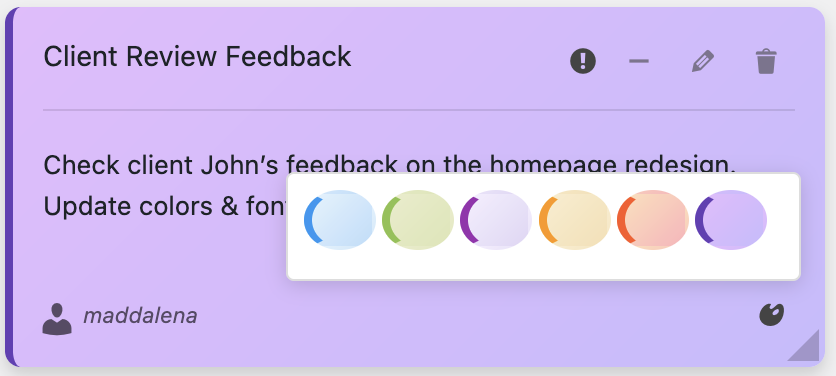
✅ Establish a Color Coding System
Before creating notes, decide what colors mean and document it:
🔴 Red: Critical/Urgent – drop everything
🟠 Orange: High Priority – handle today/tomorrow
🟡 Yellow:Medium Priority – this week
🔵 Blue: FYI/Reference – no specific deadline
🟢 Green: Completed/Positive updates
⚡ Pro Tip: Create a permanent blue note at the bottom of your dashboard that explains your color system. New team members can reference it instantly.
Section 2: Content & Organization Best Practices
✅ Write Clear, Actionable Note Content
Bad note: “Plugin thing”
What plugin? What about it? When? Who cares?
Good note:“Update Yoast SEO to v21.0 by Friday – fixes mobile breadcrumb bug. Test on staging first.”
Clear action, clear deadline, clear context, clear next step.
The formula for great notes:
- Action verb: Update, Review, Create, Fix, Check
- Specific item:Exactly what needs attention
- Deadline: When it needs to happen
- Context: Why it matters or what it affects
- Next step:How to actually do it
✅ Respect the “Five Active Notes” Rule
Here’s a psychological truth: your brain can effectively track about 5-7 active priorities at once. More than that and everything becomes noise.
Best practice: Keep 5 or fewer urgent/important notes visible. Everything else should be reference notes (low-priority blue) or archived.
If you have 20 “urgent” notes:
- Either you’re lying about urgency (most likely)
- Or you have a serious workflow problem that notes can’t fix
- Be ruthlessly honest about priority

✅ Use Role-Based Visibility Wisely
Not everyone needs to see everything. Dashboard Quick Notes lets you target notes to specific user roles—use this power!
Examples:
✅ Security updates → Administrators only
✅ Editorial guidelines → Editors + Authors
✅ Design specs → Editors + Administrators
✅ Customer support tips → Support staff only
✅ Inventory alerts → Shop Managers only
The test: If someone sees a note and thinks “this isn’t relevant to me,” your targeting is wrong.
Section 3: Maintenance & Workflow Best Practices
✅ Schedule Daily Review Time
Non-negotiable: Spend 5 minutes at the start of each day reviewing your dashboard notes.
What to do during review:
- Archive completed tasks (get them out of sight)
- Update priorities as needed (yesterday’s P3 might be today’s P1)
- Check for stale notes (outdated info is worse than no info)
- Add quick-capture notes from yesterday if you forgot
- Plan your top 3 priorities for today
💡 Habit Stacking: Do note review right after checking email or with your morning coffee. Tie it to an existing habit to make it stick.

✅ Archive, Don’t Delete
When a task is complete: Archive it, don’t delete it. Your archive is a searchable history of what you’ve accomplished.
Benefits of archiving:
- Proof of work for clients or management
- Reference for future similar tasks
- Learning from patterns (recurring issues become obvious)
- Knowledge preservation during team transitions
- Satisfaction of seeing your accomplishments
Delete only when: The note was created in error, contains outdated/wrong info, or is truly 100% irrelevant forever.
✅ Do Weekly Deep Reviews
Daily reviews keep you on track. Weekly reviews keep you strategic.
Every Friday (or your preferred day), spend 15 minutes:
- Review the week’s archived notes – what got done?
- Look for patterns – recurring issues? Productivity blockers?
- Clean up reference notes – are they still relevant?
- Plan next week’s priorities
- Update team notes based on what you learned
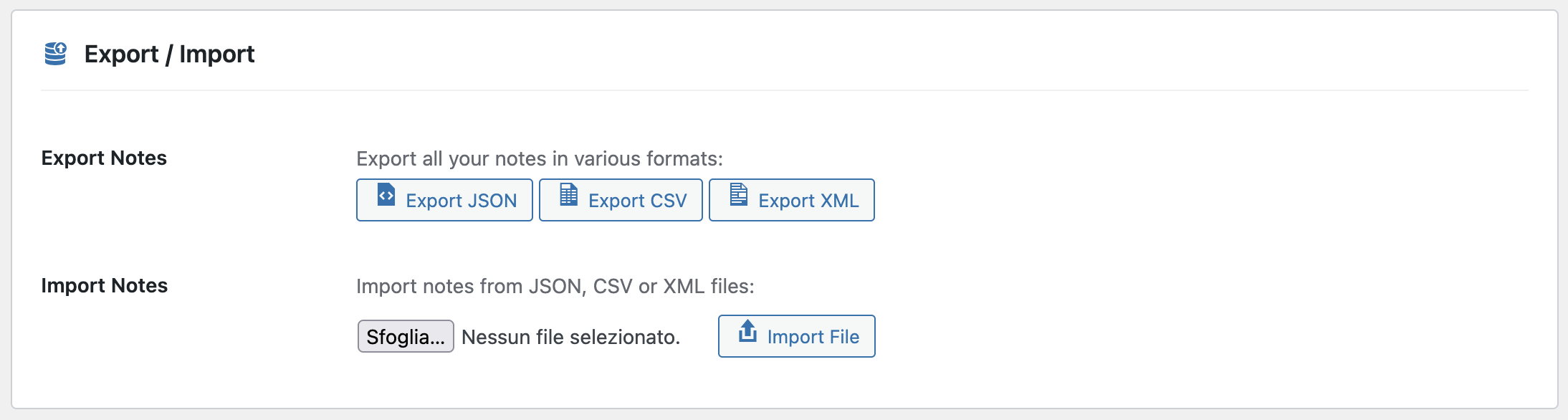
- Export a backup if you’re paranoid (healthy paranoia!)
Section 4: Team & Collaboration Best Practices
✅ Create a Team Style Guide
If multiple people create notes, you need standards. Otherwise, chaos.
Your style guide should cover:
- Color meanings (documented and followed by everyone)
- Note formatting:How to write clear, actionable notes
- Who can create what: Permission levels
- Archiving schedule: Who reviews and cleans up
- Emergency protocols:How to communicate critical issues
✅ Assign a Notes Coordinator
Without ownership, systems decay.Appoint someone (could rotate monthly) to:
- Review and archive completed notes daily
- Ensure important messages are properly formatted
- Update color coding if notes are mis-categorized
- Maintain the system and train new team members
Time investment: 10-15 minutes per day. Value: Your note system stays useful instead of becoming digital clutter.
✅ Use Tags/Categories Consistently
Dashboard Quick Notes supports tagging. Use consistent tags to make searching easier:
Good tag systems:
✅ #security #plugins #maintenance #content #design
✅ #client-acme #client-bigco #internal
✅ #urgent #important #someday
✅ #dev #marketing #support
Section 5: Advanced Optimization Best Practices
✅ Use Context-Aware Positioning
Not all notes belong everywhere. Dashboard Quick Notes lets you show notes only on specific pages:
- SEO reminders → Only on post editor
- Plugin warnings → Only on plugins page
- Design specs → Only on theme customizer
- General announcements → Main dashboard only
Result: People see relevant info when they can act on it, not random notes everywhere.
✅ Leverage Keyboard Shortcuts
Speed matters. Learn and use shortcuts:
- Ctrl/Cmd + Shift + N: Quick note creation
- Ctrl/Cmd + Up/Down:Move notes
- Ctrl/Cmd + Z: Undo last change
- Escape: Close note modal
Muscle memory = faster workflow = better productivity.

✅ Create Note Templates
For recurring note types, save templates:
Weekly Maintenance Template:
“Weekly Maintenance [DATE]
□ Run plugin updates
□ Check backups
□ Review security logs
□ Test contact forms
□ Check site speed“
Time saved: 5 minutes per recurring task. Over a year? Hours.
Section 6: Common Mistakes to Avoid
Learn from others’ mistakes. Don’t do these things:
❌ The “Set It and Forget It” Trap
Creating notes and never updating them. Stale information is worse than no information.Review regularly or abandon the system entirely.
❌ The “Everything Is Urgent” Problem
Making every note red/urgent. If everything’s urgent, nothing is.Be honest about priority or people will start ignoring all notes.
❌ The “Novel-Length Note” Mistake
Nobody reads 500-word notes on a dashboard. Keep it concise.If it needs more explanation, link to a doc.
❌ The “Duplicate Everywhere” Syndrome
Posting the same message in Slack, email, and dashboard notes. Pick ONE primary channel and stick to it. Redundancy breeds ignorance.
The Ultimate Dashboard Notes Checklist
Print this, bookmark it, tattoo it on your arm—whatever works:
📋 DAILY:
- ✅ Review active notes (5 min)
- ✅ Archive completed tasks
- ✅ Update priorities as needed
- ✅ Quick-capture any new thoughts
📋 WEEKLY:
- ✅ Deep review all notes (15 min)
- ✅ Clean up stale reference notes
- ✅ Review archived notes for patterns
- ✅ Plan next week’s priorities
- ✅ Update team notes
📋 MONTHLY:
- ✅ Export archive backup
- ✅ Review note system with team
- ✅ Adjust color coding if needed
- ✅ Update templates and style guide
The Bottom Line
Here’s what separates dashboard notes that transform productivity from those that become digital clutter: discipline and best practices.
You can have the best tool in the world—Dashboard Quick Notes makes everything easy—but tools don’t create productivity, habits do.
Follow this checklist. Build the habits. Maintain the system. Three months from now, you’ll wonder how you ever worked without it.
Ready to Implement Dashboard Notes the Right Way?
Get the tools. Follow the checklist. Transform your WordPress workflow.
You’ve got the knowledge. You’ve got the checklist.Now go build a dashboard notes system that actually works.
Your organized, productive, stress-free future self is waiting. Make it happen! 🎯