

Let’s be real for a second—managing a WordPress site can feel overwhelming. Between updating plugins, moderating comments, publishing content, and everything else on your plate, it’s easy to lose track of what needs to get done today versus what can wait until next week.
I used to start each day by frantically opening browser tabs, checking my phone notes app, and trying to remember what I promised myself I’d do yesterday. It was chaos. Then I discovered the power of using dashboard notes for daily task management, and honestly? It changed everything.
Why Your Dashboard Is the Perfect Task Manager
Think about your daily routine. Where do you spend most of your WordPress time? In the dashboard. It’s your home base, your starting point, your mission control. So why would you manage your tasks somewhere else?
Here’s what clicked for me: Every time I log into WordPress, I see exactly what needs my attention. No switching apps, no opening separate tabs, no trying to remember what’s on that sticky note that fell behind my desk. Everything is right there, where I’m already working.
The Dashboard Advantage: Your tasks live exactly where you’ll complete them. It’s the ultimate productivity hack—eliminating the friction between planning and doing.
Setting Up Your Daily Task System
Alright, let’s get practical. I’m going to walk you through how I use Dashboard Quick Notes to manage my daily WordPress tasks. This system works whether you’re handling one site or fifty.

Step 1: Create Your Daily Categories
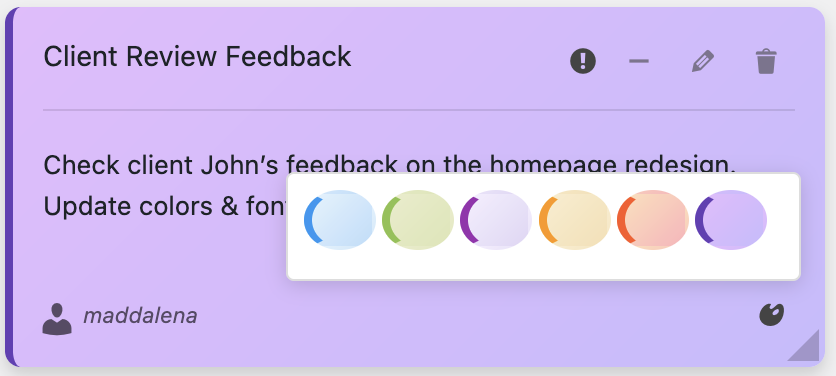
Organization starts with clear categories. I organize my notes by type of task, not by urgency. Here’s my system:
- Content Tasks (Yellow notes) – Writing, editing, publishing
- Technical Tasks (Blue notes) – Updates, backups, troubleshooting
- Community Tasks (Green notes) – Comments, emails, support
- Business Tasks (Purple notes) – Analytics, marketing, planning
- Urgent Tasks (Red notes) – Anything that can’t wait
Color coding isn’t just aesthetics—it’s instant visual recognition. When I glance at my dashboard, I immediately know what type of work I’m looking at.
Step 2: Morning Planning Ritual
Every morning, before I dive into work, I spend five minutes planning my day. Just five minutes. Here’s what that looks like:
I log into WordPress and open Dashboard Quick Notes. I review yesterday’s notes—what got done (archive those), what’s still pending (keep visible), and what new tasks emerged (add them).
Then I create a “Today’s Priority” note at the top of my dashboard. Usually looks something like this:
🎯 TODAY’S PRIORITIES – October 16, 2025
1. Publish the SEO guide (by 11 AM)
2. Update WooCommerce to 9.3.1
3. Respond to pending comments (15+ waiting)
4. Review analytics for last week
Notice the action verbs? Each task starts with exactly what I need to do. No vague “deal with comments” or “look at plugin updates”—that’s how tasks never get done.
Common Daily Tasks and How to Track Them
Let me show you specific examples of how I use notes for different daily WordPress tasks. These are real-world scenarios you probably deal with too.
Content Publishing Workflow
When I’m working on content, I create a note for each piece in progress. Here’s what that looks like:

Inside each content note, I track:
- Current status (Draft/Review/Scheduled)
- Target publish date
- SEO keywords to include
- Images needed and where to source them
- Internal links to add
- Any special formatting or callouts
The beauty of Dashboard Quick Notes is that I can edit these notes while I’m writing the actual post. No switching windows, no losing focus.
Plugin and Theme Updates
Updates are one of those tasks that’s easy to forget until something breaks. I’ve learned the hard way. Now I use a systematic approach:
Every Monday morning, I create a blue “Update Check” note. It reminds me to:
- Review available updates
- Check compatibility (especially for major version jumps)
- Create a backup before updating anything critical
- Test the site after updates
- Document any issues in a separate note
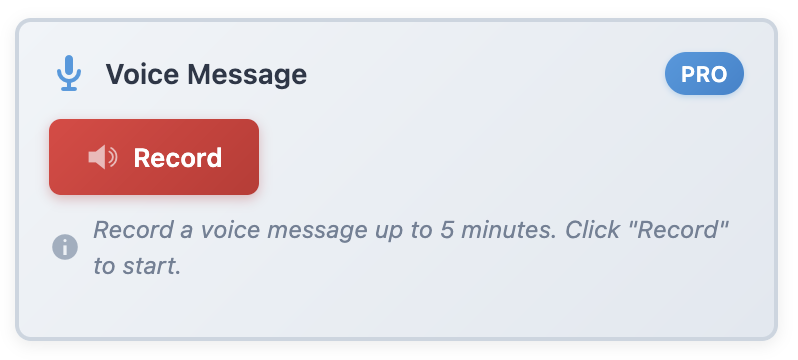
Pro tip: I use the voice recording feature in Dashboard Quick Notes to quickly capture any weird behavior I notice after updates. Way faster than typing detailed bug reports!
Comment Moderation and Community Engagement
Comments can be time-consuming if you don’t batch them. I dedicate two specific times per day to community tasks—morning and late afternoon. Here’s my note setup:
💬 Community Tasks – Daily
⏰ 10:00 AM Session:
• Approve/moderate new comments
• Respond to questions
• Flag spam
⏰ 4:00 PM Session:
• Second pass for new comments
• Engage with conversations
Batching these tasks saves tons of time compared to handling comments as they come in throughout the day.
Advanced Daily Task Techniques
Once you’ve got the basics down, let’s level up with some power user techniques that’ll make you even more efficient.
Time Blocking with Visual Cues
I assign different times of day to different colored notes. Morning deep work gets yellow notes. Afternoon admin tasks get blue. Evening planning and analytics get purple. This creates a natural flow to my day.
The “Quick Wins” Note
I always keep a green note called “Quick Wins” with 5-minute tasks I can knock out when I have a spare moment:
- Fix that broken link someone reported
- Update an outdated statistic in an old post
- Respond to that one easy support email
- Check if that scheduled post actually published
These tiny tasks add up. Having them all in one place means I can be productive even during those weird 10-minute gaps between meetings.

Weekly Recurring Tasks
Some tasks happen on specific days. I create template notes for these and just duplicate them each week:
- Monday: Update check, analytics review, content calendar planning
- Wednesday: Midweek performance check, social media scheduling
- Friday: Backup verification, week-end wrap-up, next week prep
Dealing With Unexpected Tasks
Here’s the reality: No matter how well you plan, urgent stuff will pop up. Your site goes down. A plugin conflict breaks something. A client needs something ASAP.
This is where having your task management system right in your dashboard becomes incredibly valuable. When something urgent hits, I can:
- Quickly create a red “URGENT” note
- Drag it to the top of my priority list
- Move lower-priority tasks down (but not forget them)
- Handle the emergency
- Get back to my planned tasks
The drag-and-drop functionality in Dashboard Quick Notes makes this reorganization instant. No stress, no lost tasks, just smooth pivoting.
End-of-Day Review Process
Before I log off each day, I spend three minutes doing a quick review. This habit has been transformative:
🌙 End-of-Day Checklist:
✓ Archive completed tasks
✓ Update partially completed tasks with progress notes
✓ Create notes for tomorrow’s urgent items
✓ Celebrate what got done (seriously, acknowledge your wins!)
This review ensures I start tomorrow ready to hit the ground running instead of trying to remember where I left off.
Common Mistakes to Avoid
I’ve made plenty of task management mistakes. Learn from my failures:
❌ Creating too many notes: If everything is important, nothing is important. Keep your active task list under 10 items. Archive the rest.
❌ Vague task descriptions: “Work on SEO” is not a task. “Add meta descriptions to 5 oldest posts” is a task.
❌ Never archiving completed tasks: Old tasks clutter your view and make you feel less accomplished. Archive liberally!
❌ Not using time estimates: Add rough time estimates to tasks. It helps with planning and prevents over-committing.
Make It Your Own
Look, this is my system, but the beauty of a flexible tool like Dashboard Quick Notes is that you can customize it to match your workflow, not the other way around.
Maybe you prefer organizing by time of day rather than task type. Maybe you want separate notes for each client if you’re managing multiple sites. Maybe you like emoji-filled notes because they make you smile. Do what works for you!
The important thing is having a system—any system is better than no system.
Start Today, Thank Yourself Tomorrow
Here’s the thing about productivity systems: The best time to start was yesterday. The second-best time is right now.
Don’t wait until you’ve got everything figured out. Don’t wait until you’ve read every productivity book. Just start. Install Dashboard Quick Notes, create your first task note, and see how it feels.
I promise you’ll wonder how you ever managed without it. Your future self—the one who’s more organized, less stressed, and getting more done—will thank you.
Ready to Transform Your Daily Workflow?
Start managing your WordPress tasks smarter, not harder.
P.S. – Remember, productivity isn’t about doing more things. It’s about doing the right things efficiently. Dashboard Quick Notes helps you do exactly that. Give it a try—you’ve got nothing to lose except the chaos!