

Let me paint you a picture: You’re deep in the WordPress zone—editing content, optimizing images, tweaking settings. Suddenly you remember “oh crap, I need to update that plugin tomorrow.” What do you do?
Option A: Leave WordPress, open your task manager, create a reminder, then try to find your way back to what you were doing. Congratulations, you just killed your flow state.
Option B: Think “I’ll remember later” (spoiler: you won’t). Next week the plugin causes a conflict and your client is annoyed.
What if there was an Option C? Create memos and reminders right there in WordPress, without breaking stride, without leaving your workflow. That’s what we’re diving into today.
The Flow State Problem
Before we talk solutions, let’s understand why this matters. It’s not just about convenience—it’s about protecting your productivity.
What Is Flow State?
💡 Psychology Fact: Flow state (being “in the zone”) is when you’re most productive. It takes 15-23 minutes to enter flow state, but only seconds to break it. Every time you switch apps or contexts, you’re potentially destroying 20 minutes of momentum.
Think about your typical workflow interruptions:
- Remember a task → Leave WordPress → Open task manager → Create reminder → Return to WordPress
- Need to leave a note for yourself → Open Notepad/Notes app → Type it → Save it somewhere you’ll forget
- Voice memo? Grab phone → Open voice recorder → Record → Hope you transcribe it later
Each interruption costs you 15-20 minutes of refocusing time. Do that 5-10 times per day? You’ve lost 2-3 hours of productive work.

In-Dashboard Memos: Your Second Brain
Alright, so you need memos that live where you work. Enter Dashboard Quick Notes—your WordPress-native memo system.
Quick Capture: The 5-Second Memo
Here’s how fast this is:
- Keyboard shortcut (Ctrl/Cmd + Shift + N) opens quick note panel
- Type your memo: “Update Yoast SEO to 21.0 tomorrow”
- Hit Enter
- Done. You’re back to work in 5 seconds
Flow state maintained. Thought captured. Brain freed up.
⚡ Pro Tip: Dashboard Quick Notes has an “Inbox” feature—quick-capture notes go there first. Later, during your daily review, you can properly categorize, prioritize, and assign them. Capture fast, organize later.

Voice Memos: For When Typing Is Too Slow
Sometimes you’re in the middle of something and thinking faster than you can type. That’s where voice memos shine.
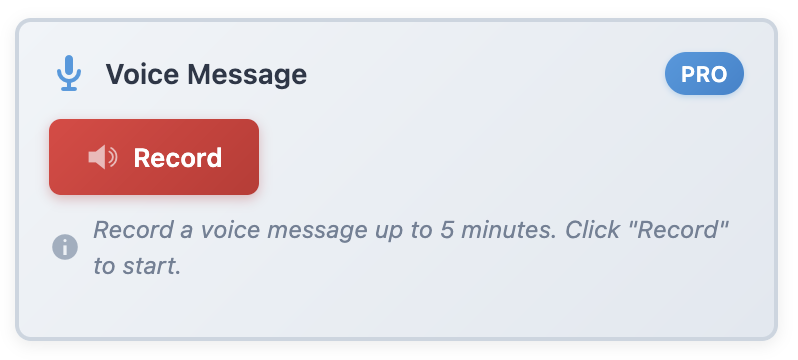
Dashboard Quick Notes includes built-in voice recording:
- Click the mic icon in your dashboard
- Talk naturally: “Remember to check with the client about logo placement and also follow up on the hosting renewal”
- Hit stop
- Audio is saved and attached to a new note
Later, you can listen back or transcribe (manually or with AI tools). The key? Capture happened without breaking flow.
Smart Reminders: Never Forget Again
Memos are great for capturing thoughts. Reminders ensure you act on them.Let’s talk about reminder systems that actually work.
Date-Based Reminders
The basics: set a date for when you need to see a note. Dashboard Quick Notes makes this dead simple:
Example: “Plugin update” note
Set display date: Tomorrow
What happens: Note appears tomorrow morning, not visible today (no clutter!)
Result: You see the reminder exactly when you need it
You can set:
- Specific dates: “Show on October 30th”
- Date ranges:“Display from Oct 20-25”
- Recurring: “Show every Monday morning”
- Days before:“Remind me 3 days before client deadline”
Context-Based Reminders
Here’s where it gets smart. Some reminders should appear based on WHERE you are in WordPress, not WHEN:
“Check SEO settings” reminder appears only when you’re editing posts
“Test plugin compatibility” reminder appears only on the plugins page
Why this works: You’re reminded at the exact moment when you can act on it. No more “I’ll do it later” procrastination.

Priority-Based Reminders
Not all reminders are equal. Dashboard Quick Notes uses visual priority to ensure urgent reminders get attention:
- Critical reminders: Red, large, top of dashboard, can’t be dismissed without action
- Important reminders: Orange, medium size, prominent placement
- Standard reminders: Yellow/blue, normal positioning
- FYI reminders:Subtle, can be minimized
Real-World Memo & Reminder Workflows
Let me show you practical scenarios where in-dashboard memos and reminders save the day:
The Content Writer Workflow
Scenario: You’re writing a blog post about Topic A, but suddenly get an idea for Topic B.
Traditional approach: Open Evernote, create note, lose your train of thought on Topic A, spend 5 minutes getting back into it.
Dashboard Quick Notes approach: Ctrl+Shift+N, “Blog idea: Topic B – angle about X and Y”, Enter, back to Topic A in 3 seconds.
Result: Idea captured, flow maintained, both posts get written.
The Client Management Workflow
Scenario: Client calls while you’re updating products. They mention three things they need.
Traditional approach: Scramble for paper, write notes, hope you don’t lose them, probably forget at least one thing.
Dashboard Quick Notes approach: Voice memo while still on call: “Client needs: revised homepage banner, testimonials section update, blog category reorganization.” All three captured perfectly.
Result: Nothing forgotten, client happy, you look professional.

The Maintenance Schedule Workflow
Scenario: You need to perform monthly maintenance tasks but always forget.
Traditional approach: Calendar reminder pops up… while you’re on vacation. Dismiss it, forget forever.
Dashboard Quick Notes approach:Recurring reminder: “1st Monday of month – run updates, check backups, review security.” Appears in WordPress dashboard where you can actually act on it.
Result: Maintenance happens on schedule, site stays healthy.
Advanced Memo & Reminder Strategies
Ready to level up? Here are power user techniques:
The Daily Inbox Zero Practice
Start each day by processing your note inbox (where quick captures go):
- Review each captured note
- Assign priority and category
- Set reminder dates if needed
- Move to appropriate place or archive if done
- Clear inbox to zero
Time investment: 5-10 minutes per day. Value: Complete clarity on what needs to happen.
The Context-Stacking Technique
Create reminders that appear when multiple conditions are met:
Example: “Review analytics” reminder appears
– On Mondays (time condition)
– On the dashboard page (location condition)
– For administrators only (role condition)
Result: Right person, right place, right time = action actually happens
The “Future Me” Notes
Leave notes for your future self with full context:
- “Before deployment checklist” – appears when you navigate to deployment tools
- “Why we chose this approach” – attached to specific settings pages
- “Client preferences” – saved context for when you work on their site again
Your future self will thank you for the context. Trust me.
Integration with Your Existing Tools
You might be thinking: “But I already use [Todoist/Things/Notion/etc.].”That’s fine! Dashboard Quick Notes isn’t about replacing everything—it’s about capturing without breaking flow.
The Hybrid Approach
Use Dashboard Quick Notes for:
- Quick capture while in WordPress (no flow breaking)
- WordPress-specific reminders (where context matters)
- Team communication (everyone sees dashboard)
Use your other tools for:
- Personal life tasks (grocery shopping, dentist appointments)
- Long-term project planning
- Cross-platform reminders (phone, desktop, tablet)
Best of both worlds: Deep thinking in dedicated tools, quick capture in WordPress where work happens.
Common Mistakes to Avoid
Don’t sabotage your memo/reminder system with these errors:
❌ Over-Reminding
Setting 50 reminders for the same day. Your brain will ignore all of them.Keep it to 5-7 active reminders maximum.
❌ Vague Memos
“That thing” isn’t helpful three weeks later. Be specific: “Update Elementor plugin to fix header layout issue on mobile.”
❌ Never Processing
Capturing tons of memos but never reviewing or acting on them. Set daily inbox processing time.
❌ Wrong Reminder Timing
Reminding yourself at 9 PM about a task that can only be done during business hours. Think about when you can actually act.
The Bottom Line
Here’s what it comes down to: you’re going to have thoughts, ideas, and tasks pop up while working in WordPress.The question is whether capturing them destroys your flow or enhances your productivity.
Dashboard Quick Notes gives you capture-without-breaking-flow superpowers. Text memos, voice memos, smart reminders—all native to where you actually work.
Ready to Capture Thoughts Without Breaking Flow?
Stop letting great ideas slip away. Build your second brain right in WordPress.
Protect your flow state. Capture everything.Forget nothing. That’s the power of in-dashboard memos and reminders.
Your productive, focused, organized future self is waiting. Make it happen! 🚀