

Running a digital agency is like juggling flaming chainsaws while riding a unicycle. You’ve got multiple clients, each with their own projects, deadlines, quirks, and “urgent” requests that all seem to land at 4:45 PM on Friday.
I’ve been running a WordPress-focused agency for six years, and I can tell you from painful experience: client management can make or break your business. Miss one important detail, forget one request, drop one ball—and suddenly you’re dealing with an unhappy client, potential refunds, and damaged reputation.
That’s why when I discovered Dashboard Sticky Notes Pro, it felt like someone finally understood exactly what agencies need. Today, I’m sharing exactly how we use it to keep 30+ clients happy and organized.
The Client Management Nightmare (Before Dashboard Sticky Notes)
Let me paint you a picture of our agency before we implemented a proper notes system.
Communication Chaos
Client requests came through every imaginable channel:
- Email (three different addresses)
- Slack (if they used it)
- Phone calls (usually not documented)
- Text messages (yes, really)
- Casual mentions during meetings (the most dangerous kind)
The Result? Important requests would get lost in the shuffle. We’d waste hours every week just trying to consolidate information about what each client actually needed. Our project manager spent more time managing our communication mess than managing actual projects.
The Handoff Horror Show
When one team member needed to hand off a client to another, critical information would disappear into the void. Sarah knew Client X hated blue buttons. Mike knew they needed updates every Friday. Lisa knew they had a weird hosting setup that required special handling.
But this knowledge lived in people’s heads, not in any system. When Sarah went on vacation, we’d have to rediscover all those preferences the hard way—usually by making mistakes.

How We Use Dashboard Sticky Notes Pro (The System That Works)
Now, let me show you our current system. It’s not perfect, but it’s roughly 1000% better than what we had before.
1. Client-Specific Categories
Every client gets their own category in Dashboard Sticky Notes Pro. This is the foundation of our entire system.
For example, our client “Acme Corp” has a category. All notes related to Acme—whether it’s ongoing projects, brand preferences, technical quirks, or that weird thing they asked us to remember about their backup schedule—everything lives in that category.
✓ Benefit: Anyone on our team can pull up a client’s category and instantly see everything important about that client. No more hunting through Slack history or email threads. It’s all right there in the WordPress dashboard they’re already working in.
2. Color-Coded Priority System
We use colors to indicate urgency across all clients:
🔴 Red: Critical/Urgent (client site down, deadline today, etc.)
🟠 Orange: High Priority (deadline this week)
🟡 Yellow: Medium Priority (deadline next week)
🔵 Blue: Low Priority / Informational
🟢 Green: Completed / Success
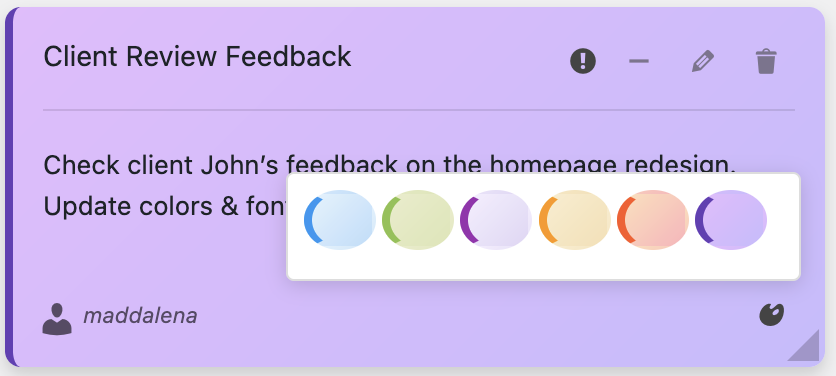
This visual system means anyone can open the dashboard and immediately know what needs attention. No reading required—your eyes go straight to the red notes first.
3. Shared Notes for Team Collaboration
This is where the Pro version really shines. We share notes across team members based on who needs to know what.
Real example from last week:
A client emailed me (the owner) about changing their homepage layout. I created an orange note in their category with all the details and shared it with:
- Our lead designer (who needs to create mockups)
- Our developer (who’ll implement it)
- Our project manager (who needs to track timeline)
Boom. Everyone’s on the same page instantly. No forwarding emails, no Slack threads, no game of telephone. And because it’s in the WordPress dashboard, they see it immediately when they log in to work on that client’s site.
4. Client Preference Documentation
We maintain a permanent blue (informational) note for each client that documents their preferences and quirks. This has been a game-changer for consistency.
Example Client Preferences Note:
• Hates the color orange
• Prefers email over phone calls
• Needs updates every Friday by 3 PM
• Backup runs at 2 AM EST (don’t schedule maintenance then)
• Uses custom plugin “XYZ” – be careful updating
New team members working with that client for the first time? They read the preferences note first. Suddenly they sound like they’ve been working with that client for years.

5. Role-Based Visibility
Not everyone needs to see everything. We use Pro’s role-based permissions strategically:
- Developers: See technical notes and implementation details
- Designers: See creative briefs and brand guidelines
- Content Team: See editorial calendars and content requests
- Project Managers: See everything (they need the full picture)
- Clients with dashboard access: Only see notes we specifically share with them
This keeps everyone focused on what matters to them without overwhelming them with information they don’t need.
Real Results: The Numbers Don’t Lie
I’m a data person, so I tracked our agency’s performance before and after implementing Dashboard Sticky Notes Pro. The improvements are dramatic:
Missed Client Requests:
Before: 8-10 per month → After: 0-1 per month (95% reduction)
Time Spent on Internal Communication:
Before: ~15 hours/week → After: ~5 hours/week (67% reduction)
Client Satisfaction Scores:
Before: 7.8/10 → After: 9.1/10 (17% improvement)
Client Retention Rate:
Before: 78% → After: 91% (13 percentage points up)
That retention rate increase alone has been worth thousands of dollars in recurring revenue.
Specific Use Cases That Work Brilliantly
Use Case 1: Onboarding New Clients
When we onboard a new client, we create their category and populate it with:
- A blue note with all their basic info (hosting, credentials, contacts)
- An orange note with initial project tasks
- A blue note for preferences as we learn them
Everyone on the team has immediate access to everything they need from day one.
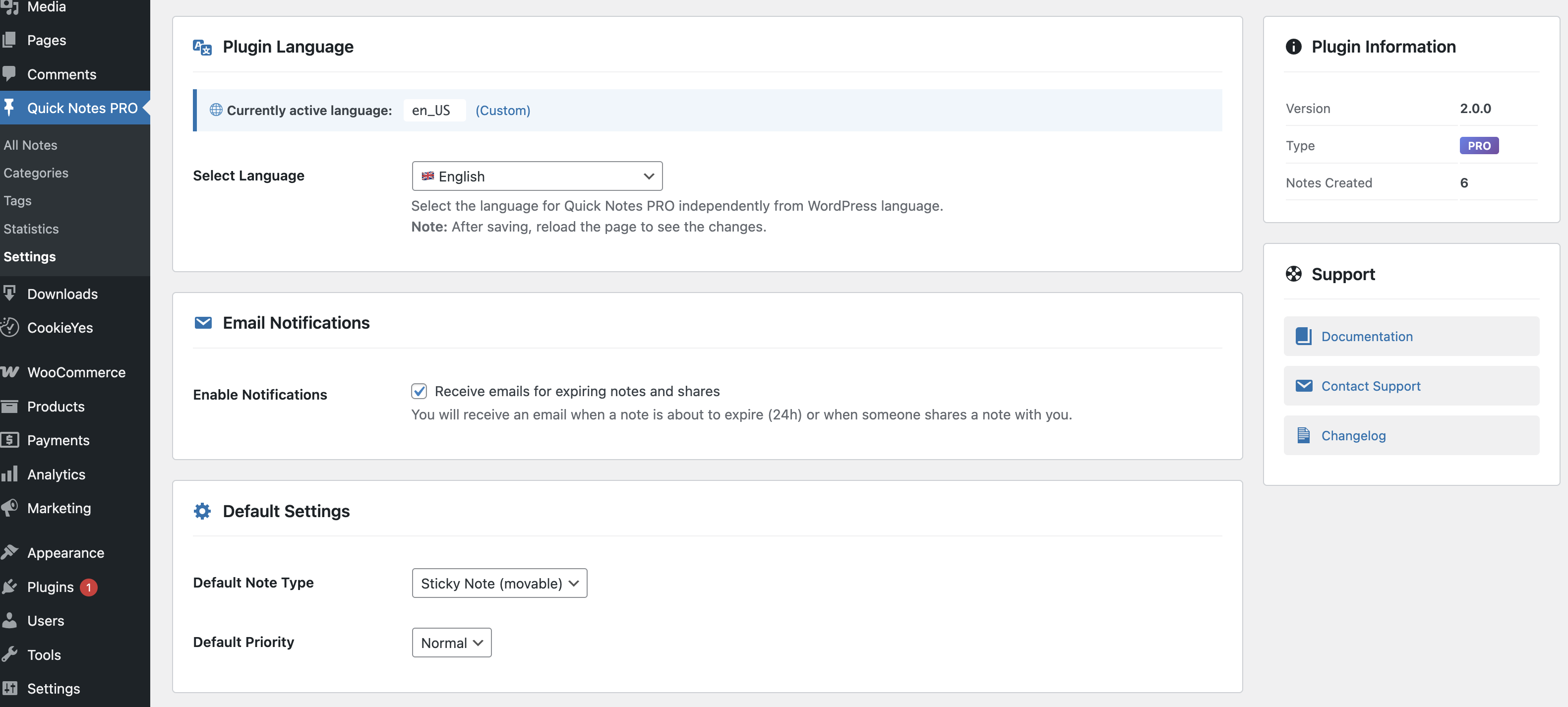
Use Case 2: Managing Ongoing Maintenance
For clients on monthly maintenance plans, we use recurring notes:
- Yellow note created on the 1st of each month: “Run updates for Client X”
- Green note when completed: “Updates completed – all good”
- Red note if issues found: “Issue with plugin XYZ – needs attention”
Visual at-a-glance status means nothing falls through the cracks.
Use Case 3: Voice Notes for Complex Instructions
Sometimes a client’s request is complicated. Rather than typing out a novel, we use voice recording:
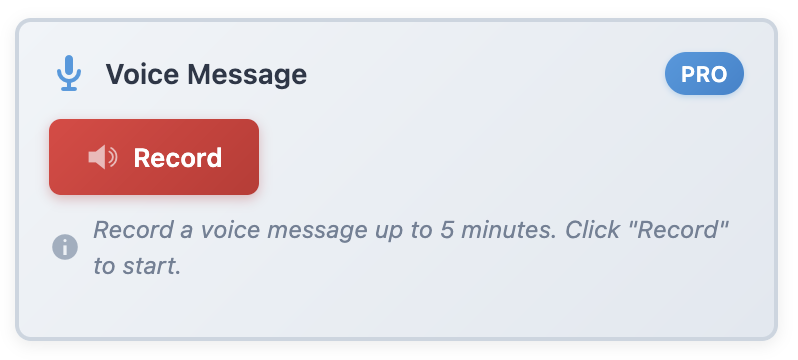
“Hey team, just got off a call with Client Y. They want to restructure their entire service pages, but there are some specific requirements about how they want the layout…” [continues for two minutes explaining nuances]
The team hears my tone and emphasis, understands the context better, and we avoid the ambiguity that comes with written notes.
What Clients Actually Say
The funny thing? Clients have noticed the difference even though they don’t know about our internal system.
“You guys never forget anything I tell you. I mentioned once three months ago that I prefer updates on Fridays, and it’s been Fridays ever since. That attention to detail is why we keep working with you.”
— Jennifer K., E-commerce Client
“Working with you feels seamless. Everyone on your team seems to know exactly what’s going on with my project. I’ve worked with other agencies where I’d have to re-explain things to every person. Not with you guys.”
— Marcus T., SaaS Startup Founder
That’s the real magic—clients feel taken care of because we actually are taking care of the details.
Is This System Perfect? (Honest Answer)
Look, I’m not going to pretend Dashboard Sticky Notes Pro solved every agency problem we have. It’s not a project management system. It’s not a CRM. It’s not accounting software.
But here’s what it IS: the perfect bridge between all those systems and your actual work in WordPress. It’s the place where quick, important information lives so that everyone stays on the same page.
We still use:
- Asana for detailed project management
- HubSpot for client relationship management
- QuickBooks for accounting
But Dashboard Sticky Notes Pro is where the day-to-day action happens because it’s right where we work. It’s reduced our reliance on those other tools by about 60% for everyday communication.
Ready to Transform Your Agency’s Client Management?
If you’re running an agency—or even if you’re a freelancer managing multiple clients—I can’t recommend Dashboard Sticky Notes Pro highly enough.
Will it magically solve all your problems? No. But will it dramatically improve how you track, communicate, and deliver on client requests? Absolutely yes.
The Pro version’s collaborative features aren’t just nice-to-haves for agencies—they’re essentials. Note sharing, role-based permissions, categories, voice recording—these features were practically designed with agencies in mind.
Try the Pro Version for Collaborative Notes
See how top agencies keep clients happy and organized.
P.S. – Your clients deserve an agency that never forgets details, always delivers on time, and makes them feel like a priority. Dashboard Sticky Notes Pro helps you be that agency. Give it a shot—your clients (and your team) will thank you.