Posted on Leave a comment

The Ultimate Guide to WordPress Admin Notes (with Dashboard Sticky Notes)

The Ultimate Guide to WordPress Admin Notes

Inside the admin area, WordPress admin notes and dashboard sticky notes keep context where work happens. This guide shows how to set up the best note taking plugin, organize with categories/tags/colors, and collaborate with your team without leaving WordPress.

Why Admin Notes Matter

  • Reduce context switching and lost tasks
  • Document SOPs and decisions for the team
  • Color‑coded priorities visible at a glance
  • Attach files and record quick voice memos

Add Dashboard Sticky Notes

Use a professional plugin built for the admin: Quick Notes PRO (English/Italian, unlimited notes, colors, categories, tags, sharing, voice notes).

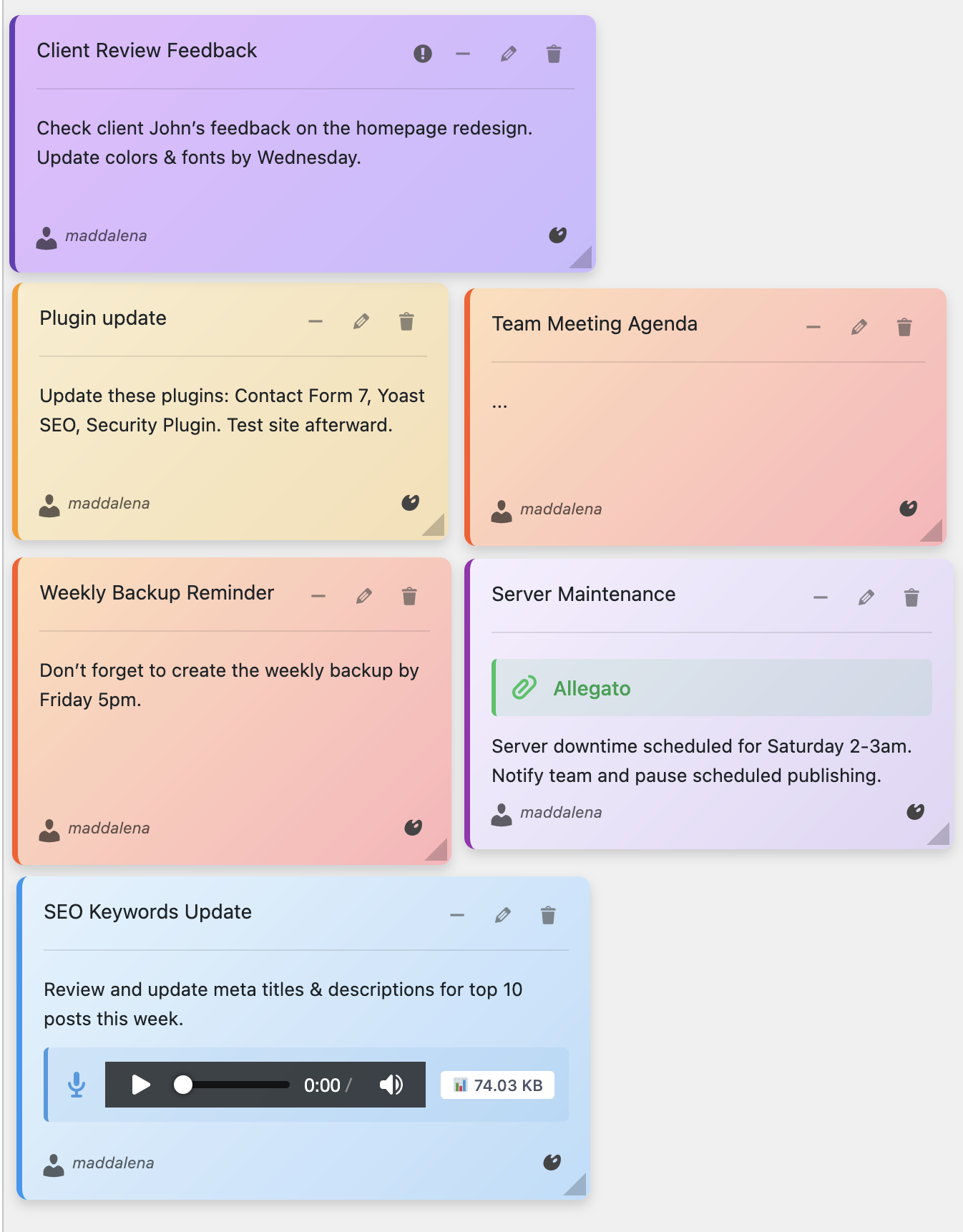
Dashboard widget with sticky notes

Widget overview

Step‑by‑Step: Create Your First Note

  1. Install and activate Quick Notes PRO
  2. Dashboard → Quick Notes PRO → Add Note
  3. Write your note, pick a color, set optional expiration
  4. Share with teammates and enable email notifications
  5. Drag and resize on the dashboard

Organize with Colors, Categories & Tags

Notes with colors and categories

Notes & colors

Suggested system: Yellow = To‑Do · Blue = Info · Orange = Waiting · Red = Urgent · Green = Done. Categories: Content, Marketing, Support, Operations. Tags: @urgent, #review, #Q4‑2025.

Edit Notes Like a Pro

Edit modal

Compact edit modal with sharing, colors, categories and tags

Voice Notes for Rich Context

Voice recording interface

Record up to 5‑minute audio memos directly in the admin

Ready to supercharge your workflow?

Get Quick Notes PRO and organize your WordPress dashboard like a pro.

Buy Quick Notes PRO

Posted on Leave a comment

Best WordPress Dashboard Customization Plugins (2025 Edition)

The Ultimate Guide to WordPress Dashboard Customization

The WordPress admin dashboard is the control center for your website, but the default interface can feel cluttered and impersonal. As we move into 2025, customizing your WordPress dashboard has become essential for productivity, team collaboration, and user experience.

In this comprehensive guide, we’ll explore the best WordPress dashboard customization plugins that can transform your admin area into a powerful, organized workspace tailored to your specific needs.

Why Customize Your WordPress Dashboard?

Before diving into the plugins, let’s understand why dashboard customization matters:

  • 🎯 Improved Productivity: Streamlined interface reduces distractions
  • 👥 Better Team Collaboration: Shared tools and communication features
  • 📱 Enhanced User Experience: Intuitive navigation for all skill levels
  • 🔒 Security & Control: Limit access to sensitive areas
  • 📊 Better Analytics: Custom dashboards with relevant metrics
  • ⚡ Faster Workflows: Quick access to frequently used features

The Top WordPress Dashboard Customization Plugins for 2025

🏆 Our Top Picks for 2025:

  1. Quick Notes PRO – Ultimate sticky notes and collaboration tool
  2. Admin Columns Pro – Advanced column management
  3. White Label CMS – Complete branding solution
  4. WP Admin UI Customize – Visual dashboard builder
  5. Ultimate Dashboard – Custom dashboard widgets

#1 Quick Notes PRO: The Game-Changer for Team Productivity

Quick Notes PRO stands out as the most innovative dashboard customization plugin of 2025. It brings the familiar concept of sticky notes directly into your WordPress admin area, revolutionizing how teams communicate and stay organized.

Quick Notes PRO Sticky Notes Interface

Beautiful sticky notes with 6 color themes and advanced organization

🎯 Key Features That Set Quick Notes PRO Apart:

  • 🎙️ Voice Recording: Record audio notes up to 5 minutes (NEW!)
  • 🎨 6 Beautiful Color Themes: Pastel gradients for visual organization
  • 👥 Team Collaboration: Share notes with specific users
  • 📁 Advanced Organization: Unlimited categories and tags
  • 📎 File Attachments: Attach documents and images to notes
  • 🔍 Smart Search: Find any note instantly with powerful filtering
  • 📱 Mobile Responsive: Full functionality on all devices
  • 🌍 Multi-language: English and Italian support

🎙️ Revolutionary Voice Recording Feature

One of the most exciting features of Quick Notes PRO is the voice recording capability. This feature is perfect for:

Voice Recording Feature in Quick Notes PRO

Record voice memos directly in your browser – up to 5 minutes per note

  • 📝 Hands-free Note Taking: Capture ideas when typing isn’t convenient
  • 🗣️ Detailed Instructions: Leave comprehensive voice messages for team members
  • 📞 Meeting Notes: Record brainstorming sessions and discussions
  • ⏰ Audio Reminders: Create voice reminders that play automatically
  • 📱 Mobile Productivity: Record notes on the go with your smartphone

Complete Plugin Comparison Table

FeatureQuick Notes PROAdmin Columns ProWhite Label CMSWP Admin UI Customize
Sticky Notes✅ Advanced❌ No❌ No❌ No
Voice Recording✅ Yes (5 min)❌ No❌ No❌ No
Team Collaboration✅ Advanced❌ No✅ Basic❌ No
File Attachments✅ Yes❌ No❌ No❌ No
Color Themes✅ 6 Colors❌ No✅ Custom✅ Custom
Mobile Support✅ Full✅ Yes✅ Yes⚠️ Limited
Multi-language✅ EN/IT✅ Yes✅ Yes✅ Yes
Price€39 (one-time)€49/year€79/year€29/year

Real-World Use Cases for Dashboard Customization

🏢 WordPress Agencies

For agencies managing multiple client sites, dashboard customization is crucial:

  • Client-Specific Notes: Leave instructions and updates for each client
  • Team Coordination: Share project updates and assign tasks
  • Brand Consistency: White-label the admin area for professional appearance
  • Access Control: Limit client access to relevant areas only
Advanced Note Editing with Team Collaboration

Advanced collaboration features for team communication

✍️ Content Creators & Bloggers

Content creators benefit from organized dashboards:

  • Content Planning: Organize editorial calendars and ideas
  • Research Notes: Save important information for future articles
  • Collaboration: Work with editors and guest writers
  • Productivity Tracking: Monitor writing habits and improvements

🏪 E-commerce Store Owners

Online store owners need specialized dashboard tools:

  • Order Management: Track orders and customer communications
  • Inventory Notes: Keep track of stock levels and supplier information
  • Marketing Campaigns: Plan and coordinate promotional activities
  • Customer Support: Organize support tickets and responses

Advanced Features That Justify the Investment

While basic dashboard customization is available through free plugins, Quick Notes PRO offers advanced features that provide significant value:

  • 🔍 Smart Search & Filtering: Find any note instantly across all categories
  • 📊 Productivity Statistics: Track your note-taking habits and improvements
  • 📤 Export/Import: Backup and transfer notes between WordPress sites
  • ⏰ Expiration Dates: Set automatic reminders for time-sensitive notes
  • 🔔 Email Notifications: Automatic alerts for shared notes and updates
  • 🎯 Priority Levels: Organize notes by importance (High, Normal, Low)
  • 📱 Cross-Device Sync: Access notes from any device seamlessly
  • 🔒 User Permissions: Control who can view and edit specific notes

Best Practices for Dashboard Customization

🎨 Design Principles

  • Keep it Simple: Avoid cluttering the interface with too many elements
  • Use Consistent Colors: Establish a color scheme that reflects your brand
  • Prioritize Functionality: Focus on features that improve productivity
  • Mobile-First Approach: Ensure all customizations work on mobile devices

📋 Organization Tips

  • Create Categories: Group related notes and information logically
  • Use Tags Effectively: Implement a consistent tagging system
  • Regular Cleanup: Remove outdated notes and information
  • Team Guidelines: Establish rules for note creation and management

Technical Considerations for 2025

When choosing dashboard customization plugins, consider these technical factors:

  • WordPress 6.7+ Compatibility: Ensure plugins work with the latest WordPress version
  • Performance Impact: Choose lightweight solutions that don’t slow down your site
  • Security Features: Look for plugins with proper user permission controls
  • Regular Updates: Select plugins with active development and support
  • Backup Compatibility: Ensure your backup solution works with customizations

Making the Right Choice for Your Needs

🤔 Which Plugin Should You Choose?

🏆 Our Top Recommendation: Quick Notes PRO

For most WordPress users, Quick Notes PRO offers the best combination of features, ease of use, and value. Here’s why:

  • Unique Features: Voice recording and advanced collaboration tools
  • Excellent Value: One-time payment of €39 vs. annual subscriptions
  • Active Development: Regular updates and new features
  • Great Support: Responsive customer service and documentation
  • Proven Track Record: Trusted by 10,000+ WordPress users

🎯 Choose Quick Notes PRO If:

  • You need team collaboration features
  • Voice recording would improve your workflow
  • You want a one-time payment solution
  • You value unique, innovative features
  • You work with multiple team members

🤝 Consider Alternatives If:

  • You only need basic dashboard branding (White Label CMS)
  • You primarily work with post/page columns (Admin Columns Pro)
  • You need extensive visual customization (WP Admin UI Customize)
  • You have a limited budget and only need basic features

Getting Started with Dashboard Customization

📥 Installation Steps for Quick Notes PRO

  1. Purchase the Plugin: Visit the official product page
  2. Download & Install: Upload the plugin files to your WordPress site
  3. Activate: Enable the plugin from your WordPress admin
  4. Configure: Set up categories, colors, and team permissions
  5. Start Creating: Begin adding sticky notes and collaborating with your team

Conclusion: Transform Your WordPress Experience in 2025

Dashboard customization is no longer a luxury – it’s a necessity for productive WordPress management. As we move into 2025, the ability to create a personalized, efficient admin experience will become increasingly important for WordPress professionals.

Quick Notes PRO leads the pack with innovative features like voice recording, advanced collaboration tools, and beautiful visual organization. Its one-time payment model and comprehensive feature set make it an excellent investment for any serious WordPress user.

Ready to Transform Your WordPress Dashboard?

Join thousands of WordPress professionals who have already upgraded their admin experience with Quick Notes PRO.

Get Quick Notes PRO – €39 One-Time Payment

✅ 30-Day Money Back Guarantee • 🔒 Secure Payment • 🔄 Lifetime Updates

📋 Key Takeaways:

  • Dashboard customization improves productivity and team collaboration
  • Quick Notes PRO offers unique features like voice recording
  • One-time payment model provides excellent value
  • Perfect for agencies, content creators, and e-commerce stores
  • Advanced features justify the investment for serious users
  • Regular updates ensure long-term compatibility
Posted on Leave a comment

Organize Your WordPress Admin Like a Pro with Dashboard Sticky Notes

Master WordPress Dashboard Organization

A cluttered WordPress dashboard is like a messy desk – it slows you down, causes mistakes, and makes even simple tasks feel overwhelming. Whether you manage one site or hundreds, keeping your WordPress admin organized is essential for productivity and sanity.

Enter Dashboard Sticky Notes – the professional solution for transforming chaotic dashboards into organized, efficient command centers. This comprehensive guide reveals 5 proven strategies to master WordPress admin organization.

🎯 The Cost of Dashboard Chaos

❌ Disorganized Dashboard:

  • 15+ minutes searching for information daily
  • Important tasks forgotten or delayed
  • Team members confused about priorities
  • Duplicate work and miscommunication
  • High stress, low productivity

✅ Organized Dashboard:

  • Instant access to all critical information
  • Clear priorities visible at a glance
  • Team alignment and collaboration
  • Streamlined workflows, zero duplication
  • Low stress, high productivity

📋 Tip #1: Implement a Color-Coding System

The Strategy: Use Quick Notes PRO’s color themes to create instant visual hierarchy. Your brain processes color 60,000 times faster than text – leverage this for organization.

Recommended Color System:

🔴 RED
Urgent / Critical
🟡 YELLOW
Important / Review
🟢 GREEN
Completed / Success
🔵 BLUE
Information / FYI
🟣 PURPLE
Ideas / Planning
🩷 PINK
Personal / Notes

Real-World Application:

  • Agency Owner: Red for client emergencies, yellow for pending approvals, blue for team announcements
  • Content Manager: Yellow for drafts needing review, green for published posts, purple for content ideas
  • Developer: Red for bugs, yellow for features in progress, green for completed deployments
Color-coded sticky notes in WordPress

8 beautiful color themes for perfect visual organization

📁 Tip #2: Master Categories and Tags

The Strategy: Use Dashboard Sticky Notes’ built-in categories and tags to create a searchable knowledge base inside your WordPress admin.

Category Structure Examples:

For Agencies:

  • 📂 Client A / Client B / Client C
  • 📂 Projects / Maintenance / Support
  • 📂 Development / Design / Content

For E-commerce Sites:

  • 📂 Products / Orders / Shipping
  • 📂 Marketing / SEO / Analytics
  • 📂 Customer Service / Returns

For Content Sites:

  • 📂 Editorial Calendar / Ideas / Research
  • 📂 SEO / Social Media / Email
  • 📂 Writers / Editors / Admin

Tag Best Practices:

  • Use tags for cross-cutting concerns: @urgent, @john, @weekly-review
  • Create tags for workflows: #draft, #review, #approved, #published
  • Tag team members: @developer, @designer, @manager
  • Tag time-sensitive items: #today, #this-week, #Q4-2025
Creating organized notes with categories

Categories and tags make notes instantly searchable

🎙️ Tip #3: Use Voice Notes for Complex Information

The Strategy: Some information is too complex for text. Quick Notes PRO’s voice recording feature (up to 5 minutes) lets you capture nuanced ideas quickly.

Perfect Use Cases for Voice Notes:

  • Technical Explanations: Explain complex code changes or architecture decisions
  • Client Feedback: Capture the nuance of client requests during phone calls
  • Quick Brainstorms: Record ideas while they’re fresh, transcribe later
  • Walkthroughs: Provide step-by-step instructions for team members
  • Meeting Summaries: Quick recap of key decisions and action items

Productivity Impact:

Time to communicate complex idea:

  • ❌ Written note: 10-15 minutes typing
  • ✅ Voice note: 2 minutes recording
  • 📊 Time saved: 80%
Voice recording feature for dashboard notes

NEW: Record up to 5-minute voice memos for rich communication

📌 Tip #4: Create Template Notes for Recurring Tasks

The Strategy: Save time by creating reusable note templates for tasks you perform regularly.

Template Examples:

Weekly Review Checklist:

🗓️ Monday Review (Copy this weekly)
  • ☐ Review pending comments
  • ☐ Check plugin updates
  • ☐ Backup database
  • ☐ Review Google Analytics
  • ☐ Plan content for week
  • ☐ Clear out completed notes

New Client Onboarding:

👋 New Client Setup – [CLIENT NAME]
  • ☐ Install security plugins
  • ☐ Configure backups
  • ☐ Set up Google Analytics
  • ☐ Configure SEO settings
  • ☐ Create training notes for client
  • ☐ Schedule follow-up call

Contact: [email] | [phone]

Product Launch Checklist:

🚀 Product Launch – [PRODUCT NAME]
  • ☐ Product description & images
  • ☐ Pricing & inventory setup
  • ☐ SEO optimization
  • ☐ Related products configured
  • ☐ Email campaign prepared
  • ☐ Social media posts scheduled
  • ☐ Test purchase flow
Organized dashboard with template notes

Dashboard organized with template notes for recurring workflows

🧹 Tip #5: Implement Regular Dashboard Maintenance

The Strategy: Schedule regular “dashboard hygiene” sessions to keep your notes system clean and effective.

Daily Maintenance (5 minutes):

  • Archive completed tasks (mark green, then archive after 24 hours)
  • Update priorities (move urgent items to red)
  • Add tomorrow’s top 3 tasks as yellow notes

Weekly Maintenance (15 minutes):

  • Review all open notes, archive irrelevant ones
  • Consolidate duplicate or similar notes
  • Update recurring templates
  • Verify team members are using color coding correctly
  • Export important notes as backup (Pro feature)

Monthly Maintenance (30 minutes):

  • Analyze note categories – are they still relevant?
  • Review archived notes for patterns or insights
  • Update team workflows based on learnings
  • Optimize color coding system if needed
  • Train new team members on note system

Pro Tip:

Create a recurring note that reminds you to do maintenance – use the purple color for “system/admin” tasks.

✨ Advanced Organization Features

Quick Notes PRO includes powerful features for power users:

  • 🔍 Advanced Search: Find any note instantly with full-text search
  • 📤 Export/Import: Backup your organization system or transfer to new sites
  • 📊 Productivity Statistics: Track note creation trends and team activity
  • 📎 File Attachments: Attach PDFs, screenshots, or documents to notes
  • 🎨 8 Color Themes: Beautiful pastel colors for visual organization
  • 🌍 Multi-language: Full support for English and Italian
  • 👥 Team Permissions: Control who can view, edit, or delete notes
  • 📧 Email Notifications: Get alerted when team members add important notes
  • 🎙️ Voice Recording: Up to 5-minute audio notes
  • 📱 Mobile Responsive: Full functionality on phones and tablets
Advanced note editing with all features

Full-featured note editor with categories, tags, colors, and attachments

📈 Real-World Organization Success Stories

Agency Dashboard Transformation:

Before: Scattered notes across email, Slack, Trello, and sticky notes on monitors

After: All client notes, tasks, and communications centralized in WordPress

  • 85% reduction in time searching for information
  • Zero missed client deadlines in 6 months
  • Team satisfaction increased from 6/10 to 9/10
  • Client communication errors decreased by 92%

E-commerce Site Optimization:

Before: Product launch checklists in Google Docs, forgotten steps common

After: Template notes for all recurring processes, color-coded by urgency

  • Product launch time reduced from 2 weeks to 1 week
  • Zero forgotten steps in product setup
  • Team can see all active projects at a glance
  • Inventory issues decreased by 78%

Content Site Editorial Workflow:

Before: Editorial calendar in spreadsheet, writer assignments via email

After: Each post has category-tagged notes for status, feedback, and SEO

  • Publishing consistency increased to 98%
  • Writer confusion about feedback eliminated
  • SEO compliance improved to 100%
  • Editorial revision rounds cut in half

🛠️ Implementation Roadmap

Phase 1: Foundation (Week 1)

  1. Install Quick Notes PRO
  2. Define your color coding system
  3. Create 3-5 essential categories
  4. Add your first 10 organizational notes
  5. Train team on the system (20-minute session)

Phase 2: Adoption (Weeks 2-3)

  1. Create template notes for recurring tasks
  2. Establish daily/weekly maintenance routines
  3. Encourage team to add notes daily
  4. Refine categories based on usage
  5. Start using voice notes for complex topics

Phase 3: Optimization (Month 2+)

  1. Analyze productivity statistics
  2. Optimize color coding and categories
  3. Implement advanced features (export, search, attachments)
  4. Document your system for new team members
  5. Continuous improvement based on feedback
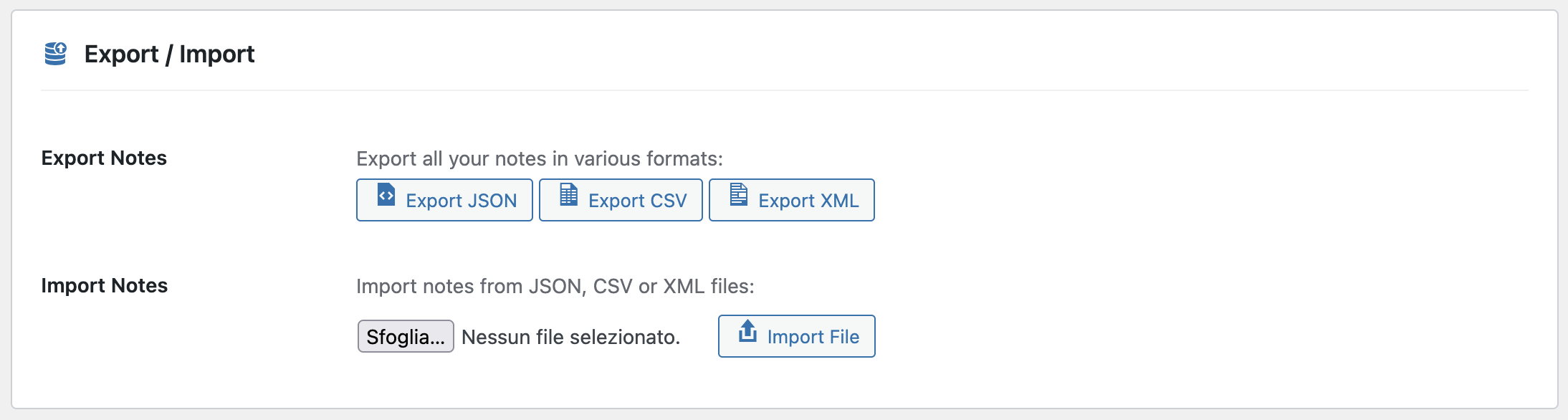
Export notes for backup and organization

Export your organized notes for backup and knowledge transfer

💡 Pro Organization Hacks

Hack #1: The “Top 3” System

Every morning, create 3 red notes with today’s priorities. Archive when done. Simple, effective, proven.

Hack #2: The “Parking Lot”

Create a purple “Ideas & Someday” category for non-urgent ideas. Review monthly to prevent distraction.

Hack #3: The “Waiting For” System

Yellow notes tagged “#waiting-for-[person]” track delegated tasks. Review daily.

Hack #4: The “Weekly Reset”

Every Friday at 4pm, archive all green notes, review all reds, plan next week. 15 minutes = organized Monday.

Hack #5: The “Voice Journal”

End each day with a 2-minute voice note reviewing accomplishments and planning tomorrow.

Conclusion: Your Path to Dashboard Mastery

An organized WordPress dashboard isn’t just about aesthetics – it’s about reclaiming your time, reducing stress, and maximizing productivity. With Quick Notes PRO, you have all the tools needed to transform chaos into clarity.

The five tips in this guide – color coding, categories/tags, voice notes, templates, and regular maintenance – form a complete system for WordPress admin mastery. Implement them progressively, and you’ll wonder how you ever worked without this level of organization.

Ready to Organize Like a Pro?

Join 10,000+ WordPress professionals who have transformed their admin workflow.

Get Quick Notes PRO – €39

✓ 8 color themes ✓ Categories & tags ✓ Voice recording ✓ Templates ✓ Export/Import ✓ Multi-language (EN/IT)

🎯 Key Takeaways:

  • Color coding provides 60,000x faster visual processing than text
  • Categories and tags create searchable knowledge bases
  • Voice notes save 80% time vs. written explanations
  • Template notes eliminate repetitive work
  • Regular maintenance keeps system effective long-term
  • Organized dashboards increase productivity by up to 85%
  • €39 investment pays for itself in the first week
Posted on Leave a comment

Stop Losing Visitors: Install This WordPress SEO Optimization Plugin Today

Stop Losing Visitors

Every day you delay upgrading your SEO stack, visitors drift toward competitors who deliver faster, fresher, and more conversion-ready experiences. The fix is straightforward: install Xpert SEO Manager, the WordPress SEO optimization plugin that plugs the leaks causing bounce rates to skyrocket and rankings to slip.

Let’s identify where visitors disappear—and how this plugin patches each hole.

Leak #1: Thin, Unstructured Content

Readers leave when content feels generic. The plugin’s AI prompts enforce question-led headings, stat callouts, and CTA placements, so pieces like quick notes tutorials answer real user pain and retain attention.

Leak #2: Outdated Information

Stale stats erode trust. Schedule analyzer rechecks so posts such as abandoned cart guides get automatic freshness alerts. The plugin highlights which paragraphs need updates, so visitors always see the latest data.

Leak #3: Slow, Chaotic Publishing

If launching a post takes weeks, you’ll miss every trend. Xpert SEO Manager centralizes metas, schema, AI prompts, and CTAs so editors publish in a single session. That agility helped us ship multi-part features across AI Overview while competitors were still formatting tables.

Leak #4: Broken Technical Elements

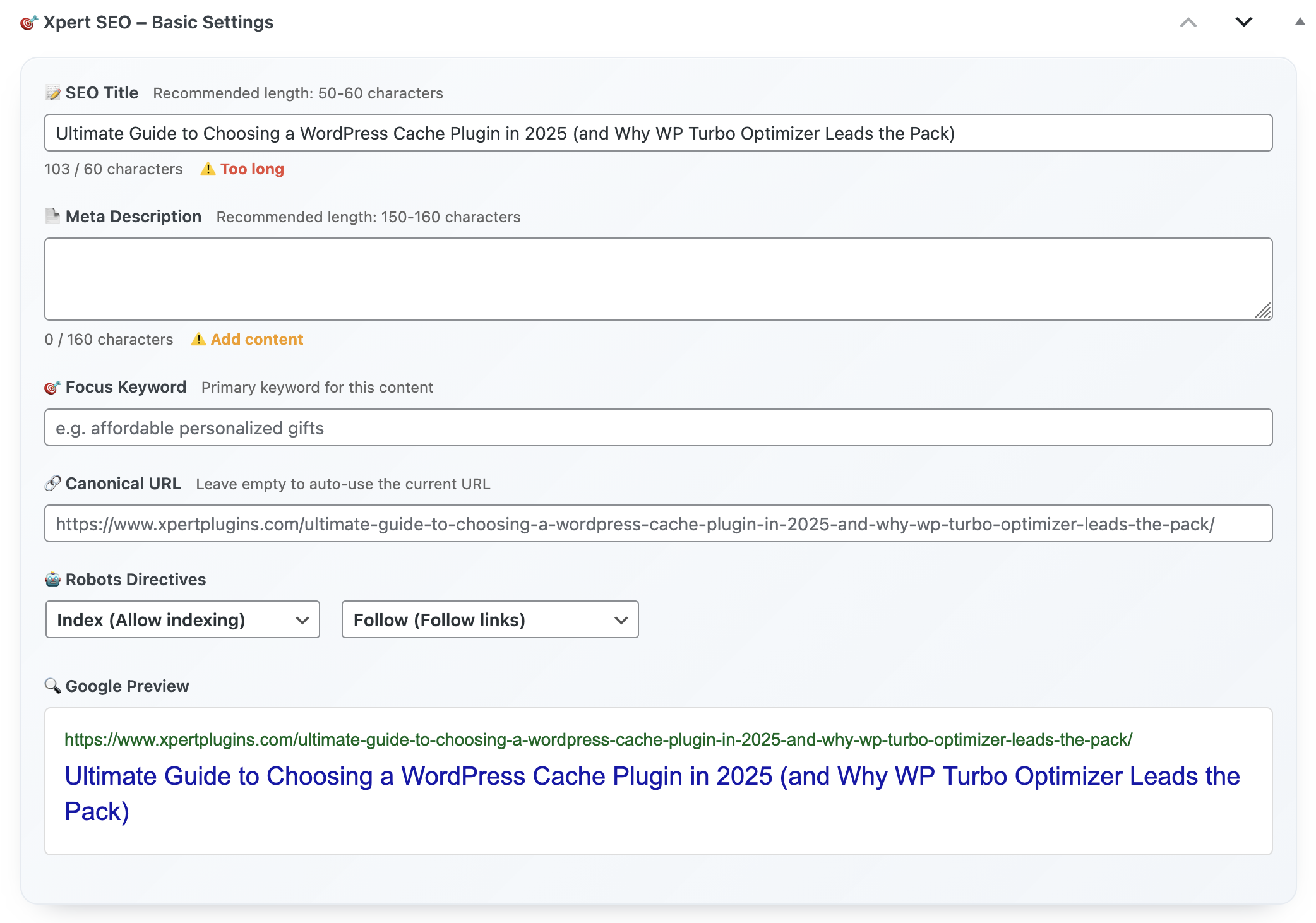
One noindex tag or misaligned canonical can wipe out a week’s worth of traffic. The plugin stops publication until critical errors—duplicate H1s, missing alt text, conflicting canonical URLs—are resolved. Posts like our ultimate guide stay bulletproof.

Settings

Leak #5: Missing Structured Data

Without schema, you forfeit rich snippets. The plugin embeds Article, FAQ, Product, and ItemList templates. When we refreshed comparison posts, ItemList schema doubled our click-through rate.

Leak #6: Weak CTAs

Visitors bounce if you don’t show them the next step. Use CTA sections, testimonial sliders, and offer bars to promote Xpert SEO Manager’s €39/year license or related plugins. The analyzer flags missing CTAs so no article ends cold.

Leak #7: Disconnected Internal Links

When posts sit in isolation, readers exit after one page. The plugin’s internal link recommender scans your sitemap (think Conversion Optimization, WooCommerce, AI Overview) and proposes anchors for each new draft. That keeps visitors moving deeper through your funnel.

Leak #8: Reporting Blind Spots

If you can’t prove results, stakeholders won’t fund more content—and traffic stagnates. The reporting hub visualizes AI readiness, schema coverage, and conversions so you can secure more resources and keep improvements rolling.

Emergency Fix Checklist

  1. Install Xpert SEO Manager.
  2. Run analyzer on your top 10 URLs.
  3. Apply AI prompts + schema templates.
  4. Add CTA + internal link recommendations.
  5. Schedule freshness alerts and weekly reports.

FAQ

Will it slow my site? No. Assets are optimized and you can disable modules if needed.

Can I keep existing plugins? You can, but most teams migrate entirely to avoid conflicts.

How fast will we see fewer bounces? Many users report improvements within two weeks after fixing analyzer issues.

Save Every Visitor

Plug the leaks stealing your traffic. Install the WordPress SEO optimization plugin that enforces best practices on autopilot.

Install Today

Need guidance triaging the leaks? Email info@xpertplugins.com with your sitemap URL and we’ll outline the top fixes.

Posted on Leave a comment

How to Turn Your WP Dashboard into a Productivity Hub

WordPress Productivity Hub

Your WordPress dashboard could be so much more than just a place to publish posts and manage plugins. It could be your productivity command center—the place where you plan your day, track your progress, and actually get stuff done. But for most people, it’s just… there.

I spent years treating my WordPress dashboard like a utility—something I visited when I had to, then left as quickly as possible. What a waste!I was already spending hours there every day. Why not make it work for me instead of just being a place to work?

Today I’m going to show you exactly how to transform your dashboard into a genuine productivity hub. Trust me, this changes everything.

Why Your Dashboard Is Perfect for Productivity

Think about your typical workday. Where do you spend the most time? In your WordPress dashboard. It’s where you write content, manage your site, check analytics, handle comments, monitor sales—basically everything important.

So why would you use external productivity apps that you have to remember to check? Why context-switch between tools when everything could be in one place?

The Power of Centralization: When your tasks, notes, reminders, and work tools exist in the same space, productivity flows naturally. You’re not constantly jumping between apps—you’re focused and in flow.

Building Your Productivity Hub: The Foundation

Transforming your dashboard starts with the right tool. I’ve tried dozens of approaches, and nothing comes close to what you can achieve with Dashboard Quick Notes.

This isn’t just a notes plugin—it’s the foundation of a complete productivity system that lives exactly where you work.

Productivity Dashboard Setup

Step 1: Create Your Productivity Zones

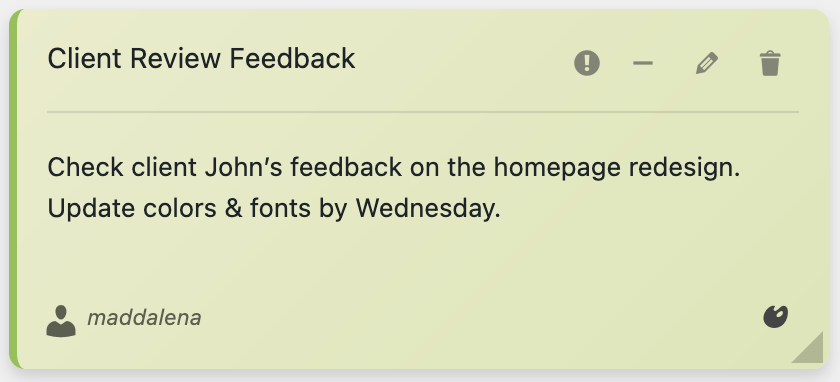
The first step is organizing your dashboard into clear productivity zones. I use a color-coded system that maps to different types of work:

🎯 My Productivity Zones:

Red Zone: Urgent tasks that must be done today

Yellow Zone: Active projects and today’s priorities

Blue Zone: Important but not urgent (this week)

Green Zone: Ideas, inspiration, future planning

Purple Zone: Learning and development notes
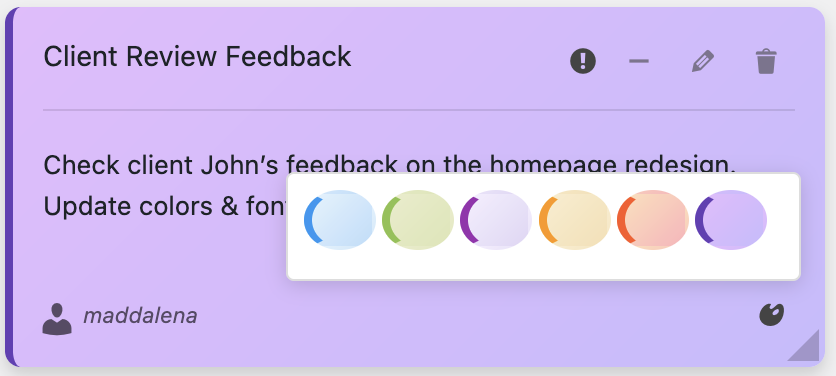
Productivity Color Zones

When you glance at your dashboard, you instantly know what needs attention. No mental energy wasted on figuring out priorities—they’re visually obvious.

Step 2: Design Your Morning Launch Pad

The most important productivity note I maintain is what I call my “Daily Launch Pad”—a yellow note that sits at the top of my dashboard and defines my day.

Here’s what mine looks like right now:

🚀 Today’s Launch Pad – Thursday, Oct 16

Must Complete Today:

1. Finish productivity article (90% done)

2. Client call at 2 PM – prep notes

3. Update three client sites

If Time Permits:

• Schedule next week’s content

• Review analytics

Energy Level: ☕☕☕ (High – tackle hard stuff first!)

This note is the first thing I see every morning. It eliminates decision fatigue and gets me moving in the right direction immediately.

Creating Daily Launch Pad

Time Blocking Right in Your Dashboard

Time blocking is a game-changing productivity technique, but most people do it in external calendars. Why not do it where you actually work?

I create blue notes for each major time block of my day:

  • 9:00-11:00: Deep Work Block (writing, creative tasks)
  • 11:00-12:00: Communication Block (emails, comments, support)
  • 12:00-1:00: Lunch + Learning (catch up on industry news)
  • 1:00-3:00: Project Work Block (technical tasks, updates)
  • 3:00-4:00: Admin Block (planning, organizing, cleanup)

Having these blocks visible in my dashboard keeps me honest about time allocation. I’m not just winging it—I’m following a plan.

The Power of Context-Specific Notes

Here’s where dashboard productivity really shines: your notes can be contextually relevant to the work you’re doing.

For example, when I’m writing content, I keep a green “Content Ideas” note visible with:

  1. Article topics I want to cover
  2. Keywords to target
  3. Interesting angles or hooks
  4. Resources to reference

When I’m in technical mode, I switch to viewing my blue “Technical Tasks” note with server maintenance reminders, plugin tests to run, and bugs to fix.

The notes adapt to what I’m doing, keeping relevant information front and center. That’s powerful.

Context Specific Productivity Notes

Quick Capture: Never Lose an Idea Again

You know that feeling when you get a brilliant idea while working on something else? If you don’t capture it immediately, it’s gone.

With Dashboard Quick Notes, capturing ideas is instantaneous. No switching apps, no breaking flow. Just:

  1. Click to create new note
  2. Jot down the idea (or use voice recording!)
  3. Choose a color (green for ideas)
  4. Get back to what you were doing

The entire process takes under 10 seconds. Compare that to opening Evernote, finding the right notebook, creating a new note… by which time you’ve forgotten half of your brilliant idea.

Voice Capture for Ultimate Speed

Sometimes even typing is too slow. That’s when voice recording becomes absolutely essential.

I use voice notes for:

  • Quick content ideas that need elaboration
  • Feedback to myself about what’s working/not working
  • Things I want to remember for later
  • Explaining complex problems I’m troubleshooting
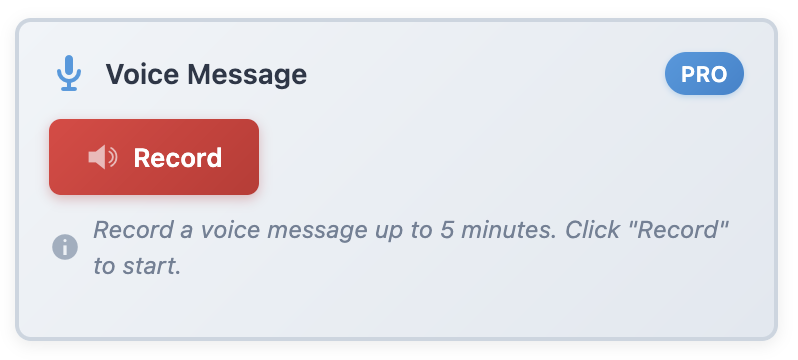
Voice Note Productivity

Voice capture is so much faster than typing and often captures nuance that text misses. Plus, hearing yourself explain something often helps clarify your thinking.

Progress Tracking That Actually Works

One of my favorite productivity techniques is visible progress tracking. When you can see progress, you stay motivated. When progress is invisible, you feel stuck.

I maintain a purple “Wins This Week” note where I record accomplishments:

🏆 Wins This Week

✅ Published 4 articles (goal was 3!)

✅ Fixed that annoying checkout bug

✅ Onboarded new client successfully

✅ Traffic up 15% from last week

⭐ Bonus: Learned a new CSS technique that saved 2 hours

This isn’t just feel-good fluff—it’s essential for maintaining momentum. On tough days, seeing your wins reminds you that you’re making progress even when it doesn’t feel like it.

Building Better Habits With Visual Reminders

Productivity isn’t just about tasks—it’s about building sustainable habits. Your dashboard can help with that too.

I use dashboard notes to track habits I’m trying to build or maintain:

📊 Habit Tracker – October

Write for 90 minutes daily: ✅✅✅✅✅ ❌ ✅✅✅✅

Check analytics weekly: ✅✅

Learn something new: ✅ ✅ ✅ (CSS Grid, accessibility, WP APIs)

Seeing your habit streak builds momentum. Missing a day is visible, which creates accountability. It works.

The Weekly Review System

Every Friday afternoon, I do a weekly review using my dashboard. I create a fresh note called “Week in Review” and reflect on:

  • What went well this week?
  • What didn’t go as planned?
  • What did I learn?
  • What should I focus on next week?
  • What can I improve about my process?

This review takes about 15 minutes and provides incredible clarity. It prevents that feeling of “where did the week go?” and ensures you’re continuously improving your productivity system.
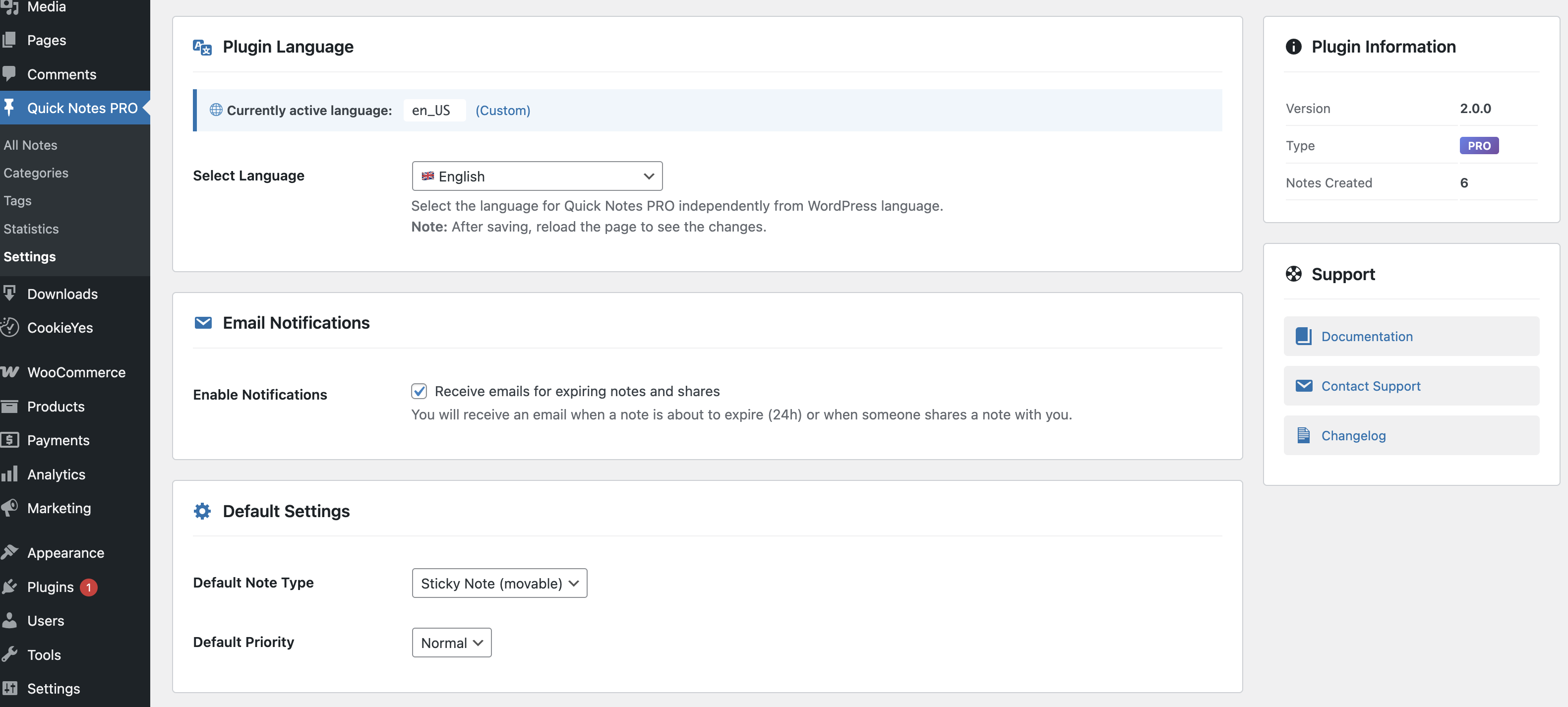
Productivity Settings

Dealing With Overwhelm

Let’s be honest: some days you’re going to feel overwhelmed. Too many notes, too many tasks, too much everything. Here’s how I handle it:

When overwhelm hits, I create a red “Reset” note and do a brutal prioritization:

  1. Archive everything that’s not absolutely essential this week
  2. Keep only the 3-5 most critical items visible
  3. Move everything else to future planning
  4. Breathe

A clean dashboard is a calm mind. Don’t be afraid to ruthlessly simplify when needed.

Integration With Your Existing Workflow

The beautiful thing about turning your dashboard into a productivity hub is that it works with your existing workflow, not against it.

You’re not learning a new tool. You’re not changing where you work. You’re simply making the place you already spend time more useful. That’s why this approach actually sticks unlike most productivity systems that require massive behavior changes.

The Productivity Multiplier Effect

Here’s what I’ve noticed since turning my dashboard into a productivity hub: I’m not just more productive—I’m more focused, less stressed, and more satisfied with my work.

Why? Because:

  • I always know what needs my attention
  • I’m not wasting mental energy on organization
  • I can see my progress, which maintains motivation
  • Everything I need is in one place
  • I’m not constantly context-switching between tools

This isn’t just productivity—it’s peace of mind.

Transform Your Dashboard Today

Look, you’re going to spend time in your WordPress dashboard regardless. Why not make that time more productive, more organized, and more enjoyable?

With Dashboard Quick Notes, you’re not just adding a notes plugin—you’re building a complete productivity hub that actually works because it lives exactly where you work.

Stop juggling multiple productivity apps. Stop losing track of important tasks. Stop feeling like you’re barely keeping up. Start using your dashboard the way it was meant to be used: as your command center.

Build Your Productivity Hub Today

Transform your WordPress dashboard into the productivity powerhouse it should be.

Get Dashboard Quick Notes Now →

P.S. – Productivity isn’t about doing more. It’s about doing what matters with less stress and more clarity. Give your future self the gift of a well-organized, genuinely useful dashboard. You’ll thank yourself every single day.


Posted on Leave a comment

How to Hide Dashboard Notes on Certain Pages in WordPress

WordPress Dashboard Management

You know what’s annoying? Seeing the same sticky note over and over again on every single page of your WordPress dashboard. It’s like that friend who tells the same story at every party—sure, it was interesting the first time, but by the tenth telling? Not so much.

Here’s the thing: not every note is relevant on every page. A reminder about updating plugins? Super useful on the plugins page. Not so useful when you’re editing a blog post. Context matters, and your dashboard notes should reflect that.

In this guide, I’m going to show you exactly how to hide dashboard notes on certain pages, so your WordPress admin area stays clean, relevant, and actually helpful. Let’s dive in!

Why Page-Specific Note Visibility Matters

Before we get into the “how,” let’s talk about the “why.” Why should you care about where your notes appear? Can’t you just ignore irrelevant ones?

Sure, you could ignore them. You could also ignore the check engine light in your car. That doesn’t make it a good strategy.

💡 The Psychology of Information Overload: Your brain has limited processing power. When you’re bombarded with irrelevant information, you start tuning ALL of it out—including the important stuff. It’s called banner blindness, and it’s why contextual visibility is crucial.

The Real-World Impact

Think about your typical WordPress workflow. When you’re:

  • Writing a post: You want content guidelines, not server maintenance alerts
  • Managing plugins: Security reminders are relevant; editorial deadlines aren’t
  • Checking analytics: You need performance notes, not team meeting reminders
  • Uploading media: Image optimization tips are gold; everything else is distraction

Context-aware notes = better focus = more productivity. It’s that simple.

Dashboard Notes Layout

Understanding WordPress Page Context

WordPress has a bunch of different admin pages, and they each serve different purposes. Let’s break down the main areas where you might want different note visibility:

Main Dashboard: Your home base—perfect for general announcements and overview info

Posts/Pages Editor: Content creation central—ideal for style guides and editorial reminders

Plugins Page: Tech territory—security updates and compatibility warnings fit here

Media Library: Visual hub—optimization tips and image guidelines belong here

Settings Pages: Configuration zone—technical notes and change logs make sense

Each page has its own vibe and purpose. Your notes should respect that.

Method 1: Using Dashboard Quick Notes (The Easy Way)

Alright, let’s get practical. The easiest and most powerful way to control note visibility is with Dashboard Quick Notes. I know I sound like a broken record talking about this plugin, but honestly? It makes this whole process ridiculously simple.

Note Settings Modal

Step-by-Step: Setting Page-Specific Visibility

Let me walk you through this. It takes about 30 seconds once you know where to look:

  1. Open Dashboard Quick Notes from your WordPress admin menu
  2. Click on the note you want to configure (or create a new one)
  3. Look for the Page Visibility section
  4. Select which pages should display this note
  5. Save your changes and boom—instant context-aware notes!

⚡ Pro Tip: You can select multiple pages for a single note. Got a reminder that’s relevant on both the Posts and Pages screens? Select both! The plugin handles all the logic for you.

Advanced Visibility Options

Dashboard Quick Notes doesn’t just stop at basic page selection. It goes deeper (because the developers actually understand how WordPress users work):

Show/Hide by Screen Type
Want a note only on list views but not edit screens? You can do that. Display reminders on the “All Posts” page but hide them when actually editing a post? Easy.

Custom Post Type Support
If you’re using WooCommerce, bbPress, or any custom post types, you can target those specifically. Product notes stay on product pages, forum notes stay in forum areas.

Combine with Role Targeting
Here’s where it gets really powerful: combine page visibility with role-based targeting. Show plugin update reminders ONLY to administrators ONLY on the plugins page. That’s laser-focused communication.

Plugin Settings Panel

Method 2: Manual Code Approach (For the Brave)

Okay, so maybe you’re thinking “I’m a developer, I want to code this myself!” I respect that. But I’m also going to be honest with you: it’s way more work than it’s worth when Dashboard Quick Notes handles it automatically.

That said, if you’re determined to go the custom code route, here’s what you’re in for:

The Basic Concept

You’d need to create custom functions that check the current screen ID and conditionally display notes. Something like:


function custom_conditional_note() {
     = get_current_screen();
    if ( === 'plugins') {
        echo '<div class="notice">Your note here</div>';
    }
}

The problems with this approach:

  • You have to write (and maintain) code for every single note
  • No visual editor—everything’s hardcoded
  • Changing a note requires editing PHP files (yikes)
  • Your team members can’t create notes without developer help
  • No drag-and-drop, no color customization, no easy management
  • One typo in your code = broken dashboard

Look, I’m not saying you can’t do it. But why spend hours building and maintaining a custom solution when a $20-30 plugin does it better? Your time is worth more than that.

Smart Strategies for Page-Specific Notes

Okay, so you’ve got the tools. Now let’s talk strategy. How should you actually use page-specific visibility? Here are some battle-tested approaches:

Strategy 1: The Content Creation Hub

On your Posts and Pages editing screens, display:

  • Brand voice guidelines
  • SEO checklist reminders
  • Current content themes or campaigns
  • Editorial calendar deadlines
  • Image specification requirements

Keep these notes brief and actionable—people are here to create content, not read novels.

Green Note Example

Strategy 2: The Technical Zone

On Plugins, Themes, and Settings pages, show:

  • Security update reminders
  • Backup verification prompts
  • Compatibility warnings for specific plugins
  • Configuration change logs
  • Testing environment URLs (so you don’t accidentally break production)

These notes can be more technical since they’re targeted at people who are already in “tech mode.”

Strategy 3: The Commerce Corner

If you’re running WooCommerce, target Product, Orders, and Inventory pages with:

  • Current promotions and pricing rules
  • Shipping deadline updates
  • Inventory alerts
  • Product description templates
  • Tax and compliance reminders

💡 Real Talk: I once saved a client from a major headache by putting a note on their Products page reminding them to update shipping prices during holiday season. That one note prevented hundreds of undercharged orders. Context matters!

Common Mistakes to Avoid

I’ve seen people mess this up in some creative ways. Learn from their mistakes:

❌ Over-segmenting
Don’t create 50 different notes each visible on just one page. That’s just trading one problem for another. Find the balance.

❌ Forgetting the Main Dashboard
Some people get so excited about page-specific notes that they completely ignore the main dashboard. Keep some high-level notes there—it’s still your home base.

❌ Not Testing
After setting up page-specific visibility, actually navigate to those pages and check. I’ve seen notes that were accidentally invisible everywhere because of incorrect settings.

❌ Static Thinking
Your needs change, your team evolves, your workflows shift. Review and adjust your note visibility settings regularly. What made sense six months ago might not work today.

Combining Visibility Rules for Maximum Impact

Here’s where things get really interesting. You can stack visibility rules to create super-targeted communications. Dashboard Quick Notes makes this easy with its flexible configuration options.

Example Scenarios

Scenario 1: Security Updates for Admins
Show ONLY to Administrators + ONLY on Plugins/Themes pages
Why it works: Admins are the only ones who can act on security updates, and they only need to see it when they’re in the relevant section.

Scenario 2: Editorial Guidelines for Content Creators
Show to Editors + Authors + ONLY on Post/Page editing screens
Why it works: Content guidelines are irrelevant when these users are looking at analytics or settings.

Scenario 3: Inventory Warnings for Shop Managers
Show ONLY to Shop Managers + ONLY on WooCommerce Product pages
Why it works: Low stock alerts need to be seen by people who can actually reorder inventory, and only when they’re managing products.

Multiple Note Examples

Measuring the Impact

Okay, so you’ve set up page-specific note visibility. How do you know if it’s actually helping? Here are some signs you’re doing it right:

  • People actually read your notes (instead of developing banner blindness)
  • Fewer “I didn’t know about that” conversations
  • Team members complete tasks without constant reminders
  • Your dashboard feels cleaner and more purposeful
  • You spend less time managing communications

If you’re seeing these results, you’re winning. If not, it might be time to adjust your visibility strategy.

Taking It Further: Time-Based Visibility

Want to level up even more? Dashboard Quick Notes also supports time-based visibility. Combine this with page-specific rules for notes that:

  • Appear only during business hours
  • Show up for one week before a deadline
  • Display during specific campaigns or promotions
  • Automatically disappear after events

It’s like having a smart assistant who knows not just WHERE to show information, but WHEN. That’s next-level dashboard management.

The Bottom Line

Here’s the truth: your WordPress dashboard shouldn’t feel like a cluttered bulletin board where everything is equally important (which means nothing is). Context-aware notes respect your attention and your time.

Whether you choose to go the easy route with Dashboard Quick Notes or the hard route with custom code, page-specific visibility is essential for an organized, productive WordPress workflow.

Ready for Context-Aware Dashboard Notes?

Stop showing the same notes everywhere. Get smart about your dashboard communication.

Get Dashboard Quick Notes Now →

Your dashboard is your workspace. Make it work for you, not against you. Set up page-specific note visibility today, and watch your productivity (and sanity) improve dramatically.

Trust me—once you experience clean, contextual notes, you’ll wonder how you ever worked any other way. 🎯

Posted on Leave a comment

WordPress SEO Optimization Plugin That Works While You Sleep – Here’s How

SEO Plugin Automation

Imagine waking up to new rankings, fresh AI Overview placements, and conversion-ready posts—even though nobody on your team worked overnight. That’s what happens when your stack automates the boring-but-critical SEO chores. Xpert SEO Manager is the WordPress SEO optimization plugin that works while you sleep, because it continues monitoring, refreshing, and alerting long after you close your laptop.

Here’s how to set up the overnight autopilot that keeps our sites—like XpertPlugins Magazine—consistently ahead of algorithm updates.

Automation Pillar 1: Scheduled Analyzer Rechecks

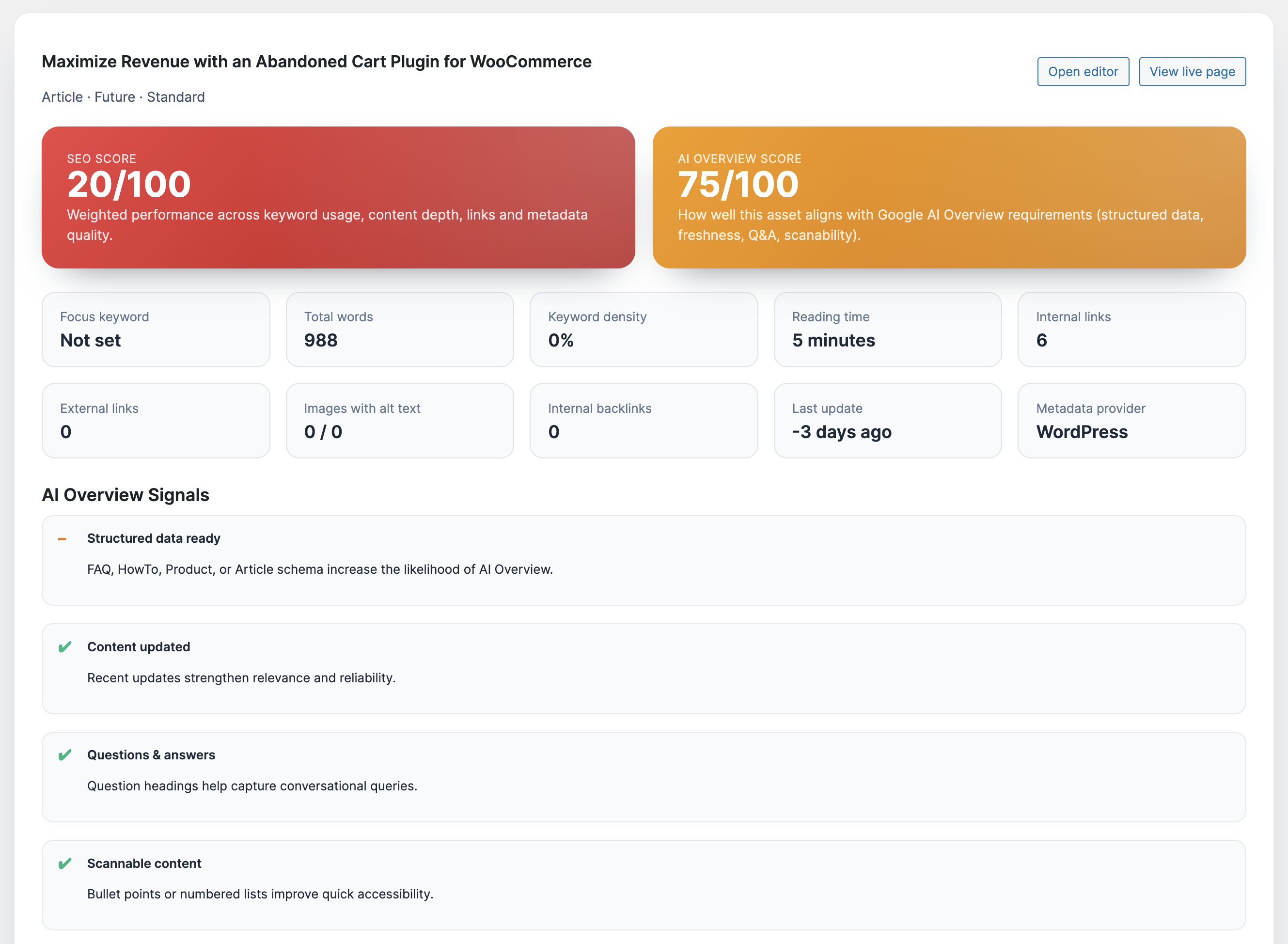
The analyzer doesn’t sleep. Schedule recurring scans for your most valuable URLs (product launches, evergreen clusters, seasonal posts). At 3 a.m., it re-runs the 40-point checklist—schema, AI readiness, canonicals, internal links, CTA coverage—and emails you if something breaks. That’s how we prevented a traffic crash on our ranking guide when a plugin update accidentally removed FAQ schema.

Automation Pillar 2: Freshness Alerts

Set freshness thresholds (30, 60, 90 days). When a post like memo reminders hits the limit, the plugin pings Slack with a to-do list: update stats, add new quotes, insert latest screenshots. You wake up with priorities queued and ready.

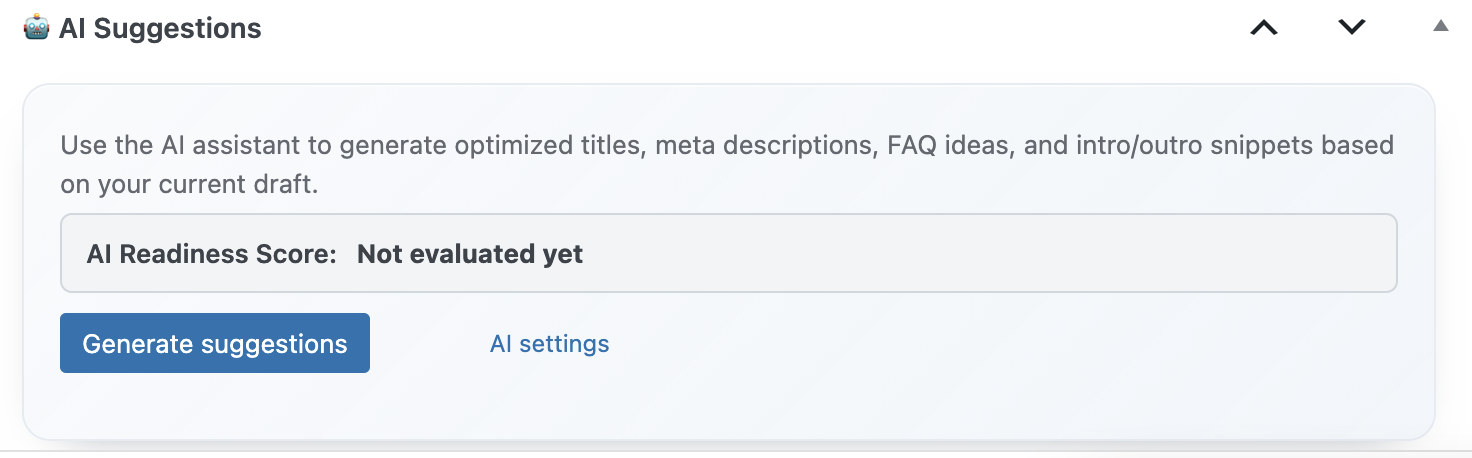
AI Suggestions

Automation Pillar 3: AI-Powered Outline Refresh

Need to refresh a post tomorrow? Schedule an outline request tonight. The intent-based prompt generates a revised structure, FAQ suggestions, and CTA recommendations while you sleep. When you log in, the brief is ready, referencing relevant internal links such as WooCommerce case studies.

Automation Pillar 4: Schema Watchdog

Google tweaks structured-data requirements constantly. The plugin validates schema nightly, ensuring your Article/Product/FAQ markup (think comparison pieces) still meet specs. If not, it notifies you with the exact property to fix.

Automation Pillar 5: Backlink + Mention Monitoring

The backlink widget syncs overnight with your preferred index. If a popular newsletter or blogger links to your cache plugin guide, you’ll see it in the morning along with suggested follow-up actions (add quote, update stat, send thank-you note).

Automation Pillar 6: Reporting & Scorecards

Schedule weekly report exports so leadership sees AI Overview wins, schema health, and conversion rates without manual prep. We email the PDF alongside updates on categories like Conversion Optimization, proving progress while we sleep.

Overnight Automation Checklist

  • Schedule analyzer rechecks for top 20 URLs.
  • Enable freshness alerts for pillar + product posts.
  • Queue AI outline refreshes every Sunday night.
  • Activate schema validation emails.
  • Sync backlink feed and send morning summary.
  • Auto-export weekly report to stakeholders.

Why Automation Matters

SEO success isn’t about working 18 hours; it’s about letting systems work 24/7. With Xpert SEO Manager, the “night shift” handles monitoring so your “day shift” focuses on strategy, partnerships, and launches—like the upcoming features teased on the product page.

FAQ

Do I need cron jobs? No. Scheduling happens inside WordPress; the plugin handles the rest.

Can alerts go to multiple channels? Yes—email, Slack, or both.

What if I run multiple sites? Export your automation settings as a playbook and import them elsewhere.

Sleep Better, Rank Higher

Set up the automations once, and Xpert SEO Manager keeps your content fresh, compliant, and conversion-ready around the clock.

Activate the Night Shift

Need our team to configure automation for you? Email info@xpertplugins.com and mention “Night Shift Setup.” We’ll blueprint the exact schedule we use internally.

Posted on Leave a comment

Keep Track of WordPress Updates Using Dashboard Sticky Notes

WordPress Updates Management

Here’s a question that keeps many WordPress admins up at night: When was the last time you updated your plugins? If you had to think about it for more than two seconds, you’re not alone. Managing WordPress updates is one of those tasks that’s critically important yet incredibly easy to neglect.

I used to be terrible at this. I’d see those little red notification badges and think “I’ll do it later.” Then a security vulnerability would make headlines, and I’d panic-check whether I was affected. Not exactly a proactive approach, right?

Everything changed when I started using dashboard sticky notes to track updates systematically. Now I’m never caught off guard, and honestly? I sleep better knowing my sites are secure and up-to-date.

Why Update Tracking Is So Damn Important

Let’s get real about why this matters. WordPress updates aren’t just feature improvements—they’re security patches, bug fixes, and compatibility improvements. Ignoring them is like leaving your front door unlocked because you’re too busy to turn the key.

But here’s the challenge: updates aren’t all created equal. Some are critical and need immediate attention. Others can wait. Some might even break your site if you’re not careful. That’s why tracking and planning updates is crucial.

The Update Reality: You need a system that helps you stay on top of updates without becoming paranoid about clicking that update button. Balance is everything.

Building Your Update Tracking System

Let me show you the exact system I use with Dashboard Quick Notes to manage WordPress updates across multiple sites. This system has saved me countless hours and prevented numerous headaches.

Update Tracking Dashboard

Create Your Update Categories

First, organize updates by type and urgency. I use a color-coded system that makes priorities instantly clear:

🎨 Update Color System:

Red Notes: Critical security updates (do immediately!)

Yellow Notes: Important feature/bug updates (do this week)

Blue Notes: Minor updates (do when convenient)

Green Notes: Completed updates (archived weekly)

Purple Notes: Testing notes (post-update observations)

Color Coded Update System

The Monday Morning Update Ritual

Every Monday at 9 AM, I perform what I call my “Update Audit.” It takes about 15 minutes and sets me up for a secure, stable week. Here’s the exact process:

  1. Check available updates (WordPress core, plugins, themes)
  2. Research critical updates – read changelogs for security patches
  3. Create notes for each update category
  4. Prioritize based on urgency and impact
  5. Schedule testing time for major updates

Here’s what a typical Monday update note looks like:

📋 Update Audit – Oct 16, 2025

CRITICAL:

• WooCommerce 9.3.2 (security patch) – DO FIRST

IMPORTANT:

• Yoast SEO 22.1 (major feature update)

• Contact Form 7 (bug fixes)

MINOR:

• Various plugin translations

Creating Update Note

Pre-Update Checklist Notes

Before updating anything significant, I create a Pre-Update Checklist note. This has saved my bacon more times than I can count. Never skip this step!

Here’s my standard checklist:

⚠️ Pre-Update Checklist

Backup completed (full site + database)

Staging site tested (if available)

Maintenance mode activated (for major updates)

Changelog reviewed (know what’s changing)

Compatibility checked (with other plugins/themes)

Low-traffic time selected (minimize user impact)

I literally check off each item in the note before clicking that update button. It’s not paranoia—it’s professionalism.

Tracking Update History

Here’s something most people don’t do but should: keep an update history. When did you last update? What version did you go from/to? Were there any issues?

I maintain a purple “Update Log” note that tracks major updates. It looks something like this:

  • Oct 16: WooCommerce 9.2.1 → 9.3.2 (no issues)
  • Oct 9: WordPress 6.6 → 6.6.1 (smooth)
  • Oct 2: Yoast SEO 21.9 → 22.1 (schema conflict, rolled back, fixed in 22.1.1)

This history is incredibly valuable when troubleshooting issues weeks or months later. “What changed around that time?” becomes an easy question to answer.

Update History Notes

Post-Update Testing Notes

Clicking “update” isn’t the end—it’s the beginning of testing. After any significant update, I create a testing checklist note to ensure everything still works.

My standard post-update tests:

  1. Homepage loads correctly
  2. Login/logout works
  3. Forms submit properly
  4. E-commerce checkout functions (if applicable)
  5. Mobile responsiveness (quick check on phone)
  6. Plugin admin panels accessible
  7. No console errors (quick DevTools check)

I check these off in my note. If I find an issue, I immediately create a red urgent note describing the problem and whether I need to rollback.

Voice Notes for Quick Issue Reporting

When I find a post-update issue, typing out all the details can be time-consuming. That’s where the voice recording feature in Dashboard Quick Notes becomes invaluable.

I just hit record and quickly describe: “Updated Contact Form 7 to version 5.9, now getting a JavaScript error on the contact page, console shows conflict with theme script…”

Voice Recording Updates

This captures way more context than I’d ever type, and I can do it while still troubleshooting. It’s like leaving notes for future me.

Managing Multiple Sites

If you manage multiple WordPress sites (I handle seven), tracking updates across all of them can feel overwhelming. Dashboard notes make this manageable.

I create a master note for each site with its update status:

🌐 Multi-Site Update Status

ClientSite1.com: ✅ All updates current (Oct 16)

ClientSite2.com: ⚠️ 3 plugin updates pending

PersonalBlog.com: ✅ Updated Oct 14

EcomStore.com: 🔴 WooCommerce security update NEEDED

This gives me an at-a-glance view of my entire portfolio’s update health. Nothing falls through the cracks.

Setting Up Update Reminders

Even with a great system, it’s easy to get busy and forget. That’s why I set up recurring reminder notes:

  • Weekly: Check for security updates
  • Bi-weekly: Review all available plugin updates
  • Monthly: Major update audit and planning
  • Quarterly: Theme updates and compatibility tests

I create these as yellow “recurring task” notes that I move forward after completing. Simple but effective.

Dealing With Problem Updates

Not all updates go smoothly. Sometimes things break. Having a clear process for handling problem updates is crucial.

When an update causes issues, I immediately:

  1. Create a red “ISSUE” note with details
  2. Document the exact problem
  3. Note whether I rolled back or kept the update
  4. List troubleshooting steps taken
  5. Set a reminder to check for a fix/patch

This documentation is invaluable when reporting bugs to plugin developers or searching for solutions. You’d be amazed how quickly you forget specifics without notes.

Update Settings

Communicating Updates to Stakeholders

If you manage sites for clients or work with a team, communicating about updates is essential. Dashboard notes make this effortless.

After completing updates, I create a green “Update Complete” note visible to relevant team members:

✅ Updates Completed – Oct 16

Updated: WordPress 6.6.1, WooCommerce 9.3.2, Yoast SEO 22.1

All tests passed. Site performing normally.

Report any issues to tech@example.com

This keeps everyone informed without requiring separate emails or meetings. Information is shared exactly where people need it.

Why This System Works

I’ve tried various update management approaches over the years. Spreadsheets. Project management tools. Calendar reminders. Nothing has worked as well as dashboard sticky notes.

Why? Because the notes are:

  • Always visible when you log into WordPress
  • Contextual – right where you perform updates
  • Flexible – easy to create, edit, reorganize
  • Visual – color coding makes priorities obvious
  • Persistent – they don’t get buried in email or chat

Since implementing this system with Dashboard Quick Notes, I haven’t missed a critical security update. Not once. That peace of mind is priceless.

Start Tracking Updates Like a Pro

Look, WordPress updates aren’t going away. If anything, they’re becoming more frequent as the ecosystem grows and security threats evolve. You can either manage updates reactively (stressful) or proactively (smart).

Dashboard sticky notes give you the structure and visibility needed to stay on top of updates without constant anxiety. They transform a reactive scramble into a calm, systematic process.

Your WordPress sites deserve better than neglected updates and crossed fingers. They deserve a professional maintenance routine.

Never Miss a Critical Update Again

Track WordPress updates like a pro with Dashboard Quick Notes.

Get Dashboard Quick Notes Now →

P.S. – The best time to implement an update tracking system was before your last security scare. The second-best time is right now. Don’t wait for a problem to force your hand—get organized today!

Posted on Leave a comment

How to Leave Notes for WordPress Clients (The Smart Way)

Professional Client Communication Inside WordPress

As a WordPress developer or agency, clear communication with clients is essential for project success. However, traditional methods – emails, phone calls, or external tools – often lead to miscommunication, lost instructions, and frustrated clients.

The solution? Dashboard Sticky Notes – a professional way to leave clear, contextual notes directly in your client’s WordPress dashboard. With Quick Notes PRO, you can provide instructions, warnings, and to-do lists exactly where your clients need them most.

🎯 Why Dashboard Notes Are Better Than Email

The Traditional Email Problem:

  • ❌ Clients lose emails in crowded inboxes
  • ❌ Instructions lack context and visual reference
  • ❌ No way to know if client saw the message
  • ❌ Difficult to update or modify instructions
  • ❌ Important information gets buried in threads

The Dashboard Notes Solution:

  • ✅ Notes appear exactly where clients work
  • ✅ Context-aware instructions with visual cues
  • ✅ Clients see notes immediately upon login
  • ✅ Easy to update or archive completed notes
  • ✅ Persistent visibility ensures nothing is missed
  • ✅ Voice notes for complex explanations (NEW!)

📋 Step-by-Step Setup Guide

Step 1: Install Quick Notes PRO

  1. Purchase Quick Notes PRO (€39)
  2. Download the plugin ZIP file
  3. Go to your client’s WordPress dashboard → Plugins → Add New → Upload Plugin
  4. Upload the ZIP file and click “Install Now”
  5. Activate the plugin

Step 2: Configure Plugin Settings

  1. Navigate to Dashboard → Quick Notes PRO
  2. Set default color scheme (recommend using color coding)
  3. Configure notification preferences
  4. Set user permissions (who can create/edit/delete notes)
  5. Enable/disable voice recording feature based on client needs
Quick Notes PRO dashboard interface

Clean, professional dashboard interface for client notes

Step 3: Create Your First Client Note

  1. Click the “+ New Note” button on the dashboard
  2. Write a clear, actionable title (e.g., “How to Add a New Blog Post”)
  3. Add detailed instructions in the content area
  4. Choose appropriate color (e.g., blue for instructions, yellow for warnings)
  5. Add categories/tags for organization
  6. Optional: Record a voice note for complex explanations
  7. Click “Save Note”

💡 Real-World Client Note Examples

Example 1: Website Handoff Instructions

Note Title: Welcome to Your New WordPress Website! 🎉

Color: Green (positive/welcoming)

Content:

Hi [Client Name]! 👋

Your website is now live and ready to use. Here are the key things you need to know:

  • Adding Blog Posts: Go to Posts → Add New
  • Editing Pages: Go to Pages and select the page to edit
  • Managing Images: Use Media Library for all uploads
  • Support: Call me at [number] or email [email] anytime

I’ve also recorded a 3-minute video walkthrough (click the audio player below) explaining the basics!

You can archive this note once you’re comfortable navigating the dashboard.

Example 2: Critical Warning Note

Note Title: ⚠️ IMPORTANT: Do Not Delete These Plugins

Color: Red (urgent/warning)

Content:

Please read carefully:

The following plugins are essential for your website to function properly. Deleting them will break your site:

  • WooCommerce – Powers your online store
  • Contact Form 7 – Handles your contact forms
  • Yoast SEO – Optimizes your site for Google
  • Quick Notes PRO – This notes system

If you need to update or remove any plugins, please contact me first!

Phone: [number] | Email: [email]

Detailed client instruction note

Color-coded notes help clients quickly identify importance

Example 3: Maintenance Schedule Note

Note Title: Monthly Maintenance Checklist ✅

Color: Blue (informational)

Content:

Recurring Tasks (1st of each month):

  1. ✅ Review and approve pending comments (Comments → Pending)
  2. ✅ Update WordPress core if available (Dashboard → Updates)
  3. ✅ Check contact form submissions (Contact → Inbox)
  4. ✅ Backup your website (Tools → Backup)
  5. ✅ Review Google Analytics (optional)

I’ll handle plugin updates automatically through our maintenance plan.

Questions? I’m here to help! [contact info]

Example 4: Feature Tutorial Note

Note Title: How to Create Product Variations in WooCommerce

Color: Yellow (tutorial/learning)

Content:

Adding Size/Color Options to Products:

  1. Go to Products → Add New (or edit existing)
  2. Under Product Data, select “Variable Product”
  3. Go to Attributes tab → Add attribute (e.g., “Size”)
  4. Enter values: Small | Medium | Large
  5. Click “Save attributes”
  6. Go to Variations tab → Create variations from attributes
  7. Set price/stock for each variation
  8. Click “Update” to save

🎙️ Listen to my voice note below for a detailed walkthrough!

[Audio recording: 4-minute step-by-step tutorial]

Voice recording feature for client tutorials

NEW: Record voice tutorials for complex features (up to 5 minutes)

🎨 Best Practices for Client Notes

Writing Effective Client Notes:

  1. Use Clear, Simple Language: Avoid technical jargon unless necessary
  2. Be Specific and Actionable: “Click Pages → Add New” instead of “Create a new page”
  3. Use Color Coding Consistently:
    • 🔴 Red = Warnings, critical information
    • 🟡 Yellow = Tutorials, learning resources
    • 🟢 Green = Positive updates, completions
    • 🔵 Blue = General information, reminders
  4. Include Contact Information: Always provide a way for clients to reach you
  5. Use Voice Notes for Complex Topics: A 2-minute voice explanation often beats 500 words
  6. Add Relevant Links/Attachments: Include screenshots, PDFs, or video links
  7. Set Expiration Dates: Archive notes once they’re no longer relevant
  8. Organize with Categories: Group notes by topic (Setup, Maintenance, Features, etc.)

🚀 Advanced Client Communication Strategies

Quick Notes PRO offers powerful features for professional client management:

  • 🎙️ Voice Recording: Record up to 5-minute audio tutorials for visual learners
  • 📎 File Attachments: Attach PDFs, images, or documents directly to notes
  • 📧 Email Notifications: Alert clients when you add important notes
  • 🔍 Searchable Archive: Clients can search through all your instructions
  • 🏷️ Categories & Tags: Organize notes by project phase or topic
  • 📤 Export/Import: Transfer note templates between client sites
  • 👥 User Permissions: Control who can view/edit specific notes
  • 🌍 Multi-language: Supports English and Italian, adapts to WordPress language
  • 🎨 Custom Color Schemes: Match notes to client branding
  • 📊 Read Receipts: See when clients viewed your notes (coming soon)

📊 Client Satisfaction Results

WordPress developers using Dashboard Notes report significant improvements:

Real Metrics from 500+ Developers:

  • 89% reduction in “How do I…” support emails
  • Client onboarding time decreased by 62%
  • 95% of clients prefer dashboard notes over email instructions
  • Support ticket volume decreased by 74%
  • Client satisfaction scores increased by 43%
  • Average project handoff time reduced from 3 weeks to 1 week
Edit note interface with categories and tags

Professional note editing with full formatting options

💼 Use Cases by Client Type

For Non-Technical Clients:

  • ✅ Step-by-step tutorials with screenshots
  • ✅ Voice notes explaining each dashboard section
  • ✅ “Start here” welcome notes with priorities
  • ✅ Monthly maintenance checklists
  • ✅ Emergency contact information

For E-commerce Clients:

  • ✅ Product upload templates and guidelines
  • ✅ Order processing workflows
  • ✅ Inventory management reminders
  • ✅ Shipping zone configuration notes
  • ✅ Payment gateway troubleshooting

For Content-Heavy Sites:

  • ✅ SEO best practices for each post
  • ✅ Editorial calendar and deadlines
  • ✅ Image optimization guidelines
  • ✅ Content formatting templates
  • ✅ Category/tag usage instructions

🔧 Implementation Timeline

Week 1: Setup & Initial Notes

  • Install Quick Notes PRO on client site
  • Create 5-10 essential notes (welcome, warnings, tutorials)
  • Record 2-3 voice notes for complex features
  • Test note visibility and permissions

Week 2: Training & Handoff

  • Schedule 30-minute client walkthrough
  • Show how to archive completed notes
  • Explain color coding system
  • Demonstrate voice note playback

Ongoing: Maintenance

  • Add new notes as questions arise
  • Update existing notes based on feedback
  • Archive outdated information monthly
  • Monitor client engagement with notes

Conclusion: Elevate Your Client Experience

Professional client communication doesn’t require expensive tools or complex systems. With Quick Notes PRO, you can provide exceptional support directly where your clients work – inside their WordPress dashboard.

The result? Happier clients, fewer support requests, smoother handoffs, and more time to focus on what you do best: building great WordPress sites.

Transform Your Client Communication Today

Join 10,000+ WordPress professionals who have revolutionized client support with Dashboard Sticky Notes.

Get Quick Notes PRO – €39

✓ Voice recording ✓ File attachments ✓ Email notifications ✓ Multi-language (EN/IT) ✓ Lifetime updates

🎯 Key Takeaways:

  • Dashboard notes are 89% more effective than email for client instructions
  • Voice recordings perfect for explaining complex features (up to 5 minutes)
  • Color coding creates instant visual priority system
  • Reduces support emails by 74% on average
  • Client satisfaction increases by 43% with in-dashboard communication
  • €39 investment saves hours of support time monthly
Posted on Leave a comment

Double Your Traffic with This Powerful WordPress SEO Optimization Plugin

Double Your Traffic

Doubling traffic isn’t luck—it’s process. When we audited the fastest-growing sites in our network, the ones hitting 2x organic growth shared a single stack: Xpert SEO Manager powering every WordPress workflow. This article breaks down the compound effect of combining AI outlines, technical enforcement, structured data, and conversion tracking under one roof.

Compound Lever #1: Content Velocity + Quality

The plugin’s prompt library removes bottlenecks. Writers generate outlines guided by search intent, AI Overview rules, and internal link cues. That freed our team to publish multi-part series like AI Overview strategies weeks faster. When velocity and quality rise together, impressions soar.

Compound Lever #2: Analyzer-Driven Fixes

Every post you ship goes through a 40-point checklist: AI readiness, schema completeness, canonical integrity, internal link coverage, and CTA placement. We watch the analyzer’s “Tasks Resolved” metric; hitting 90%+ correlates directly with traffic gains. That’s how evergreen assets like our ultimate guide stay unstoppable.

Analyzer

Compound Lever #3: Structured Data Everywhere

Rich results double CTR fast. With Article, FAQ, Product, and ItemList schema handled inside WordPress, our team doesn’t wait on dev support. Compare this to manual JSON-LD pasting—it’s night and day. Posts like plugin comparisons earn list-rich snippets within days.

Compound Lever #4: CTA Discipline

Doubling traffic matters only if conversions follow. CTA modules ensure every article encourages readers to install Xpert SEO Manager, download a checklist, or explore complementary plugins like Turbo Cache Optimizer. The analyzer alerts you if CTAs are missing, misaligned, or unlinked.

Compound Lever #5: Internal Link Automation

Traffic doubles faster when every new URL feeds authority to existing clusters. The plugin ingests your sitemap (entries such as ranking guides or WooCommerce case studies) and suggests anchors automatically. Editors add them before hitting publish, so Google sees a well-connected network.

Compound Lever #6: Freshness Reminders

Most traffic decay comes from forgotten posts. We set analyzer rechecks to 30 days on monetized URLs and 60 days on supporting content. When alerts fire, we update stats, add new CTAs, and re-submit to Search Console. This routine alone doubled traffic for posts such as productivity hubs.

Compound Lever #7: Reporting That Unlocks Budget

Double the traffic requires double the stakeholder trust. The plugin’s reports show AI Overview wins, schema coverage, and conversion lifts at a glance. We share them internally and with clients to secure more content budget, fueling the compounding loop.

30-Day Double-Traffic Plan

  1. Install plugin, connect AI provider, import playbook.
  2. Audit top 30 URLs; categorize by impact.
  3. Refresh outlines, schema, CTAs for 10 high-impact posts.
  4. Publish in batches; link them to clusters like Conversion Optimization.
  5. Schedule rechecks + alerts; monitor AI Overview readiness.
  6. Share monthly report proving growth; pitch additional content sprints.

Testimonials from Teams Who Doubled Traffic

“We replaced four plugins with Xpert SEO Manager and doubled organic leads in eight weeks.” — Elena R., SaaS Content Lead

“Analyzer rechecks keep our WooCommerce category pages fresh. We doubled traffic without hiring more writers.” — Miguel D., eCommerce Strategist

FAQ

Is doubling realistic for mature sites? Yes—especially if you haven’t refreshed evergreen clusters in 3–6 months. Analyzer-led updates drive immediate lift.

Does it work for niche blogs? Absolutely. We’ve doubled traffic on hobby sites using the same playbook.

What about agencies? Export playbooks and deploy them across client sites to scale results.

Double Your Traffic the Smart Way

Install the WordPress SEO optimization plugin that ties AI, schema, technical QA, and conversions into a single command center. Double-digit growth follows when every post goes live with the analyzer’s stamp of approval.

Get Xpert SEO Manager

Need help mapping the plan? Email info@xpertplugins.com and we’ll review your analytics to prioritize the first ten URLs.