
I have a confession to make. For years, I was a Trello evangelist. I had boards for everything—client projects, content ideas, personal tasks, grocery lists. I even had a board for organizing my other boards. I was that person.
Then Google Keep entered my life, and I thought, “This is it! This is the answer!” I’d have dozens of colorful little notes scattered across my screen like digital confetti. I felt organized. I felt productive.
But here’s the problem: I was constantly switching between WordPress and these external tools, losing time, losing focus, and honestly, often forgetting to check them at all. The context switching was killing my productivity.
Then I discovered Dashboard Sticky Notes, and I finally understood something crucial: The best tool isn’t the one with the most features—it’s the one that lives where you actually work.
Why External Tools Don’t Work for WordPress Professionals
Don’t get me wrong—Trello and Google Keep are fantastic tools. For the right use case. But if you spend most of your day working in WordPress, they have some serious drawbacks.
The Trello Problem
Trello is powerful. Maybe too powerful. You need to maintain boards, lists, cards, labels, due dates, checklists… It’s a project management system, which is great if you need a project management system.
But here’s the reality: Most WordPress professionals don’t need a full project management system for their daily notes. They need quick, visual reminders about what to do next. Trello is like using a sledgehammer to hang a picture frame.

Plus, every time you need to check Trello, you leave WordPress. Open a new tab. Wait for it to load. Find the right board. Find the right card. By the time you’ve done all that, you’ve lost your momentum—and probably seen three things that distracted you along the way.
The Google Keep Problem
Google Keep is simpler than Trello, which is its strength. But it’s also its weakness. Keep is designed for everything—grocery lists, random thoughts, article clippings, reminders to call your mom.
It’s not designed specifically for WordPress work. So your critical client tasks get mixed in with your personal notes, and important WordPress reminders get buried under recipe ideas and vacation planning.
And again: context switching. You’re working on a WordPress site, you need to check a note, you open Keep in another tab, and… wait, what were you working on again?
The Context Switching Cost
Research shows that it takes an average of 23 minutes to regain full focus after a distraction. Every time you switch from WordPress to Trello or Keep, you’re not just losing the two minutes it takes to check the tool—you’re potentially losing 23 minutes of deep work.
💡 The Math: Switch contexts 5 times per day → Lose 2 hours of productive work daily → 10 hours per week → 520 hours annually. That’s three full months of 40-hour workweeks lost to context switching.
Why Dashboard Sticky Notes Is the Perfect Replacement
Here’s the genius of Dashboard Sticky Notes: it gives you all the benefits of Trello and Keep without any of the context-switching downsides.
Let me show you exactly how it replaces each tool’s key features.
Replacing Trello’s Best Features
What people love about Trello:
- Visual organization with cards and lists
- Color coding with labels
- Ability to categorize tasks
- Collaborative features for teams
Dashboard Sticky Notes gives you:

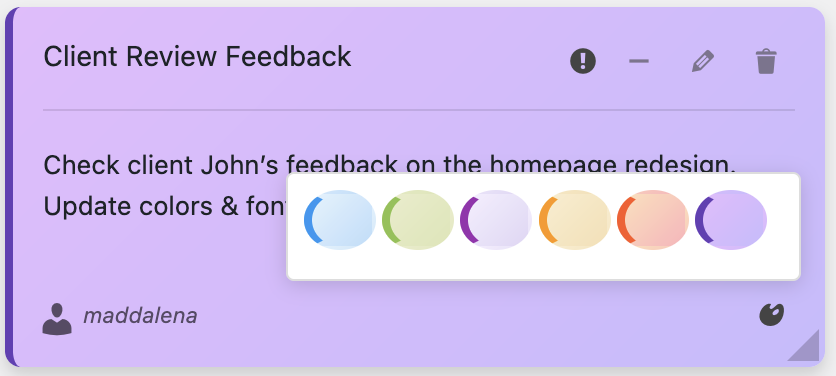
✓ Visual sticky notes that look and feel like physical sticky notes (even better than Trello’s cards)
✓ Rich color coding with beautiful pastel colors for different priorities
✓ Categories in Pro version to organize by client, project, or priority
✓ Team collaboration with note sharing and role-based permissions (Pro)
✓ PLUS: It’s always visible in your WordPress dashboard (huge advantage)
Replacing Google Keep’s Best Features
What people love about Keep:
- Quick note creation (super fast)
- Color coding for visual organization
- Simple, intuitive interface
- Voice notes for quick capture
Dashboard Sticky Notes matches all of this:
✓ Even faster note creation (3 seconds: click, type, done)
✓ Beautiful color coding specifically designed for task priorities
✓ Zero learning curve —if you can use sticky notes, you can use this
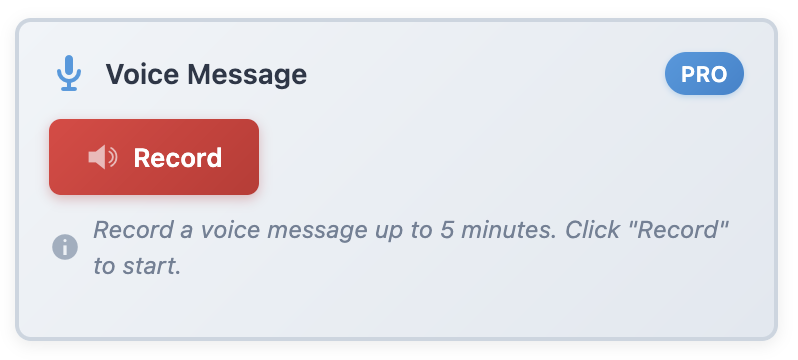
✓ Voice recording in Pro version for capturing complex thoughts
✓ PLUS: WordPress-specific, so no personal notes mixed with work
The Migration: How to Move from Trello/Keep to Dashboard Sticky Notes
Ready to make the switch? Here’s exactly how to migrate without losing anything important.
Step 1: Install Dashboard Sticky Notes
Start by installing Dashboard Sticky Notes on your WordPress site. Takes about 60 seconds.
Step 2: Set Up Your Color System
Decide what each color means for you. I recommend:
🔴 Red: Urgent/Critical (do today)
🟠 Orange: Important (this week)
🟡 Yellow: Medium priority (when possible)
🔵 Blue: Low priority/Reference
🟢 Green: Completed (archive after a week)
Step 3: Transfer Your Active Tasks
Open your Trello board or Google Keep. Look for anything WordPress-related that’s currently active. Create corresponding notes in Dashboard Sticky Notes with appropriate colors.
Don’t migrate everything—only active tasks. No point in transferring completed items or ancient ideas you’ll never act on.

Step 4: Use Both Systems for One Week
Don’t delete Trello or Keep immediately. For one week, use Dashboard Sticky Notes as your primary system but keep the old tools as backup. This gives you confidence without risk.
By day 3, you’ll probably forget to check Trello/Keep because Dashboard Sticky Notes is right there in your face.
Step 5: Archive the Old System
After a week, if you’re comfortable (you will be), archive your Trello boards or Keep notes for future reference if needed. But stop actively using them.
Congratulations! You’ve eliminated context switching and gained back hours of productive time.
Real Migration Stories
Let me share what happened when other WordPress professionals made the switch:
From Trello → Dashboard Sticky Notes
“I was a Trello power user with eight boards. Switching to Dashboard Sticky Notes felt risky. But within three days, I realized I was checking my notes 10x more often because they’re always visible. Tasks that used to sit in Trello for weeks now get done immediately because I can’t NOT see them. Game changer.”
— Tom R., WordPress Developer
From Google Keep → Dashboard Sticky Notes
“I loved Keep’s simplicity but hated how my work notes got mixed with personal stuff. Dashboard Sticky Notes gives me that same quick-capture feel but keeps my WordPress work separate and always visible. Plus the voice notes feature is better than Keep’s audio notes.”
— Lisa K., Content Manager
From Both Trello + Keep → Dashboard Sticky Notes
“I was using Trello for projects and Keep for quick notes. Having two systems meant I never knew where anything was. Dashboard Sticky Notes replaced both with one unified system. My productivity has shot up because I’m not wasting time hunting across multiple tools.”
— James M., Agency Owner
What About Non-WordPress Tasks?
Valid question. Dashboard Sticky Notes is specifically for WordPress work. So what about personal tasks, grocery lists, and other non-work stuff?
Here’s what I do: I still use Keep for personal stuff. But now my work and personal lives are properly separated. When I’m working in WordPress, I see work tasks. When I’m on my phone doing personal stuff, I see personal notes.
This separation is actually a feature, not a limitation. It helps maintain work-life boundaries and prevents work tasks from bleeding into personal time (and vice versa).
The Bottom Line: Stay in Your Flow
Trello and Google Keep are great tools. But for WordPress professionals, they force you out of your flow state multiple times per day.
Dashboard Sticky Notes keeps you in WordPress where you belong. Your notes are always visible, always accessible, always in context. No tab switching. No app loading. No momentum lost.
The best tool is the one that disappears into your workflow. Dashboard Sticky Notes does exactly that.
Make the Switch Today
Ready to eliminate context switching and stay in your flow? Installing Dashboard Sticky Notes takes 60 seconds. Migrating your active tasks takes maybe 15 minutes.
In exchange, you’ll save hours every week that you currently lose to context switching. That’s an ROI you can’t ignore.
Replace Trello & Keep—Work Smarter in WordPress
Keep all your WordPress tasks in one place, right where you work.
P.S. – Stop leaving WordPress every time you need to check what’s next. Keep your tasks where you work and watch your productivity soar. Try Dashboard Sticky Notes today—your future self will wonder why you didn’t switch sooner.