

You know that feeling when you’re juggling a dozen WordPress projects, and something important slips through the cracks? Yeah, me too. That’s exactly why dashboard notes plugins have become my secret weapon for staying organized. But here’s the thing—not all notes plugins are created equal.
I’ve tested more dashboard notes plugins than I care to admit, and trust me, the difference between a good one and a great one can make or break your workflow. Today, I’m going to walk you through the essential features that separate the winners from the wannabes. Whether you’re managing a personal blog or coordinating a team of content creators, knowing what to look for will save you time, money, and plenty of headaches.
Why Dashboard Notes Matter More Than You Think
Before we dive into features, let’s talk about why this matters. Your WordPress dashboard is your command center—it’s where you start every single workday. Having a robust notes system right there, front and center, means you’re not hunting through external apps, sticky notes scattered across your desk, or trying to remember what that important thing was.
Dashboard notes turn your admin panel into a productivity powerhouse. But only if you choose the right plugin with the right features. Let me show you what to prioritize.
Feature #1: Intuitive User Interface
This might sound obvious, but you’d be surprised how many plugins fail at this basic requirement. If your notes plugin is harder to use than pen and paper, what’s the point?
Look for a plugin that feels natural from the moment you install it. The interface should be clean, uncluttered, and—here’s the key—not get in your way. You want something that blends seamlessly with WordPress’s native design language.

I’m a huge fan of Dashboard Quick Notes for exactly this reason. When you open it, there’s no learning curve—you just start typing. The interface feels like a natural extension of WordPress itself, not some foreign element bolted on.
What to Check For:
- Quick access: Can you create a note in under 5 seconds?
- Visual clarity: Is everything easy to read at a glance?
- Mobile responsiveness: Does it work on tablets and phones?
- Minimal clicks: The fewer steps to complete an action, the better
Feature #2: Color Coding and Visual Organization
Our brains are wired for visual information. Color coding isn’t just pretty—it’s powerful. When you can instantly distinguish urgent tasks from routine reminders just by color, you’ve unlocked a whole new level of productivity.
The best notes plugins offer a variety of color options. I’m talking about:
Red: Urgent, drop-everything-now tasks
Yellow: Important but not critical items
Blue: Informational notes and reminders
Green: Completed tasks or positive updates
Purple: Creative ideas or future projects
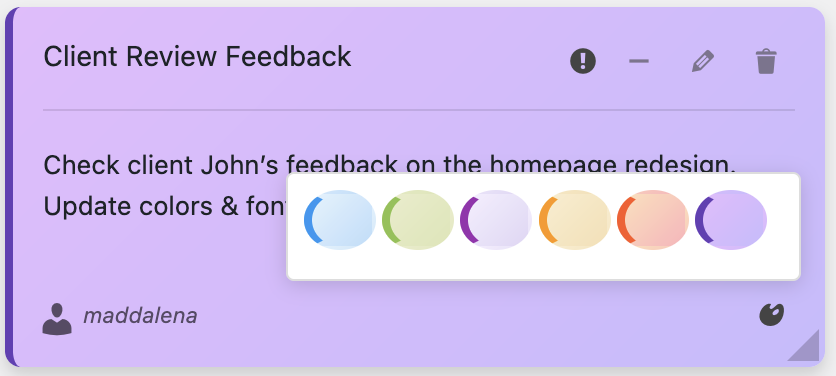
Dashboard Quick Notes nails this feature with beautiful pastel color options that don’t strain your eyes but still provide clear visual differentiation. You can even customize colors to match your brand or personal preferences.
Feature #3: Role-Based Permissions
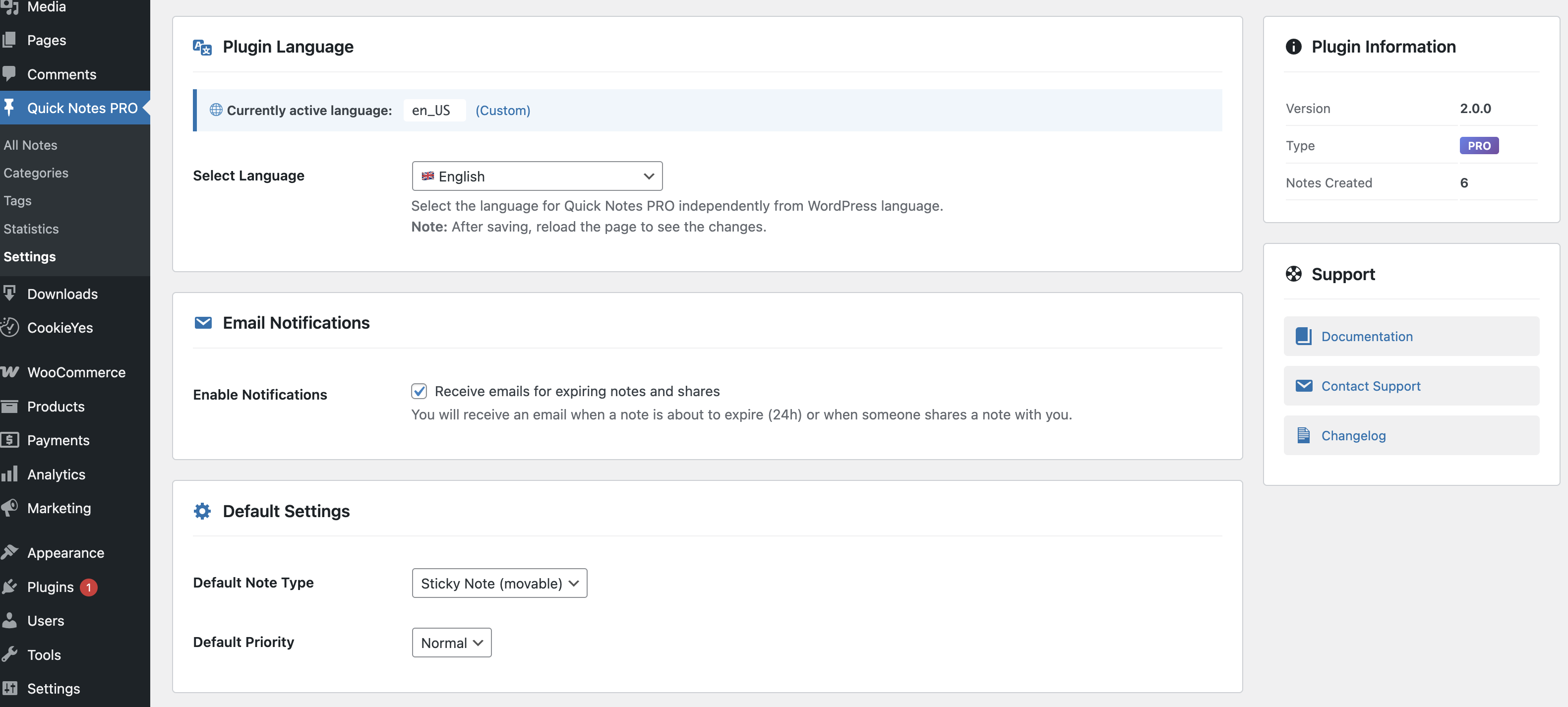
If you work with a team—whether that’s two people or twenty—role-based permissions are non-negotiable. You need the ability to control who sees what.
Think about it: Your content writers don’t need to see server maintenance notes. Your administrators probably don’t care about the blog editorial calendar. The right information to the right people at the right time—that’s the goal.
What You Should Be Able to Control:
- Who can create notes
- Who can edit notes (theirs or everyone’s)
- Who can delete notes
- Who can see specific notes
- Which user roles see which categories of notes
Feature #4: Rich Text Formatting
Plain text notes? That’s so 2010. In 2025, you need rich text formatting capabilities to make your notes truly useful.
Here’s what I mean by rich text formatting:
- Bold text for emphasis
- Italics for subtle highlights
- Underlines for key points
- Bullet points and numbered lists
- Hyperlinks to relevant pages or resources
- Different font sizes for hierarchy
When you can format your notes properly, they become scannable, actionable, and actually useful instead of walls of text that nobody wants to read.
Feature #5: Drag-and-Drop Organization
Priorities change. What’s urgent today might be routine tomorrow. You need to be able to reorganize your notes on the fly without clicking through a bunch of menus.
Drag-and-drop functionality is a game-changer here. Grab a note, move it to the top of your list, done. It’s intuitive, fast, and feels natural—exactly how software should work.
💡 Pro Tip: The best plugins let you drag notes not just within lists, but across different categories and sections. This flexibility is crucial when you’re managing complex projects with shifting priorities.

Feature #6: Search and Filter Capabilities
As your note collection grows, finding specific information becomes crucial. Without robust search and filter features, you’re basically drowning in your own organizational system.
Look for these search capabilities:
- Full-text search across all notes
- Filter by color or category
- Filter by creation date or author
- Filter by user role visibility
- Quick filters for starred or urgent notes
Feature #7: Archive and Export Options
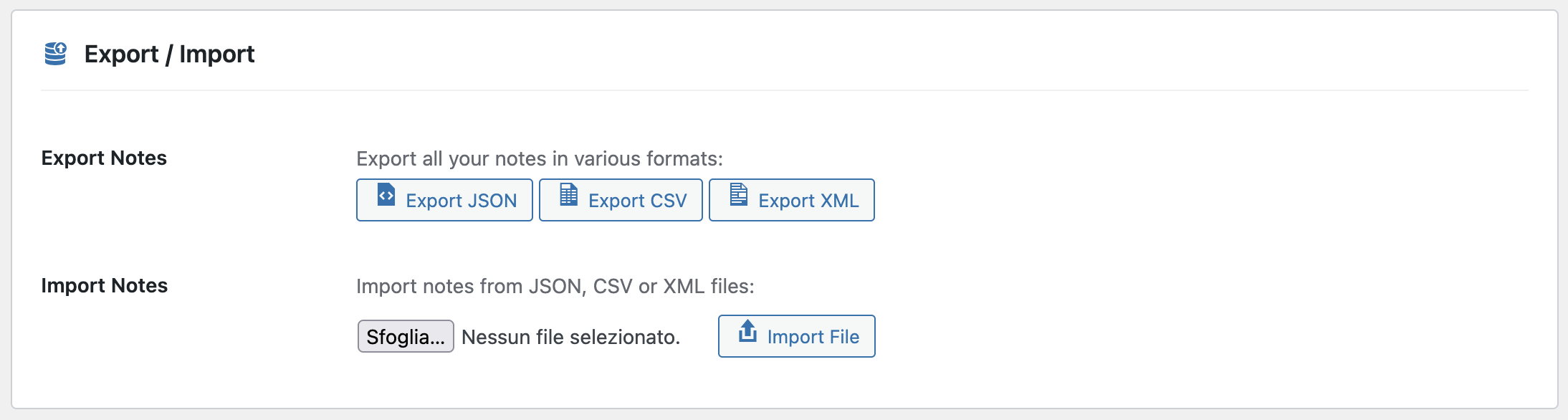
Not all notes need to live forever in your active dashboard. Completed tasks, outdated reminders, resolved issues—these should be archived, not deleted.
Why archive instead of delete? Because context matters. Six months from now, you might need to reference why you made certain decisions or what steps you took to solve a problem.
Plus, export functionality is huge. Being able to export notes to PDF, CSV, or plain text means you can:
- Share project updates with clients
- Create documentation from your notes
- Back up important information
- Migrate to other systems if needed
Feature #8: Voice Recording Integration
Here’s a feature that separates good plugins from truly exceptional ones: voice recording. Sometimes you need to capture a thought faster than you can type it, or you want to preserve the nuance that comes with spoken communication.
Voice notes add a personal touch that text can’t always capture. Plus, they’re perfect for those moments when you’re in the middle of something and just need to quickly record a reminder.
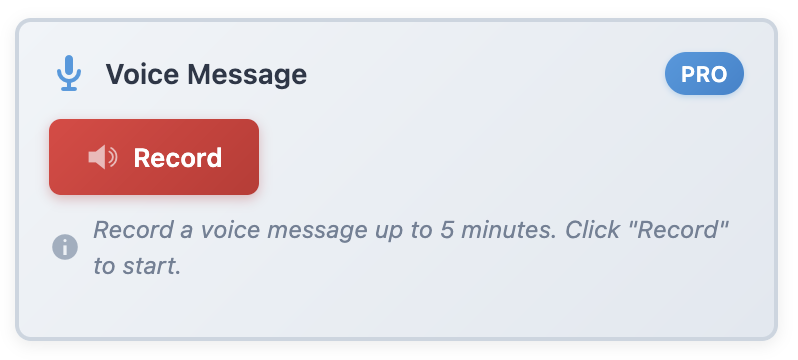
Dashboard Quick Notes includes this feature, and honestly, once you start using it, you’ll wonder how you lived without it.
Feature #9: Time and Date Stamps
Automatic timestamps might seem like a minor detail, but they’re incredibly valuable for maintaining context and accountability.
When you can see exactly when a note was created or last modified, you can:
- Track project timelines more accurately
- Understand the evolution of decisions
- Identify stale information that needs updating
- Hold team members accountable for action items
Feature #10: Lightweight and Fast Performance
Here’s the deal: A notes plugin should enhance your workflow, not slow it down. If loading your dashboard takes an extra three seconds because of a bloated plugin, that’s a problem.
Look for plugins that:
✓ Load resources only when needed
✓ Use efficient database queries
✓ Don’t conflict with other plugins
✓ Have clean, well-written code
Dashboard Quick Notes is optimized for speed—you won’t even notice it’s there until you need it.
Putting It All Together
Look, I’ve tested dozens of dashboard notes plugins over the years, and most of them check some of these boxes. But very few check all of them.
That’s why I keep coming back to Dashboard Quick Notes. It’s not just that it has all these features—it’s that they all work together seamlessly to create a cohesive, powerful tool that genuinely makes me more productive.

Whether you’re a solo site owner or managing a team of dozens, the right notes plugin will transform how you work. Don’t settle for something that’s just “good enough”—invest in a tool that will actually improve your daily workflow.
Ready to Upgrade Your Dashboard?
Now that you know what features to look for, it’s time to take action. Your future self will thank you for implementing a proper notes system today rather than waiting until you’ve forgotten another important task or missed another deadline.
Head over to XpertPlugins and grab Dashboard Quick Notes. It’s got every feature we’ve discussed and then some. Trust me—once you start using a truly well-designed notes plugin, you’ll wonder how you ever managed without it.
Transform Your WordPress Dashboard Today
Get all these premium features and more with Dashboard Quick Notes.
P.S. – The difference between a good day and a great day often comes down to organization. Don’t let another task slip through the cracks. Get organized, stay productive, and make your WordPress dashboard work for you instead of the other way around!