

You know what’s annoying? Seeing the same sticky note over and over again on every single page of your WordPress dashboard. It’s like that friend who tells the same story at every party—sure, it was interesting the first time, but by the tenth telling? Not so much.
Here’s the thing: not every note is relevant on every page. A reminder about updating plugins? Super useful on the plugins page. Not so useful when you’re editing a blog post. Context matters, and your dashboard notes should reflect that.
In this guide, I’m going to show you exactly how to hide dashboard notes on certain pages, so your WordPress admin area stays clean, relevant, and actually helpful. Let’s dive in!
Why Page-Specific Note Visibility Matters
Before we get into the “how,” let’s talk about the “why.” Why should you care about where your notes appear? Can’t you just ignore irrelevant ones?
Sure, you could ignore them. You could also ignore the check engine light in your car. That doesn’t make it a good strategy.
💡 The Psychology of Information Overload: Your brain has limited processing power. When you’re bombarded with irrelevant information, you start tuning ALL of it out—including the important stuff. It’s called banner blindness, and it’s why contextual visibility is crucial.
The Real-World Impact
Think about your typical WordPress workflow. When you’re:
- Writing a post: You want content guidelines, not server maintenance alerts
- Managing plugins: Security reminders are relevant; editorial deadlines aren’t
- Checking analytics: You need performance notes, not team meeting reminders
- Uploading media: Image optimization tips are gold; everything else is distraction
Context-aware notes = better focus = more productivity. It’s that simple.

Understanding WordPress Page Context
WordPress has a bunch of different admin pages, and they each serve different purposes. Let’s break down the main areas where you might want different note visibility:
Main Dashboard: Your home base—perfect for general announcements and overview info
Posts/Pages Editor: Content creation central—ideal for style guides and editorial reminders
Plugins Page: Tech territory—security updates and compatibility warnings fit here
Media Library: Visual hub—optimization tips and image guidelines belong here
Settings Pages: Configuration zone—technical notes and change logs make sense
Each page has its own vibe and purpose. Your notes should respect that.
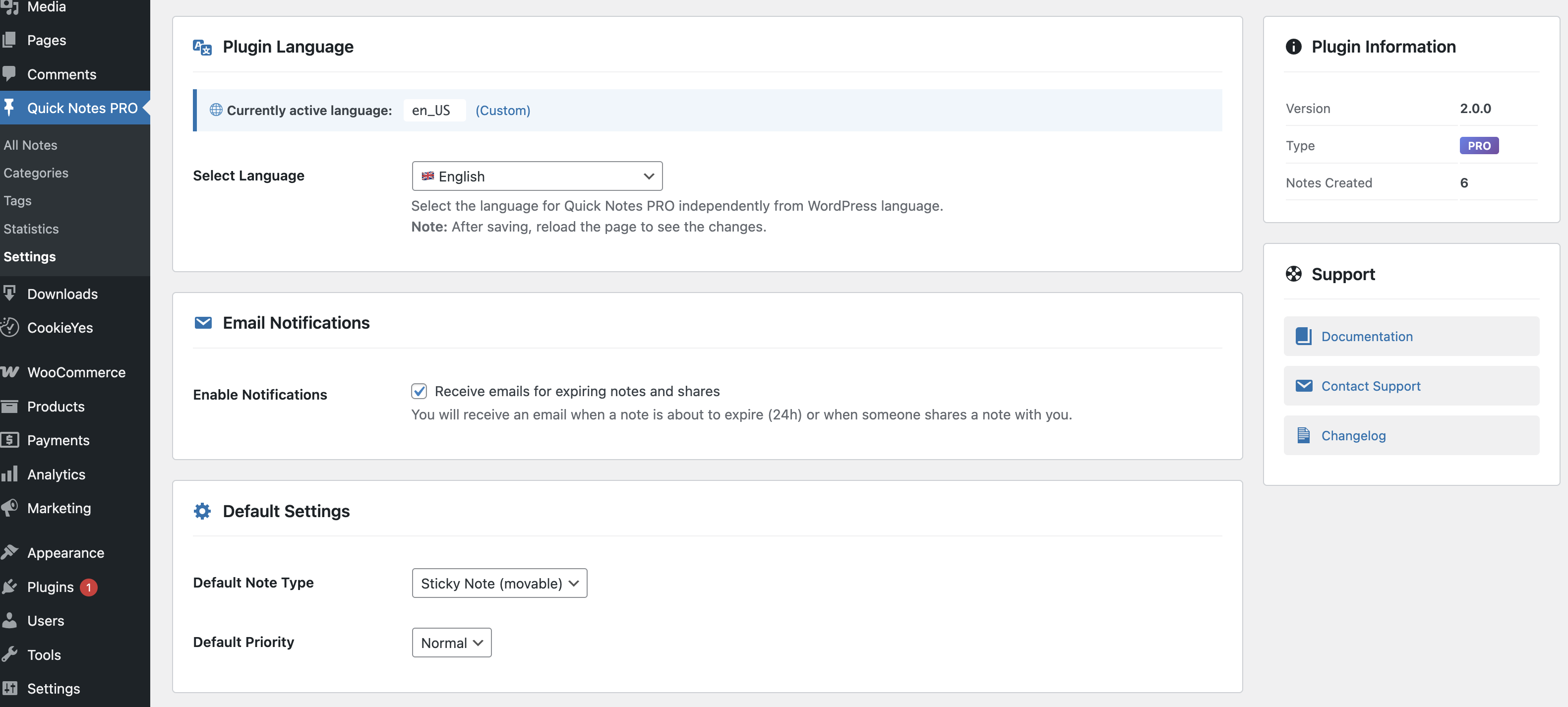
Method 1: Using Dashboard Quick Notes (The Easy Way)
Alright, let’s get practical. The easiest and most powerful way to control note visibility is with Dashboard Quick Notes. I know I sound like a broken record talking about this plugin, but honestly? It makes this whole process ridiculously simple.

Step-by-Step: Setting Page-Specific Visibility
Let me walk you through this. It takes about 30 seconds once you know where to look:
- Open Dashboard Quick Notes from your WordPress admin menu
- Click on the note you want to configure (or create a new one)
- Look for the Page Visibility section
- Select which pages should display this note
- Save your changes and boom—instant context-aware notes!
⚡ Pro Tip: You can select multiple pages for a single note. Got a reminder that’s relevant on both the Posts and Pages screens? Select both! The plugin handles all the logic for you.
Advanced Visibility Options
Dashboard Quick Notes doesn’t just stop at basic page selection. It goes deeper (because the developers actually understand how WordPress users work):
Show/Hide by Screen Type
Want a note only on list views but not edit screens? You can do that. Display reminders on the “All Posts” page but hide them when actually editing a post? Easy.
Custom Post Type Support
If you’re using WooCommerce, bbPress, or any custom post types, you can target those specifically. Product notes stay on product pages, forum notes stay in forum areas.
Combine with Role Targeting
Here’s where it gets really powerful: combine page visibility with role-based targeting. Show plugin update reminders ONLY to administrators ONLY on the plugins page. That’s laser-focused communication.
Method 2: Manual Code Approach (For the Brave)
Okay, so maybe you’re thinking “I’m a developer, I want to code this myself!” I respect that. But I’m also going to be honest with you: it’s way more work than it’s worth when Dashboard Quick Notes handles it automatically.
That said, if you’re determined to go the custom code route, here’s what you’re in for:
The Basic Concept
You’d need to create custom functions that check the current screen ID and conditionally display notes. Something like:
 function custom_conditional_note() {
      = get_current_screen();
     if ( === 'plugins') {
         echo '<div class="notice">Your note here</div>';
     }
 }
The problems with this approach:
- You have to write (and maintain) code for every single note
- No visual editor—everything’s hardcoded
- Changing a note requires editing PHP files (yikes)
- Your team members can’t create notes without developer help
- No drag-and-drop, no color customization, no easy management
- One typo in your code = broken dashboard
Look, I’m not saying you can’t do it. But why spend hours building and maintaining a custom solution when a $20-30 plugin does it better? Your time is worth more than that.
Smart Strategies for Page-Specific Notes
Okay, so you’ve got the tools. Now let’s talk strategy. How should you actually use page-specific visibility? Here are some battle-tested approaches:
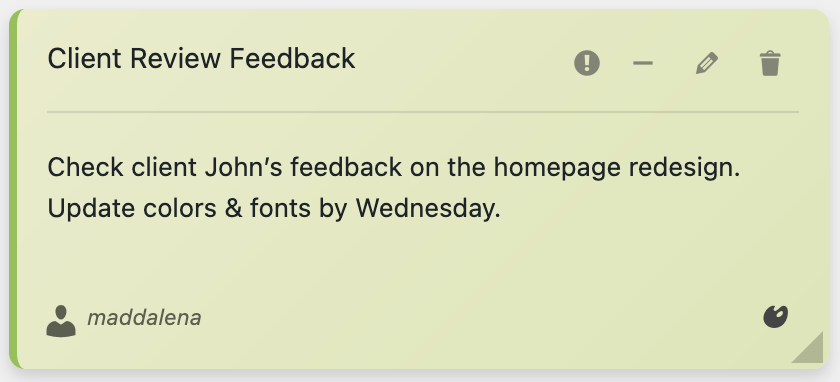
Strategy 1: The Content Creation Hub
On your Posts and Pages editing screens, display:
- Brand voice guidelines
- SEO checklist reminders
- Current content themes or campaigns
- Editorial calendar deadlines
- Image specification requirements
Keep these notes brief and actionable—people are here to create content, not read novels.
Strategy 2: The Technical Zone
On Plugins, Themes, and Settings pages, show:
- Security update reminders
- Backup verification prompts
- Compatibility warnings for specific plugins
- Configuration change logs
- Testing environment URLs (so you don’t accidentally break production)
These notes can be more technical since they’re targeted at people who are already in “tech mode.”
Strategy 3: The Commerce Corner
If you’re running WooCommerce, target Product, Orders, and Inventory pages with:
- Current promotions and pricing rules
- Shipping deadline updates
- Inventory alerts
- Product description templates
- Tax and compliance reminders
💡 Real Talk: I once saved a client from a major headache by putting a note on their Products page reminding them to update shipping prices during holiday season. That one note prevented hundreds of undercharged orders. Context matters!
Common Mistakes to Avoid
I’ve seen people mess this up in some creative ways. Learn from their mistakes:
❌ Over-segmenting
Don’t create 50 different notes each visible on just one page. That’s just trading one problem for another. Find the balance.
❌ Forgetting the Main Dashboard
Some people get so excited about page-specific notes that they completely ignore the main dashboard. Keep some high-level notes there—it’s still your home base.
❌ Not Testing
After setting up page-specific visibility, actually navigate to those pages and check. I’ve seen notes that were accidentally invisible everywhere because of incorrect settings.
❌ Static Thinking
Your needs change, your team evolves, your workflows shift. Review and adjust your note visibility settings regularly. What made sense six months ago might not work today.
Combining Visibility Rules for Maximum Impact
Here’s where things get really interesting. You can stack visibility rules to create super-targeted communications. Dashboard Quick Notes makes this easy with its flexible configuration options.
Example Scenarios
Scenario 1: Security Updates for Admins
Show ONLY to Administrators + ONLY on Plugins/Themes pages
Why it works: Admins are the only ones who can act on security updates, and they only need to see it when they’re in the relevant section.
Scenario 2: Editorial Guidelines for Content Creators
Show to Editors + Authors + ONLY on Post/Page editing screens
Why it works: Content guidelines are irrelevant when these users are looking at analytics or settings.
Scenario 3: Inventory Warnings for Shop Managers
Show ONLY to Shop Managers + ONLY on WooCommerce Product pages
Why it works: Low stock alerts need to be seen by people who can actually reorder inventory, and only when they’re managing products.

Measuring the Impact
Okay, so you’ve set up page-specific note visibility. How do you know if it’s actually helping? Here are some signs you’re doing it right:
- People actually read your notes (instead of developing banner blindness)
- Fewer “I didn’t know about that” conversations
- Team members complete tasks without constant reminders
- Your dashboard feels cleaner and more purposeful
- You spend less time managing communications
If you’re seeing these results, you’re winning. If not, it might be time to adjust your visibility strategy.
Taking It Further: Time-Based Visibility
Want to level up even more? Dashboard Quick Notes also supports time-based visibility. Combine this with page-specific rules for notes that:
- Appear only during business hours
- Show up for one week before a deadline
- Display during specific campaigns or promotions
- Automatically disappear after events
It’s like having a smart assistant who knows not just WHERE to show information, but WHEN. That’s next-level dashboard management.
The Bottom Line
Here’s the truth: your WordPress dashboard shouldn’t feel like a cluttered bulletin board where everything is equally important (which means nothing is). Context-aware notes respect your attention and your time.
Whether you choose to go the easy route with Dashboard Quick Notes or the hard route with custom code, page-specific visibility is essential for an organized, productive WordPress workflow.
Ready for Context-Aware Dashboard Notes?
Stop showing the same notes everywhere. Get smart about your dashboard communication.
Your dashboard is your workspace. Make it work for you, not against you. Set up page-specific note visibility today, and watch your productivity (and sanity) improve dramatically.
Trust me—once you experience clean, contextual notes, you’ll wonder how you ever worked any other way. 🎯