
The Ultimate Guide to WordPress Admin Notes
Inside the admin area, WordPress admin notes and dashboard sticky notes keep context where work happens. This guide shows how to set up the best note taking plugin, organize with categories/tags/colors, and collaborate with your team without leaving WordPress.

Organize your dashboard with compact, readable sticky notes
Why Admin Notes Matter
- Reduce context switching and lost tasks
- Document SOPs and decisions for the team
- Color‑coded priorities visible at a glance
- Attach files and record quick voice memos
Add Dashboard Sticky Notes
Use a professional plugin built for the admin: Quick Notes PRO (English/Italian, unlimited notes, colors, categories, tags, sharing, voice notes).

Widget overview
Step‑by‑Step: Create Your First Note
- Install and activate Quick Notes PRO
- Dashboard → Quick Notes PRO → Add Note
- Write your note, pick a color, set optional expiration
- Share with teammates and enable email notifications
- Drag and resize on the dashboard
Organize with Colors, Categories & Tags
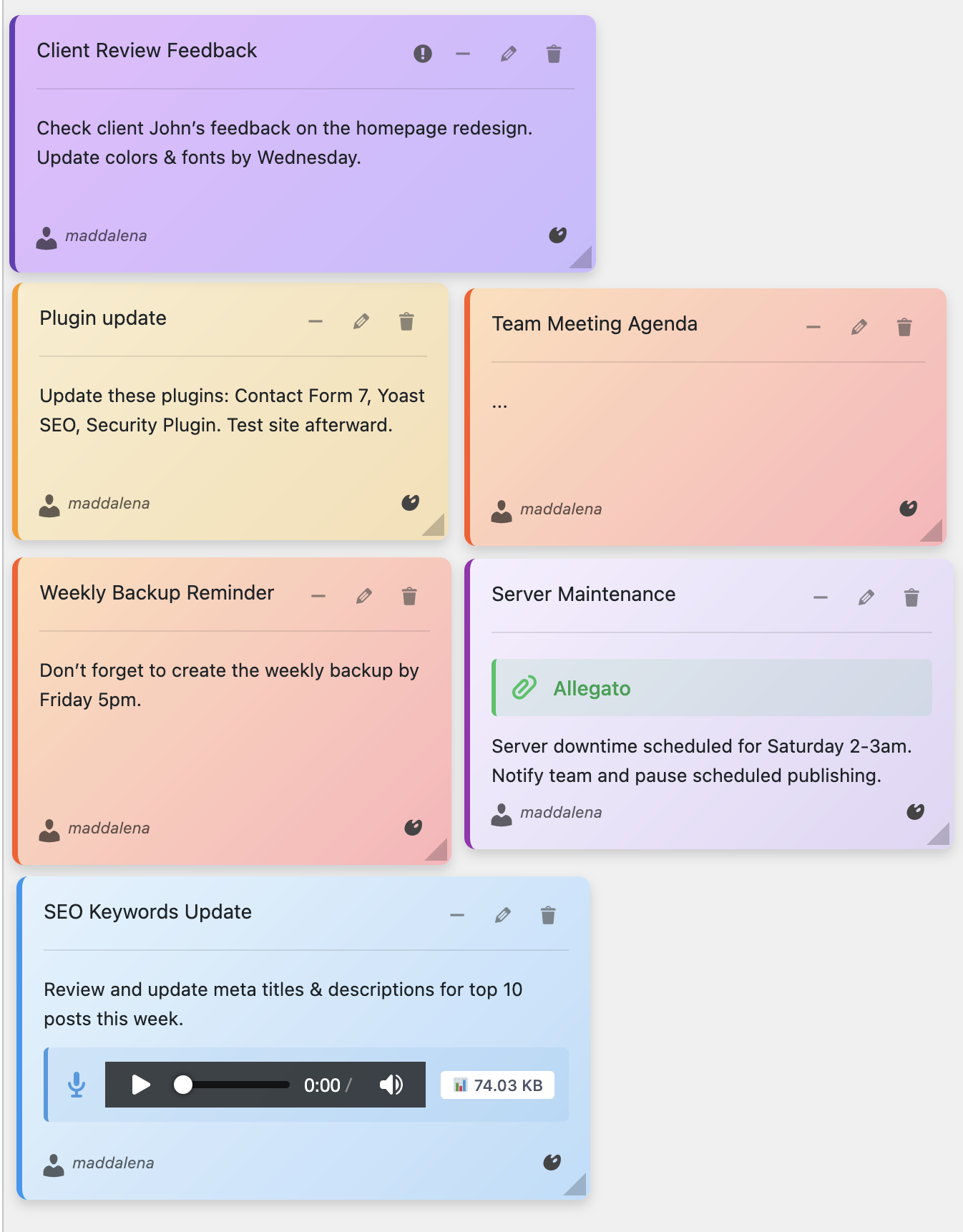
Notes & colors
Suggested system: Yellow = To‑Do · Blue = Info · Orange = Waiting · Red = Urgent · Green = Done. Categories: Content, Marketing, Support, Operations. Tags: @urgent, #review, #Q4‑2025.
Edit Notes Like a Pro

Compact edit modal with sharing, colors, categories and tags
Voice Notes for Rich Context
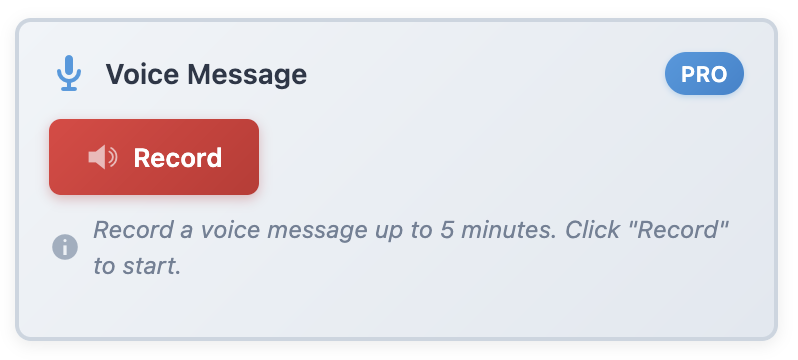
Record up to 5‑minute audio memos directly in the admin
Ready to supercharge your workflow?
Get Quick Notes PRO and organize your WordPress dashboard like a pro.