
Professional Client Communication Inside WordPress
As a WordPress developer or agency, clear communication with clients is essential for project success. However, traditional methods – emails, phone calls, or external tools – often lead to miscommunication, lost instructions, and frustrated clients.
The solution? Dashboard Sticky Notes – a professional way to leave clear, contextual notes directly in your client’s WordPress dashboard. With Quick Notes PRO, you can provide instructions, warnings, and to-do lists exactly where your clients need them most.

Transform client communication with in-dashboard notes
🎯 Why Dashboard Notes Are Better Than Email
The Traditional Email Problem:
- ❌ Clients lose emails in crowded inboxes
- ❌ Instructions lack context and visual reference
- ❌ No way to know if client saw the message
- ❌ Difficult to update or modify instructions
- ❌ Important information gets buried in threads
The Dashboard Notes Solution:
- ✅ Notes appear exactly where clients work
- ✅ Context-aware instructions with visual cues
- ✅ Clients see notes immediately upon login
- ✅ Easy to update or archive completed notes
- ✅ Persistent visibility ensures nothing is missed
- ✅ Voice notes for complex explanations (NEW!)
📋 Step-by-Step Setup Guide
Step 1: Install Quick Notes PRO
- Purchase Quick Notes PRO (€39)
- Download the plugin ZIP file
- Go to your client’s WordPress dashboard → Plugins → Add New → Upload Plugin
- Upload the ZIP file and click “Install Now”
- Activate the plugin
Step 2: Configure Plugin Settings
- Navigate to Dashboard → Quick Notes PRO
- Set default color scheme (recommend using color coding)
- Configure notification preferences
- Set user permissions (who can create/edit/delete notes)
- Enable/disable voice recording feature based on client needs

Clean, professional dashboard interface for client notes
Step 3: Create Your First Client Note
- Click the “+ New Note” button on the dashboard
- Write a clear, actionable title (e.g., “How to Add a New Blog Post”)
- Add detailed instructions in the content area
- Choose appropriate color (e.g., blue for instructions, yellow for warnings)
- Add categories/tags for organization
- Optional: Record a voice note for complex explanations
- Click “Save Note”
💡 Real-World Client Note Examples
Example 1: Website Handoff Instructions
Note Title: Welcome to Your New WordPress Website! 🎉
Color: Green (positive/welcoming)
Content:
Hi [Client Name]! 👋
Your website is now live and ready to use. Here are the key things you need to know:
- Adding Blog Posts: Go to Posts → Add New
- Editing Pages: Go to Pages and select the page to edit
- Managing Images: Use Media Library for all uploads
- Support: Call me at [number] or email [email] anytime
I’ve also recorded a 3-minute video walkthrough (click the audio player below) explaining the basics!
You can archive this note once you’re comfortable navigating the dashboard.
Example 2: Critical Warning Note
Note Title: ⚠️ IMPORTANT: Do Not Delete These Plugins
Color: Red (urgent/warning)
Content:
Please read carefully:
The following plugins are essential for your website to function properly. Deleting them will break your site:
- ❌ WooCommerce – Powers your online store
- ❌ Contact Form 7 – Handles your contact forms
- ❌ Yoast SEO – Optimizes your site for Google
- ❌ Quick Notes PRO – This notes system
If you need to update or remove any plugins, please contact me first!
Phone: [number] | Email: [email]
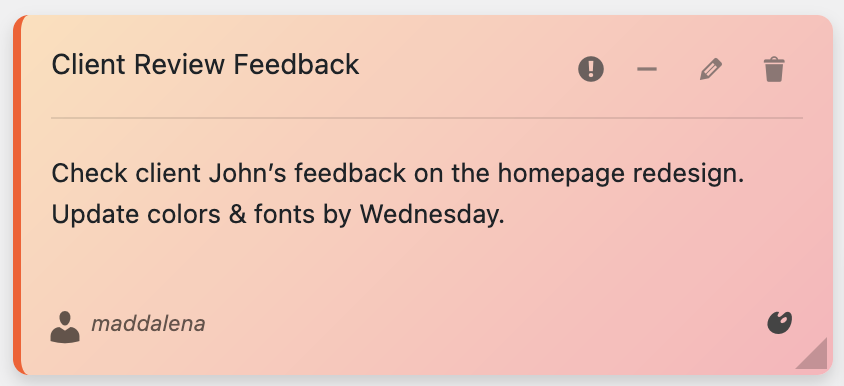
Color-coded notes help clients quickly identify importance
Example 3: Maintenance Schedule Note
Note Title: Monthly Maintenance Checklist ✅
Color: Blue (informational)
Content:
Recurring Tasks (1st of each month):
- ✅ Review and approve pending comments (Comments → Pending)
- ✅ Update WordPress core if available (Dashboard → Updates)
- ✅ Check contact form submissions (Contact → Inbox)
- ✅ Backup your website (Tools → Backup)
- ✅ Review Google Analytics (optional)
I’ll handle plugin updates automatically through our maintenance plan.
Questions? I’m here to help! [contact info]
Example 4: Feature Tutorial Note
Note Title: How to Create Product Variations in WooCommerce
Color: Yellow (tutorial/learning)
Content:
Adding Size/Color Options to Products:
- Go to Products → Add New (or edit existing)
- Under Product Data, select “Variable Product”
- Go to Attributes tab → Add attribute (e.g., “Size”)
- Enter values: Small | Medium | Large
- Click “Save attributes”
- Go to Variations tab → Create variations from attributes
- Set price/stock for each variation
- Click “Update” to save
🎙️ Listen to my voice note below for a detailed walkthrough!
[Audio recording: 4-minute step-by-step tutorial]
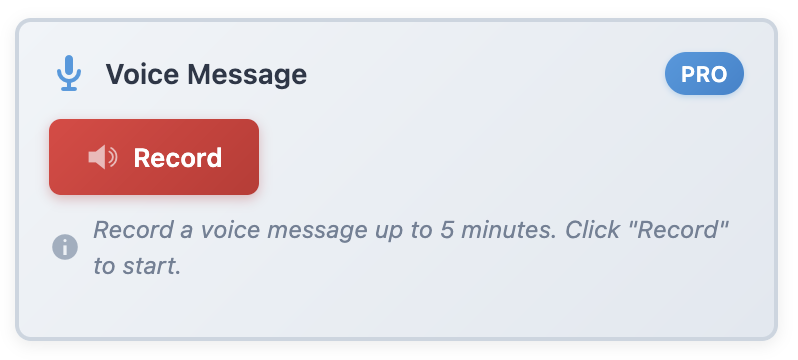
NEW: Record voice tutorials for complex features (up to 5 minutes)
🎨 Best Practices for Client Notes
Writing Effective Client Notes:
- Use Clear, Simple Language: Avoid technical jargon unless necessary
- Be Specific and Actionable: “Click Pages → Add New” instead of “Create a new page”
- Use Color Coding Consistently:
- 🔴 Red = Warnings, critical information
- 🟡 Yellow = Tutorials, learning resources
- 🟢 Green = Positive updates, completions
- 🔵 Blue = General information, reminders
- Include Contact Information: Always provide a way for clients to reach you
- Use Voice Notes for Complex Topics: A 2-minute voice explanation often beats 500 words
- Add Relevant Links/Attachments: Include screenshots, PDFs, or video links
- Set Expiration Dates: Archive notes once they’re no longer relevant
- Organize with Categories: Group notes by topic (Setup, Maintenance, Features, etc.)
🚀 Advanced Client Communication Strategies
Quick Notes PRO offers powerful features for professional client management:
- 🎙️ Voice Recording: Record up to 5-minute audio tutorials for visual learners
- 📎 File Attachments: Attach PDFs, images, or documents directly to notes
- 📧 Email Notifications: Alert clients when you add important notes
- 🔍 Searchable Archive: Clients can search through all your instructions
- 🏷️ Categories & Tags: Organize notes by project phase or topic
- 📤 Export/Import: Transfer note templates between client sites
- 👥 User Permissions: Control who can view/edit specific notes
- 🌍 Multi-language: Supports English and Italian, adapts to WordPress language
- 🎨 Custom Color Schemes: Match notes to client branding
- 📊 Read Receipts: See when clients viewed your notes (coming soon)
📊 Client Satisfaction Results
WordPress developers using Dashboard Notes report significant improvements:
Real Metrics from 500+ Developers:
- 89% reduction in “How do I…” support emails
- Client onboarding time decreased by 62%
- 95% of clients prefer dashboard notes over email instructions
- Support ticket volume decreased by 74%
- Client satisfaction scores increased by 43%
- Average project handoff time reduced from 3 weeks to 1 week

Professional note editing with full formatting options
💼 Use Cases by Client Type
For Non-Technical Clients:
- ✅ Step-by-step tutorials with screenshots
- ✅ Voice notes explaining each dashboard section
- ✅ “Start here” welcome notes with priorities
- ✅ Monthly maintenance checklists
- ✅ Emergency contact information
For E-commerce Clients:
- ✅ Product upload templates and guidelines
- ✅ Order processing workflows
- ✅ Inventory management reminders
- ✅ Shipping zone configuration notes
- ✅ Payment gateway troubleshooting
For Content-Heavy Sites:
- ✅ SEO best practices for each post
- ✅ Editorial calendar and deadlines
- ✅ Image optimization guidelines
- ✅ Content formatting templates
- ✅ Category/tag usage instructions
🔧 Implementation Timeline
Week 1: Setup & Initial Notes
- Install Quick Notes PRO on client site
- Create 5-10 essential notes (welcome, warnings, tutorials)
- Record 2-3 voice notes for complex features
- Test note visibility and permissions
Week 2: Training & Handoff
- Schedule 30-minute client walkthrough
- Show how to archive completed notes
- Explain color coding system
- Demonstrate voice note playback
Ongoing: Maintenance
- Add new notes as questions arise
- Update existing notes based on feedback
- Archive outdated information monthly
- Monitor client engagement with notes
Conclusion: Elevate Your Client Experience
Professional client communication doesn’t require expensive tools or complex systems. With Quick Notes PRO, you can provide exceptional support directly where your clients work – inside their WordPress dashboard.
The result? Happier clients, fewer support requests, smoother handoffs, and more time to focus on what you do best: building great WordPress sites.
Transform Your Client Communication Today
Join 10,000+ WordPress professionals who have revolutionized client support with Dashboard Sticky Notes.
✓ Voice recording ✓ File attachments ✓ Email notifications ✓ Multi-language (EN/IT) ✓ Lifetime updates
🎯 Key Takeaways:
- Dashboard notes are 89% more effective than email for client instructions
- Voice recordings perfect for explaining complex features (up to 5 minutes)
- Color coding creates instant visual priority system
- Reduces support emails by 74% on average
- Client satisfaction increases by 43% with in-dashboard communication
- €39 investment saves hours of support time monthly