

Here’s a question that keeps many WordPress admins up at night: When was the last time you updated your plugins? If you had to think about it for more than two seconds, you’re not alone. Managing WordPress updates is one of those tasks that’s critically important yet incredibly easy to neglect.
I used to be terrible at this. I’d see those little red notification badges and think “I’ll do it later.” Then a security vulnerability would make headlines, and I’d panic-check whether I was affected. Not exactly a proactive approach, right?
Everything changed when I started using dashboard sticky notes to track updates systematically. Now I’m never caught off guard, and honestly? I sleep better knowing my sites are secure and up-to-date.
Why Update Tracking Is So Damn Important
Let’s get real about why this matters. WordPress updates aren’t just feature improvements—they’re security patches, bug fixes, and compatibility improvements. Ignoring them is like leaving your front door unlocked because you’re too busy to turn the key.
But here’s the challenge: updates aren’t all created equal. Some are critical and need immediate attention. Others can wait. Some might even break your site if you’re not careful. That’s why tracking and planning updates is crucial.
The Update Reality: You need a system that helps you stay on top of updates without becoming paranoid about clicking that update button. Balance is everything.
Building Your Update Tracking System
Let me show you the exact system I use with Dashboard Quick Notes to manage WordPress updates across multiple sites. This system has saved me countless hours and prevented numerous headaches.

Create Your Update Categories
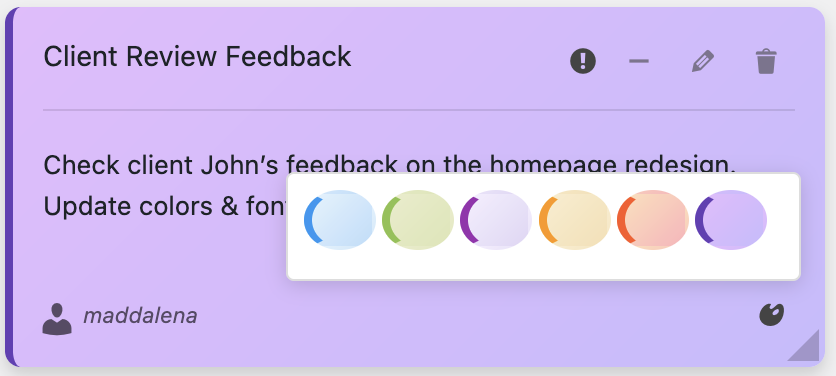
First, organize updates by type and urgency. I use a color-coded system that makes priorities instantly clear:
🎨 Update Color System:
Red Notes: Critical security updates (do immediately!)
Yellow Notes: Important feature/bug updates (do this week)
Blue Notes: Minor updates (do when convenient)
Green Notes: Completed updates (archived weekly)
Purple Notes: Testing notes (post-update observations)
The Monday Morning Update Ritual
Every Monday at 9 AM, I perform what I call my “Update Audit.” It takes about 15 minutes and sets me up for a secure, stable week. Here’s the exact process:
- Check available updates (WordPress core, plugins, themes)
- Research critical updates – read changelogs for security patches
- Create notes for each update category
- Prioritize based on urgency and impact
- Schedule testing time for major updates
Here’s what a typical Monday update note looks like:
📋 Update Audit – Oct 16, 2025
CRITICAL:
• WooCommerce 9.3.2 (security patch) – DO FIRST
IMPORTANT:
• Yoast SEO 22.1 (major feature update)
• Contact Form 7 (bug fixes)
MINOR:
• Various plugin translations

Pre-Update Checklist Notes
Before updating anything significant, I create a Pre-Update Checklist note. This has saved my bacon more times than I can count. Never skip this step!
Here’s my standard checklist:
⚠️ Pre-Update Checklist
☐ Backup completed (full site + database)
☐ Staging site tested (if available)
☐ Maintenance mode activated (for major updates)
☐ Changelog reviewed (know what’s changing)
☐ Compatibility checked (with other plugins/themes)
☐ Low-traffic time selected (minimize user impact)
I literally check off each item in the note before clicking that update button. It’s not paranoia—it’s professionalism.
Tracking Update History
Here’s something most people don’t do but should: keep an update history. When did you last update? What version did you go from/to? Were there any issues?
I maintain a purple “Update Log” note that tracks major updates. It looks something like this:
- Oct 16: WooCommerce 9.2.1 → 9.3.2 (no issues)
- Oct 9: WordPress 6.6 → 6.6.1 (smooth)
- Oct 2: Yoast SEO 21.9 → 22.1 (schema conflict, rolled back, fixed in 22.1.1)
This history is incredibly valuable when troubleshooting issues weeks or months later. “What changed around that time?” becomes an easy question to answer.

Post-Update Testing Notes
Clicking “update” isn’t the end—it’s the beginning of testing. After any significant update, I create a testing checklist note to ensure everything still works.
My standard post-update tests:
- Homepage loads correctly
- Login/logout works
- Forms submit properly
- E-commerce checkout functions (if applicable)
- Mobile responsiveness (quick check on phone)
- Plugin admin panels accessible
- No console errors (quick DevTools check)
I check these off in my note. If I find an issue, I immediately create a red urgent note describing the problem and whether I need to rollback.
Voice Notes for Quick Issue Reporting
When I find a post-update issue, typing out all the details can be time-consuming. That’s where the voice recording feature in Dashboard Quick Notes becomes invaluable.
I just hit record and quickly describe: “Updated Contact Form 7 to version 5.9, now getting a JavaScript error on the contact page, console shows conflict with theme script…”
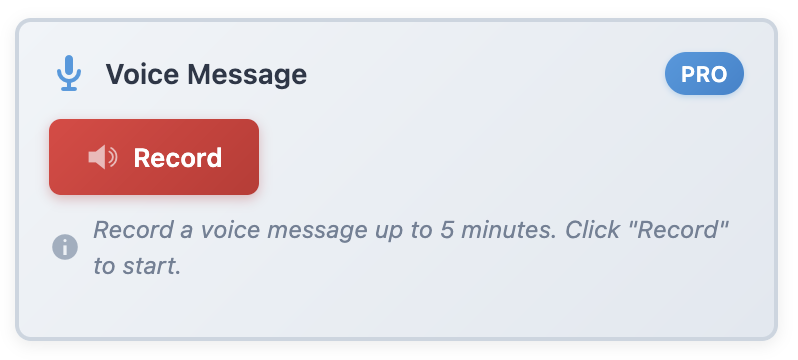
This captures way more context than I’d ever type, and I can do it while still troubleshooting. It’s like leaving notes for future me.
Managing Multiple Sites
If you manage multiple WordPress sites (I handle seven), tracking updates across all of them can feel overwhelming. Dashboard notes make this manageable.
I create a master note for each site with its update status:
🌐 Multi-Site Update Status
ClientSite1.com: ✅ All updates current (Oct 16)
ClientSite2.com: ⚠️ 3 plugin updates pending
PersonalBlog.com: ✅ Updated Oct 14
EcomStore.com: 🔴 WooCommerce security update NEEDED
This gives me an at-a-glance view of my entire portfolio’s update health. Nothing falls through the cracks.
Setting Up Update Reminders
Even with a great system, it’s easy to get busy and forget. That’s why I set up recurring reminder notes:
- Weekly: Check for security updates
- Bi-weekly: Review all available plugin updates
- Monthly: Major update audit and planning
- Quarterly: Theme updates and compatibility tests
I create these as yellow “recurring task” notes that I move forward after completing. Simple but effective.
Dealing With Problem Updates
Not all updates go smoothly. Sometimes things break. Having a clear process for handling problem updates is crucial.
When an update causes issues, I immediately:
- Create a red “ISSUE” note with details
- Document the exact problem
- Note whether I rolled back or kept the update
- List troubleshooting steps taken
- Set a reminder to check for a fix/patch
This documentation is invaluable when reporting bugs to plugin developers or searching for solutions. You’d be amazed how quickly you forget specifics without notes.
Communicating Updates to Stakeholders
If you manage sites for clients or work with a team, communicating about updates is essential. Dashboard notes make this effortless.
After completing updates, I create a green “Update Complete” note visible to relevant team members:
✅ Updates Completed – Oct 16
Updated: WordPress 6.6.1, WooCommerce 9.3.2, Yoast SEO 22.1
All tests passed. Site performing normally.
Report any issues to tech@example.com
This keeps everyone informed without requiring separate emails or meetings. Information is shared exactly where people need it.
Why This System Works
I’ve tried various update management approaches over the years. Spreadsheets. Project management tools. Calendar reminders. Nothing has worked as well as dashboard sticky notes.
Why? Because the notes are:
- Always visible when you log into WordPress
- Contextual – right where you perform updates
- Flexible – easy to create, edit, reorganize
- Visual – color coding makes priorities obvious
- Persistent – they don’t get buried in email or chat
Since implementing this system with Dashboard Quick Notes, I haven’t missed a critical security update. Not once. That peace of mind is priceless.
Start Tracking Updates Like a Pro
Look, WordPress updates aren’t going away. If anything, they’re becoming more frequent as the ecosystem grows and security threats evolve. You can either manage updates reactively (stressful) or proactively (smart).
Dashboard sticky notes give you the structure and visibility needed to stay on top of updates without constant anxiety. They transform a reactive scramble into a calm, systematic process.
Your WordPress sites deserve better than neglected updates and crossed fingers. They deserve a professional maintenance routine.
Never Miss a Critical Update Again
Track WordPress updates like a pro with Dashboard Quick Notes.
P.S. – The best time to implement an update tracking system was before your last security scare. The second-best time is right now. Don’t wait for a problem to force your hand—get organized today!