Posted on Leave a comment

Ultimate Checklist: Best Practices for WordPress Dashboard Notes

WordPress Dashboard Best Practices

So you’ve decided to take control of your WordPress dashboard with a proper notes system. Smart move! But here’s the thing: having the tools doesn’t guarantee success. It’s like buying a gym membership—the real results come from actually using it correctly.

I’ve watched dozens of WordPress users implement dashboard notes. Some crush it and transform their productivity. Others create beautiful chaos and give up after two weeks. The difference? They either followed or ignored best practices.

This is your ultimate guide to doing dashboard notes right—a comprehensive checklist of best practices gleaned from years of experience and hundreds of real-world implementations. Follow this, and you’ll be in the “crushing it” camp.

Section 1: Setup & Configuration Best Practices

✅ Choose the Right Tool

💡 Best Practice: Invest in a proper notes plugin like Dashboard Quick Notes instead of cobbling together free solutions. You get what you pay for, and dashboard organization is worth paying for.

What to look for:

  • Role-based visibility (not everyone needs to see everything)
  • Page-specific display options (context matters)
  • Drag-and-drop positioning (ease of use is crucial)
  • ✅ Color and styling customization (visual hierarchy)
  • Archive functionality (completed notes need a home)
  • Regular updates and support (abandoned plugins become security risks)

Professional Dashboard Setup

✅ Start Small, Scale Gradually

DON’T: Create 50 notes on day one because you’re excited about the new system. That’s overwhelming and you’ll abandon it within a week.

DO: Start with 3-5 essential notes:

  1. One urgent task reminder
  2. One important guideline (like SEO checklist)
  3. One reference note (like frequently used links)
  4. Maybe one team communication

Prove the system works with a few notes, then expand gradually. This is a marathon, not a sprint.

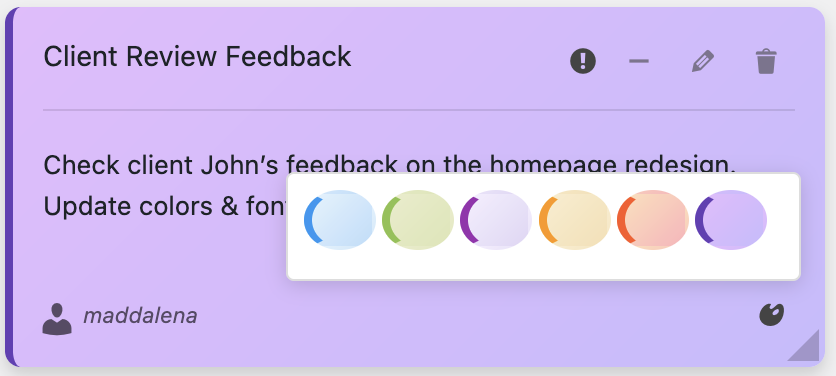
✅ Establish a Color Coding System

Before creating notes, decide what colors mean and document it:

🔴 Red: Critical/Urgent – drop everything

🟠 Orange: High Priority – handle today/tomorrow

🟡 Yellow:Medium Priority – this week

🔵 Blue: FYI/Reference – no specific deadline

🟢 Green: Completed/Positive updates

⚡ Pro Tip: Create a permanent blue note at the bottom of your dashboard that explains your color system. New team members can reference it instantly.
Color System Options

Section 2: Content & Organization Best Practices

✅ Write Clear, Actionable Note Content

Bad note: “Plugin thing”
What plugin? What about it? When? Who cares?

Good note:“Update Yoast SEO to v21.0 by Friday – fixes mobile breadcrumb bug. Test on staging first.”
Clear action, clear deadline, clear context, clear next step.

The formula for great notes:

  • Action verb: Update, Review, Create, Fix, Check
  • Specific item:Exactly what needs attention
  • Deadline: When it needs to happen
  • Context: Why it matters or what it affects
  • Next step:How to actually do it

✅ Respect the “Five Active Notes” Rule

Here’s a psychological truth: your brain can effectively track about 5-7 active priorities at once. More than that and everything becomes noise.

Best practice: Keep 5 or fewer urgent/important notes visible. Everything else should be reference notes (low-priority blue) or archived.

If you have 20 “urgent” notes:

  • Either you’re lying about urgency (most likely)
  • Or you have a serious workflow problem that notes can’t fix
  • Be ruthlessly honest about priority

Well-Organized Notes

✅ Use Role-Based Visibility Wisely

Not everyone needs to see everything. Dashboard Quick Notes lets you target notes to specific user roles—use this power!

Examples:
✅ Security updates → Administrators only
✅ Editorial guidelines → Editors + Authors
✅ Design specs → Editors + Administrators
✅ Customer support tips → Support staff only
✅ Inventory alerts → Shop Managers only

The test: If someone sees a note and thinks “this isn’t relevant to me,” your targeting is wrong.

Section 3: Maintenance & Workflow Best Practices

✅ Schedule Daily Review Time

Non-negotiable: Spend 5 minutes at the start of each day reviewing your dashboard notes.

What to do during review:

  1. Archive completed tasks (get them out of sight)
  2. Update priorities as needed (yesterday’s P3 might be today’s P1)
  3. Check for stale notes (outdated info is worse than no info)
  4. Add quick-capture notes from yesterday if you forgot
  5. Plan your top 3 priorities for today

💡 Habit Stacking: Do note review right after checking email or with your morning coffee. Tie it to an existing habit to make it stick.

Note Management Interface

✅ Archive, Don’t Delete

When a task is complete: Archive it, don’t delete it. Your archive is a searchable history of what you’ve accomplished.

Benefits of archiving:

  • Proof of work for clients or management
  • Reference for future similar tasks
  • Learning from patterns (recurring issues become obvious)
  • Knowledge preservation during team transitions
  • Satisfaction of seeing your accomplishments

Delete only when: The note was created in error, contains outdated/wrong info, or is truly 100% irrelevant forever.
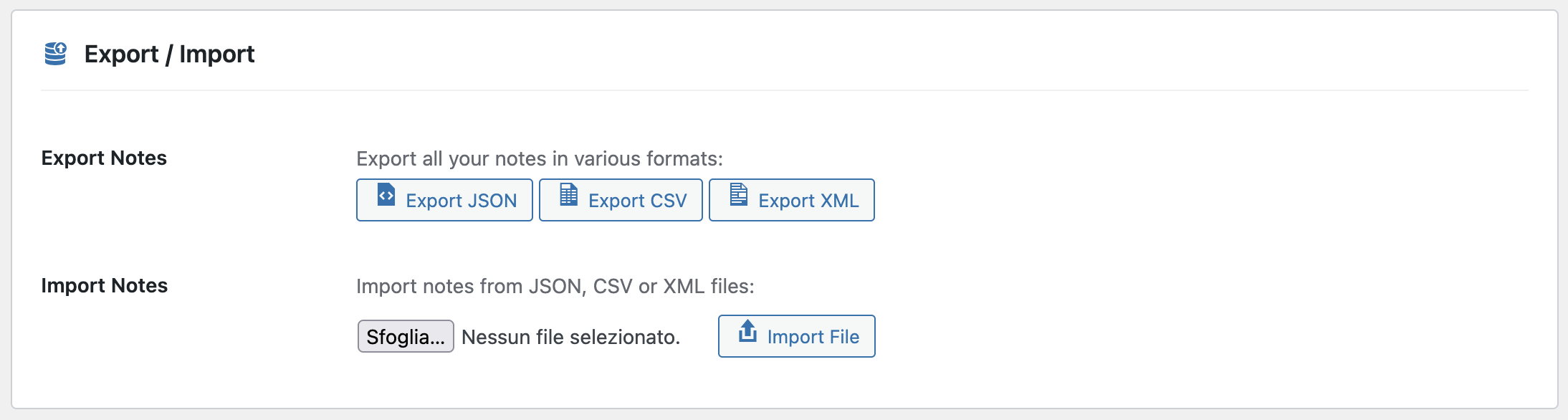
Archive and Export Features

✅ Do Weekly Deep Reviews

Daily reviews keep you on track. Weekly reviews keep you strategic.

Every Friday (or your preferred day), spend 15 minutes:

  • Review the week’s archived notes – what got done?
  • Look for patterns – recurring issues? Productivity blockers?
  • Clean up reference notes – are they still relevant?
  • Plan next week’s priorities
  • Update team notes based on what you learned
  • Export a backup if you’re paranoid (healthy paranoia!)

Section 4: Team & Collaboration Best Practices

✅ Create a Team Style Guide

If multiple people create notes, you need standards. Otherwise, chaos.

Your style guide should cover:

  • Color meanings (documented and followed by everyone)
  • Note formatting:How to write clear, actionable notes
  • Who can create what: Permission levels
  • Archiving schedule: Who reviews and cleans up
  • Emergency protocols:How to communicate critical issues
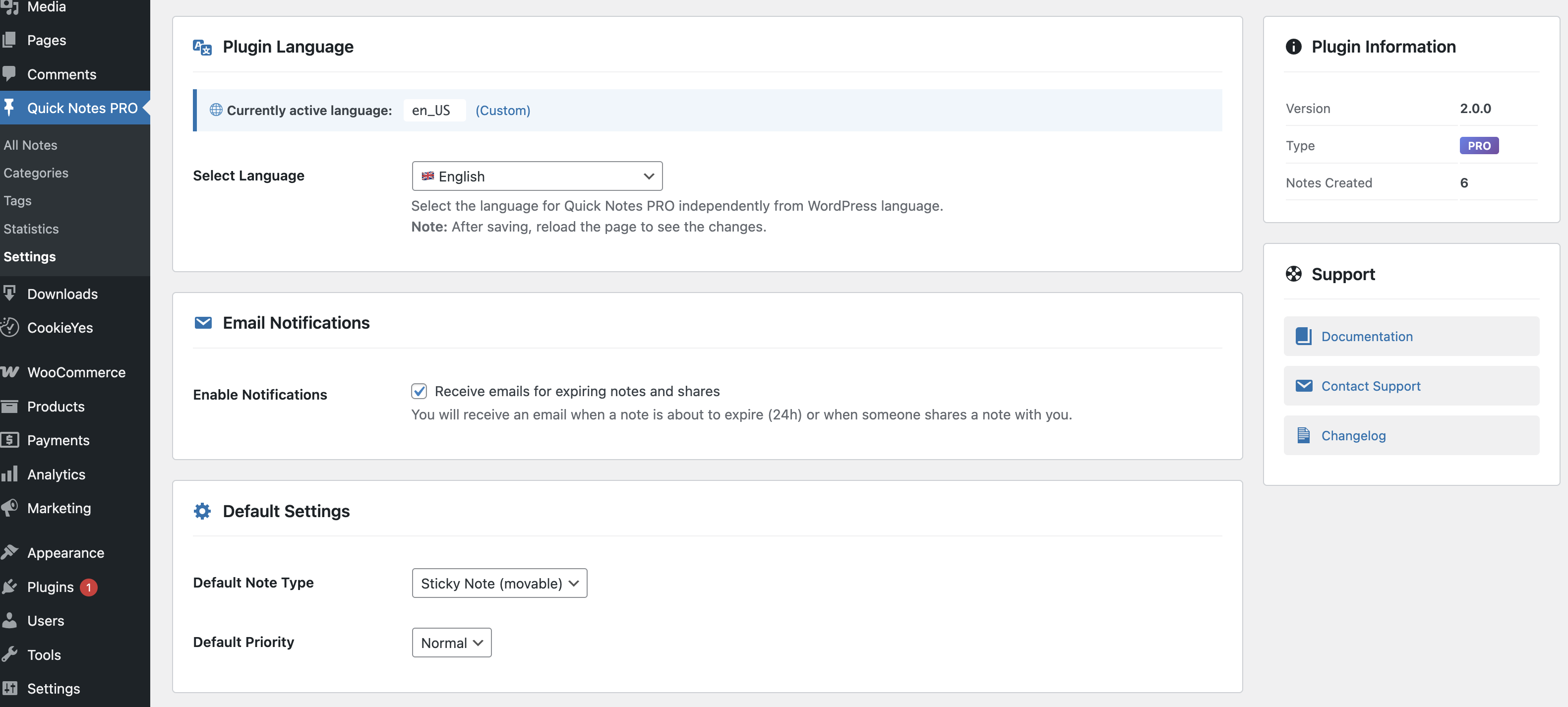
Team Settings Configuration

✅ Assign a Notes Coordinator

Without ownership, systems decay.Appoint someone (could rotate monthly) to:

  • Review and archive completed notes daily
  • Ensure important messages are properly formatted
  • Update color coding if notes are mis-categorized
  • Maintain the system and train new team members

Time investment: 10-15 minutes per day. Value: Your note system stays useful instead of becoming digital clutter.

✅ Use Tags/Categories Consistently

Dashboard Quick Notes supports tagging. Use consistent tags to make searching easier:

Good tag systems:
✅ #security #plugins #maintenance #content #design
✅ #client-acme #client-bigco #internal
#urgent #important #someday
✅ #dev #marketing #support

Section 5: Advanced Optimization Best Practices

✅ Use Context-Aware Positioning

Not all notes belong everywhere. Dashboard Quick Notes lets you show notes only on specific pages:

  • SEO reminders → Only on post editor
  • Plugin warnings → Only on plugins page
  • Design specs → Only on theme customizer
  • General announcements → Main dashboard only

Result: People see relevant info when they can act on it, not random notes everywhere.

✅ Leverage Keyboard Shortcuts

Speed matters. Learn and use shortcuts:

  • Ctrl/Cmd + Shift + N: Quick note creation
  • Ctrl/Cmd + Up/Down:Move notes
  • Ctrl/Cmd + Z: Undo last change
  • Escape: Close note modal

Muscle memory = faster workflow = better productivity.

Quick Note Creation

✅ Create Note Templates

For recurring note types, save templates:

Weekly Maintenance Template:
“Weekly Maintenance [DATE]
□ Run plugin updates
Check backups
□ Review security logs
□ Test contact forms
Check site speed

Time saved: 5 minutes per recurring task. Over a year? Hours.

Section 6: Common Mistakes to Avoid

Learn from others’ mistakes. Don’t do these things:

❌ The “Set It and Forget It” Trap

Creating notes and never updating them. Stale information is worse than no information.Review regularly or abandon the system entirely.

❌ The “Everything Is Urgent” Problem

Making every note red/urgent. If everything’s urgent, nothing is.Be honest about priority or people will start ignoring all notes.

❌ The “Novel-Length Note” Mistake

Nobody reads 500-word notes on a dashboard. Keep it concise.If it needs more explanation, link to a doc.

❌ The “Duplicate Everywhere” Syndrome

Posting the same message in Slack, email, and dashboard notes. Pick ONE primary channel and stick to it. Redundancy breeds ignorance.

The Ultimate Dashboard Notes Checklist

Print this, bookmark it, tattoo it on your arm—whatever works:

📋 DAILY:

  • ✅ Review active notes (5 min)
  • ✅ Archive completed tasks
  • Update priorities as needed
  • ✅ Quick-capture any new thoughts

📋 WEEKLY:

  • ✅ Deep review all notes (15 min)
  • ✅ Clean up stale reference notes
  • Review archived notes for patterns
  • ✅ Plan next week’s priorities
  • Update team notes

📋 MONTHLY:

  • ✅ Export archive backup
  • ✅ Review note system with team
  • Adjust color coding if needed
  • ✅ Update templates and style guide

The Bottom Line

Here’s what separates dashboard notes that transform productivity from those that become digital clutter: discipline and best practices.

You can have the best tool in the world—Dashboard Quick Notes makes everything easy—but tools don’t create productivity, habits do.

Follow this checklist. Build the habits. Maintain the system. Three months from now, you’ll wonder how you ever worked without it.

Ready to Implement Dashboard Notes the Right Way?

Get the tools. Follow the checklist. Transform your WordPress workflow.

Get Dashboard Quick Notes Now →

You’ve got the knowledge. You’ve got the checklist.Now go build a dashboard notes system that actually works.

Your organized, productive, stress-free future self is waiting. Make it happen! 🎯

Posted on Leave a comment

How to Use Memo & Reminder Tools Without Leaving WordPress

Memo and Reminder Tools

Let me paint you a picture: You’re deep in the WordPress zone—editing content, optimizing images, tweaking settings. Suddenly you remember “oh crap, I need to update that plugin tomorrow.” What do you do?

Option A: Leave WordPress, open your task manager, create a reminder, then try to find your way back to what you were doing. Congratulations, you just killed your flow state.

Option B: Think “I’ll remember later” (spoiler: you won’t). Next week the plugin causes a conflict and your client is annoyed.

What if there was an Option C? Create memos and reminders right there in WordPress, without breaking stride, without leaving your workflow. That’s what we’re diving into today.

The Flow State Problem

Before we talk solutions, let’s understand why this matters. It’s not just about convenience—it’s about protecting your productivity.

What Is Flow State?

💡 Psychology Fact: Flow state (being “in the zone”) is when you’re most productive. It takes 15-23 minutes to enter flow state, but only seconds to break it. Every time you switch apps or contexts, you’re potentially destroying 20 minutes of momentum.

Think about your typical workflow interruptions:

  • Remember a task → Leave WordPress → Open task manager → Create reminder → Return to WordPress
  • Need to leave a note for yourself → Open Notepad/Notes app → Type it → Save it somewhere you’ll forget
  • Voice memo? Grab phone → Open voice recorder → Record → Hope you transcribe it later

Each interruption costs you 15-20 minutes of refocusing time. Do that 5-10 times per day? You’ve lost 2-3 hours of productive work.

Integrated Dashboard Tools

In-Dashboard Memos: Your Second Brain

Alright, so you need memos that live where you work. Enter Dashboard Quick Notes—your WordPress-native memo system.

Quick Capture: The 5-Second Memo

Here’s how fast this is:

  1. Keyboard shortcut (Ctrl/Cmd + Shift + N) opens quick note panel
  2. Type your memo: “Update Yoast SEO to 21.0 tomorrow”
  3. Hit Enter
  4. Done. You’re back to work in 5 seconds

Flow state maintained. Thought captured. Brain freed up.

⚡ Pro Tip: Dashboard Quick Notes has an “Inbox” feature—quick-capture notes go there first. Later, during your daily review, you can properly categorize, prioritize, and assign them. Capture fast, organize later.

Quick Note Creation

Voice Memos: For When Typing Is Too Slow

Sometimes you’re in the middle of something and thinking faster than you can type. That’s where voice memos shine.

Dashboard Quick Notes includes built-in voice recording:

  • Click the mic icon in your dashboard
  • Talk naturally: “Remember to check with the client about logo placement and also follow up on the hosting renewal”
  • Hit stop
  • Audio is saved and attached to a new note

Later, you can listen back or transcribe (manually or with AI tools). The key? Capture happened without breaking flow.

Voice Recording Feature

Smart Reminders: Never Forget Again

Memos are great for capturing thoughts. Reminders ensure you act on them.Let’s talk about reminder systems that actually work.

Date-Based Reminders

The basics: set a date for when you need to see a note. Dashboard Quick Notes makes this dead simple:

Example: “Plugin update” note
Set display date: Tomorrow
What happens: Note appears tomorrow morning, not visible today (no clutter!)
Result: You see the reminder exactly when you need it

You can set:

  • Specific dates: “Show on October 30th”
  • Date ranges:“Display from Oct 20-25”
  • Recurring: “Show every Monday morning”
  • Days before:“Remind me 3 days before client deadline”

Context-Based Reminders

Here’s where it gets smart. Some reminders should appear based on WHERE you are in WordPress, not WHEN:

“Check SEO settings” reminder appears only when you’re editing posts

“Test plugin compatibility” reminder appears only on the plugins page

Why this works: You’re reminded at the exact moment when you can act on it. No more “I’ll do it later” procrastination.

Reminder Settings

Priority-Based Reminders

Not all reminders are equal. Dashboard Quick Notes uses visual priority to ensure urgent reminders get attention:

  • Critical reminders: Red, large, top of dashboard, can’t be dismissed without action
  • Important reminders: Orange, medium size, prominent placement
  • Standard reminders: Yellow/blue, normal positioning
  • FYI reminders:Subtle, can be minimized

Real-World Memo & Reminder Workflows

Let me show you practical scenarios where in-dashboard memos and reminders save the day:

The Content Writer Workflow

Scenario: You’re writing a blog post about Topic A, but suddenly get an idea for Topic B.

Traditional approach: Open Evernote, create note, lose your train of thought on Topic A, spend 5 minutes getting back into it.

Dashboard Quick Notes approach: Ctrl+Shift+N, “Blog idea: Topic B – angle about X and Y”, Enter, back to Topic A in 3 seconds.

Result: Idea captured, flow maintained, both posts get written.

The Client Management Workflow

Scenario: Client calls while you’re updating products. They mention three things they need.

Traditional approach: Scramble for paper, write notes, hope you don’t lose them, probably forget at least one thing.

Dashboard Quick Notes approach: Voice memo while still on call: “Client needs: revised homepage banner, testimonials section update, blog category reorganization.” All three captured perfectly.

Result: Nothing forgotten, client happy, you look professional.

Organized Notes System

The Maintenance Schedule Workflow

Scenario: You need to perform monthly maintenance tasks but always forget.

Traditional approach: Calendar reminder pops up… while you’re on vacation. Dismiss it, forget forever.

Dashboard Quick Notes approach:Recurring reminder: “1st Monday of month – run updates, check backups, review security.” Appears in WordPress dashboard where you can actually act on it.

Result: Maintenance happens on schedule, site stays healthy.

Advanced Memo & Reminder Strategies

Ready to level up? Here are power user techniques:

The Daily Inbox Zero Practice

Start each day by processing your note inbox (where quick captures go):

  1. Review each captured note
  2. Assign priority and category
  3. Set reminder dates if needed
  4. Move to appropriate place or archive if done
  5. Clear inbox to zero

Time investment: 5-10 minutes per day. Value: Complete clarity on what needs to happen.

The Context-Stacking Technique

Create reminders that appear when multiple conditions are met:

Example: “Review analytics” reminder appears
– On Mondays (time condition)
– On the dashboard page (location condition)
For administrators only (role condition)
Result: Right person, right place, right time = action actually happens

The “Future Me” Notes

Leave notes for your future self with full context:

  • “Before deployment checklist” – appears when you navigate to deployment tools
  • “Why we chose this approach” – attached to specific settings pages
  • “Client preferences”saved context for when you work on their site again

Your future self will thank you for the context. Trust me.

Export and Share Notes

Integration with Your Existing Tools

You might be thinking: “But I already use [Todoist/Things/Notion/etc.].”That’s fine! Dashboard Quick Notes isn’t about replacing everything—it’s about capturing without breaking flow.

The Hybrid Approach

Use Dashboard Quick Notes for:

  • Quick capture while in WordPress (no flow breaking)
  • WordPress-specific reminders (where context matters)
  • Team communication (everyone sees dashboard)

Use your other tools for:

  • Personal life tasks (grocery shopping, dentist appointments)
  • Long-term project planning
  • Cross-platform reminders (phone, desktop, tablet)

Best of both worlds: Deep thinking in dedicated tools, quick capture in WordPress where work happens.

Common Mistakes to Avoid

Don’t sabotage your memo/reminder system with these errors:

❌ Over-Reminding
Setting 50 reminders for the same day. Your brain will ignore all of them.Keep it to 5-7 active reminders maximum.

❌ Vague Memos
“That thing” isn’t helpful three weeks later. Be specific: “Update Elementor plugin to fix header layout issue on mobile.”

❌ Never Processing
Capturing tons of memos but never reviewing or acting on them. Set daily inbox processing time.

❌ Wrong Reminder Timing
Reminding yourself at 9 PM about a task that can only be done during business hours. Think about when you can actually act.

The Bottom Line

Here’s what it comes down to: you’re going to have thoughts, ideas, and tasks pop up while working in WordPress.The question is whether capturing them destroys your flow or enhances your productivity.

Dashboard Quick Notes gives you capture-without-breaking-flow superpowers. Text memos, voice memos, smart reminders—all native to where you actually work.

Ready to Capture Thoughts Without Breaking Flow?

Stop letting great ideas slip away. Build your second brain right in WordPress.

Get Dashboard Quick Notes Now →

Protect your flow state. Capture everything.Forget nothing. That’s the power of in-dashboard memos and reminders.

Your productive, focused, organized future self is waiting. Make it happen! 🚀

Posted on Leave a comment

How Agencies Use Dashboard Sticky Notes to Manage Clients

Agency Client Management Dashboard

Running a digital agency is like juggling flaming chainsaws while riding a unicycle. You’ve got multiple clients, each with their own projects, deadlines, quirks, and “urgent” requests that all seem to land at 4:45 PM on Friday.

I’ve been running a WordPress-focused agency for six years, and I can tell you from painful experience: client management can make or break your business. Miss one important detail, forget one request, drop one ball—and suddenly you’re dealing with an unhappy client, potential refunds, and damaged reputation.

That’s why when I discovered Dashboard Sticky Notes Pro, it felt like someone finally understood exactly what agencies need. Today, I’m sharing exactly how we use it to keep 30+ clients happy and organized.

The Client Management Nightmare (Before Dashboard Sticky Notes)

Let me paint you a picture of our agency before we implemented a proper notes system.

Communication Chaos

Client requests came through every imaginable channel:

  • Email (three different addresses)
  • Slack (if they used it)
  • Phone calls (usually not documented)
  • Text messages (yes, really)
  • Casual mentions during meetings (the most dangerous kind)

The Result? Important requests would get lost in the shuffle. We’d waste hours every week just trying to consolidate information about what each client actually needed. Our project manager spent more time managing our communication mess than managing actual projects.

The Handoff Horror Show

When one team member needed to hand off a client to another, critical information would disappear into the void. Sarah knew Client X hated blue buttons. Mike knew they needed updates every Friday. Lisa knew they had a weird hosting setup that required special handling.

But this knowledge lived in people’s heads, not in any system. When Sarah went on vacation, we’d have to rediscover all those preferences the hard way—usually by making mistakes.

Organized Client Notes

How We Use Dashboard Sticky Notes Pro (The System That Works)

Now, let me show you our current system. It’s not perfect, but it’s roughly 1000% better than what we had before.

1. Client-Specific Categories

Every client gets their own category in Dashboard Sticky Notes Pro. This is the foundation of our entire system.

For example, our client “Acme Corp” has a category. All notes related to Acme—whether it’s ongoing projects, brand preferences, technical quirks, or that weird thing they asked us to remember about their backup schedule—everything lives in that category.

✓ Benefit: Anyone on our team can pull up a client’s category and instantly see everything important about that client. No more hunting through Slack history or email threads. It’s all right there in the WordPress dashboard they’re already working in.

2. Color-Coded Priority System

We use colors to indicate urgency across all clients:

🔴 Red: Critical/Urgent (client site down, deadline today, etc.)

🟠 Orange: High Priority (deadline this week)

🟡 Yellow: Medium Priority (deadline next week)

🔵 Blue: Low Priority / Informational

🟢 Green: Completed / Success

Color Priority System

This visual system means anyone can open the dashboard and immediately know what needs attention. No reading required—your eyes go straight to the red notes first.

3. Shared Notes for Team Collaboration

This is where the Pro version really shines. We share notes across team members based on who needs to know what.

Real example from last week:

A client emailed me (the owner) about changing their homepage layout. I created an orange note in their category with all the details and shared it with:

  • Our lead designer (who needs to create mockups)
  • Our developer (who’ll implement it)
  • Our project manager (who needs to track timeline)

Boom. Everyone’s on the same page instantly. No forwarding emails, no Slack threads, no game of telephone. And because it’s in the WordPress dashboard, they see it immediately when they log in to work on that client’s site.

4. Client Preference Documentation

We maintain a permanent blue (informational) note for each client that documents their preferences and quirks. This has been a game-changer for consistency.

Example Client Preferences Note:

• Hates the color orange

• Prefers email over phone calls

• Needs updates every Friday by 3 PM

• Backup runs at 2 AM EST (don’t schedule maintenance then)

• Uses custom plugin “XYZ” – be careful updating

New team members working with that client for the first time? They read the preferences note first. Suddenly they sound like they’ve been working with that client for years.

Note Editing Interface

5. Role-Based Visibility

Not everyone needs to see everything. We use Pro’s role-based permissions strategically:

  • Developers: See technical notes and implementation details
  • Designers: See creative briefs and brand guidelines
  • Content Team: See editorial calendars and content requests
  • Project Managers: See everything (they need the full picture)
  • Clients with dashboard access: Only see notes we specifically share with them

This keeps everyone focused on what matters to them without overwhelming them with information they don’t need.

Real Results: The Numbers Don’t Lie

I’m a data person, so I tracked our agency’s performance before and after implementing Dashboard Sticky Notes Pro. The improvements are dramatic:

Missed Client Requests:

Before: 8-10 per month → After: 0-1 per month (95% reduction)

Time Spent on Internal Communication:

Before: ~15 hours/week → After: ~5 hours/week (67% reduction)

Client Satisfaction Scores:

Before: 7.8/10 → After: 9.1/10 (17% improvement)

Client Retention Rate:

Before: 78% → After: 91% (13 percentage points up)

That retention rate increase alone has been worth thousands of dollars in recurring revenue.

Specific Use Cases That Work Brilliantly

Use Case 1: Onboarding New Clients

When we onboard a new client, we create their category and populate it with:

  1. A blue note with all their basic info (hosting, credentials, contacts)
  2. An orange note with initial project tasks
  3. A blue note for preferences as we learn them

Everyone on the team has immediate access to everything they need from day one.

Settings Configuration

Use Case 2: Managing Ongoing Maintenance

For clients on monthly maintenance plans, we use recurring notes:

  • Yellow note created on the 1st of each month: “Run updates for Client X”
  • Green note when completed: “Updates completed – all good”
  • Red note if issues found: “Issue with plugin XYZ – needs attention”

Visual at-a-glance status means nothing falls through the cracks.

Use Case 3: Voice Notes for Complex Instructions

Sometimes a client’s request is complicated. Rather than typing out a novel, we use voice recording:

Voice Recording Feature

“Hey team, just got off a call with Client Y. They want to restructure their entire service pages, but there are some specific requirements about how they want the layout…” [continues for two minutes explaining nuances]

The team hears my tone and emphasis, understands the context better, and we avoid the ambiguity that comes with written notes.

What Clients Actually Say

The funny thing? Clients have noticed the difference even though they don’t know about our internal system.

“You guys never forget anything I tell you. I mentioned once three months ago that I prefer updates on Fridays, and it’s been Fridays ever since. That attention to detail is why we keep working with you.”

— Jennifer K., E-commerce Client

“Working with you feels seamless. Everyone on your team seems to know exactly what’s going on with my project. I’ve worked with other agencies where I’d have to re-explain things to every person. Not with you guys.”

— Marcus T., SaaS Startup Founder

That’s the real magic—clients feel taken care of because we actually are taking care of the details.

Is This System Perfect? (Honest Answer)

Look, I’m not going to pretend Dashboard Sticky Notes Pro solved every agency problem we have. It’s not a project management system. It’s not a CRM. It’s not accounting software.

But here’s what it IS: the perfect bridge between all those systems and your actual work in WordPress. It’s the place where quick, important information lives so that everyone stays on the same page.

We still use:

  • Asana for detailed project management
  • HubSpot for client relationship management
  • QuickBooks for accounting

But Dashboard Sticky Notes Pro is where the day-to-day action happens because it’s right where we work. It’s reduced our reliance on those other tools by about 60% for everyday communication.

Ready to Transform Your Agency’s Client Management?

If you’re running an agency—or even if you’re a freelancer managing multiple clients—I can’t recommend Dashboard Sticky Notes Pro highly enough.

Will it magically solve all your problems? No. But will it dramatically improve how you track, communicate, and deliver on client requests? Absolutely yes.

The Pro version’s collaborative features aren’t just nice-to-haves for agencies—they’re essentials. Note sharing, role-based permissions, categories, voice recording—these features were practically designed with agencies in mind.

Try the Pro Version for Collaborative Notes

See how top agencies keep clients happy and organized.

Get Dashboard Sticky Notes Pro →

P.S. – Your clients deserve an agency that never forgets details, always delivers on time, and makes them feel like a priority. Dashboard Sticky Notes Pro helps you be that agency. Give it a shot—your clients (and your team) will thank you.

Posted on Leave a comment

Why Every WordPress Admin Needs a Notes Plugin

WordPress Admin Notes Plugin

Let me ask you something: How many times have you logged into WordPress with a clear idea of what you needed to do, only to get distracted and forget? How many brilliant ideas have you lost because you didn’t write them down immediately? How many important tasks have slipped through the cracks because they weren’t visible where you actually work?

If you’re nodding along, you’re not alone. Every WordPress admin faces these challenges.The difference between struggling admins and thriving admins isn’t talent or time—it’s having the right tools in place.

Today I’m going to make the case for why a notes plugin isn’t a “nice to have”—it’s an absolute necessity for anyone serious about managing WordPress effectively.

The WordPress Admin Reality

Let’s talk about what being a WordPress admin actually looks like. You’re juggling dozens of responsibilities:

  • Creating and publishing content
  • Managing plugins and updates
  • Handling user accounts and permissions
  • Monitoring security and backups
  • Optimizing performance and SEO
  • Responding to comments and support requests
  • Planning future features and improvements
  • Coordinating with team members or clients

That’s not a job—that’s ten jobs. And somehow you’re expected to keep all of this organized, prioritized, and moving forward. Without dropping any balls.

The Core Problem: WordPress gives you amazing tools for managing a website. But it gives you almost nothing for managing yourself. That’s the gap a notes plugin fills.

What You’re Losing Without a Notes System

Before I discovered dashboard notes, I was constantly losing things. Not physically—mentally. Ideas, tasks, reminders, all evaporating because I had nowhere reliable to capture them.

Before and After Dashboard Notes

Lost Ideas Cost You Money

Think about it: every good content idea that disappears is potential traffic you’ll never get. Every optimization you forget to implement is performance left on the table. Every client suggestion you lose is relationship damage.

These aren’t small losses—they add up to real money and opportunity.

Forgotten Tasks Create Emergencies

That plugin update you meant to do? It becomes a security vulnerability. That backup you planned to verify? It becomes the backup that doesn’t work when you need it. That content deadline you forgot? It becomes a scramble and a stressed client.

Most emergencies start as forgotten tasks.

Scattered Information Wastes Time

I used to keep notes everywhere: Apple Notes for some things, Google Docs for others, browser bookmarks for resources, sticky notes on my desk for urgent items. The cost? Five minutes every single time I needed to find something.

Five minutes doesn’t sound like much. But 5 minutes × 20 times per day × 250 workdays = over 400 hours per year wasted just finding information.

💡 The Insight: Every second you spend managing your organizational system is time NOT spent actually managing WordPress. The goal is zero-friction organization.

Why Your Dashboard Is The Perfect Place

Here’s the revolutionary idea: put your organizational system exactly where you do your work.

Think about your typical day. Where do you spend most of your time? In your WordPress dashboard. It’s your home base, your command center, your starting point for everything.

So why would you keep your task list, notes, and reminders somewhere else? Why add friction to your workflow?

Integrated Dashboard Workflow

With a notes plugin like Dashboard Quick Notes, your organizational system and your work tools exist in the same space. No context switching. No app juggling. Just seamless flow.

The Specific Benefits You’ll Experience

Let me get concrete about what changes when you implement a proper notes system:

Benefit #1: Zero Forgotten Tasks

When you capture every task immediately in your dashboard, forgetting becomes impossible. Not because your memory improved—because your system got reliable.

Before Dashboard Notes: “I think there was something I needed to do today… what was it?”

After Dashboard Notes: Log in, see exactly what needs doing, start working. No mental searching required.

Benefit #2: Captured Inspiration

Good ideas don’t arrive on schedule. They hit you while you’re doing something else. With dashboard notes, capturing them takes literally 5 seconds:

  1. Click “New Note”
  2. Write idea (or use voice recording!)
  3. Choose color/category
  4. Get back to what you were doing

No opening separate apps. No breaking flow. Just instant capture and back to work.

Quick Idea Capture

Benefit #3: Visible Progress

One of the most demoralizing feelings in the world is working hard but feeling like you’re making no progress. Dashboard notes fix this by making progress visible.

Archive completed notes. Create “wins this week” notes. Track project advancement. See your accomplishments accumulate. It’s incredibly motivating.

Benefit #4: Better Team Coordination

If you work with others—even just one other person—dashboard notes transform team communication:

  • Share updates without email
  • Assign tasks with clear ownership
  • Provide feedback directly in context
  • Keep everyone on the same page
  • Reduce meeting time by 50% or more

Information lives where the work happens, visible to exactly who needs to see it.

Team Color Coordination

Benefit #5: Reduced Mental Load

This is the big one. Your brain is for thinking, not for storage. Every task you try to remember, every idea you hold onto, every reminder you keep in your head—that’s mental RAM being wasted.

When you have a trusted system, you can let go. You don’t need to remember everything because you know your system won’t forget. That mental space? Use it for creative thinking, problem solving, strategy—the work that actually matters.

What Makes a Great Notes Plugin

Okay, so you’re convinced you need a notes plugin. What should you look for? Not all solutions are created equal.

❌ What Doesn’t Work:

• Complicated systems that require training

• Plugins that slow down your site

• Limited features that can’t grow with you

• Poor mobile responsiveness

• No team collaboration features

✅ What You Need:

Instant usability – no learning curve

Fast performance – lightweight and optimized

Rich features – colors, categories, voice recording

Mobile friendly – works on any device

Team ready – role-based visibility and collaboration

Flexible – adapts to YOUR workflow, not vice versa

Plugin Features and Settings

Why Dashboard Quick Notes Is Different

I’ve tried a lot of notes solutions over the years. Most were either too simple to be useful or too complex to actually use.Dashboard Quick Notes hits the sweet spot.

It’s powerful enough to handle complex workflows—role-based visibility, categories, color coding, voice recording, archiving—but simple enough that you’ll actually use it every day.

More importantly, it feels like a natural part of WordPress, not some bolt-on afterthought. The interface is clean, the performance is excellent, and it just works.

Voice Recording Feature

Features That Actually Matter

  • Color coding for instant visual priority recognition
  • Drag-and-drop reorganization for changing priorities
  • Voice recording for capturing ideas faster than typing
  • Role-based visibility for team coordination
  • Archiving system to keep dashboards clean
  • Export capabilities for documentation
  • Search functionality to find anything instantly

These aren’t gimmicks—these are productivity multipliers.

The Cost of NOT Having a Notes System

Let’s talk numbers for a second. What’s the real cost of poor organization?

If you:

  • Waste 30 minutes per day searching for information or deciding what to do
  • Forget one good content idea per week (potential traffic value: $100+)
  • Miss one optimization per month (lost revenue: $200+)
  • Have one preventable emergency per quarter (time cost: $500+)

That’s over $12,000 per year in lost productivity and opportunity.And I’m being conservative.

A notes plugin costs maybe $50-100. The ROI is absurd. You’ll make that back in saved time within the first week.

Real WordPress Admins, Real Results

Don’t just take my word for it. Here’s what happens when WordPress admins implement proper note systems:

“I went from constantly stressed about forgetting things to confident I’m on top of everything. Game changer.” – Sarah, Content Manager

“Our team meetings went from 90 minutes to 30 minutes because everyone already knows what’s happening.” – Mike, Agency Owner

“I can’t believe I managed WordPress without this for years. It’s like putting on glasses for the first time.” – Lisa, Freelancer

These aren’t exceptional cases—this is the normal experience when you stop fighting against disorganization and start using proper tools.

The Bottom Line

Here’s what it comes down to: WordPress gives you incredible power to build and manage websites. But it doesn’t give you tools to manage yourself.

You can keep juggling everything in your head. You can keep using scattered external tools. You can keep hoping you won’t forget important things. Or you can fix the problem properly.

A notes plugin isn’t overhead—it’s infrastructure. It’s the foundation that lets everything else work better. And just like you wouldn’t run a website without backups or security, you shouldn’t run WordPress without a proper organizational system.

Every WordPress admin needs a notes plugin. Not because it’s cool. Because it works.

Start Today

The beautiful thing about implementing a notes system is the benefits start immediately. Not next month, not after some training period—today.

Install Dashboard Quick Notes, create your first note, and feel the difference. See that task you might have forgotten? It’s now captured. That idea you just had? Saved. That reminder you need? Right there when you log in tomorrow.

Stop managing WordPress the hard way. Stop losing ideas, forgetting tasks, and feeling perpetually behind. Start using tools designed for the reality of what you actually need to accomplish.

Transform Your WordPress Admin Experience

Join thousands of admins who’ve discovered the power of dashboard notes.

Get Dashboard Quick Notes Now →

P.S. – Five years from now, you’ll look back at your WordPress journey and see two eras: before you had a proper notes system, and after. The difference will be that stark. Why wait five years? Make today the turning point. Your future self will thank you.

Posted on Leave a comment

Using WP Dashboard Notes to Improve Team Communication

Team Communication

Let’s talk about a problem every WordPress team faces: communication chaos. You’ve got Slack messages getting buried, emails going to spam, Post-its scattered across desks, and important information living in fifteen different places. Sound familiar?

Then someone asks “Did anyone update that plugin?” and you get the dreaded “I thought YOU were going to do that” response. Communication breakdown. Project derailment. Frustration all around.

Here’s a radical idea: what if your team communicated where they actually work? Not in another app, not in email—right there in the WordPress dashboard where everyone spends their time. In this guide, I’ll show you how dashboard notes can transform your team communication from scattered to streamlined.

Why Traditional Team Communication Fails

Before we dive into solutions, let’s diagnose the problem. Why does team communication around WordPress projects always seem so… messy?

The Context-Switching Problem

💡 The Reality: Every time someone has to leave WordPress to check Slack/email/project management software for task details, they lose 5-10 minutes. Not just the time to switch apps—the time to refocus and remember what they were doing. It’s called context switching, and it’s a productivity killer.

Picture this workflow:

  1. You’re editing a post in WordPress
  2. You think “wait, what was the SEO guideline for this?”
  3. Leave WordPress
  4. Check Slack (get distracted by three other conversations)
  5. Search for the guideline (can’t find it)
  6. Check email (get distracted again)
  7. Finally find it in a Google Doc somewhere
  8. Return to WordPress having forgotten what you were doing

Total time wasted: 15-20 minutes. And this happens multiple times per day.

Dashboard Communication Hub

The “Who Needs to Know” Problem

Broadcast messages in Slack? Everyone ignores them because most people don’t need that info. Targeted DMs? You spend half your day just figuring out who needs to know what. Email? LOL, good luck with that.

The problem is lack of smart targeting. You need a system that automatically shows the right information to the right people.

Dashboard Notes: Your Team Communication Hub

Here’s where Dashboard Quick Notes becomes a game-changer for team communication. It’s not just a notes plugin—it’s a targeted communication system.

Role-Based Communication

Remember that “who needs to know” problem? Dashboard Quick Notes solves it elegantly with role-based visibility:

  • Editors see editorial guidelines and content deadlines
  • Authors see style guides and submission info
  • Administrators see technical updates and security alerts
  • Shop Managers see inventory and order notifications
  • Custom roles see whatever makes sense for their workflow

⚡ Real-World Example: You need to communicate a plugin update. Instead of sending a message that 90% of your team ignores, create a note visible ONLY to administrators. The people who can act on it see it. Nobody else is bothered. That’s smart communication.

Role-Based Note Settings

Context-Aware Messaging

Dashboard Quick Notes also supports page-specific visibility. This means:

Content guidelines appear ONLY on the post editor
Why it works: Authors see reminders exactly when they need them, not randomly throughout the day

Plugin warnings appear ONLY on the plugins page
Why it works: Admins see technical info when they’re in tech mode, not when they’re writing content

Result: Communication that respects context and attention. Messages land when they’re relevant, not as background noise.

Team Communication Use Cases

Let me show you real scenarios where dashboard notes transform team communication:

Scenario 1: The Content Team

The Old Way: Email chain with 47 replies about editorial guidelines. Half the team never sees it, the other half ignores it.

The Dashboard Notes Way: Create a note visible to Editors and Authors, displayed on post editing screens. Guidelines are right there when people are writing. No searching, no email chains, no “I didn’t see that.”

📝 Example Note: “Blog Post Guidelines: Min 800 words, include 2-3 images, use H2/H3 headers for SEO, target keyword in first paragraph. Questions? Ping @editor-name.”

Result: Content quality improves because reminders are contextual, not buried in old emails.

Scenario 2: The Development Team

The Old Way: Developer makes a critical change, mentions it in Slack, half the team doesn’t see it because they weren’t online.

The Dashboard Notes Way: Create an urgent (red) note visible to Administrators and Developers: “IMPORTANT: New staging environment URL – test there before production. Old staging disabled.”

Result: Nobody accidentally pushes to the wrong environment because the warning is unmissable right in their workflow.

Multiple Team Notes

Scenario 3: The E-commerce Team

The Old Way: Shop manager sends email about inventory issues. Customer support team doesn’t see it. Customers complain about out-of-stock items still being advertised.

The Dashboard Notes Way: Note visible to Shop Managers AND Customer Support, displayed on WooCommerce pages: “Low stock alert: Product X – estimated restock Friday. Update customers accordingly.”

Result:Everyone who needs to know sees the same info, customer service improves dramatically.

Scenario 4: The Agency Handoff

The Old Way: Project manager leaves, new PM has no idea what’s happening. Cue panic and desperate Slack DMs to the old PM.

The Dashboard Notes Way: All project context lives in dashboard notes. New PM logs in and immediately sees priorities, ongoing issues, client preferences, technical gotchas—everything documented right there.

Result: Smooth transitions, preserved institutional knowledge, no more “why did we do it that way?” confusion.

Setting Up Team Communication Guidelines

For dashboard notes to work as a team communication tool, everyone needs to be on the same page about how to use them. Here’s how to set up your team for success:

Establish Note Conventions

Create a shared understanding of what different note types mean:

🔴 Red Notes: Urgent action required now (site issues, deadline today, client emergency)

🟠 Orange Notes: Important tasks this week (project deliverables, maintenance)

🟡 Yellow Notes:Reminders and non-urgent tasks

🔵 Blue Notes: FYI information and resources

🟢 Green Notes: Positive updates and completed items

Document this system and make sure everyone understands it. Create a permanent blue note explaining the color coding!

Define Note Ownership

Decide who can create what kinds of notes:

  • Administrators: Can create any note for any role
  • Editors: Can create notes for content team
  • Team Leads: Can create notes for their department
  • Regular Users:Maybe read-only, or can suggest notes for approval

⚡ Pro Tip: Assign a “Note Coordinator” (part-time role, 15 min/day) who reviews and archives completed notes, ensures important messages are properly tagged, and maintains the system. Without someone owning this, systems drift into chaos.

Team Settings Configuration

Advanced Team Communication Strategies

Once your team is comfortable with basic dashboard notes, level up with these advanced techniques:

The Daily Standup Note

Instead of Slack-based standups, create a daily note where team members add their status:

Daily Standup – Monday Oct 21
📝 John: Finishing homepage redesign, ETA 3pm
🎨 Sarah: Working on blog images, need feedback by EOD
⚙️ Mike: Plugin updates complete, tested on staging
📊 Lisa: Analytics report ready, link in resources

Everyone sees team status without meetings. Archive at day’s end, create fresh note tomorrow.

The “Blocked” System

Create an orange note for blocked tasks. Anyone who’s stuck adds their blocker:

  • “Can’t proceed with design – waiting for logo from client”
  • “Need admin access to staging environment”
  • “Stuck on plugin conflict – need dev help”

Problems become visible immediately instead of festering in silence. Team leads can unblock people proactively.

The Knowledge Base Note

Permanent blue notes for frequently-needed info:

  • “Where to find…” directory (staging URLs, documentation, assets)
  • “How to…” quick guides (deploy process, backup procedure)
  • “Who to ask…” contact list (who handles what on the team)

Position these at the bottom of the dashboard. They’re not urgent, but always accessible.

Creating Team Notes

Measuring Communication Improvement

How do you know if dashboard notes are actually improving team communication? Look for these indicators:

  • Fewer “I didn’t know” excuses (info is unavoidable in dashboard)
  • Reduced Slack/email volume for routine updates
  • Faster task completion (no time wasted hunting for info)
  • Better knowledge retention when team members change
  • Fewer repeated questions (answers are documented and visible)
  • Less context switching (info lives where work happens)

💡 Real Data: Teams using Dashboard Quick Notes report 30-40% reduction in routine communication overhead. That’s hours per week reclaimed for actual work.

Common Team Communication Pitfalls

Don’t make these mistakes that sabotage dashboard note systems:

❌ Note Overload
Creating 50 notes on day one. Start with 5-10 key messages, add gradually. Too many notes = ignored notes.

❌ Wrong Visibility Settings
Showing technical notes to content team, or vice versa. Target appropriately or face banner blindness.

❌ No Maintenance
Never archiving, updating, or cleaning up notes. Stale info is worse than no info.

❌ Duplicating Other Channels
Posting the exact same message in Slack, email, AND dashboard notes. Pick one primary channel (hint: make it dashboard notes).

The Bottom Line

Here’s the truth: your team is already communicating. The question is whether that communication is scattered across a dozen tools, or centralized where work actually happens.

Dashboard Quick Notes transforms your WordPress dashboard into a smart communication hub that respects roles, context, and attention.

Ready to Streamline Team Communication?

Stop juggling communication tools. Bring team messaging where work happens.

Get Dashboard Quick Notes Now →

Your team will thank you. Your productivity metrics will thank you.Your sanity will definitely thank you.

Now go bring your team communication out of chaos and into clarity! 🎯

Posted on Leave a comment

Drag & Drop Quick Notes Widget for WordPress Dashboard

Drag and Drop Interface

Remember when organizing your desk meant physically moving sticky notes around until they made sense? There was something satisfying about that, right? The tactile feedback, the immediate visual reorganization, the feeling of control over chaos.

Now imagine bringing that same intuitive experience to your WordPress dashboard. No complex menus, no confusing settings—just grab a note and move it where it makes sense. That’s the power of drag-and-drop functionality, and honestly? Once you experience it, going back to static notes feels like using a typewriter after discovering computers.

In this guide, I’m going to show you how drag-and-drop quick notes can transform your WordPress workflow—and why this seemingly simple feature is actually a game-changer for dashboard organization.

Why Drag-and-Drop Matters (More Than You Think)

Let’s start with the obvious question: isn’t drag-and-drop just a nice-to-have feature?Absolutely not. It’s the difference between a tool you tolerate and a tool you actually enjoy using.

The Psychology of Direct Manipulation

💡 UX Secret: Human brains are wired for direct manipulation. When you can directly manipulate objects (rather than using intermediary controls), your brain processes actions faster and with less cognitive load. It’s why touchscreens feel so natural—you’re touching the thing you want to affect.

Traditional method: Click “Edit,” scroll to “Position,” select from dropdown, click “Save,” wait for reload. Six steps, three page loads, and you’ve lost your flow.

Drag-and-drop method: Grab note, move it, done. One action, instant result, flow maintained.

Which would you rather use?

Dashboard Quick Notes Interface

Dashboard Quick Notes: Drag-and-Drop Done Right

Alright, so you’re convinced drag-and-drop is useful. Now let’s talk about implementation. Most WordPress plugins that claim to offer drag-and-drop notes… well, they’re clunky at best and broken at worst.

Then there’s Dashboard Quick Notes, which actually gets it right. Like, really right. Let me show you what makes it special.

Smooth as Butter Drag Experience

I’ve tested a lot of drag-and-drop plugins, and most of them feel… janky. You grab something, it jumps weirdly, you’re not sure if it’s going to work, there’s a weird delay…It’s like trying to ice skate in sneakers.

Dashboard Quick Notes? It’s butter smooth. You grab a note, it immediately responds, follows your mouse precisely, and snaps into place exactly where you want it. It feels natural because the developers actually understand UX.

⚡ Technical Note: Dashboard Quick Notes uses optimized JavaScript libraries and smart positioning algorithms. Translation: it works fast even on slower computers or when you have dozens of notes. You won’t even notice the tech—it just works.

Visual Feedback That Makes Sense

When you drag a note, Dashboard Quick Notes gives you clear visual feedback:

  • The note becomes slightly transparent while dragging (so you can see what’s underneath)
  • Other notes shift to make space as you hover over different positions
  • A subtle highlight shows where the note will land when you release
  • The cursor changes to indicate “you’re in drag mode”
  • Smooth animations make everything feel polished and intentional

These little details? They’re what separate amateur plugins from professional tools.

Multiple Notes Arrangement

Real-World Use Cases for Drag-and-Drop

Okay, so the feature works well. But when would you actually use it? Let me give you some scenarios from real WordPress users:

Scenario 1: Morning Priority Sorting

You start your workday with 15 notes from yesterday plus a few new ones. In less than 60 seconds, you drag the most urgent items to the top, push informational notes to the bottom, and suddenly your priorities are crystal clear.

Without drag-and-drop: 10 minutes of clicking through edit screens, changing position numbers, saving, reloading, checking if it worked… By then you’ve lost your mental momentum.

Scenario 2: Client Call Reorganization

Mid-call, a client changes priorities. “Actually, the homepage update is more important than the blog redesign.” You just drag the notes while on the phone—no need to say “hold on while I navigate through menus.” Professional and efficient.

Scenario 3: Team Collaboration

During a team meeting, you’re screen sharing your dashboard. Someone suggests a different priority order—you drag notes around live while discussing. Everyone sees the changes instantly. It’s collaborative and visual.

Scenario 4: The “Completed Task” Celebration

You finish a major task. Dragging that note down to your “completed” section or off-screen to archive feels satisfying in a way that clicking a checkbox just doesn’t. Psychological rewards matter!

Note Editing Modal

Getting Started with Drag-and-Drop Notes

Ready to experience this for yourself? Here’s how to get started with Dashboard Quick Notes:

Step 1: Installation

  1. Head to XpertPlugins.com and purchase Dashboard Quick Notes
  2. Download the plugin file
  3. In your WordPress dashboard, go to Plugins → Add New → Upload Plugin
  4. Upload the zip file and activate
  5. That’s it—drag-and-drop is ready to go!

No configuration needed—the drag-and-drop functionality works immediately after activation. Seriously, it’s that easy.

Step 2: Create Some Notes

You need notes before you can drag them around (duh). Create 3-5 notes with different priorities or topics. This gives you something to organize.

Step 3: Start Dragging!

Here’s how it works:

  • Hover over a note—you’ll see a grab handle appear (usually on the left or top)
  • Click and hold on the grab handle
  • Drag the note up or down to your desired position
  • Release when you see it’s in the right spot
  • Done! The new position is automatically saved

⚡ Pro Tip: You can also drag notes to different dashboard sections if your layout supports it. Want your urgent notes in the main content area and FYI notes in the sidebar? Just drag them there!

Advanced Drag-and-Drop Techniques

Once you’re comfortable with basic dragging, level up with these advanced techniques:

Multi-Note Selection and Moving

Dashboard Quick Notes supports selecting multiple notes at once (hold Ctrl/Cmd while clicking). Then drag them all as a group.Perfect for:

  • Moving all project-related notes together
  • Bulk archiving completed tasks
  • Reorganizing entire sections of your dashboard

Keyboard Shortcuts for Power Users

Don’t want to reach for your mouse? Dashboard Quick Notes includes keyboard shortcuts:

  • Ctrl/Cmd + Up Arrow: Move selected note up one position
  • Ctrl/Cmd + Down Arrow: Move selected note down
  • Ctrl/Cmd + Shift + Up:Move to top
  • Ctrl/Cmd + Shift + Down: Move to bottom

For keyboard warriors, this is gold. Never touch your mouse again.

Insert Note Interface

Creating Note Zones

Here’s a pro organization strategy: create visual zones in your dashboard and use drag-and-drop to maintain them:

Top Zone: Urgent action items (red notes)

Middle Zone: Today’s tasks (orange/yellow notes)

Bottom Zone:Reference info and low-priority items (blue/green notes)

As priorities change, just drag notes between zones. It’s like having a physical kanban board, but better.

Mobile and Touch Screen Support

Here’s something most WordPress plugins get wrong: mobile support for drag-and-drop. Many plugins work fine on desktop but are completely unusable on tablets or touchscreens.

Dashboard Quick Notes? Fully touch-optimized. Long-press a note, drag with your finger, and release. It works exactly as you’d expect on any device.

This matters more than you might think. Ever tried to manage your WordPress site from an iPad while traveling? With proper touch support, it’s actually pleasant.

Common Drag-and-Drop Questions

Let me address some questions I get all the time:

Does dragging affect note content?

No. Dragging only changes position/priority. The note content, settings, and visibility rules remain unchanged. You can’t accidentally “break” a note by dragging it.

What if I drag to the wrong place?

Just drag it again! There’s no penalty for repositioning, and Dashboard Quick Notes includes undo functionality (Ctrl/Cmd + Z works!).

Can I disable drag-and-drop if I don’t want it?

Yes. There’s a setting to lock note positions if you prefer static layout. But honestly, once you try drag-and-drop, you won’t want to disable it.

Does it work with other dashboard widgets?

Dashboard Quick Notes plays nice with other dashboard widgets. You can drag notes around other widgets, and everything stays organized. No conflicts, no issues.

Settings Configuration

The Productivity Impact

Let me get real for a second: does drag-and-drop actually make you more productive, or is it just a shiny feature?

It genuinely makes a difference. Here’s why:

  • Reduced friction: The easier something is to do, the more likely you’ll actually do it. Easy reorganization = better organization
  • Visual thinking:Some people think spatially. Being able to physically arrange notes matches how their brain works
  • Flow state maintenance: Quick interactions don’t break your concentration like navigating through menus does
  • Immediate feedback: You see results instantly, which encourages continued use

Anecdotal evidence: After implementing Dashboard Quick Notes, I reorganize my priorities 3-4 times per day instead of once per day. Because it’s so easy, I actually keep my dashboard current. That alone has been worth the price.

The Bottom Line

Look, drag-and-drop isn’t just a “nice-to-have” feature—it’s the difference between a tool that feels modern and intuitive versus one that feels like it’s from 2010. It’s the difference between actually organizing your notes versus just letting them pile up.

Dashboard Quick Notes nails the implementation. Smooth, intuitive, fast, and reliable. It’s how drag-and-drop should work but rarely does.

Ready for Effortless Dashboard Organization?

Stop fighting with clunky interfaces. Experience drag-and-drop done right.

Get Dashboard Quick Notes Now →

Trust me on this: five minutes after installing Dashboard Quick Notes, you’ll wonder how you ever worked without drag-and-drop.And you’ll never want to go back.

Go ahead, grab that note and move it. Feels good, doesn’t it? 🎯

Posted on Leave a comment

How to Integrate Quick Notes With WordPress User Roles

WordPress User Roles Integration

Here’s a scenario I bet you’ve experienced: Someone logs into your WordPress site and sees information they shouldn’t see. Or worse, they *don’t* see critical information they *should* see. Whether it’s team members, clients, or contributors, showing everyone everything creates chaos—and showing everyone nothing creates confusion.

The solution? Role-based note visibility.Show content writers the editorial guidelines. Show administrators the security alerts. Show shop managers the inventory notes.Give everyone exactly what they need, nothing more, nothing less.

Today I’m going to show you exactly how to integrate dashboard notes with WordPress user roles to create a communication system that’s simultaneously powerful for you and perfectly tailored for every user on your site.

Understanding WordPress User Roles

Before we dive into integration, let’s quickly review WordPress’s default user roles. Understanding these is crucial for effective note targeting.

WordPress Default Roles:

Administrator: Full control of the site (you!)

Editor: Manages all content (theirs and others’)

Author: Creates and publishes their own content

Contributor: Writes content but can’t publish

Subscriber: Basic access, mainly for memberships

Plus, plugins add custom roles: Shop Manager (WooCommerce), SEO Manager (Yoast), and countless others. Each role has different needs and should see different information.

Role-Based Dashboard

Why Role Integration Matters

Let me paint two scenarios:

Scenario A – No Role Targeting: Everyone sees every note. Administrators see content deadlines they don’t care about. Authors see technical server notes they can’t act on. Result: Information overload and ignored notes.

Scenario B – Role-Based Notes: Each user sees notes relevant to their responsibilities. Administrators see critical alerts. Authors see editorial guidelines. Shop managers see inventory updates.Result: Everyone stays informed without overwhelm.

Which scenario do you want? Yeah, me too.

Setting Up Role-Based Notes

With Dashboard Quick Notes, creating role-based notes is incredibly straightforward. Here’s my proven system:

Step 1: Map Roles to Information Needs

Before creating any notes, identify what each role actually needs to know. I use this framework:

🎯 Role Information Mapping:

Administrators need: Security alerts, technical issues, site health, update reminders

Editors need: Editorial calendar, content guidelines, publishing deadlines, quality standards

Authors need: Their assignments, style guides, submission guidelines, feedback

Contributors need: How to submit, approval process, topic suggestions

Shop Managers need: Inventory status, order issues, shipping updates, product changes

This mapping becomes your blueprint for creating targeted notes.

Role Settings Configuration

Step 2: Create Role-Specific Welcome Notes

The first note each user should see is a personalized welcome explaining what they’ll find in the dashboard. For example:

👋 Welcome, Author!

You’ll see notes here about:

• Your current article assignments

• Editorial guidelines and style notes

• Feedback on your submitted work

• Important announcements

Questions? Contact editor@example.com

This sets expectations and makes users comfortable with the note system immediately.

Creating Role-Specific Note

Common Role-Based Note Scenarios

Let me show you real-world examples of how I use role-based notes on our sites:

For Administrators: Critical Alerts

Admins need to see urgent issues that no one else should worry about:

🚨 ADMIN ONLY: Security Update Required

WooCommerce 9.3.2 includes critical security patch

Action: Update today before 5 PM

Backup: Completed at 9 AM ✓

Do NOT share this information with non-admin users

Visible to: Administrators only
Color: Red (urgent)
Why it works:Admins see critical issues without alarming other users.

For Editors: Content Coordination

Editors need high-level oversight of content production:

📅 This Week’s Content Pipeline

Due Monday: “WordPress Security” – @Mike (90% complete)

Due Wednesday: “Speed Optimization” – @Lisa (needs review)

Due Friday: “Plugin Guide” – @Tom (just started)

⚠️ Risk: Tom’s article might need extension

Visible to: Administrators + Editors
Color: Yellow (active work)
Why it works:Editors see full pipeline without bothering individual authors.

For Authors: Specific Assignments

Authors need clear, actionable assignments:

✍️ Your Assignment: @Mike

Article: “Top 10 WordPress Security Plugins”

Deadline: Oct 21, 2025

Word Count: 1500-1800 words

Keywords: wordpress security, security plugins, protect wordpress

Must Include: Personal testing results, pros/cons for each

Need help? Message Sarah (Editor)

Visible to: Administrators + Editors + Mike (specific author)
Color: Blue (information)
Why it works:Mike sees exactly what he needs to do, nothing more.

Multiple Role-Specific Notes

For Shop Managers: Inventory Alerts

If you run WooCommerce, shop managers need operations info:

📦 Inventory Status Update

⚠️ Low Stock: Blue Widget (5 remaining) – reorder needed

✅ Restocked: Red Gadget (50 units received today)

🚚 Delayed: Green Thingamajig (supplier issue, 2 weeks)

Last updated: Oct 16, 9:00 AM

Visible to: Administrators + Shop Managers
Color: Purple (planning)
Why it works:Shop info stays with shop people, doesn’t clutter other users’ dashboards.

Multi-Role Notes: When Multiple Roles Need the Same Info

Sometimes a note needs to be visible to multiple roles. Dashboard Quick Notes makes this effortless—just select all relevant roles:

📢 Team Announcement: October Content Theme

This month’s focus: WordPress Productivity

All content should tie back to helping users work more efficiently in WordPress.

Brainstorm ideas: Dashboard tools, time-saving plugins, workflow optimization

Visible to: Administrators + Editors + Authors
Why it works:Everyone involved in content creation sees the theme, but contributors and subscribers don’t.

Creating a Role-Based Guidelines Note

One of my most effective notes is a permanent “Guidelines” note that each role sees customized to their needs:

For Authors (visible to Authors + above):

📚 Author Guidelines

Writing Style: Conversational, helpful, avoid jargon

Article Length: 1500-2000 words typically

Images: 1 featured + 3-5 in-content images

SEO: Include focus keyword naturally, no keyword stuffing

Links: 2-3 internal links, 1-2 external authoritative sources

Full style guide: [link to documentation]

This stays pinned permanently, giving authors instant access to standards without digging through documentation.

Color-Coded Role System

Onboarding New Users With Role Notes

When someone new joins your site, role-based notes make onboarding effortless. Instead of emailing instructions or hoping they read documentation, their dashboard greets them with everything they need:

  1. Welcome note explaining the note system
  2. Guidelines note with role-specific standards
  3. First assignment note (if applicable)
  4. Resources note with helpful links

They log in, they see what they need, they start working.No friction, no confusion.

Advanced: User-Specific Notes

Sometimes you need a note for one specific person, not a whole role. Dashboard Quick Notes supports this too:

💬 Feedback for Lisa

Your “Speed Optimization” article was excellent! A few notes:

✓ Great practical examples

✓ Clear explanations

⚠️ Consider adding a “Common Mistakes” section

⚠️ One broken image link (line 47)

Overall: 9/10 – Approved for publishing after minor fixes

Visible to: Lisa only (+ Admins)
Why it works:Personal feedback stays personal, encouraging open communication.

Best Practices for Role-Based Notes

After two years of using role-based notes, here’s what works best:

✓ Default to broader visibility: When in doubt, show to more roles rather than fewer. Information silos hurt collaboration.

✓ Clearly label who should see what: Add “[ADMINS ONLY]” or “[EDITORS & AUTHORS]” in note titles for clarity.

✓ Respect privacy: Personal feedback and sensitive info should be user-specific, never shown to peers.

✓ Review permissions quarterly: As roles evolve, visibility needs change. Audit every few months.

❌ Don’t over-restrict: Making too many “admin only” notes defeats the purpose of team communication.

❌ Don’t forget custom roles: If you’ve added roles via plugins, make sure they’re included in your note strategy.

Voice Notes for Roles

The Team Productivity Impact

Here’s what changed for our team after implementing role-based notes:

  • 50% reduction in “I didn’t know about that” situations
  • Fewer meetings because information is always available
  • Faster onboarding for new team members
  • Less email clutter (info goes where people already work)
  • Better focus because people only see what matters to them

That’s not just productivity—that’s peace of mind for everyone.

Start Communicating Smarter Today

Look, you could keep emailing everyone about everything. You could keep assuming people check shared documents. Or you could put information exactly where it needs to be, visible to exactly who needs to see it.

With Dashboard Quick Notes, role-based communication is effortless. Right information, right people, right place. That’s the formula for team productivity.

Stop broadcasting to everyone and start targeting effectively. Your team will thank you.

Transform Your Team Communication

Give every user exactly the information they need with role-based notes.

Get Dashboard Quick Notes Now →

P.S. – The best communication systems are invisible—people just get the information they need without thinking about it. Role-based notes create that invisible efficiency. Try it for a week and see how much clearer everything becomes!

Posted on Leave a comment

Top 5 Reasons to Upgrade to Dashboard Sticky Notes Pro

Dashboard Sticky Notes Pro Features

Let me get real with you for a moment. I’m not someone who usually upgrades to premium versions of plugins. I’m the person who tries to squeeze every last drop of functionality out of free versions, hunting for workarounds, and convincing myself I don’t “really need” those pro features.

But when I upgraded to Dashboard Sticky Notes Pro? It was one of those rare “why didn’t I do this sooner?” moments. Within 24 hours, I knew I’d made the right call.

Today, I’m breaking down the five features that make the Pro upgrade absolutely worth it. No fluff, no marketing speak—just honest talk about what you actually get and why it matters.

Reason #1: Note Sharing & Team Collaboration

This is the feature that made me pull the trigger on upgrading, and honestly, it alone justifies the price.

Why This Matters

Picture this: you’re working with a developer, a content writer, and a virtual assistant on the same WordPress site. With the free version, everyone can create their own notes, but they’re living in separate silos. Nobody knows what anyone else is working on. You end up with duplicate efforts, missed communications, and that classic “I thought you were handling that” scenario.

Collaborative Notes Dashboard

With Pro’s note sharing? Everyone sees exactly what they need to see. I can create a note that says “Client wants blue, not green for header” and share it specifically with my designer. No emails, no Slack messages, no external apps—it’s right there in their WordPress dashboard.

Real Example: Last month, a client changed their launch date from Friday to Thursday. I updated one shared note in Dashboard Sticky Notes Pro, and my entire team saw it instantly. Before? That would have been three separate Slack messages, two email threads, and probably someone still missing the memo.

What You Can Do

  • Share notes with specific users or entire roles
  • Create team-wide announcements that everyone sees
  • Collaborate on complex tasks without leaving WordPress
  • Keep everyone on the same page (literally)

Reason #2: Advanced Role-Based Permissions

If you manage multiple team members or clients with different access levels, this feature is an absolute game-changer.

The Problem It Solves

Not everyone should see everything. Your content writers don’t need to see server maintenance notes. Your clients shouldn’t see internal team discussions about project challenges.

Role Permissions Settings

With Pro’s advanced permissions, you can:

  1. Control who can create notes (prevent note chaos)
  2. Decide who can edit notes (protect important information)
  3. Restrict who can delete notes (avoid accidental losses)
  4. Show/hide specific notes by user role (keep things organized)

💡 Pro Tip: I set up our agency dashboard so editors can see editorial calendar notes, developers see technical notes, and clients only see updates relevant to their projects. It’s like having multiple dashboards in one, without the confusion.

Reason #3: Voice Recording Integration

Okay, confession time: This is my favorite feature. When I first saw it, I thought, “That’s neat, but will I actually use it?” Spoiler alert: I use it almost every single day.

Why Voice Notes Are Brilliant

Sometimes typing is just too slow. You’re in the middle of something, you have a brilliant idea, and you need to capture it RIGHT NOW before it evaporates.

Voice Recording Feature

With voice recording, I can:

  • Capture ideas while working on something else
  • Leave detailed instructions for team members (way faster than typing)
  • Preserve tone and nuance that text can’t convey
  • Save my wrists from repetitive strain (seriously, this matters)

Last week, I was deep in the middle of coding a custom template when I remembered a crucial detail about a different client’s project. Instead of switching contexts and losing my flow, I hit record, spoke for 30 seconds, and got back to coding. That voice note saved me from forgetting something that would have cost the client an extra day.

Perfect For:

✓ Quick brainstorming sessions

✓ Complex instructions that are easier to speak than type

✓ Urgent reminders when you’re in the zone

✓ Capturing emotional context (“This is REALLY urgent” hits different in voice)

Reason #4: Advanced Categories & Organization

The free version gives you color coding, which is great. The Pro version gives you a complete organizational system that scales with your needs.

Beyond Simple Color Coding

With advanced categories in Pro, you can organize notes by:

  • Project: All notes related to “Website Redesign 2025”
  • Client: Everything for Acme Corp in one place
  • Priority Level: Beyond just colors—Critical, High, Medium, Low
  • Department: Marketing, Development, Content, Support
  • Custom categories: Whatever organizational structure works for YOUR workflow

Advanced Note Organization

The beauty is that you can combine categories with colors. So I might have a red (urgent) note in the “Client: XYZ Corp” category, making it instantly clear that this is an urgent task specifically for that client.

Real-World Scenario

I manage a WordPress site with six different content contributors. Before Pro, notes were a mess—everyone creating notes without any structure. After setting up categories? Everything has its place. Content ideas go in “Editorial,” technical issues in “Dev,” client feedback in “Client Requests.”

Finding information went from frustrating to instant.

Reason #5: Export & Backup Capabilities

This might not sound exciting, but trust me—when you need it, you REALLY need it.

Why Exporting Matters

With Pro’s export features, you can:

✓ Create client reports from your project notes (saved me hours last month)

✓ Back up important information outside of WordPress (peace of mind)

✓ Share notes with non-WordPress users (as PDF or CSV)

✓ Archive completed projects while keeping the info accessible

Export Note Feature

Last quarter, a client asked for a summary of all the work we’d done. Instead of piecing together emails and Slack messages, I exported three months of categorized notes into a PDF. Took me five minutes. The client was blown away by how organized and detailed it was.

Export Formats Available

  • PDF: Professional-looking documents perfect for clients
  • CSV: Import into Excel or Google Sheets for analysis
  • Plain Text: Universal format that works everywhere
  • Filter by date range, category, or color before exporting

Is Pro Worth It? Let’s Do the Math

Okay, real talk: Is Dashboard Sticky Notes Pro worth upgrading to? Let me break down the value proposition.

Time Saved

Just the note-sharing feature alone saves me probably 2-3 hours per week that I used to spend on internal communications. That’s 10-12 hours per month. If your time is worth $50/hour (and it probably is), that’s $500-600 of value monthly.

The Pro version pays for itself in the first week.

Compared to Alternatives

Let’s compare costs:

  • Dashboard Sticky Notes Pro: One-time or annual fee (check current pricing)
  • Trello Business: $12.50/user/month → $150/year for just one person
  • Asana Premium: $13.49/user/month → $162/year
  • Monday.com: $12/user/month → $144/year

Plus, with those external tools, you’re still context-switching out of WordPress. Dashboard Sticky Notes Pro keeps everything in one place AND costs less.

Reality Check: If you work with even one other person on WordPress, or if you manage multiple clients, the Pro version isn’t an expense—it’s an investment that immediately pays dividends.

Who Should Upgrade to Pro?

Honestly? Most people. But here’s who will get the absolute most value:

✓ Agency owners managing multiple team members and clients

✓ Freelancers working with collaborators or clients

✓ Site managers coordinating multiple content creators

✓ Anyone who values their time and sanity

The free version is genuinely great—don’t get me wrong. But if you’re serious about optimizing your WordPress workflow, Pro is the way to go.

Ready to Level Up?

Look, I don’t write reviews like this lightly. I genuinely believe Dashboard Sticky Notes Pro is one of the best investments you can make in your WordPress workflow. The features aren’t just checkboxes on a feature list—they’re thoughtfully designed tools that solve real problems.

Start with the free version if you’re not sure. But I’m betting you’ll upgrade within a week. That’s what happened to me, and I haven’t looked back since.

Upgrade to Pro Today

Get all five premium features and transform how you work in WordPress.

Get Dashboard Sticky Notes Pro →

P.S. – Remember: every hour you spend on inefficient workflows is an hour you’re not spending on work that actually moves the needle. Pro features aren’t luxuries—they’re tools that let you focus on what matters. Make the upgrade. Your future self will thank you.

Posted on Leave a comment

Best Practices for Managing Multiple Notes in WP Admin

Managing Multiple WordPress Notes

Ever opened your WordPress dashboard and felt overwhelmed by a wall of sticky notes? Yeah, I’ve been there. What started as a brilliant organizational system somehow morphed into digital clutter that was harder to navigate than the chaos it was supposed to fix.

Here’s the irony: notes are meant to simplify your workflow, not complicate it. But when you’re juggling multiple projects, tracking various tasks, and coordinating with team members, it’s easy for your note system to spiral into overwhelm.

The good news? Managing multiple notes effectively is a skill you can learn. And today, I’m going to share the exact strategies that transformed my chaotic dashboard into a smooth-running productivity machine.

The Golden Rule: Less Is More

Let’s start with the most important principle: your dashboard should never have more active notes than you can scan in under 5 seconds. If it takes longer than that to understand what’s going on, you’ve got too many notes visible.

For most people, that means keeping your active note count between 5-10 at any given time. More than that, and you’re diluting your focus instead of enhancing it.

The 5-Second Rule: If you can’t grasp what needs your attention within 5 seconds of opening your dashboard, you need to simplify. Clarity beats comprehensiveness every single time.

The Three-Tier System

Here’s the system that changed everything for me: organizing notes into three clear tiers of visibility.

Three-Tier Note System

Tier 1: Always Visible (Max 3-5 Notes)

These are your “can’t miss” items—things so critical they deserve permanent dashboard real estate:

  • Today’s Priorities – Your daily game plan
  • Critical Alerts – Urgent issues requiring immediate attention
  • Key Project Status – High-stakes work in progress

With Dashboard Quick Notes, I pin these at the top using red or yellow colors so they immediately grab attention.

🎯 Example Tier 1 Notes:

URGENT: Client site checkout broken – fix immediately

TODAY: Publish security article by 3 PM

ACTIVE: Redesign project – mockups due Friday

Tier 2: Contextual (5-10 Notes)

These notes are visible when relevant to your current work mode:

  • Project-specific tasks and notes
  • Reference information you need regularly
  • This week’s secondary priorities
  • Team coordination notes

I use blue and purple colors for Tier 2 notes—important but not screaming for attention.

Organized Multiple Notes

Tier 3: Archived (Unlimited)

Everything else lives in archive—out of sight but not deleted:

  • Completed tasks (kept for reference)
  • Future ideas (not yet actionable)
  • Project history and documentation
  • Low-priority items

The archive is searchable and accessible, but it doesn’t clutter your active workspace. This is where Dashboard Quick Notes really shines—powerful archiving that doesn’t mean losing information.

The Daily Review Ritual

Managing multiple notes isn’t a set-it-and-forget-it situation. It requires regular maintenance. I spend 5 minutes at the start of each day doing what I call my “Note Audit.”

Here’s the process:

  1. Archive completed items – Celebrate wins, clear space
  2. Update progress – Mark what’s moved forward
  3. Reprioritize – Move notes between tiers as needed
  4. Add new notes – Capture anything that emerged yesterday
  5. Verify top 3 priorities – Ensure focus is correct

This five-minute investment prevents note chaos and ensures your dashboard always reflects current reality.

Editing and Managing Notes

Smart Naming Conventions

When you’re managing many notes, how you name them matters. Bad naming creates confusion. Good naming creates clarity.

Use Action-Oriented Titles

Bad: “Website stuff” or “Important things”
Good: “Fix contact form validation” or “Schedule Q4 content”

Action verbs make notes immediately actionable. No thinking required about what needs to happen.

Include Context Clues

When managing multiple projects or clients:

  • [ClientA] Update WordPress to 6.6.1
  • [ClientB] Design new landing page
  • [Personal] Write about dashboard productivity

Prefixes or tags provide instant context without having to open the note.

Add Deadlines When Relevant

“Publish SEO article – DUE Oct 20”

Including deadlines in titles creates urgency without having to open notes. Your brain automatically prioritizes time-sensitive items.

The Power of Templates

When you’re creating similar notes repeatedly, templates are a lifesaver. They ensure consistency and save time.

I maintain template notes for common scenarios:

📋 New Article Template:

Title: [Title]

Target: [Word count] | Due: [Date]

Keywords: [Primary, secondary]

Outline: [Key points]

Resources: [Links]

Status: Draft → Review → Scheduled → Published

I just duplicate the template, fill in the blanks, and I’ve got a complete project note in under a minute.

Managing Notes Across Multiple Sites

If you manage multiple WordPress installations, you need a cross-site note strategy. Here’s what works for me:

Option 1: Site-Specific Notes

Keep notes in their relevant dashboards. Each site’s dashboard shows only that site’s notes. Simple and clean, but requires remembering which note is where.

Option 2: Master Dashboard

Maintain one “home base” WordPress site where you keep a master note tracking all sites:

🌐 Multi-Site Dashboard

ClientA.com: ⚠️ Security update needed

ClientB.com: ✅ All current

ClientC.com: 🔄 Content review in progress

Personal.com: 📝 3 articles scheduled

This gives you an at-a-glance overview of your entire portfolio.

Multi-Site Note Management

Dealing With Note Overload

Sometimes despite your best efforts, you end up with too many notes. When that happens, it’s time for aggressive triage.

My “Emergency Cleanup” process:

  1. Archive anything completed (even partially)
  2. Delete purely informational notes you no longer need
  3. Combine related notes that cover similar topics
  4. Move future items to a “Someday/Maybe” note
  5. Keep only what’s truly active

This usually cuts my visible notes by 50-70%, restoring clarity and focus.

Color Coding for Quick Scanning

When managing multiple notes, color becomes your best friend. It provides instant visual categorization without reading text.

Color Coded Note Management

My multi-note color strategy:

  • Red: Critical/urgent (max 1-2 visible)
  • Yellow: Today’s work (3-5 notes)
  • Blue: This week (3-5 notes)
  • Purple: Planning/ideas (2-3 notes)
  • Green: Completed (archive daily)

One glance at your dashboard shows the distribution of your work. Too much red? You’re in crisis mode. Lots of blue? Good planning. Plenty of green? You’re crushing it!

The Weekly Deep Clean

Beyond daily maintenance, schedule a weekly deep clean. Every Friday afternoon, I spend 15 minutes doing a thorough note review:

🧹 Friday Deep Clean Checklist:

☐ Archive all completed notes from the week

☐ Review and update all active project notes

☐ Delete notes that are no longer relevant

☐ Create Monday’s “Weekly Focus” note

☐ Verify nothing important is buried in archive

This weekly ritual prevents gradual note accumulation and ensures you start each week with a clean slate.

Voice Notes for Quick Captures

When you’re in the middle of something and need to capture a thought quickly, voice recording prevents note proliferation.

Instead of creating a new text note (which you might forget about), I record a quick voice memo with Dashboard Quick Notes:

Voice Note Management

“Note to self: Client mentioned wanting a membership feature. Add to next planning meeting agenda.”

Later, during my daily review, I convert voice notes into proper action items or archive them. This prevents rushed note creation that leads to clutter.

Common Multi-Note Mistakes

Avoid these pitfalls I learned the hard way:

❌ Never archiving: Completed notes aren’t victories—they’re clutter. Archive aggressively.

❌ No clear ownership: Every note should have ONE clear responsible person (even if that’s you).

❌ Vague notes: “Follow up on thing” isn’t a note—it’s future confusion.

❌ No review system: Notes without regular review become digital hoarding.

The Peace of Mind It Creates

Here’s what changes when you master multi-note management: you stop worrying about forgetting things. Your system is trustworthy, so your brain can relax.

You know:

  • Nothing important is lost
  • Everything is appropriately prioritized
  • Your dashboard shows current reality
  • You can find anything quickly
  • Your system supports rather than overwhelms you

That peace of mind is worth more than any productivity hack.

Master Your Notes, Master Your Workflow

Look, multiple notes aren’t inherently bad—poorly managed multiple notes are bad. With the right system, you can manage dozens of notes without feeling overwhelmed.

Dashboard Quick Notes gives you all the tools you need: colors, categories, archiving, search, voice recording—everything to keep multiple notes organized and accessible without becoming chaotic.

Stop letting your notes overwhelm you. Start managing them like a pro. Your dashboard can be organized, clear, and genuinely useful—even with many notes.

Organize Your Notes Like a Pro

Manage multiple notes effortlessly with powerful organization tools.

Get Dashboard Quick Notes Now →

P.S. – The difference between productive people and overwhelmed people often isn’t the amount of work—it’s the quality of their organizational systems. Invest in yours. You’ll feel the difference immediately!

Posted on Leave a comment

Setting Priorities for Notes in Your WP Admin

Priority Organization

Let me guess: you’ve got a million things on your WordPress to-do list, and somehow everything feels urgent. The plugin update, the blog post deadline, the design tweak someone mentioned three weeks ago—it’s all screaming for attention, and you’re standing there like a deer in headlights trying to figure out what to tackle first.

If everything’s a priority, nothing is. That’s not some motivational poster wisdom—it’s a psychological fact. Your brain literally cannot process twenty “urgent” items with equal attention. It just… freezes.

In this guide, I’m going to show you how to properly set and manage priorities for your WordPress dashboard notes—so you always know exactly what needs your attention right now, what can wait until tomorrow, and what’s just noise that can be safely ignored.

The Priority Problem: Why Most Systems Fail

Here’s what usually happens: you create dashboard notes with the best intentions. But without a clear priority system, they all blend together into a wall of text that your brain just skips over. It’s like trying to drink from a fire hose—overwhelming and ultimately useless.

The Default WordPress Problem

WordPress’s default admin notices treat everything the same way. That security update? Same visual weight as “There’s a new version of a plugin you never use.” Your brain sees them as equals, so it ignores both.

💡 The Solution: Visual hierarchy. Use colors, positioning, and size to communicate priority before someone even reads the note. Red at the top = urgent. Blue at the bottom = whenever you get to it. Simple, but powerful.

Priority Color System

The Four-Tier Priority System

After managing WordPress sites for years, I’ve landed on a four-tier priority system that actually works. It’s simple enough to remember, but nuanced enough to be useful.

🔴 P1: Critical/Urgent

What it means: Site is down, security breach, data loss imminent, critical deadline in the next few hours

Visual treatment:Bright red, large font, top position

Action required:Drop everything and handle this NOW

Examples: “Site returning 500 errors,” “Security vulnerability detected,” “Client presentation in 2 hours”

Important note: If you have more than 2-3 P1 notes at any time, something is very wrong with your workflow. P1 should be rare.

🟠 P2: High Priority

What it means: Important tasks that need attention today or tomorrow

Visual treatment:Orange, medium-large font, high position

Action required: Schedule specific time to handle this soon

Examples: “Update plugins before Friday,” “Review pending blog posts,” “Client feedback needs response”

This is where most of your active tasks should live. P2 notes are the meat and potatoes of your workflow.

🟡 P3: Medium Priority

What it means: Tasks that should be done this week but have some flexibility

Visual treatment:Yellow, standard font, middle position

Action required:Add to your weekly plan, handle when P1/P2 are clear

Examples: “Optimize images on blog,” “Research new themes,” “Update team documentation”

🔵 P4: Low Priority/FYI

What it means: Informational notes, nice-to-haves, ideas for someday

Visual treatment:Blue, smaller font, lower position

Action required:Read when you have time, or just be aware it exists

Examples: “WordPress 6.5 released,” “Interesting plugin discovered,” “Design inspiration link”

Multiple Priority Notes

Setting Priorities with Dashboard Quick Notes

Alright, theory is great. But how do you actually implement this? This is where Dashboard Quick Notes becomes your best friend.

Visual Priority Assignment

Dashboard Quick Notes makes priority setting ridiculously intuitive:

  1. Create or edit a note
  2. Select a color that matches your priority system (red for P1, orange for P2, etc.)
  3. Adjust the font size—larger for more urgent
  4. Use the drag-and-drop functionality to position it correctly
  5. Done! Visual priority communicated in seconds

⚡ Pro Tip: Create a color-coded legend note in your dashboard. “Red = Urgent, Orange = Today, Yellow = This Week, Blue = FYI” It takes 30 seconds and helps everyone on your team understand the system instantly.

Priority Settings Interface

Drag-and-Drop Priority Management

Here’s what makes Dashboard Quick Notes special: you can literally drag notes to reorder them. Most important at the top, least important at the bottom. It’s so intuitive a five-year-old could figure it out.

Priority changed? Just drag the note to a new position. No menus, no settings, no nonsense. Grab and move. That’s it.

The Eisenhower Matrix for WordPress

Ever heard of the Eisenhower Matrix? It’s a decision-making framework that President Eisenhower used, and it works perfectly for WordPress dashboard notes. Let me show you how to adapt it.

The Four Quadrants

Quadrant 1 – Urgent & Important: P1 notes—do immediately

Quadrant 2 – Important but Not Urgent: P2 notes—schedule time for these

Quadrant 3 – Urgent but Not Important:Often these shouldn’t be notes at all—delegate or automate

Quadrant 4 – Neither Urgent nor Important: P4 notes—or just delete them

The magic of this system? It forces you to be honest about what actually matters. That “urgent” request from a colleague for a tiny design change? Probably quadrant 3—can it wait or be delegated?

Dynamic Priority: Adjusting as Things Change

Here’s the thing about priorities: they’re not set in stone. What’s P3 today might become P1 tomorrow if circumstances change. Your priority system needs to be flexible.

Time-Based Priority Escalation

A blog post due in two weeks? That’s P3. Same blog post due tomorrow? That’s P2 (or P1 if your editor is particularly scary). Dashboard Quick Notes makes these adjustments easy:

  • Quick edit the note
  • Change the color to reflect new priority
  • Drag it to a new position if needed
  • Add urgency keywords to the title (“DUE TOMORROW”)

Total time investment: 15 seconds. Your future self will thank you.

Event-Based Priority Changes

Sometimes external events change everything. Client mentions the site feels slow? That “optimize images” note just jumped from P3 to P2. Security vulnerability announced in a plugin you use? Update note escalates to P1.

The key is to review and adjust priorities regularly—ideally daily, at minimum weekly.

Prioritized Dashboard Layout

Team Priority Alignment

Working with a team? Everyone needs to be on the same page about what priorities mean. Otherwise you’ve got chaos.

Creating Team Priority Standards

Set up a shared understanding:

  1. Document your priority system somewhere visible (maybe as a P4 note!)
  2. Make it clear what each level means in concrete terms
  3. Give examples of each priority level
  4. Establish who can create P1 notes (hint: not everyone)
  5. Set up a weekly priority review meeting

💡 Team Tip: Use Dashboard Quick Notes’ role-based visibility to ensure team members only see priorities relevant to them. Developers see technical P1s, content team sees editorial P1s. No more “that’s not my problem” confusion.

Common Priority Pitfalls

I’ve seen people sabotage their own priority systems. Don’t make these mistakes:

❌ Everything is P1
If everything’s urgent, nothing is.Be ruthlessly honest about true urgency. Most things can wait a few hours.

❌ Never Reassessing
Setting priorities once and forgetting about them. Priorities change! Review regularly.

❌ Ignoring P2/P3 Completely
Focusing only on P1 fires. Those P2 tasks? They become P1 fires if you ignore them long enough.

❌ Too Many Priority Levels
Some people create like 10 different priority levels. That’s just confusing.Four levels maximum, or your brain can’t process them quickly.

❌ No Visual Differentiation
Having a priority system but displaying all notes identically. Use color, size, and position to make priorities immediately obvious.

Advanced Priority Strategies

Ready to level up? Here are some power user techniques:

The “One P1 Rule”

Try this: only allow yourself one P1 note at a time.Complete it before creating another P1. This forces you to truly identify what’s most important right now.

Time-Boxing by Priority

Allocate your day based on priority levels:

  • Morning (peak energy): P1 and P2 tasks
  • Afternoon: P2 and P3 tasks
  • End of day:P3 and P4 cleanup

Match your energy levels to task importance. Don’t waste your best hours on low-priority busywork.

The Weekly Priority Planning Session

Every Monday (or Sunday if you’re ambitious), spend 15 minutes:

  1. Review all active notes
  2. Reassign priorities based on the week ahead
  3. Archive completed tasks
  4. Identify the week’s top 3 priorities
  5. Create new notes for anticipated needs

This 15-minute investment saves hours of confused wheel-spinning during the week.

Priority System Setup

Priority and Productivity: The Connection

Here’s why this matters: proper priorities = proper productivity. When you know what’s important, you can:

  • Say no confidently: “That’s interesting, but we have three P1s right now”
  • Focus deeply: No constant context-switching between random tasks
  • Feel accomplished: Completing P1 and P2 tasks feels genuinely productive
  • Stop second-guessing: The priority system already decided for you
  • Reduce stress: You’re always working on the right thing

It’s liberating, honestly. No more “should I be doing this or that?” paralysis.

The Bottom Line

Look, you’re going to have tasks and reminders regardless. The only question is whether they’ll be organized chaos or strategic clarity.

Dashboard Quick Notes makes priority management so easy, there’s literally no excuse not to do it right. Colors, drag-and-drop, visual hierarchy—it’s all built in and ready to use.

Ready to Master Your Priorities?

Stop treating everything as equally important. Build a priority system that actually works.

Get Dashboard Quick Notes Now →

Set up your priority system today. Your future, more focused, more productive self is waiting. And trust me—they’re going to be really grateful you did this.

Now stop reading and go prioritize something! 🎯