
Ever opened your WordPress dashboard and felt overwhelmed by a wall of sticky notes? Yeah, I’ve been there. What started as a brilliant organizational system somehow morphed into digital clutter that was harder to navigate than the chaos it was supposed to fix.
Here’s the irony: notes are meant to simplify your workflow, not complicate it. But when you’re juggling multiple projects, tracking various tasks, and coordinating with team members, it’s easy for your note system to spiral into overwhelm.
The good news? Managing multiple notes effectively is a skill you can learn. And today, I’m going to share the exact strategies that transformed my chaotic dashboard into a smooth-running productivity machine.
The Golden Rule: Less Is More
Let’s start with the most important principle: your dashboard should never have more active notes than you can scan in under 5 seconds. If it takes longer than that to understand what’s going on, you’ve got too many notes visible.
For most people, that means keeping your active note count between 5-10 at any given time. More than that, and you’re diluting your focus instead of enhancing it.
The 5-Second Rule: If you can’t grasp what needs your attention within 5 seconds of opening your dashboard, you need to simplify. Clarity beats comprehensiveness every single time.
The Three-Tier System
Here’s the system that changed everything for me: organizing notes into three clear tiers of visibility.

Tier 1: Always Visible (Max 3-5 Notes)
These are your “can’t miss” items—things so critical they deserve permanent dashboard real estate:
- Today’s Priorities – Your daily game plan
- Critical Alerts – Urgent issues requiring immediate attention
- Key Project Status – High-stakes work in progress
With Dashboard Quick Notes, I pin these at the top using red or yellow colors so they immediately grab attention.
🎯 Example Tier 1 Notes:
URGENT: Client site checkout broken – fix immediately
TODAY: Publish security article by 3 PM
ACTIVE: Redesign project – mockups due Friday
Tier 2: Contextual (5-10 Notes)
These notes are visible when relevant to your current work mode:
- Project-specific tasks and notes
- Reference information you need regularly
- This week’s secondary priorities
- Team coordination notes
I use blue and purple colors for Tier 2 notes—important but not screaming for attention.

Tier 3: Archived (Unlimited)
Everything else lives in archive—out of sight but not deleted:
- Completed tasks (kept for reference)
- Future ideas (not yet actionable)
- Project history and documentation
- Low-priority items
The archive is searchable and accessible, but it doesn’t clutter your active workspace. This is where Dashboard Quick Notes really shines—powerful archiving that doesn’t mean losing information.
The Daily Review Ritual
Managing multiple notes isn’t a set-it-and-forget-it situation. It requires regular maintenance. I spend 5 minutes at the start of each day doing what I call my “Note Audit.”
Here’s the process:
- Archive completed items – Celebrate wins, clear space
- Update progress – Mark what’s moved forward
- Reprioritize – Move notes between tiers as needed
- Add new notes – Capture anything that emerged yesterday
- Verify top 3 priorities – Ensure focus is correct
This five-minute investment prevents note chaos and ensures your dashboard always reflects current reality.

Smart Naming Conventions
When you’re managing many notes, how you name them matters. Bad naming creates confusion. Good naming creates clarity.
Use Action-Oriented Titles
Bad: “Website stuff” or “Important things”
Good: “Fix contact form validation” or “Schedule Q4 content”
Action verbs make notes immediately actionable. No thinking required about what needs to happen.
Include Context Clues
When managing multiple projects or clients:
- [ClientA] Update WordPress to 6.6.1
- [ClientB] Design new landing page
- [Personal] Write about dashboard productivity
Prefixes or tags provide instant context without having to open the note.
Add Deadlines When Relevant
“Publish SEO article – DUE Oct 20”
Including deadlines in titles creates urgency without having to open notes. Your brain automatically prioritizes time-sensitive items.
The Power of Templates
When you’re creating similar notes repeatedly, templates are a lifesaver. They ensure consistency and save time.
I maintain template notes for common scenarios:
📋 New Article Template:
Title: [Title]
Target: [Word count] | Due: [Date]
Keywords: [Primary, secondary]
Outline: [Key points]
Resources: [Links]
Status: Draft → Review → Scheduled → Published
I just duplicate the template, fill in the blanks, and I’ve got a complete project note in under a minute.
Managing Notes Across Multiple Sites
If you manage multiple WordPress installations, you need a cross-site note strategy. Here’s what works for me:
Option 1: Site-Specific Notes
Keep notes in their relevant dashboards. Each site’s dashboard shows only that site’s notes. Simple and clean, but requires remembering which note is where.
Option 2: Master Dashboard
Maintain one “home base” WordPress site where you keep a master note tracking all sites:
🌐 Multi-Site Dashboard
ClientA.com: ⚠️ Security update needed
ClientB.com: ✅ All current
ClientC.com: 🔄 Content review in progress
Personal.com: 📝 3 articles scheduled
This gives you an at-a-glance overview of your entire portfolio.
Dealing With Note Overload
Sometimes despite your best efforts, you end up with too many notes. When that happens, it’s time for aggressive triage.
My “Emergency Cleanup” process:
- Archive anything completed (even partially)
- Delete purely informational notes you no longer need
- Combine related notes that cover similar topics
- Move future items to a “Someday/Maybe” note
- Keep only what’s truly active
This usually cuts my visible notes by 50-70%, restoring clarity and focus.
Color Coding for Quick Scanning
When managing multiple notes, color becomes your best friend. It provides instant visual categorization without reading text.
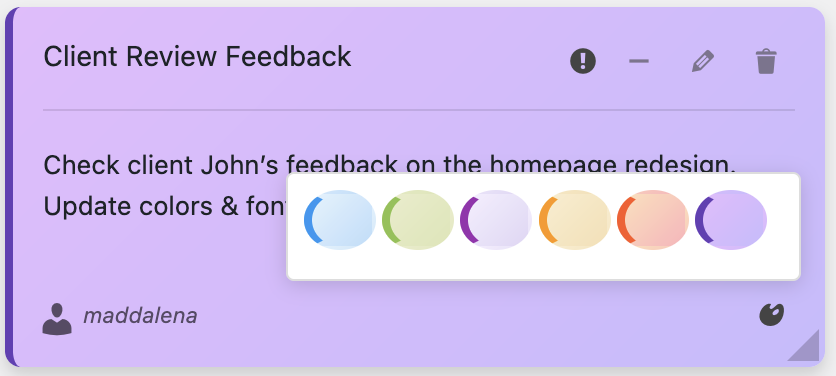
My multi-note color strategy:
- Red: Critical/urgent (max 1-2 visible)
- Yellow: Today’s work (3-5 notes)
- Blue: This week (3-5 notes)
- Purple: Planning/ideas (2-3 notes)
- Green: Completed (archive daily)
One glance at your dashboard shows the distribution of your work. Too much red? You’re in crisis mode. Lots of blue? Good planning. Plenty of green? You’re crushing it!
The Weekly Deep Clean
Beyond daily maintenance, schedule a weekly deep clean. Every Friday afternoon, I spend 15 minutes doing a thorough note review:
🧹 Friday Deep Clean Checklist:
☐ Archive all completed notes from the week
☐ Review and update all active project notes
☐ Delete notes that are no longer relevant
☐ Create Monday’s “Weekly Focus” note
☐ Verify nothing important is buried in archive
This weekly ritual prevents gradual note accumulation and ensures you start each week with a clean slate.
Voice Notes for Quick Captures
When you’re in the middle of something and need to capture a thought quickly, voice recording prevents note proliferation.
Instead of creating a new text note (which you might forget about), I record a quick voice memo with Dashboard Quick Notes:
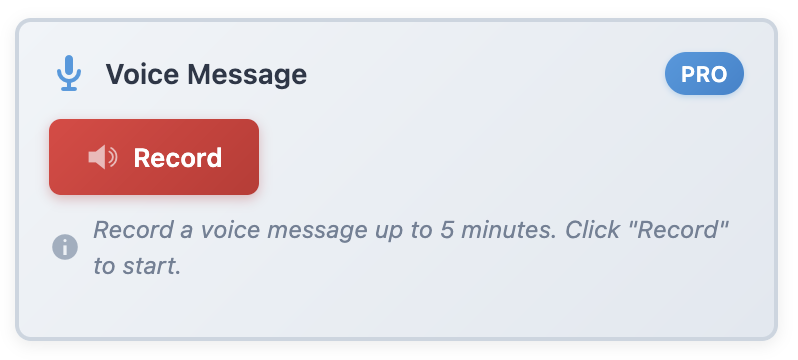
“Note to self: Client mentioned wanting a membership feature. Add to next planning meeting agenda.”
Later, during my daily review, I convert voice notes into proper action items or archive them. This prevents rushed note creation that leads to clutter.
Common Multi-Note Mistakes
Avoid these pitfalls I learned the hard way:
❌ Never archiving: Completed notes aren’t victories—they’re clutter. Archive aggressively.
❌ No clear ownership: Every note should have ONE clear responsible person (even if that’s you).
❌ Vague notes: “Follow up on thing” isn’t a note—it’s future confusion.
❌ No review system: Notes without regular review become digital hoarding.
The Peace of Mind It Creates
Here’s what changes when you master multi-note management: you stop worrying about forgetting things. Your system is trustworthy, so your brain can relax.
You know:
- Nothing important is lost
- Everything is appropriately prioritized
- Your dashboard shows current reality
- You can find anything quickly
- Your system supports rather than overwhelms you
That peace of mind is worth more than any productivity hack.
Master Your Notes, Master Your Workflow
Look, multiple notes aren’t inherently bad—poorly managed multiple notes are bad. With the right system, you can manage dozens of notes without feeling overwhelmed.
Dashboard Quick Notes gives you all the tools you need: colors, categories, archiving, search, voice recording—everything to keep multiple notes organized and accessible without becoming chaotic.
Stop letting your notes overwhelm you. Start managing them like a pro. Your dashboard can be organized, clear, and genuinely useful—even with many notes.
Organize Your Notes Like a Pro
Manage multiple notes effortlessly with powerful organization tools.
P.S. – The difference between productive people and overwhelmed people often isn’t the amount of work—it’s the quality of their organizational systems. Invest in yours. You’ll feel the difference immediately!