
Let me guess: you’ve got a million things on your WordPress to-do list, and somehow everything feels urgent. The plugin update, the blog post deadline, the design tweak someone mentioned three weeks ago—it’s all screaming for attention, and you’re standing there like a deer in headlights trying to figure out what to tackle first.
If everything’s a priority, nothing is. That’s not some motivational poster wisdom—it’s a psychological fact. Your brain literally cannot process twenty “urgent” items with equal attention. It just… freezes.
In this guide, I’m going to show you how to properly set and manage priorities for your WordPress dashboard notes—so you always know exactly what needs your attention right now, what can wait until tomorrow, and what’s just noise that can be safely ignored.
The Priority Problem: Why Most Systems Fail
Here’s what usually happens: you create dashboard notes with the best intentions. But without a clear priority system, they all blend together into a wall of text that your brain just skips over. It’s like trying to drink from a fire hose—overwhelming and ultimately useless.
The Default WordPress Problem
WordPress’s default admin notices treat everything the same way. That security update? Same visual weight as “There’s a new version of a plugin you never use.” Your brain sees them as equals, so it ignores both.
💡 The Solution: Visual hierarchy. Use colors, positioning, and size to communicate priority before someone even reads the note. Red at the top = urgent. Blue at the bottom = whenever you get to it. Simple, but powerful.
The Four-Tier Priority System
After managing WordPress sites for years, I’ve landed on a four-tier priority system that actually works. It’s simple enough to remember, but nuanced enough to be useful.
🔴 P1: Critical/Urgent
What it means: Site is down, security breach, data loss imminent, critical deadline in the next few hours
Visual treatment:Bright red, large font, top position
Action required:Drop everything and handle this NOW
Examples: “Site returning 500 errors,” “Security vulnerability detected,” “Client presentation in 2 hours”
Important note: If you have more than 2-3 P1 notes at any time, something is very wrong with your workflow. P1 should be rare.
🟠 P2: High Priority
What it means: Important tasks that need attention today or tomorrow
Visual treatment:Orange, medium-large font, high position
Action required: Schedule specific time to handle this soon
Examples: “Update plugins before Friday,” “Review pending blog posts,” “Client feedback needs response”
This is where most of your active tasks should live. P2 notes are the meat and potatoes of your workflow.
🟡 P3: Medium Priority
What it means: Tasks that should be done this week but have some flexibility
Visual treatment:Yellow, standard font, middle position
Action required:Add to your weekly plan, handle when P1/P2 are clear
Examples: “Optimize images on blog,” “Research new themes,” “Update team documentation”
🔵 P4: Low Priority/FYI
What it means: Informational notes, nice-to-haves, ideas for someday
Visual treatment:Blue, smaller font, lower position
Action required:Read when you have time, or just be aware it exists
Examples: “WordPress 6.5 released,” “Interesting plugin discovered,” “Design inspiration link”

Setting Priorities with Dashboard Quick Notes
Alright, theory is great. But how do you actually implement this? This is where Dashboard Quick Notes becomes your best friend.
Visual Priority Assignment
Dashboard Quick Notes makes priority setting ridiculously intuitive:
- Create or edit a note
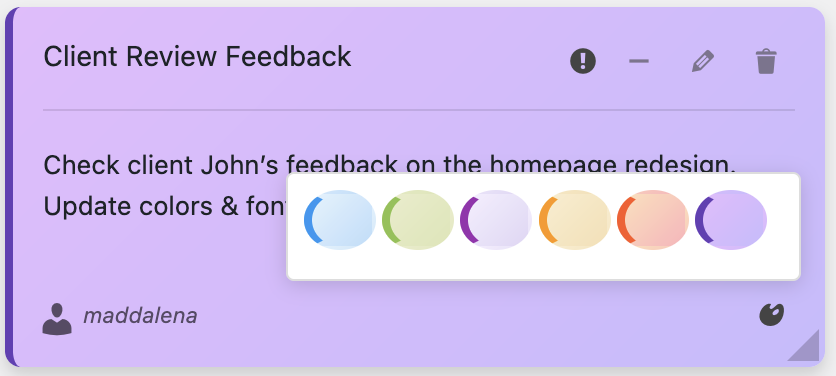
- Select a color that matches your priority system (red for P1, orange for P2, etc.)
- Adjust the font size—larger for more urgent
- Use the drag-and-drop functionality to position it correctly
- Done! Visual priority communicated in seconds
⚡ Pro Tip: Create a color-coded legend note in your dashboard. “Red = Urgent, Orange = Today, Yellow = This Week, Blue = FYI” It takes 30 seconds and helps everyone on your team understand the system instantly.

Drag-and-Drop Priority Management
Here’s what makes Dashboard Quick Notes special: you can literally drag notes to reorder them. Most important at the top, least important at the bottom. It’s so intuitive a five-year-old could figure it out.
Priority changed? Just drag the note to a new position. No menus, no settings, no nonsense. Grab and move. That’s it.
The Eisenhower Matrix for WordPress
Ever heard of the Eisenhower Matrix? It’s a decision-making framework that President Eisenhower used, and it works perfectly for WordPress dashboard notes. Let me show you how to adapt it.
The Four Quadrants
Quadrant 1 – Urgent & Important: P1 notes—do immediately
Quadrant 2 – Important but Not Urgent: P2 notes—schedule time for these
Quadrant 3 – Urgent but Not Important:Often these shouldn’t be notes at all—delegate or automate
Quadrant 4 – Neither Urgent nor Important: P4 notes—or just delete them
The magic of this system? It forces you to be honest about what actually matters. That “urgent” request from a colleague for a tiny design change? Probably quadrant 3—can it wait or be delegated?
Dynamic Priority: Adjusting as Things Change
Here’s the thing about priorities: they’re not set in stone. What’s P3 today might become P1 tomorrow if circumstances change. Your priority system needs to be flexible.
Time-Based Priority Escalation
A blog post due in two weeks? That’s P3. Same blog post due tomorrow? That’s P2 (or P1 if your editor is particularly scary). Dashboard Quick Notes makes these adjustments easy:
- Quick edit the note
- Change the color to reflect new priority
- Drag it to a new position if needed
- Add urgency keywords to the title (“DUE TOMORROW”)
Total time investment: 15 seconds. Your future self will thank you.
Event-Based Priority Changes
Sometimes external events change everything. Client mentions the site feels slow? That “optimize images” note just jumped from P3 to P2. Security vulnerability announced in a plugin you use? Update note escalates to P1.
The key is to review and adjust priorities regularly—ideally daily, at minimum weekly.

Team Priority Alignment
Working with a team? Everyone needs to be on the same page about what priorities mean. Otherwise you’ve got chaos.
Creating Team Priority Standards
Set up a shared understanding:
- Document your priority system somewhere visible (maybe as a P4 note!)
- Make it clear what each level means in concrete terms
- Give examples of each priority level
- Establish who can create P1 notes (hint: not everyone)
- Set up a weekly priority review meeting
💡 Team Tip: Use Dashboard Quick Notes’ role-based visibility to ensure team members only see priorities relevant to them. Developers see technical P1s, content team sees editorial P1s. No more “that’s not my problem” confusion.
Common Priority Pitfalls
I’ve seen people sabotage their own priority systems. Don’t make these mistakes:
❌ Everything is P1
If everything’s urgent, nothing is.Be ruthlessly honest about true urgency. Most things can wait a few hours.
❌ Never Reassessing
Setting priorities once and forgetting about them. Priorities change! Review regularly.
❌ Ignoring P2/P3 Completely
Focusing only on P1 fires. Those P2 tasks? They become P1 fires if you ignore them long enough.
❌ Too Many Priority Levels
Some people create like 10 different priority levels. That’s just confusing.Four levels maximum, or your brain can’t process them quickly.
❌ No Visual Differentiation
Having a priority system but displaying all notes identically. Use color, size, and position to make priorities immediately obvious.
Advanced Priority Strategies
Ready to level up? Here are some power user techniques:
The “One P1 Rule”
Try this: only allow yourself one P1 note at a time.Complete it before creating another P1. This forces you to truly identify what’s most important right now.
Time-Boxing by Priority
Allocate your day based on priority levels:
- Morning (peak energy): P1 and P2 tasks
- Afternoon: P2 and P3 tasks
- End of day:P3 and P4 cleanup
Match your energy levels to task importance. Don’t waste your best hours on low-priority busywork.
The Weekly Priority Planning Session
Every Monday (or Sunday if you’re ambitious), spend 15 minutes:
- Review all active notes
- Reassign priorities based on the week ahead
- Archive completed tasks
- Identify the week’s top 3 priorities
- Create new notes for anticipated needs
This 15-minute investment saves hours of confused wheel-spinning during the week.
Priority and Productivity: The Connection
Here’s why this matters: proper priorities = proper productivity. When you know what’s important, you can:
- Say no confidently: “That’s interesting, but we have three P1s right now”
- Focus deeply: No constant context-switching between random tasks
- Feel accomplished: Completing P1 and P2 tasks feels genuinely productive
- Stop second-guessing: The priority system already decided for you
- Reduce stress: You’re always working on the right thing
It’s liberating, honestly. No more “should I be doing this or that?” paralysis.
The Bottom Line
Look, you’re going to have tasks and reminders regardless. The only question is whether they’ll be organized chaos or strategic clarity.
Dashboard Quick Notes makes priority management so easy, there’s literally no excuse not to do it right. Colors, drag-and-drop, visual hierarchy—it’s all built in and ready to use.
Ready to Master Your Priorities?
Stop treating everything as equally important. Build a priority system that actually works.
Set up your priority system today. Your future, more focused, more productive self is waiting. And trust me—they’re going to be really grateful you did this.
Now stop reading and go prioritize something! 🎯