

Remember when organizing your desk meant physically moving sticky notes around until they made sense? There was something satisfying about that, right? The tactile feedback, the immediate visual reorganization, the feeling of control over chaos.
Now imagine bringing that same intuitive experience to your WordPress dashboard. No complex menus, no confusing settings—just grab a note and move it where it makes sense. That’s the power of drag-and-drop functionality, and honestly? Once you experience it, going back to static notes feels like using a typewriter after discovering computers.
In this guide, I’m going to show you how drag-and-drop quick notes can transform your WordPress workflow—and why this seemingly simple feature is actually a game-changer for dashboard organization.
Why Drag-and-Drop Matters (More Than You Think)
Let’s start with the obvious question: isn’t drag-and-drop just a nice-to-have feature?Absolutely not. It’s the difference between a tool you tolerate and a tool you actually enjoy using.
The Psychology of Direct Manipulation
💡 UX Secret: Human brains are wired for direct manipulation. When you can directly manipulate objects (rather than using intermediary controls), your brain processes actions faster and with less cognitive load. It’s why touchscreens feel so natural—you’re touching the thing you want to affect.
Traditional method: Click “Edit,” scroll to “Position,” select from dropdown, click “Save,” wait for reload. Six steps, three page loads, and you’ve lost your flow.
Drag-and-drop method: Grab note, move it, done. One action, instant result, flow maintained.
Which would you rather use?

Dashboard Quick Notes: Drag-and-Drop Done Right
Alright, so you’re convinced drag-and-drop is useful. Now let’s talk about implementation. Most WordPress plugins that claim to offer drag-and-drop notes… well, they’re clunky at best and broken at worst.
Then there’s Dashboard Quick Notes, which actually gets it right. Like, really right. Let me show you what makes it special.
Smooth as Butter Drag Experience
I’ve tested a lot of drag-and-drop plugins, and most of them feel… janky. You grab something, it jumps weirdly, you’re not sure if it’s going to work, there’s a weird delay…It’s like trying to ice skate in sneakers.
Dashboard Quick Notes? It’s butter smooth. You grab a note, it immediately responds, follows your mouse precisely, and snaps into place exactly where you want it. It feels natural because the developers actually understand UX.
⚡ Technical Note: Dashboard Quick Notes uses optimized JavaScript libraries and smart positioning algorithms. Translation: it works fast even on slower computers or when you have dozens of notes. You won’t even notice the tech—it just works.
Visual Feedback That Makes Sense
When you drag a note, Dashboard Quick Notes gives you clear visual feedback:
- The note becomes slightly transparent while dragging (so you can see what’s underneath)
- Other notes shift to make space as you hover over different positions
- A subtle highlight shows where the note will land when you release
- The cursor changes to indicate “you’re in drag mode”
- Smooth animations make everything feel polished and intentional
These little details? They’re what separate amateur plugins from professional tools.

Real-World Use Cases for Drag-and-Drop
Okay, so the feature works well. But when would you actually use it? Let me give you some scenarios from real WordPress users:
Scenario 1: Morning Priority Sorting
You start your workday with 15 notes from yesterday plus a few new ones. In less than 60 seconds, you drag the most urgent items to the top, push informational notes to the bottom, and suddenly your priorities are crystal clear.
Without drag-and-drop: 10 minutes of clicking through edit screens, changing position numbers, saving, reloading, checking if it worked… By then you’ve lost your mental momentum.
Scenario 2: Client Call Reorganization
Mid-call, a client changes priorities. “Actually, the homepage update is more important than the blog redesign.” You just drag the notes while on the phone—no need to say “hold on while I navigate through menus.” Professional and efficient.
Scenario 3: Team Collaboration
During a team meeting, you’re screen sharing your dashboard. Someone suggests a different priority order—you drag notes around live while discussing. Everyone sees the changes instantly. It’s collaborative and visual.
Scenario 4: The “Completed Task” Celebration
You finish a major task. Dragging that note down to your “completed” section or off-screen to archive feels satisfying in a way that clicking a checkbox just doesn’t. Psychological rewards matter!

Getting Started with Drag-and-Drop Notes
Ready to experience this for yourself? Here’s how to get started with Dashboard Quick Notes:
Step 1: Installation
- Head to XpertPlugins.com and purchase Dashboard Quick Notes
- Download the plugin file
- In your WordPress dashboard, go to Plugins → Add New → Upload Plugin
- Upload the zip file and activate
- That’s it—drag-and-drop is ready to go!
No configuration needed—the drag-and-drop functionality works immediately after activation. Seriously, it’s that easy.
Step 2: Create Some Notes
You need notes before you can drag them around (duh). Create 3-5 notes with different priorities or topics. This gives you something to organize.
Step 3: Start Dragging!
Here’s how it works:
- Hover over a note—you’ll see a grab handle appear (usually on the left or top)
- Click and hold on the grab handle
- Drag the note up or down to your desired position
- Release when you see it’s in the right spot
- Done! The new position is automatically saved
⚡ Pro Tip: You can also drag notes to different dashboard sections if your layout supports it. Want your urgent notes in the main content area and FYI notes in the sidebar? Just drag them there!
Advanced Drag-and-Drop Techniques
Once you’re comfortable with basic dragging, level up with these advanced techniques:
Multi-Note Selection and Moving
Dashboard Quick Notes supports selecting multiple notes at once (hold Ctrl/Cmd while clicking). Then drag them all as a group.Perfect for:
- Moving all project-related notes together
- Bulk archiving completed tasks
- Reorganizing entire sections of your dashboard
Keyboard Shortcuts for Power Users
Don’t want to reach for your mouse? Dashboard Quick Notes includes keyboard shortcuts:
- Ctrl/Cmd + Up Arrow: Move selected note up one position
- Ctrl/Cmd + Down Arrow: Move selected note down
- Ctrl/Cmd + Shift + Up:Move to top
- Ctrl/Cmd + Shift + Down: Move to bottom
For keyboard warriors, this is gold. Never touch your mouse again.

Creating Note Zones
Here’s a pro organization strategy: create visual zones in your dashboard and use drag-and-drop to maintain them:
Top Zone: Urgent action items (red notes)
Middle Zone: Today’s tasks (orange/yellow notes)
Bottom Zone:Reference info and low-priority items (blue/green notes)
As priorities change, just drag notes between zones. It’s like having a physical kanban board, but better.
Mobile and Touch Screen Support
Here’s something most WordPress plugins get wrong: mobile support for drag-and-drop. Many plugins work fine on desktop but are completely unusable on tablets or touchscreens.
Dashboard Quick Notes? Fully touch-optimized. Long-press a note, drag with your finger, and release. It works exactly as you’d expect on any device.
This matters more than you might think. Ever tried to manage your WordPress site from an iPad while traveling? With proper touch support, it’s actually pleasant.
Common Drag-and-Drop Questions
Let me address some questions I get all the time:
Does dragging affect note content?
No. Dragging only changes position/priority. The note content, settings, and visibility rules remain unchanged. You can’t accidentally “break” a note by dragging it.
What if I drag to the wrong place?
Just drag it again! There’s no penalty for repositioning, and Dashboard Quick Notes includes undo functionality (Ctrl/Cmd + Z works!).
Can I disable drag-and-drop if I don’t want it?
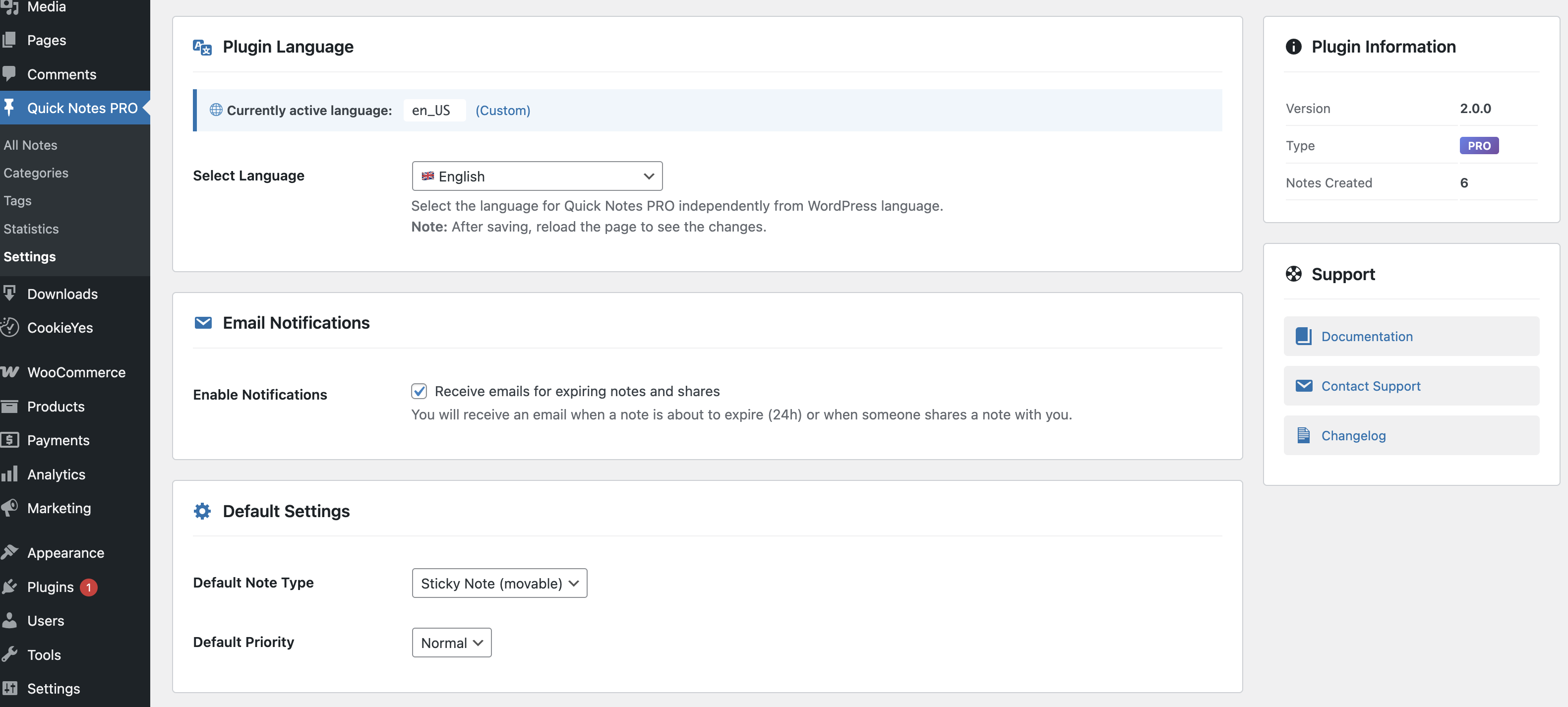
Yes. There’s a setting to lock note positions if you prefer static layout. But honestly, once you try drag-and-drop, you won’t want to disable it.
Does it work with other dashboard widgets?
Dashboard Quick Notes plays nice with other dashboard widgets. You can drag notes around other widgets, and everything stays organized. No conflicts, no issues.
The Productivity Impact
Let me get real for a second: does drag-and-drop actually make you more productive, or is it just a shiny feature?
It genuinely makes a difference. Here’s why:
- Reduced friction: The easier something is to do, the more likely you’ll actually do it. Easy reorganization = better organization
- Visual thinking:Some people think spatially. Being able to physically arrange notes matches how their brain works
- Flow state maintenance: Quick interactions don’t break your concentration like navigating through menus does
- Immediate feedback: You see results instantly, which encourages continued use
Anecdotal evidence: After implementing Dashboard Quick Notes, I reorganize my priorities 3-4 times per day instead of once per day. Because it’s so easy, I actually keep my dashboard current. That alone has been worth the price.
The Bottom Line
Look, drag-and-drop isn’t just a “nice-to-have” feature—it’s the difference between a tool that feels modern and intuitive versus one that feels like it’s from 2010. It’s the difference between actually organizing your notes versus just letting them pile up.
Dashboard Quick Notes nails the implementation. Smooth, intuitive, fast, and reliable. It’s how drag-and-drop should work but rarely does.
Ready for Effortless Dashboard Organization?
Stop fighting with clunky interfaces. Experience drag-and-drop done right.
Trust me on this: five minutes after installing Dashboard Quick Notes, you’ll wonder how you ever worked without drag-and-drop.And you’ll never want to go back.
Go ahead, grab that note and move it. Feels good, doesn’t it? 🎯