
Quick Notes in WP Dashboard: How to Stay Organized
Every productive WordPress dashboard looks the same: calm, obvious priorities, and zero hunting for context. The simplest way to get there is a habit—not a heavyweight tool. This guide shows a practical system using dashboard sticky notes to keep your day clear, your team aligned, and your site moving.

A quiet, visual map of today’s work
Why This Works (and Why Many Systems Fail)
| Old way | Dashboard sticky notes |
|---|---|
| Tasks live in external tools, far from the work | Tasks live next to posts, products, orders |
| People forget to check another app | Notes are the first thing you see after login |
| Rules vary per person | Color rules make priority unambiguous |
| Updates buried in threads | Pinned Top notes and search keep context fresh |
A System You Can Keep
Color Key (use it consistently)
- Red = Urgent today
- Yellow = Today / This week
- Blue = Info / SOP / Reference
- Orange = Waiting / Blocked
- Green = Done → archive Fridays
Categories & Tags
- Categories: Content, Marketing, Support, Ops
- Tags: @owner, #review, #Q4-2025, #backlog
Daily Routine (10 Minutes)
- Create 3–5 red/yellow notes for today’s priorities
- Convert finished notes to green; keep the board honest
- Use a Top note for “Today’s Plan” (team reads it first)
Weekly Maintenance (20 Minutes)
Friday Reset
- Archive green notes from the week
- Promote important blue references to Top notes
- Review orange waiting items, nudge owners
Template Notes You’ll Reuse
- Weekly Review Checklist
- Product Launch Checklist
- Client Handover SOP
Team Collaboration (When You’re Ready)
- Share notes with specific users and enable email alerts only for urgent items
- Pin SOPs (refund steps, content QA) as Top notes
- Record 60–120s voice notes for complex explanations

Assign categories/tags, share, attach, set color and expiration
Five Real Workflows
Editorial
- Yellow notes for drafts needing review; blue notes for style rules
- Top note: “Publishing Today” with links to posts
WooCommerce
- Red notes for urgent stock/pricing fixes
- Orange notes for orders waiting on supplier
Support
- Blue SOPs for common fixes, green for resolved
Setup: 5‑Minute Start
- Install Quick Notes PRO
- Create categories & basic tags; define color key in a pinned note
- Add your first five notes; set one Top note as “Today’s Plan”
- Invite teammates to add/own their yellow notes
- Schedule the Friday reset in your calendar
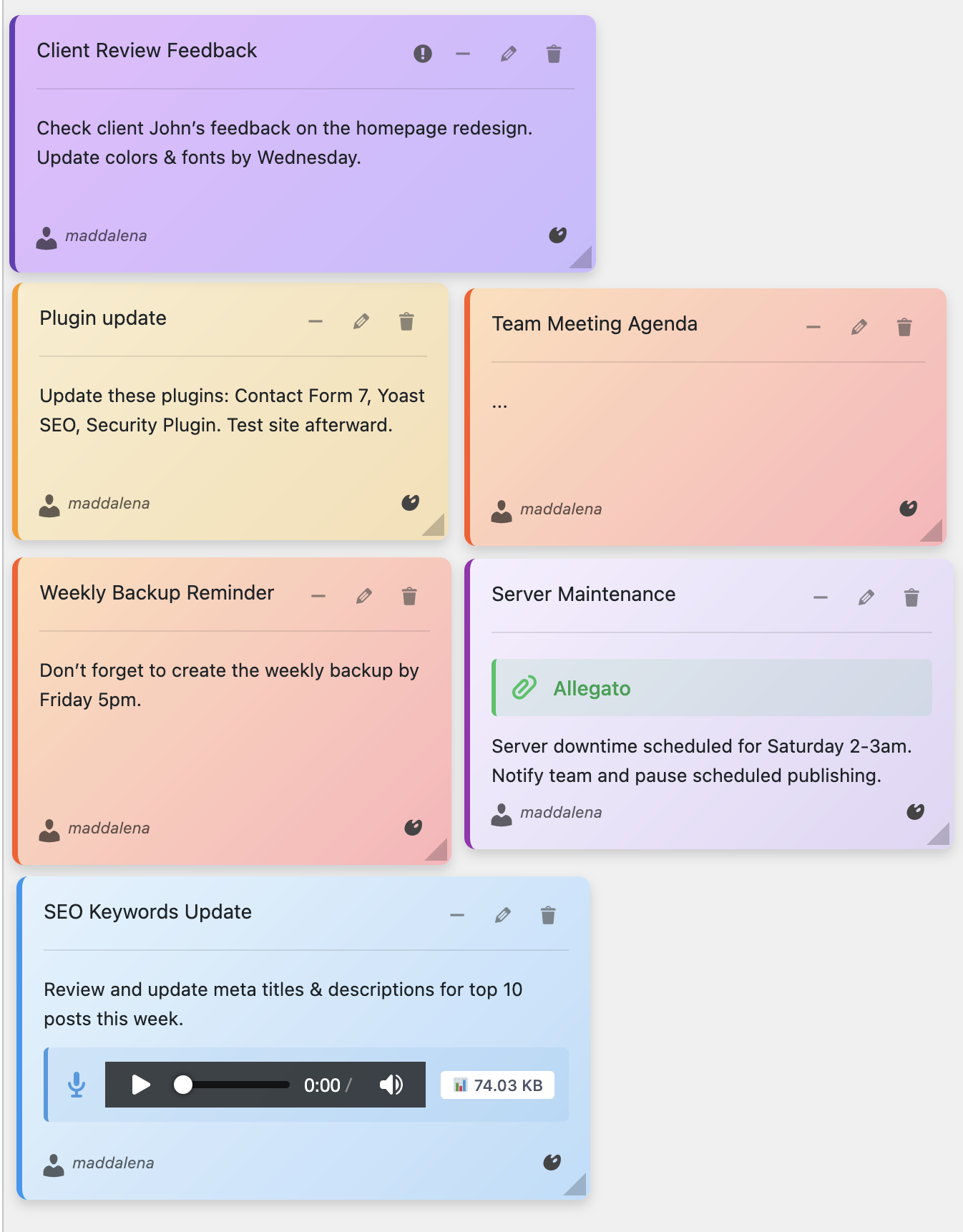
Visual priority: faster than reading a list
FAQs
Will this replace my project tool?
No. Keep big projects where they belong. Use dashboard notes for the dozens of small, daily decisions that actually move the site forward.
Does it work on mobile?
Yes, you can review/add notes on phones and tablets.
What about performance?
Notes are lightweight and stored efficiently; large teams should periodically archive completed items as part of the Friday reset.
Keep Your WordPress Dashboard Calm
Use Dashboard Sticky Notes to run your day inside WordPress—clear, visible, and shared.