
There are two kinds of WordPress dashboards. The first one is a bulletin board: messages scattered across Slack, email, and private docs. The second is a calm hub where editors and admins share context right where the work happens. This guide is about building the second one. We will customize the WordPress admin with a pragmatic WordPress collaboration plugin and a tiny habit: dashboard sticky notes.

Step 1 – Decide What Belongs in the Admin
Not everything needs to live in WordPress. But anything that helps ship content and serve customers should: editorial briefs, product launch checklists, shipping updates, release notes, small decisions that get lost in chat. Keep the admin focused on the work in front of you.
Step 2 – A Collaboration Layer That Doesn’t Get in the Way
Complex project tools are great for big projects. For day‑to‑day coordination, you need something lighter. Dashboard Sticky Notes adds a shared canvas to the admin: color‑coded notes you can drag, resize, search, filter, and—when needed—share with teammates.

How We Use It With Teams
Editorial & Marketing
- Blue notes: references and brand rules
- Yellow notes: drafts “needs review” with links
- Red notes: urgent updates (e.g., pricing change today)
WooCommerce & Operations
- Orange notes: waiting on supplier or approval
- Green notes: recently completed—archive each Friday
- Top notes: pinned SOPs (refund steps, backorder policy)
Practical Setup (10 Minutes)
- Install Quick Notes PRO.
- Create three categories: Content, Ops, Support; add a tag for each teammate.
- Add your first five notes: two info (blue), two to‑do (yellow), one urgent (red).
- Share specific notes with editors/managers; enable email alerts only for urgent items.
- Set a 10‑minute Friday ritual to archive green notes and refresh priorities.

Make It Yours (Admin Customization Tips)
- Keep the widget at the top of the Dashboard for visibility
- Use consistent color rules (publish them in a pinned Top note)
- Create templates for recurring work: weekly review, product launch, onboarding
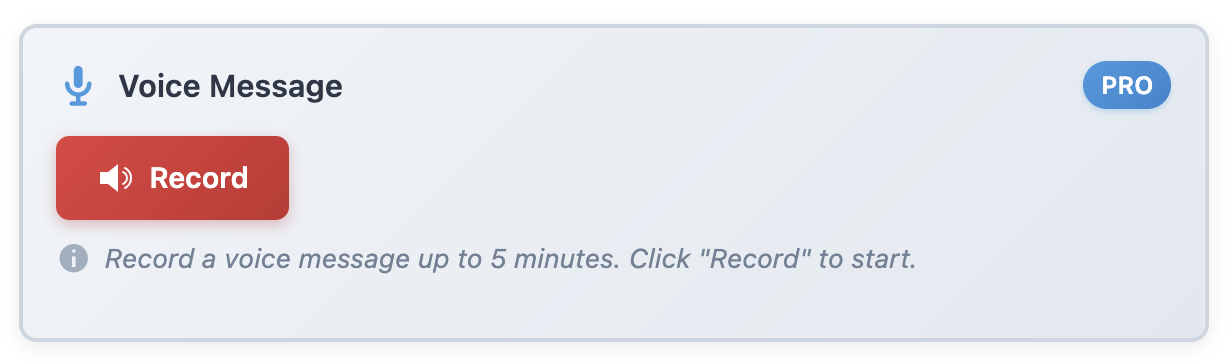
- Record 60–120s voice notes when text is too slow
When to Use Heavier Tools
If a task spans multiple teams, budgets, or depends on external contractors, keep it in your project system. But for dozens of small, daily decisions inside WordPress, shared notes are faster and more humane.
Give Your Team a Calm Dashboard
Add Dashboard Sticky Notes and turn the admin into a shared space for action, not just settings.