
You know that weirdly satisfying feeling when you check off a task on your to-do list? That dopamine hit is real. But here’s the problem with most dashboard note systems: completed tasks just… disappear into the void. No record, no history, no way to reference what you’ve accomplished.
It’s like cleaning your desk by shoving everything into a drawer and hoping you never need to find it again. Not exactly a professional approach, right?
In this guide, I’m going to show you how to properly archive and manage completed notes in your WordPress dashboard—keeping your active workspace clean while maintaining a searchable history of everything you’ve accomplished. Let’s turn that note chaos into organized productivity!
Why Archiving Matters More Than You Think
Before we dive into the how-to, let me make the case for why you should care about note archiving. This isn’t just about being tidy (though that’s a nice bonus).
The Real-World Benefits
💡 Think of Your Archive as a Time Machine: It’s a record of decisions made, tasks completed, and problems solved. When someone asks “why did we do it that way?” six months from now, your archive has the answer.
Accountability and Documentation
Especially important for agencies and teams. Your archive proves what work was done and when. Client disputes? Check the archive. Team performance reviews? The archive remembers everything.
Learning from History
Recurring issues become obvious when you can see patterns in your archived notes. “Oh, we’ve dealt with this plugin conflict three times now—maybe it’s time for a permanent solution.”
Knowledge Transfer
New team members can review archived notes to understand project history, decision rationale, and past solutions. It’s like having a mentor who never forgets anything.
Mental Clarity
Keeping completed tasks visible creates clutter. Your brain processes everything it sees, even stuff you don’t need anymore. Archiving completed notes = less cognitive load = better focus.

The Dashboard Quick Notes Archiving System
Alright, let’s talk about the easiest and most powerful way to handle note archiving: Dashboard Quick Notes. This plugin has a built-in archiving system that’s so intuitive, you’ll wonder how you ever worked without it.
How the Archive System Works
Dashboard Quick Notes uses a smart two-tier system:
- Active Notes: Visible on your dashboard, these are your current tasks and reminders
- Archived Notes: Stored in a searchable archive, accessible anytime but not cluttering your view
It’s like having a filing cabinet next to your desk. Active stuff stays on the desk, completed stuff goes in the cabinet—but it’s never more than a few seconds away if you need it.
⚡ Pro Tip: Unlike deleting notes (which is permanent and terrifying), archiving is reversible. Archived something by mistake? Unarchive it in two clicks. No stress, no data loss.
Step-by-Step: Archiving Your First Note
Let me walk you through this. It’s stupidly simple:
- Look at your active Dashboard Quick Notes
- Find a note for a completed task (maybe “Update WooCommerce” that you finished yesterday)
- Click the Archive button on that note
- Watch it smoothly disappear from your active view
- Done! The note is now safely stored in your archive
Seriously, that’s it. No configuration, no complicated menus, no PhD required. It just works.

Accessing and Searching Your Archive
Okay, so you’ve archived a bunch of notes. How do you find them later? This is where Dashboard Quick Notes really shines.
The Archive View
Navigate to your Dashboard Quick Notes menu and look for the Archive tab. Click it, and boom—there’s your complete history. All your archived notes, organized and searchable.
You can:
- Browse chronologically: See what was completed when
- Search by keyword:Find that note about the plugin update from three months ago
- Filter by date range: “Show me everything from Q2”
- Sort by user: See who completed what (great for team management)
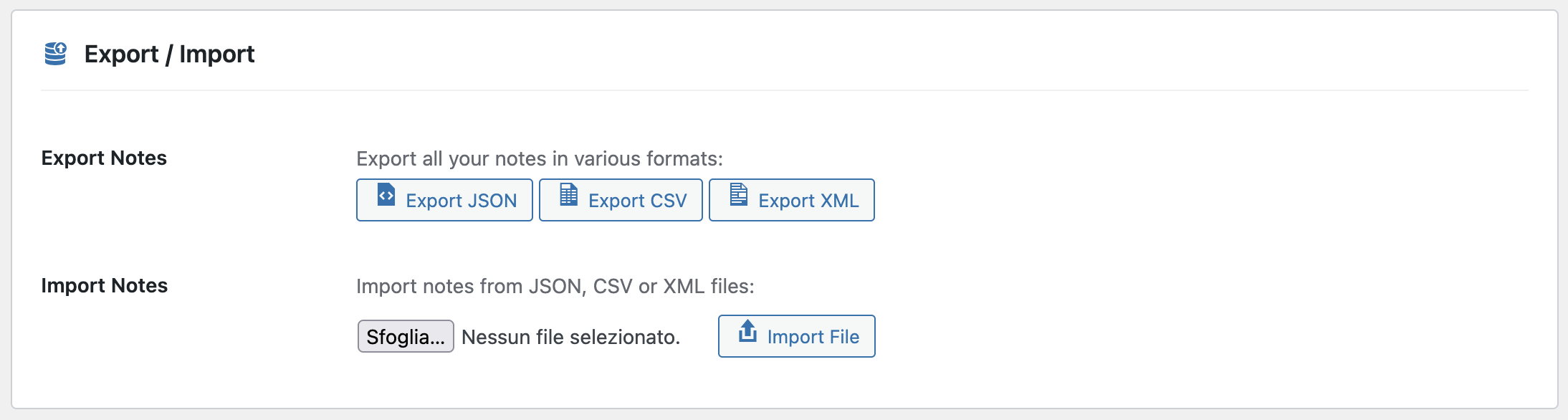
- Export to CSV: Pull reports for clients or management
Smart Search Features
The search isn’t just a basic text match. Dashboard Quick Notes uses intelligent searching that looks at:
- Note content (obviously)
- Note titles and categories
- Associated user roles
- Tags and metadata
- Date ranges
It’s like having Google for your notes. If you created it, you can find it.
Archiving Strategies That Actually Work
Having an archive system is great. Using it effectively is better. Let me share some battle-tested strategies:
Strategy 1: The Daily Cleanup
End each workday with a quick 2-minute archive session. Scan your active notes and archive anything completed. This keeps your dashboard perpetually clean and gives you a nice psychological win to end the day.
Why it works: You’re already thinking about your accomplishments at day’s end. Turn that reflection into action. Plus, starting each day with a clean dashboard is motivating.
Strategy 2: The Weekly Review
Every Friday (or your preferred day), spend 10 minutes reviewing:
- What notes are still active that should be archived?
- What notes can be deleted entirely (outdated announcements, etc.)?
- What patterns do you see in your completed work?
- What archive items need follow-up actions?
This prevents the dreaded “zombie notes”—tasks that are technically done but still haunting your active list.
💡 Personal Story: I started doing weekly reviews and discovered I was spending 30% of my time on low-priority tasks. That insight only became visible when I could see my archived notes in bulk. Changed my entire workflow!
Strategy 3: The Project-Based Archive
When completing a major project, archive all related notes at once. Tag them with the project name for easy retrieval. Later, when you need to reference how you handled that project, you’ve got a complete case study waiting for you.
Bonus benefit: Great for client reports and portfolio documentation. “Here’s everything we accomplished on your project.” Instant credibility.

Archive vs. Delete: When to Use Which
This confuses people, so let’s clear it up: archiving and deleting are not the same thing, and each has its place.
Archive When:
- The task is completed and might need future reference
- The information has historical value
- You might need to prove the task was done
- The note contains lessons learned or best practices
- There’s any chance you’ll need this info again
Delete When:
- The information is outdated and irrelevant (e.g., “Meeting today at 2pm” from six months ago)
- The note was created in error
- It’s a duplicate
- The information is stored elsewhere more permanently
- You’re absolutely certain you’ll never need it
⚡ Golden Rule: When in doubt, archive. Storage is cheap, and recovering deleted information ranges from difficult to impossible. Archive is the safe default.
Advanced Archive Management
Ready to level up your archiving game? Let’s get into some power user techniques.
Bulk Archiving
Dashboard Quick Notes supports bulk actions. Select multiple completed notes and archive them all at once. Perfect for those times when you’ve been neglecting your archive and have 20 completed tasks sitting in your active view.
How to do it:
- Check the boxes next to multiple notes
- Select “Archive” from the bulk actions dropdown
- Click “Apply”
- Watch them all disappear to the archive in one smooth motion
Auto-Archiving Rules
This is where Dashboard Quick Notes gets really smart. You can set up automatic archiving based on:
- Date: Archive notes automatically 30 days after completion
- Status: When a note is marked “complete,” auto-archive after 7 days
- Project completion: Archive all project-related notes when the project status changes
- Custom triggers: Set your own rules based on your workflow
Set it and forget it. Your archive maintains itself.
Archive Export and Backup
Here’s something most people don’t think about: backing up your archive. Dashboard Quick Notes makes this easy with export functionality.
Export your archive monthly as a CSV or JSON file. This gives you:
- An offline backup (because paranoia is healthy)
- Data you can import into other tools (spreadsheets, project management software)
- Reports you can share with stakeholders
- Historical data that survives plugin updates or migrations
Common Archiving Mistakes
I’ve seen people mess this up in creative ways. Learn from their mistakes:
❌ Never Archiving Anything
Your dashboard becomes a graveyard of completed tasks from 2019. Clean up regularly.Your active view should show active tasks.
❌ Archiving Too Aggressively
Archiving things the moment they’re complete, before you’ve had time to verify they’re actually done. Give tasks a day or two before archiving, just in case.
❌ Not Tagging Before Archiving
You archive a note about “the plugin thing” without any tags or context. Good luck finding that later. Take 5 seconds to add proper tags.
❌ Forgetting the Archive Exists
Building this great archive and then never looking at it. Review your archive occasionally—there’s gold in that data!
❌ Deleting Instead of Archiving
The most common mistake. When in doubt, archive. You can always delete archived items later if you’re certain they’re useless.
Real-World Archive Use Cases
Let me paint some scenarios where a good archive system saves the day:
The Client Question
“Did you update the SSL certificate last month?”
Instead of frantically searching through emails, you pull up your archive, search “SSL,” and boom—archived note from exactly 32 days ago showing you did it. Crisis averted, professionalism maintained.
The Recurring Problem
A plugin conflict keeps happening. You check your archive and realize you’ve fixed the same issue five times in the past year. Time to find a permanent solution or switch plugins.
The Team Handoff
A team member leaves, and someone new takes over their projects. The archive shows exactly what was done, when it was done, and why. No knowledge lost in the transition.
The Performance Review
Time for annual reviews. Pull up your archive and generate a report of everything you accomplished.No more struggling to remember what you did in February.
Taking It to the Next Level
Once you’ve mastered basic archiving, consider these advanced applications:
- Create an internal knowledge base from frequently-archived solution notes
- Build project templates based on successful archived project notes
- Generate client reports automatically from archived notes
- Analyze your productivity patterns using archive data
- Train AI assistants using your archive as a knowledge source
Your archive isn’t just storage—it’s an asset.
The Bottom Line
Here’s the truth: your completed tasks deserve better than being deleted or left to clutter your dashboard. They’re a record of your work, a resource for future decisions, and proof of your productivity.
Dashboard Quick Notes makes archiving so easy that there’s no excuse not to do it. One click to archive, instant search to retrieve, automatic organization to maintain.
Ready for Organized, Searchable Note History?
Stop losing track of completed work. Build an archive that actually serves you.
Clean dashboards, complete history, zero stress. That’s the power of proper archiving. Start today, and six months from now, you’ll thank yourself when you need to reference that one thing from that one time—and you actually can find it.
Your past work is valuable. Treat it that way! 📁